
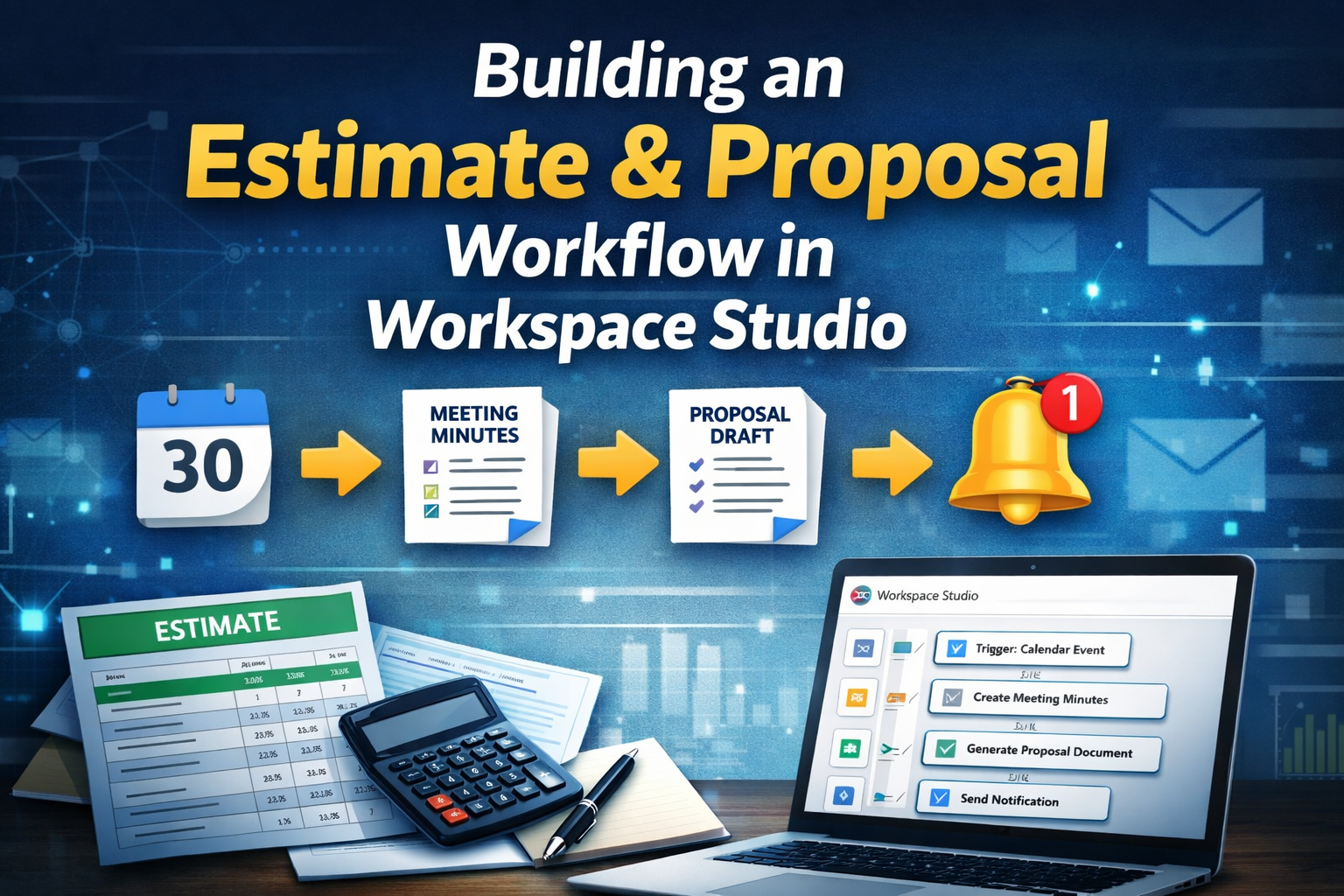
Overview
Google Workspace Studio is a no-code/low-code automation layer that connects Google Workspace apps into practical business workflows, including Calendar, Chat, Docs, Drive, and Sheets. Teams can build flows visually with drag-and-drop blocks instead of writing complex scripts.
Core capabilities used in this tutorial: Starter (time/meeting trigger), Actions (write to Docs, append rows to Sheets, post to Chat), Template-driven output, AI Extract for structured information extraction, and Run history for troubleshooting and idempotency checks.
This article implements an Estimate + Proposal routine following the sequence meeting -> minutes template -> proposal draft -> notify, using a 30-minute client intake interview scenario for a typical IT contracting team. The flow and demo approach are aligned with: NI&DC, Zenn, and Medium.
Target outcomes: (1) Calendar-triggered minutes creation/update from template; (2) automated pre-meeting checklist in Chat; (3) proposal draft populated from extracted meeting points; (4) at least one estimate work item appended to Sheets with no manual row typing; (5) validation of at least 3 failure-prone points; (6) reproducible template and folder documentation.
Business scenario and dummy project
Context: an IT outsourcing team receives an early project brief from a retail client and needs to standardize intake notes, proposal draft, and initial estimate output immediately after a 30-minute requirements interview.
| Item | Sample value |
|---|---|
| Client | Acme Retail Co., Ltd. |
| Project | Customer loyalty mini-portal (MVP) with existing POS integration |
| Calendar title convention | [REQ] Acme Retail – Loyalty portal (30m interview) |
| Meeting duration | 30 minutes |
| Primary estimate work item | API integration – Loyalty engine to POS catalog (REST, OAuth2 client) |
Suggested architecture (Calendar -> Doc -> Chat -> Sheet)
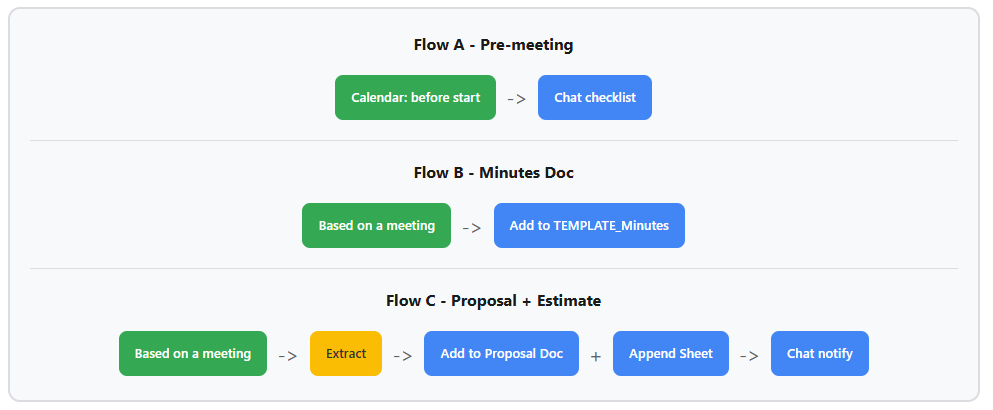
Split into three flows for easier debugging and safer runtime behavior:
- Flow A – Pre-meeting: time-based trigger before event start -> send checklist to Google Chat.
- Flow B – Minutes update: trigger from meeting -> Add to a doc appends “Meeting notes (auto)” to 10_Minutes_IT_Intake (as shown in Step 11-13).
- Flow C – Post-meeting: trigger from meeting -> Extract key points -> Add to a doc (proposal) -> Add a row (estimate sheet) -> Notify me in Chat.
Reproducibility setup
Drive folder naming rules (root: WS_Client_Intake_Pipeline)
| Path | Role | Parameterized vs fixed |
|---|---|---|
| 00_Templates | Master templates only (avoid manual overwrite during flow runs) | Folder name fixed; template version can be tracked in Doc footer |
| 10_Minutes | Minutes destination in production | Current demo appends directly to TEMPLATE_Minutes_IT_Intake; production should use event-based copied docs |
| 20_Proposals | Generated proposal drafts | Suggested naming: PROP_{{projectCode}}_{{eventId}} |
| 30_Estimates | Estimate sheet location | Use fixed spreadsheetId or project-based lookup |
| 99_Logs | Execution and idempotency audit logs | Keep a fixed schema for stable analysis |
Workspace Studio setup (by logic blocks)
The steps below describe logic blocks so you can map them to your own tenant UI labels if names differ slightly.
Flow A – Pre-meeting checklist (Google Chat)
- Starter: Google Calendar – Event starting soon (for example 60 or 15 minutes before start).
- Condition (recommended): event title includes [REQ] or description includes projectCode.
- Action: Google Chat post to selected Space, for example:
[Pre-meeting] Client requirements interview (30m)

Meeting: Acme Retail - Loyalty portal
Start time: (see Calendar event)

Purpose:
- Clarify loyalty MVP scope (earn/burn only vs campaigns).

Key questions:
1) POS version and staging URL for AcmePOS v12?
2) OAuth2: client_id for integration user or internal service account?
3) Desired uptime and support window for MVP?

Assumptions:
- POS catalog is the source of truth.
- No native mobile app in MVP.
Flow B – Update minutes Doc from template at meeting time
- Starter: Based on a meeting (as shown in Step 11).
- Action: Add to a doc and select 10_Minutes_IT_Intake.
- Where to add new content: After existing content.
- Content: include at least Meeting title, Start time, and generated marker.
- Result: open the Doc and verify that Meeting notes (auto) was appended (Step 13).
Flow C – Post-meeting proposal + estimate + notify
- Starter: Based on a meeting (Step 14).
- Step 2 – Extract: parse meeting/minutes content into summary and estimate fields (Step 15).
- Step 3 – Add to a doc: append into proposal doc 20_Proposal_IT_Intake (Step 16).
- Step 4 – Add a row: map work_package / role / md_low / md_high / source into 20_Estimate_IT (Step 17).
- Step 5 – Notify me in Chat: post completion notification (Step 18).
Suggested schema for the Extract step:
{
  "executive_summary": "string",
  "work_package": "string",
  "role": "string",
  "md_low": 0,
  "md_high": 0
}
- Run history: verify each step status in execution panel (Step 19).
- Idempotency check: capture merged evidence image (Sheet + Doc + Chat) when re-running same event (Step 20).
Demo steps
Step 1 instruction: Open Google Drive pipeline root folder and show subfolders 00_Templates, 10_Minutes, 20_Proposals, 30_Estimates, 99_Logs.
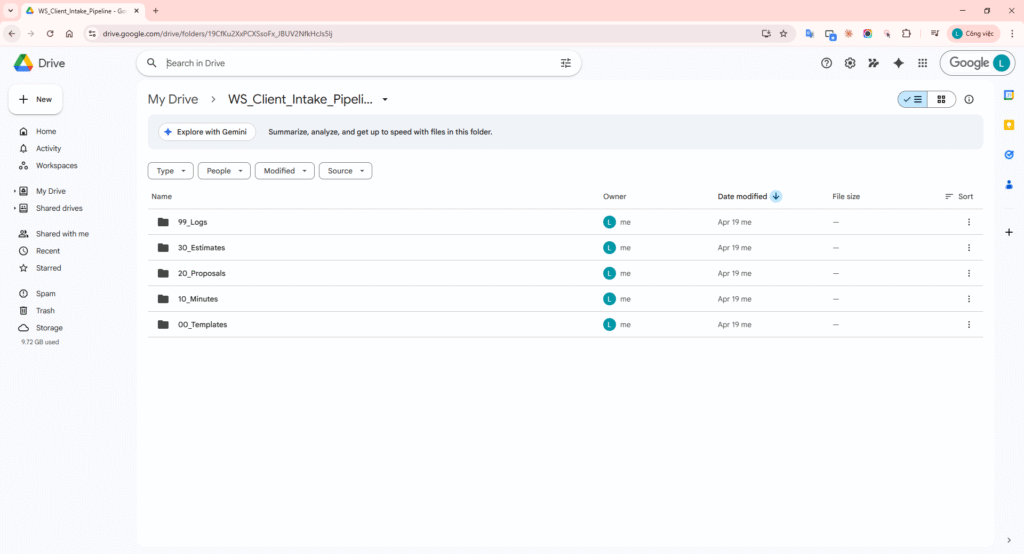
Step 1 – Standard Drive folder structure.
Step 2 instruction: Open minutes template Doc TEMPLATE_Minutes_IT_Intake and show metadata and core sections (Goal, Key questions, Raw notes).
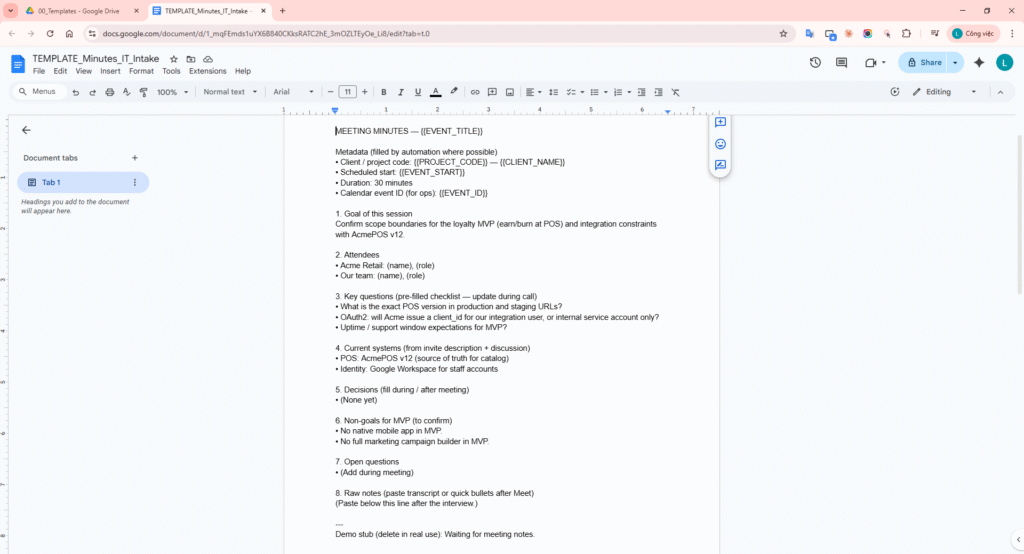
Step 2 – Minutes template.
Step 3 instruction: Open proposal template Doc TEMPLATE_Proposal_IT_Intake and display sections such as Executive summary, Proposed scope, and Estimate hint.
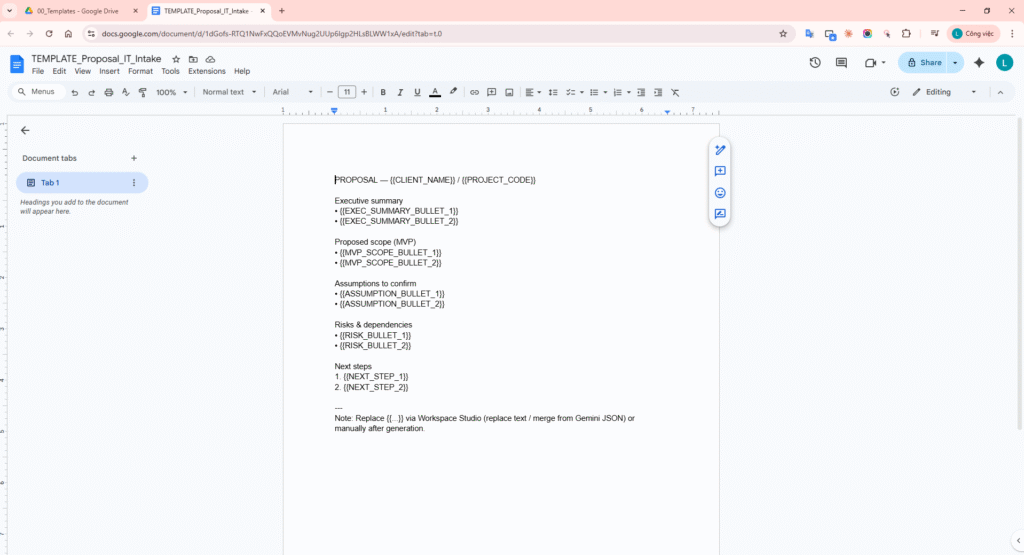
Step 3 – Proposal template.
Step 4 instruction: Open estimate Sheet template and verify headers item_id,event_id,project_code,work_package,role,md_low,md_high,source.
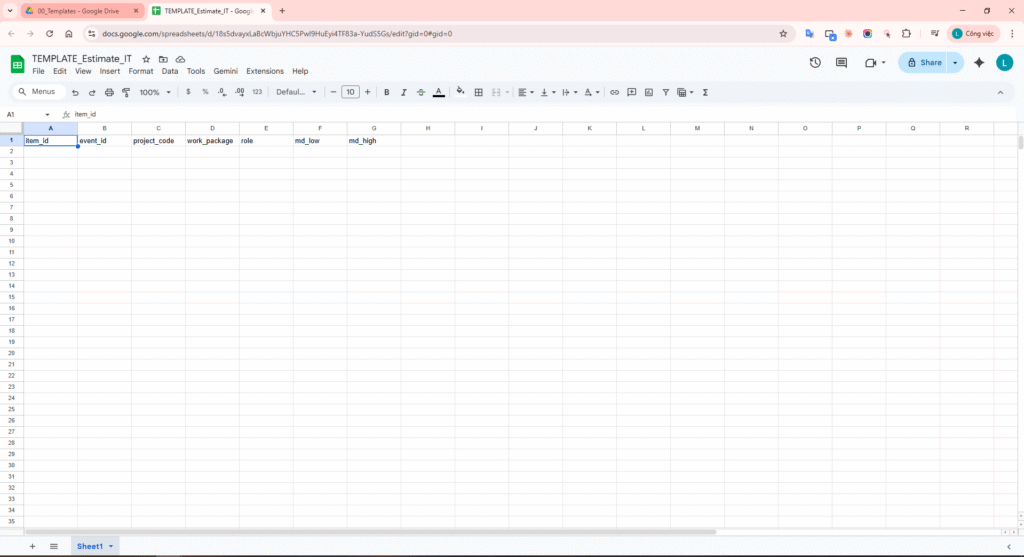
Step 4 – Estimate sheet template.
Step 5 instruction: Open Google Chat and enter the target space (example: client-intake-bot-demo).
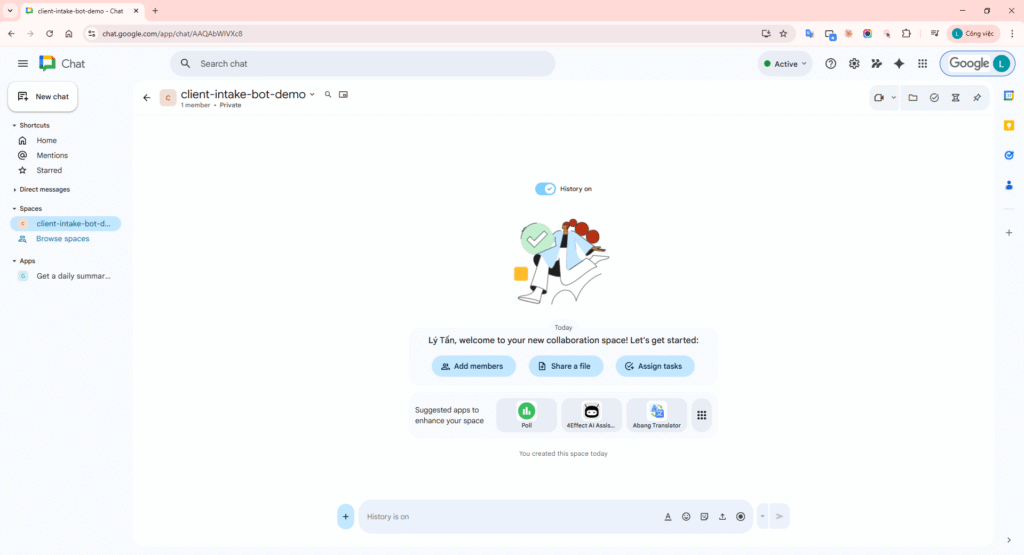
Step 5 – Internal Chat space.
Step 6 instruction: Open Workspace Studio and go to the new-flow screen.
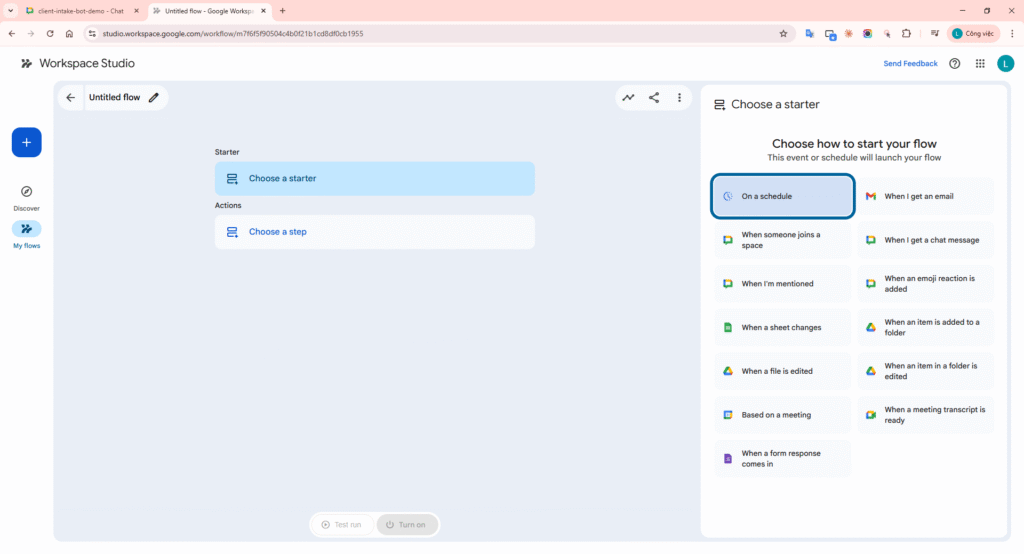
Step 6 – Workspace Studio home.
Step 7 instruction: Build Flow A with two minimum steps: Step 1: Based on a meeting and Step 2: Notify me in Chat.
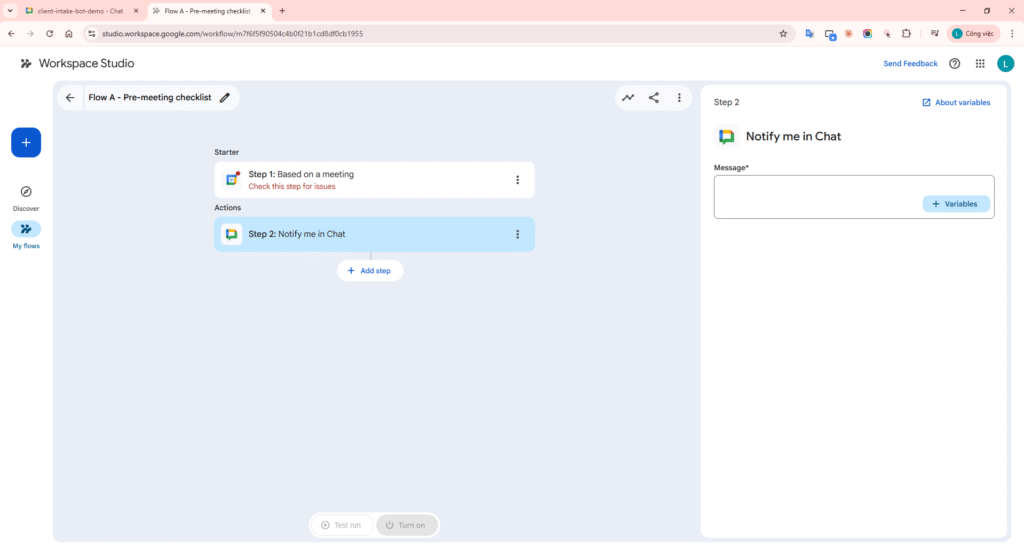
Step 7 – Flow A overview.
Step 8 instruction: Configure the trigger for a future meeting and set it to run Before meeting with the preferred offset.
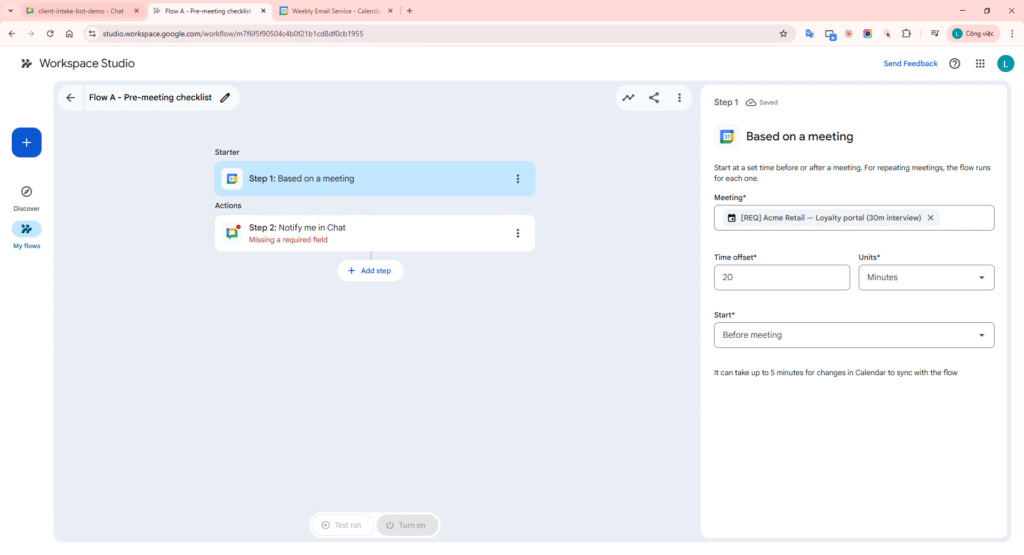
Step 8 – Pre-meeting trigger configuration.
Step 9 instruction: Open Step 2: Notify me in Chat, select the correct space, and paste the checklist message:
[Pre-meeting] Client requirements interview (30m)

Meeting: Acme Retail - Loyalty portal
Start time: (see Calendar event)

Purpose:
- Clarify loyalty MVP scope (earn/burn only vs campaigns).

Key questions:
1) POS version and staging URL for AcmePOS v12?
2) OAuth2: client_id for integration user or internal service account?
3) Desired uptime and support window for MVP?

Assumptions:
- POS catalog is the source of truth.
- No native mobile app in MVP.
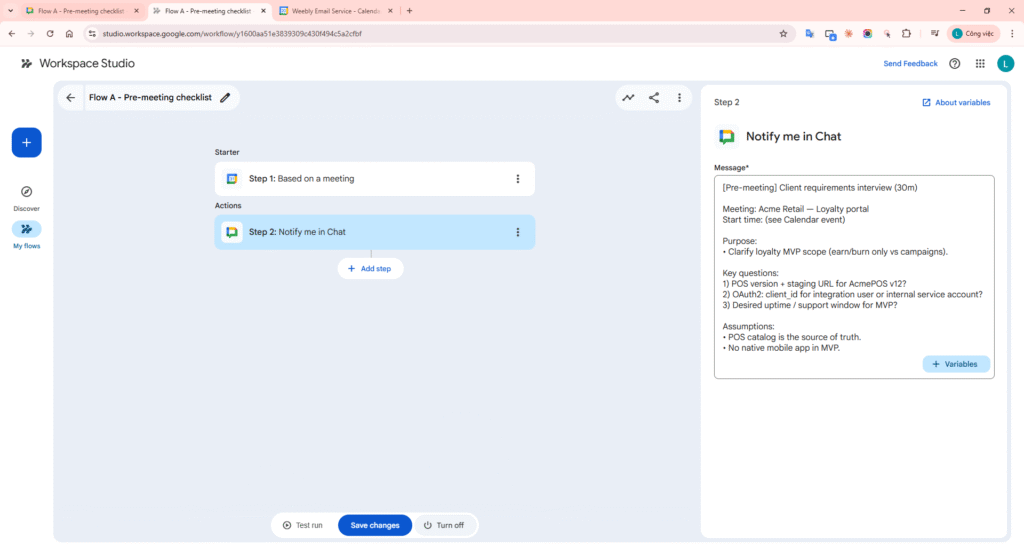
Step 9 – Checklist message body.
Step 10 instruction: Save and turn on Flow A, then wait for trigger time and confirm the checklist message is posted to Chat.
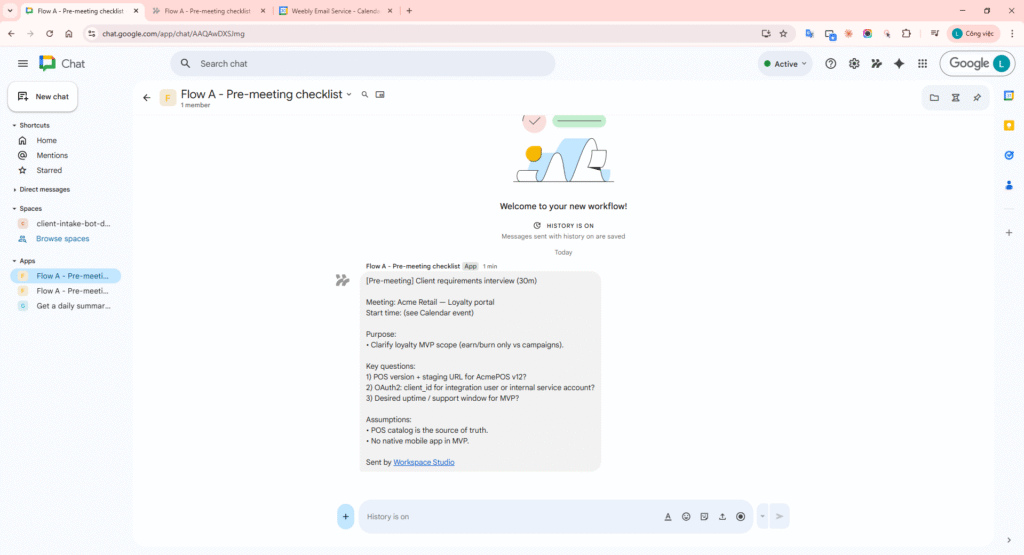
Step 10 – Checklist delivered to Chat.
Step 11 instruction: In Flow B, choose the Docs action step (Create a doc or Add to a doc) so the canvas includes both starter and action blocks.
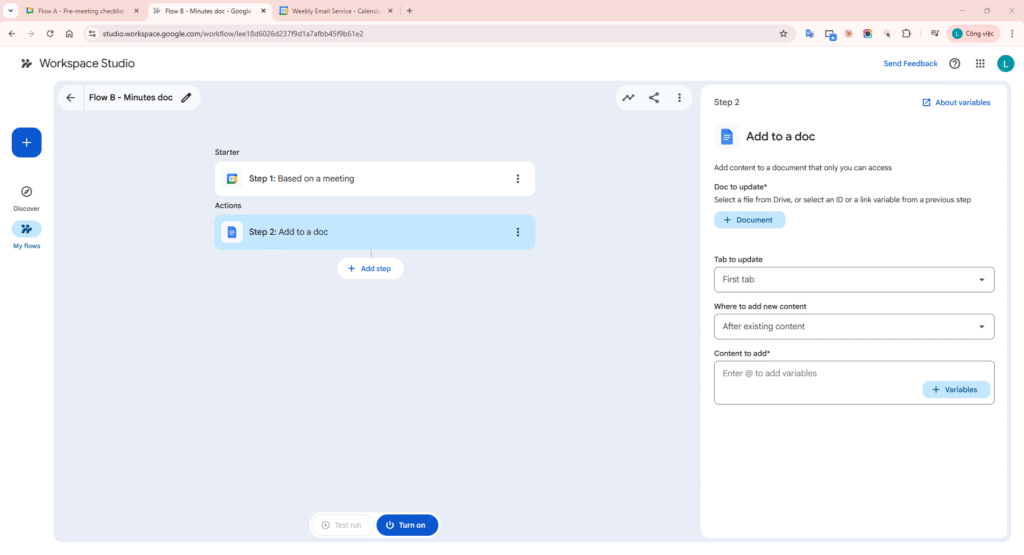
Step 11 – Flow B overview for minutes.
Step 12 instruction: In Step 2: Add to a doc, select target doc, keep Where to add new content = After existing content, and use this minimum block:
Meeting notes (auto):
- Meeting title: [Meeting title]
- Start time: [Meeting start time]
- Generated by Flow B.
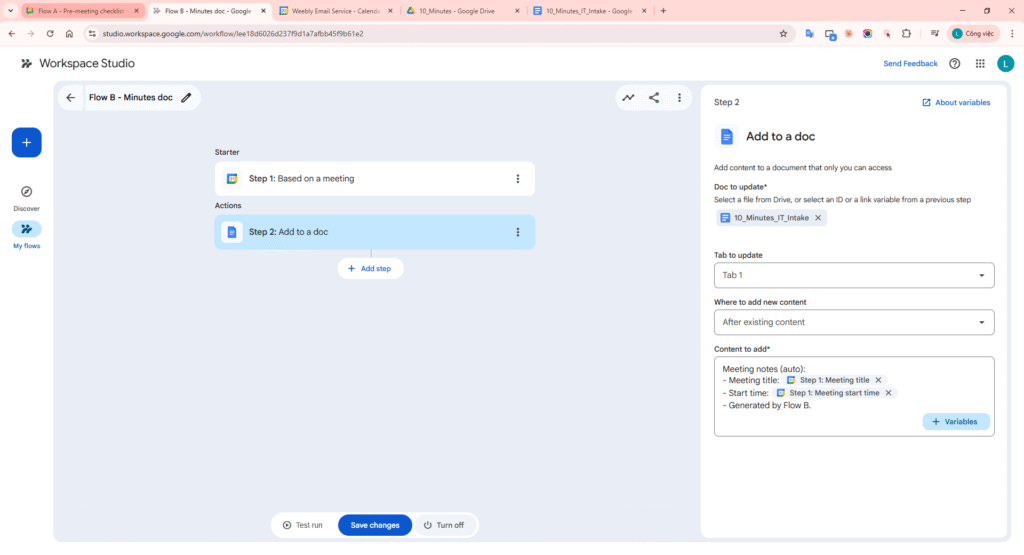
Step 12 – Minutes update configuration.
Step 13 instruction: Run test or wait for actual trigger, then open the minutes Doc and verify the auto-added block.
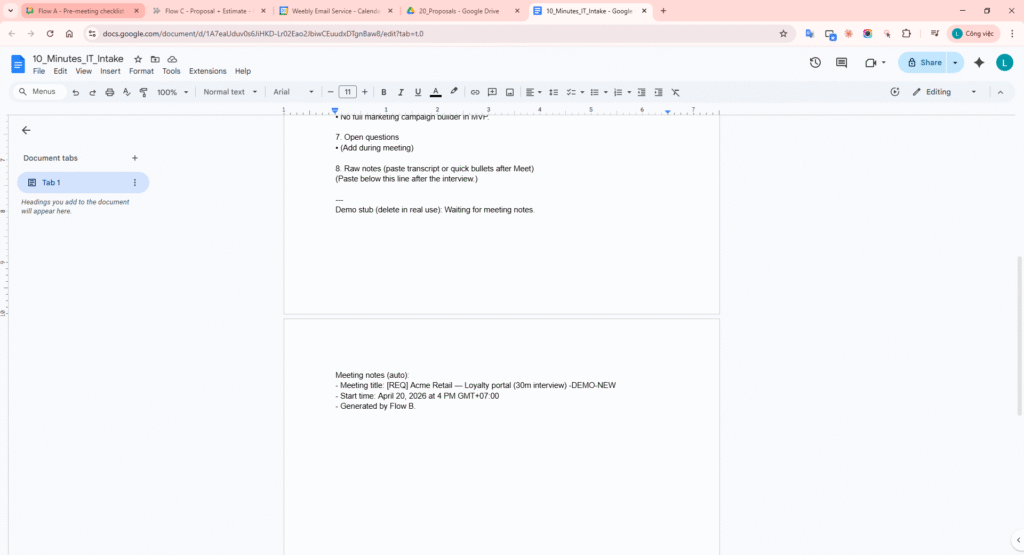
Step 13 – Minutes document updated.
Step 14 instruction: Build Flow C and ensure all 5 steps exist: Based on a meeting -> Extract -> Add to a doc/Create a doc -> Add a row -> Notify me in Chat.
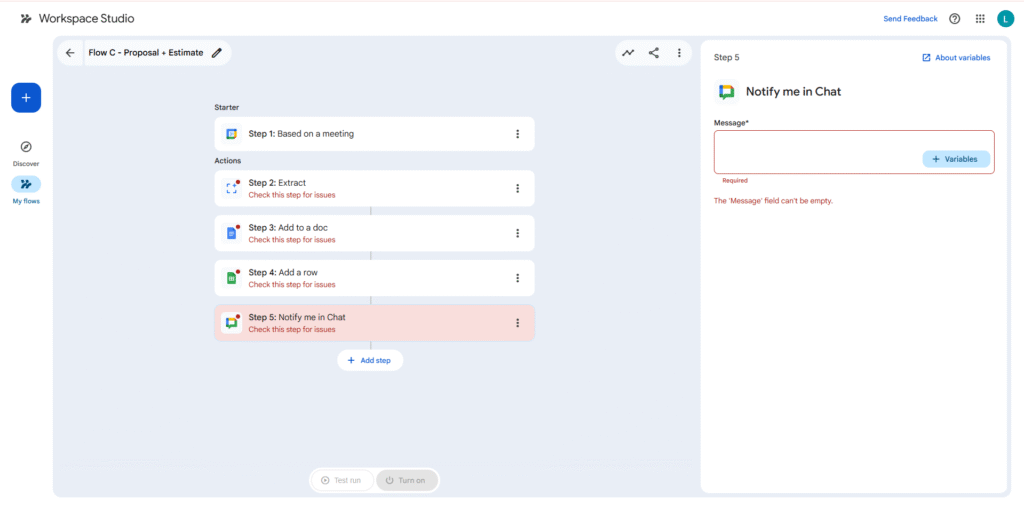
Step 14 – Flow C overview (proposal + estimate).
Step 15 instruction (Extract setup):
- Click Step 2: Extract.
- In Content to analyze, select meeting/minutes source variables.
- In What to extract, choose custom fields.
- Add at least 5 fields: executive_summary, work_package, role, md_low, md_high.
Field descriptions (quick copy):
- executive_summary: One concise summary sentence of the meeting outcome.
- work_package: Main implementation work item described as a deliverable.
- role: Responsible role (Backend, PM, QA, etc.).
- md_low: Lower-bound estimate in man-days (number).
- md_high: Upper-bound estimate in man-days (number).
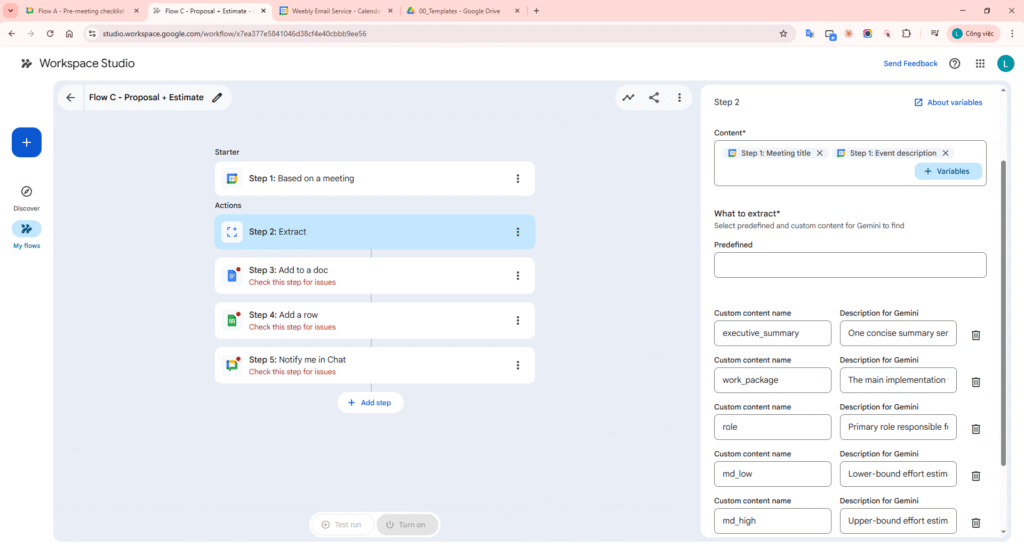
Step 15 – Extract schema configuration.
Step 16 instruction (populate proposal Doc):
- Click Step 3: Add to a doc.
- Select the proposal doc/template.
- Map Extract outputs into Content to add, then save and run test.
- Open the proposal Doc and confirm content was inserted from Step 2 outputs.
Sample content block:
Executive summary:
- [Step 2: executive_summary]

Proposed scope:
- [Step 2: work_package]

Estimate hint:
- Role: [Step 2: role]
- MD range: [Step 2: md_low] - [Step 2: md_high]
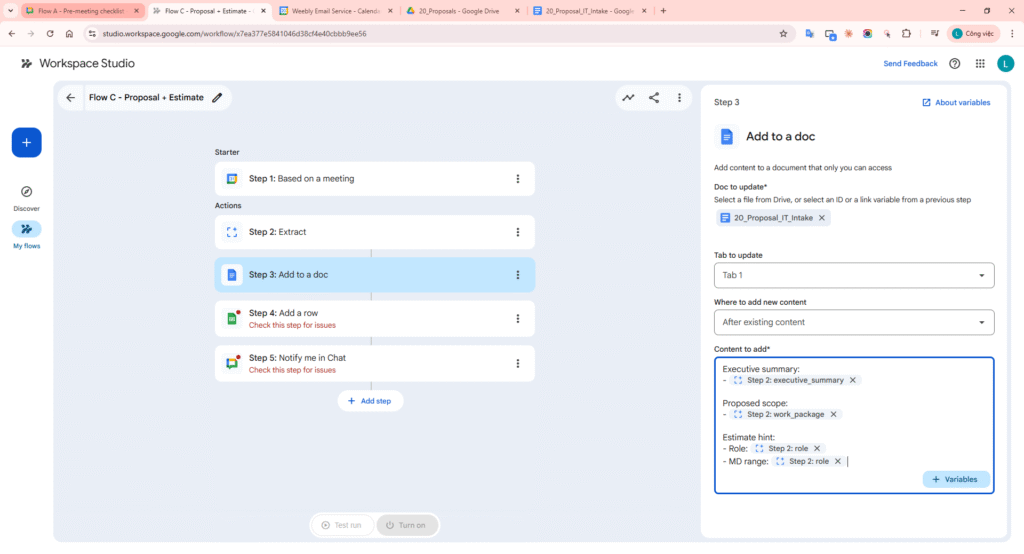
Step 16 – Proposal content generated.
Step 17 instruction (append estimate row):
- Click Step 4: Add a row in Flow C.
- Select the correct spreadsheet and tab.
- Map columns: work_package <- Step 2: work_package, role <- Step 2: role, md_low <- Step 2: md_low, md_high <- Step 2: md_high, source <- fixed text studio_flow_v1.
- Ensure all 5 Flow C steps are fully configured and no required fields remain.
- Save and run test, then verify at least one new row was appended.
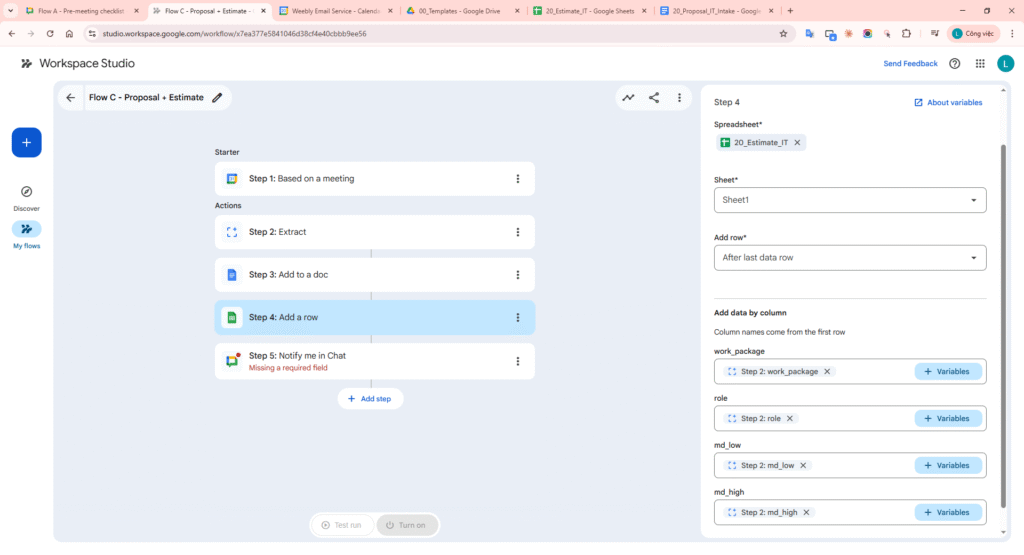
Step 17 – Flow-appended estimate row.
Step 18 instruction (post-meeting Chat notify): Configure Step 5: Notify me in Chat with required fields (space and message), then run using this message:
Post-meeting draft generated.

- Proposal updated (Step 3)
- Estimate row appended (Step 4)

Please review proposal and estimate sheet.
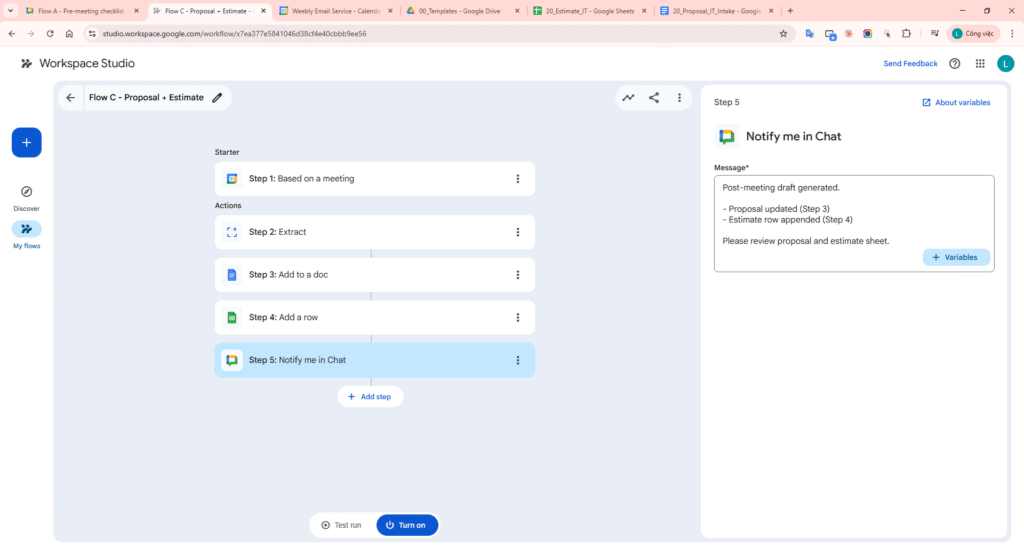
Step 18 – Completion notification.
Step 19 instruction (execution logs): Open Flow C run history and verify status for Extract, Add to a doc, Add a row, and Notify me in Chat.
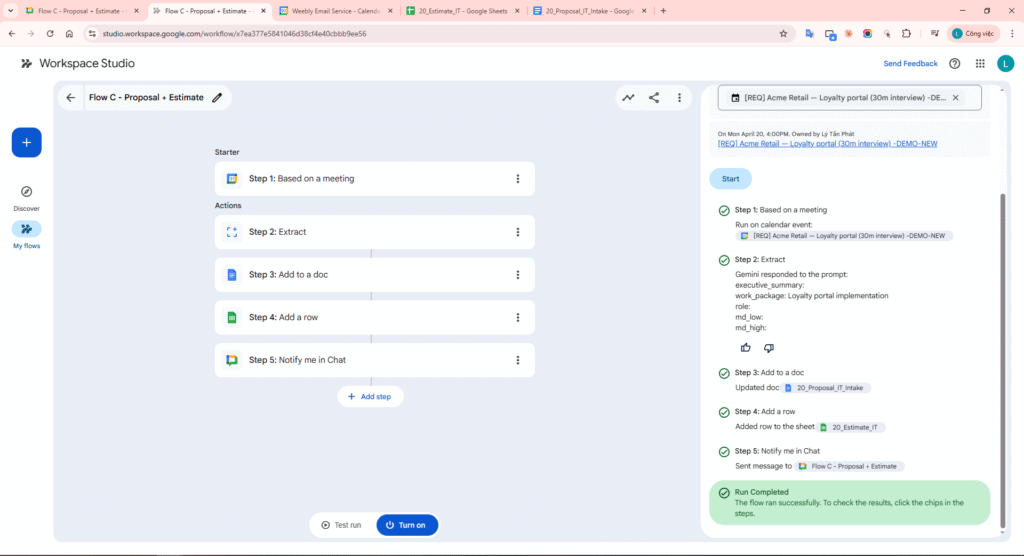
Step 19 – Execution run history.
Step 20 instruction (idempotency evidence): Create one combined image with 3 areas: (1) estimate Sheet, (2) proposal Doc, (3) Chat notification. This proves re-runs on the same event do not create uncontrolled duplicates.
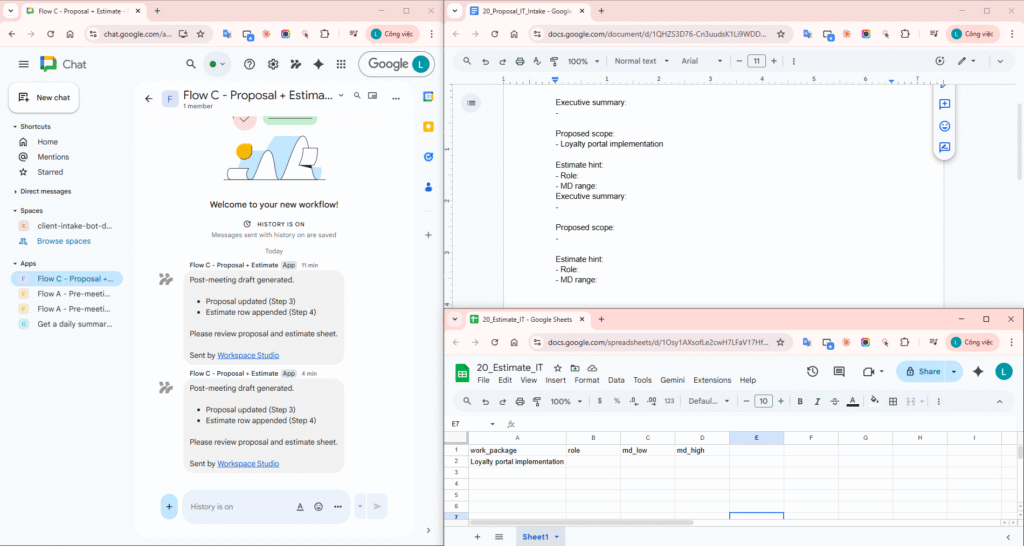
Step 20 – Duplicate-control evidence (Sheet + Doc + Chat).
Failure-prone points validation (3+)
| Risk | How to reproduce / observe | Mitigation |
|---|---|---|
| 1. Drive / Chat permissions | Run flow with insufficient write/post rights -> failing steps in run history. | Share root folders with automation operators; ensure bot/app can post in target Chat Space. |
| 2. Template ID changes or moved files | Rename or move template file -> doc action fails with not found behavior. | Store template IDs in controlled config doc; protect 00_Templates from accidental edits. |
| 3. Event naming variability | Missing prefix or inconsistent naming breaks trigger conditions. | Standardize title prefixes and/or use fallback calendar-based filters. |
| 4. Duplicate execution (idempotency) | Manual rerun or duplicate trigger appends duplicate rows/content. | Check execution log by event_id and step before write; use deterministic item_id for Sheets. |
Conclusion and evaluation
The demo confirms an end-to-end intake pipeline: pre-meeting checklist in Chat, automated minutes update, proposal draft generation from Extract output, estimate row append in Sheets, and execution visibility through run history.
Strengths
- Fast rollout: no custom backend is required for this version.
- Operational visibility: each flow has clear run details for debugging.
- Easy handover: templates and instructions are embedded directly in the blog.
- Reduced repetitive work: one meeting source drives Docs, Sheets, and Chat outputs.
Limitations and risks
- Permission-sensitive: incorrect Drive/Chat/Calendar permissions break runtime.
- Duplicate risk: without idempotency checks, Docs/Sheets can be appended twice.
- Extract quality depends on notes: weak minutes produce weak proposal/estimate outputs.
- Tenant UI differences: step names and field placement can vary by version.
Overall assessment
For teams already operating in Google Workspace, this approach has strong ROI. Most effort goes into initial template standards and flow setup, while day-to-day intake operations become much faster and more consistent.