
1. Feature overview
Per the April 1, 2026 announcement, Google upgraded slide generation in Slides: Gemini can produce fully editable slides (text boxes, layouts, charts/diagrams you can keep editing), match your brand to an existing deck, and use dynamic layouts driven by content instead of only “pouring” an image onto a slide.
- Analyze the open deck: Gemini reads the presentation you have open (Google describes this as secure analysis) to keep fonts, colors, and spacing consistent.
- Reference files: Pick content/style files on Drive manually, or let Gemini suggest related Drive files.
- Edit existing slides: Change layout, design, or content via Enhance this slide.
- Entry points: Create (new slide) or Enhance this slide (selected slide).
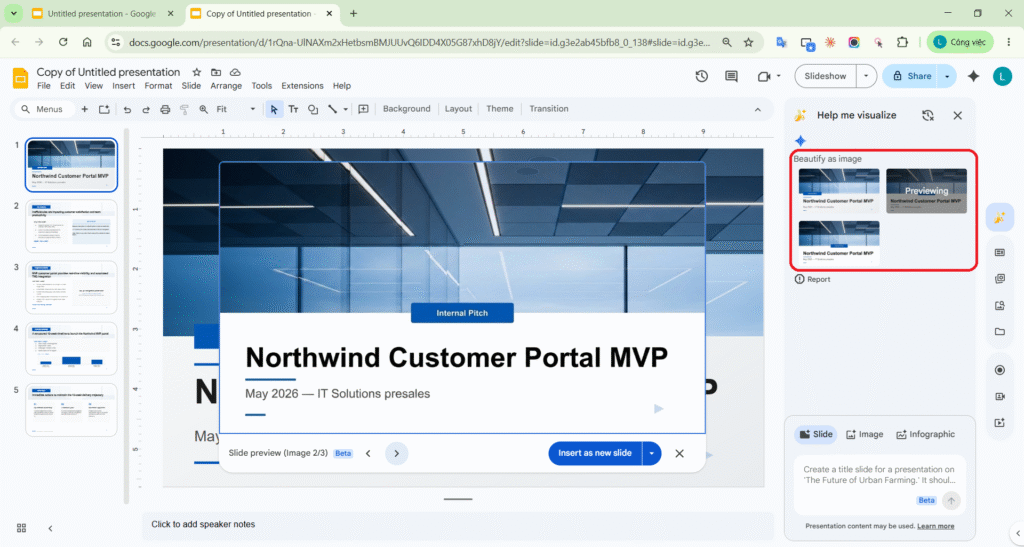
- Beautify as image: Still available but moved under the Slide menu — no longer the main path for editable slides.
Google also teased what’s next: full presentations from a description, Workspace data synthesis, and on-brand layouts (Reimagining content creation, Mar 10, 2026). “Full deck” generation may not be on every tenant when you read this.
2. How is this different from beautify-as-image?
| Aspect | Before / Beautify (image) | New (Apr 2026) |
|---|---|---|
| What you edit | Often a bitmap — hard to edit line by line | Native Slides text boxes, shapes, charts |
| Brand | Depends on rendered image | Deck analysis + match presentation style |
| Content sources | Simple prompt | @ Drive file, Add sources, suggested files |
| Where image beautify lives | Prominent in the AI flow | Only under Slide menu |
3. Who gets it & rollout
| Item | Details |
|---|---|
| Rollout | Starts Mar 31, 2026, gradual over 15 days (Rapid & Scheduled Release) |
| Workspace | Business Standard/Plus; Enterprise Standard/Plus; AI add-on (Ultra/Expanded); Google AI Pro for Education |
| Consumer | Google AI Pro, Google AI Ultra |
| Admin control | No separate admin control for this feature (per blog) |
| Languages | Blog: English + many side-panel languages. Help “Generate a slide” still notes desktop, English only — verify on your tenant. |
4. How to use (objective summary)
4.1. Create a new slide (Create / Help me create a slide)
- Open a presentation on Google Slides (desktop).
- Open Gemini: Ask Gemini (top right), or Insert → Help me create a slide, or Slide → Help me create a slide.
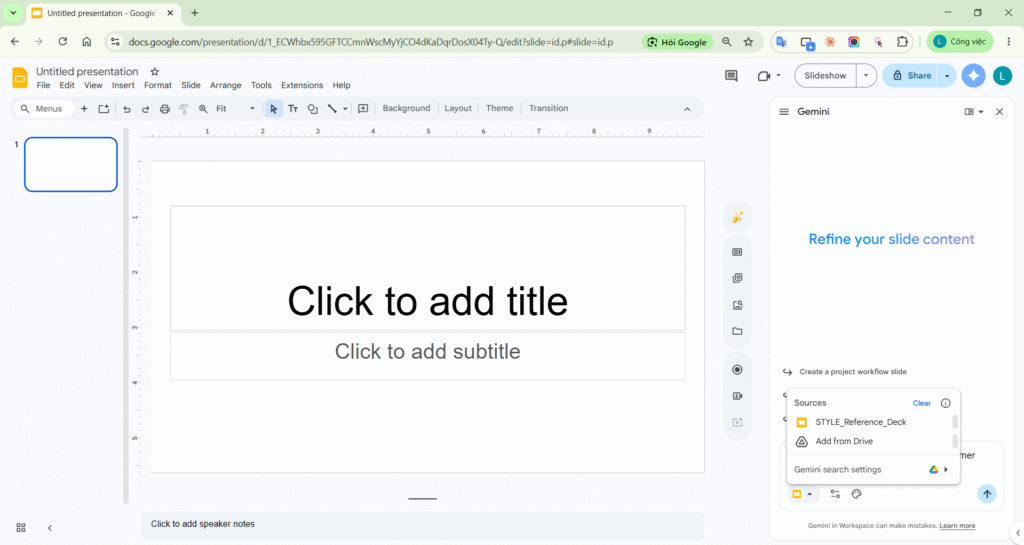
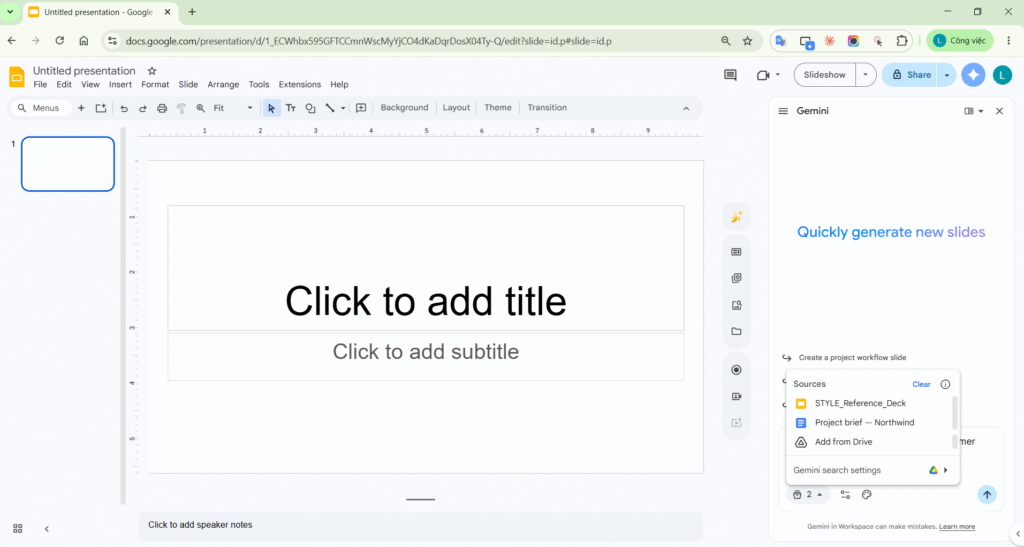
- (Optional — real UI) Attach style deck + content Doc: in Ask Gemini click + → Sources → Add from Drive (pick STYLE_Reference_Deck and your brief Doc). Some tenants still show Match a presentation style per Help Center.
- Or type @filename in the prompt instead of using Sources.
- Pick a suggestion or enter a prompt (e.g. Create a slide about Q2 goals based on @Team sync notes) → Enter.
- Review the preview Gemini generated.
- Add to deck:
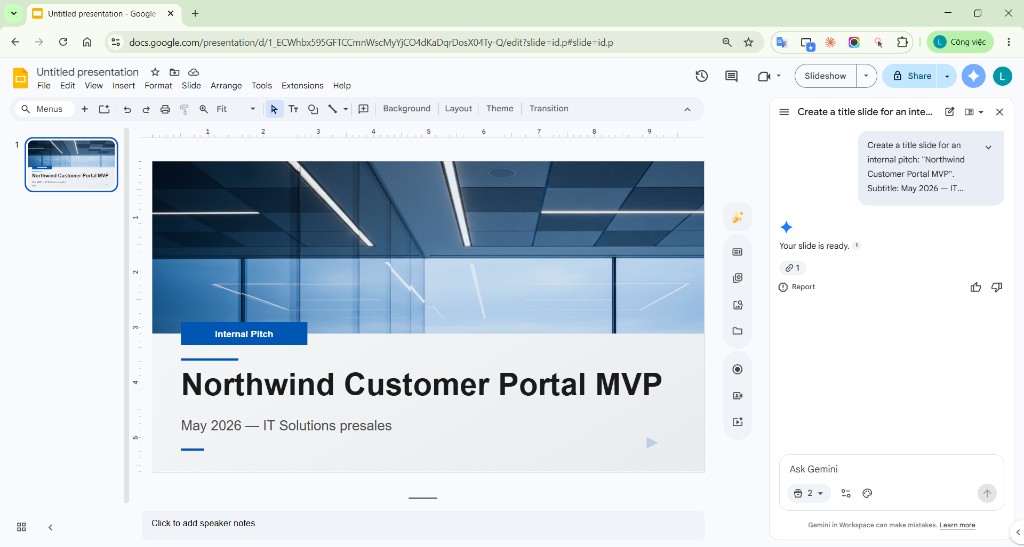
- Insert (next to Replace): add a new slide.
- Replace: replace the slide currently selected.
- Edit on the canvas like any normal slide (font, position, chart).
Help Center note: Currently one slide per prompt. For a 5-slide deck, repeat the prompt five times or wait for full-presentation rollout.
4.2. Improve an existing slide (Enhance this slide)
- Select the slide to improve.
- Click Enhance this slide (per your tenant UI) or describe the change in the panel prompt.
- Example prompts: Simplify this slide with less text and add an image; Convert to two columns.
- Preview → apply replacement or close preview to refine further (Ask Gemini keeps conversation context in the session).
4.3. Other useful actions
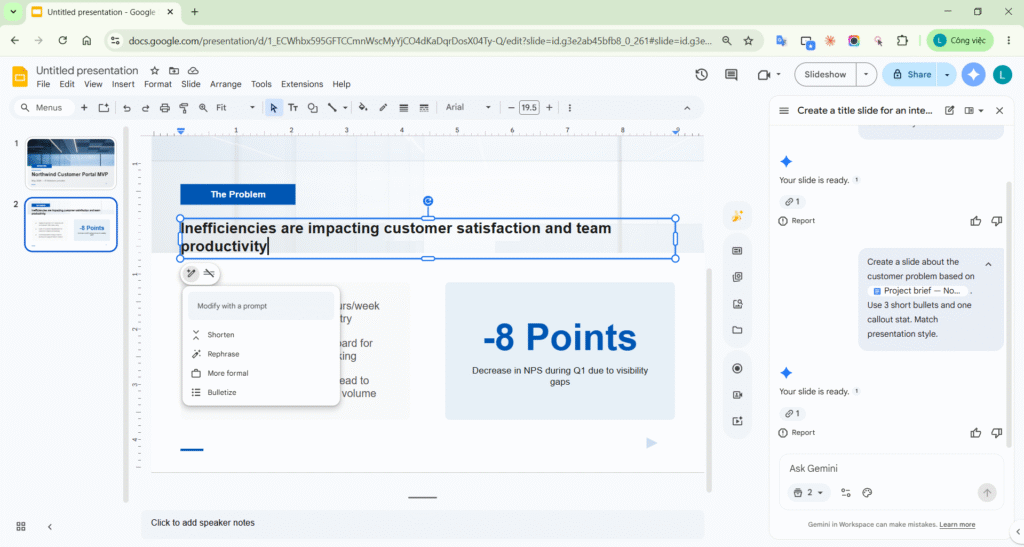
- Refine writing on a text box: Shorten, Rephrase, More formal, Bulletize (Improve your content).
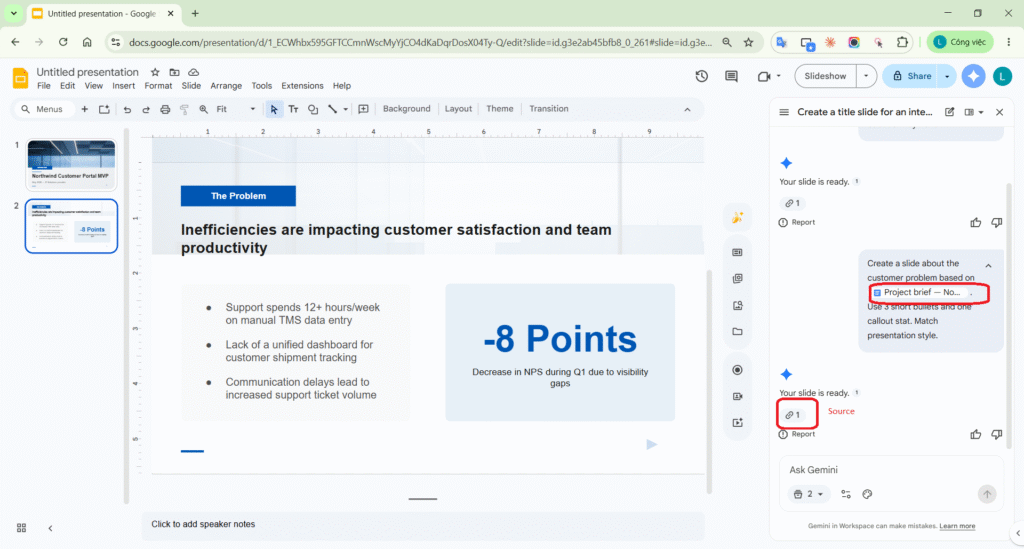
- Sources: see which files Gemini used; send Good/Bad suggestion feedback.
- Beautify as image: Slide menu when you want a “poster” slide you won’t edit line by line.

5. Hands-on demo walkthrough
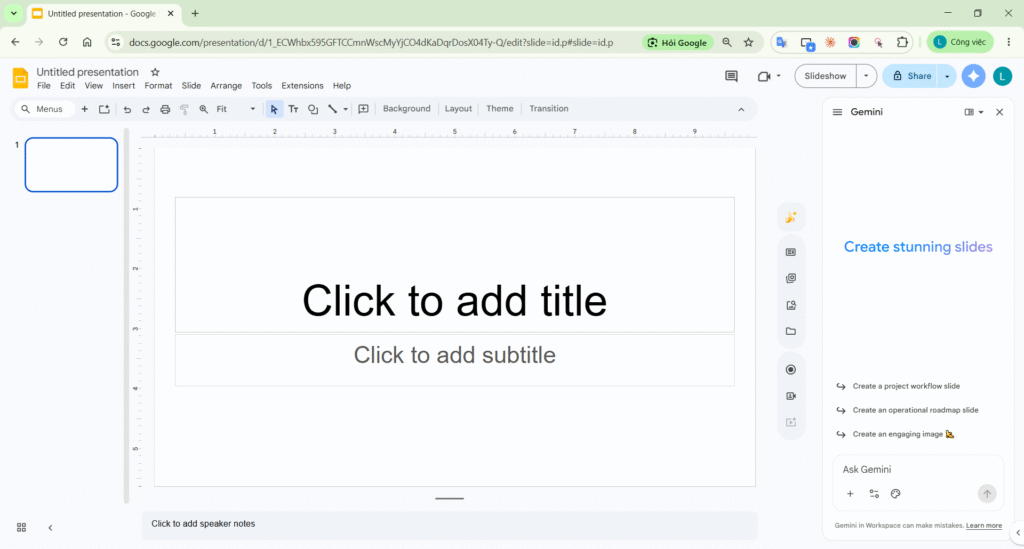
Step 1 — Open the Gemini panel
Gemini icon → Create stunning slides panel + Ask Gemini field.
Step 2 — Attach deck style (Sources)
+ → Sources → Add from Drive → STYLE_Reference_Deck.
Step 3 — Attach brief Doc (Sources)
Add Google Doc Project brief — Northwind
Step 4 — Title slide prompt + preview
Create a title slide for an internal pitch: "Northwind Customer Portal MVP". Subtitle: May 2026 — IT Solutions presales. Use a clean executive layout.
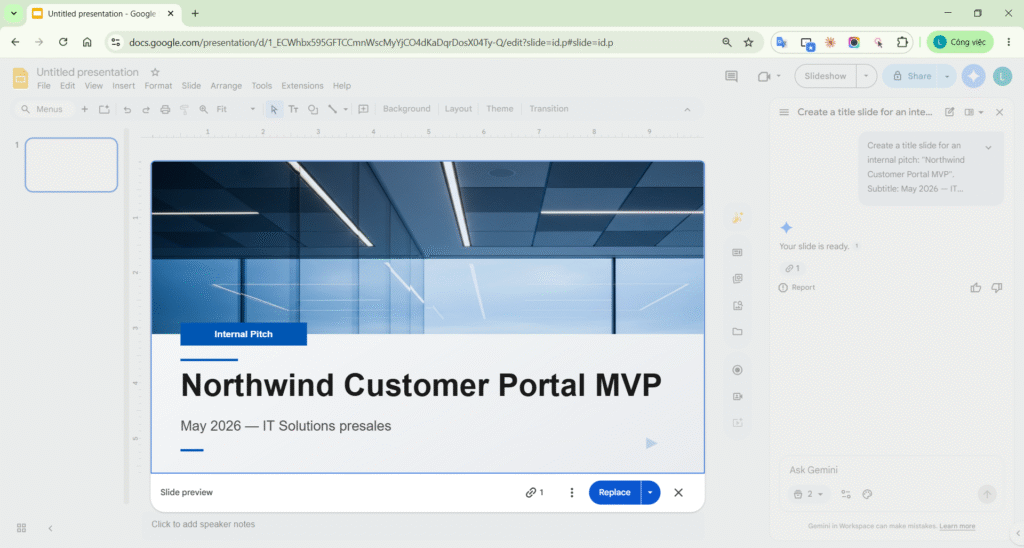
Steps 5 — Insert + slide on canvas
Step 6 — Problem slide + Sources
Create a slide about the customer problem based on @Project brief — Northwind. Use 3 short bullets and one callout stat.
Step 7 — Enhance / Refine (Help me write)
Use Enhance this slide or Help me write → Modify with a prompt instead of a separate Refine Shorten step.
Step 8 — Two-column Enhance preview
Convert to two columns: left key bullets, right a simple comparison table (As-is vs To-be).
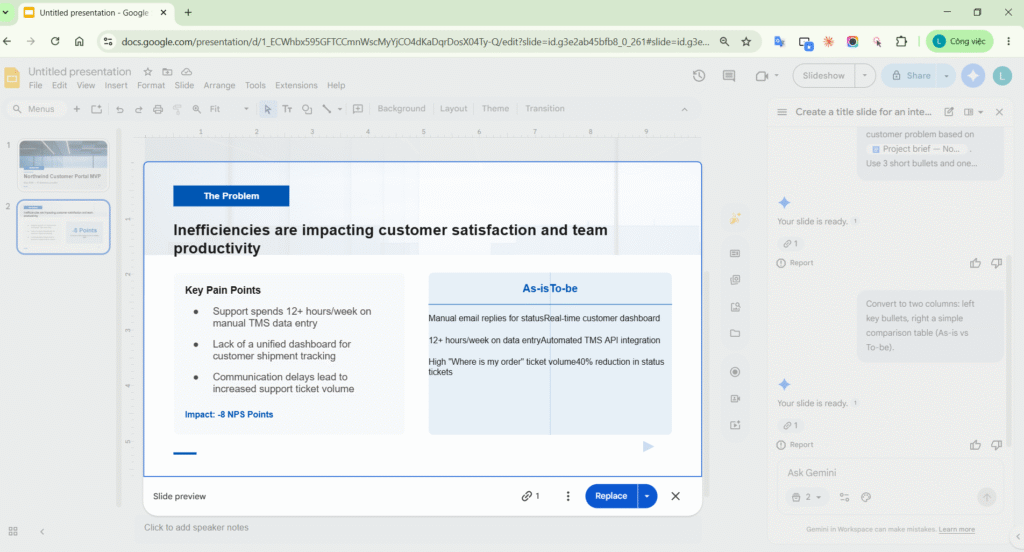
Step 9 — Editable chart
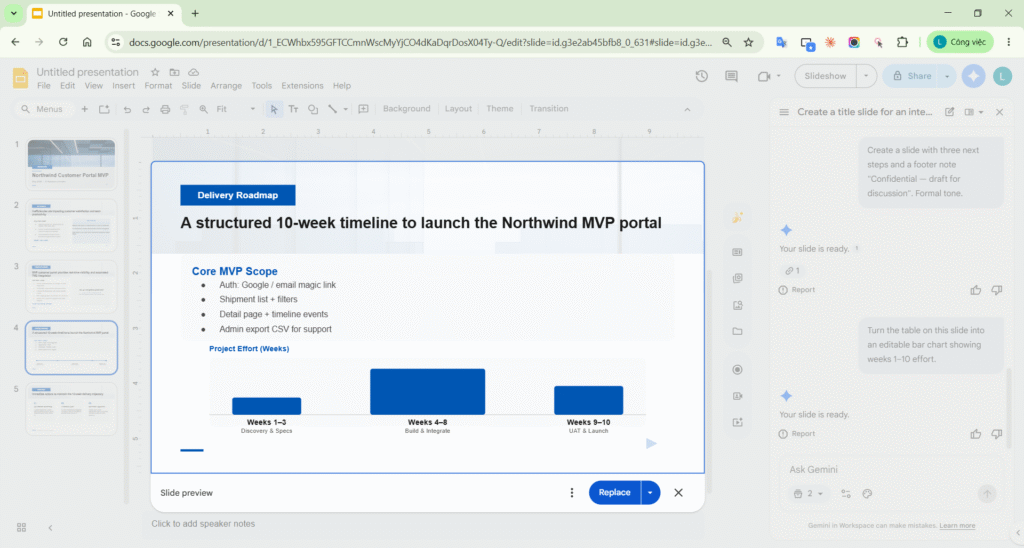
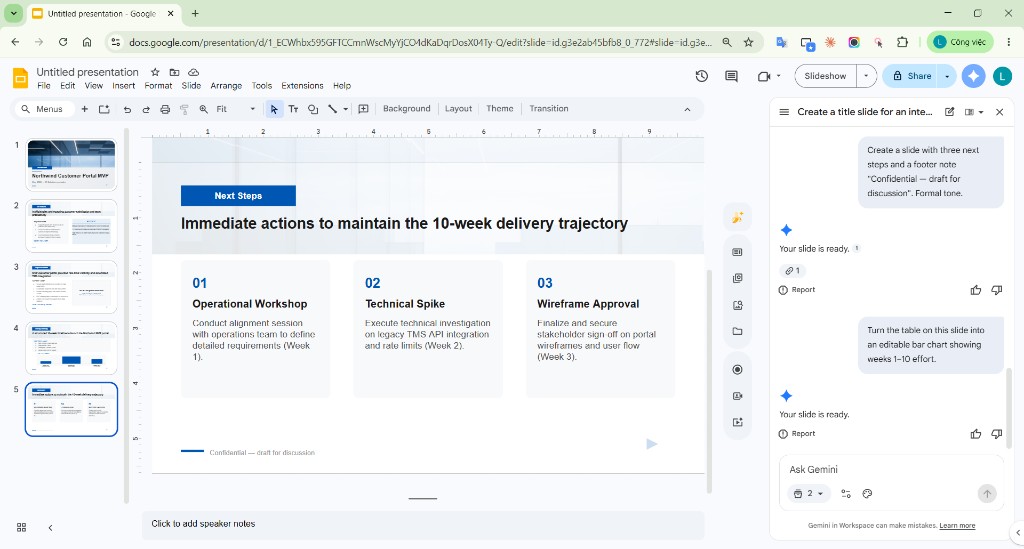
Step 10 — Five slides (filmstrip)
Step 11 — Beautify (Slide menu)
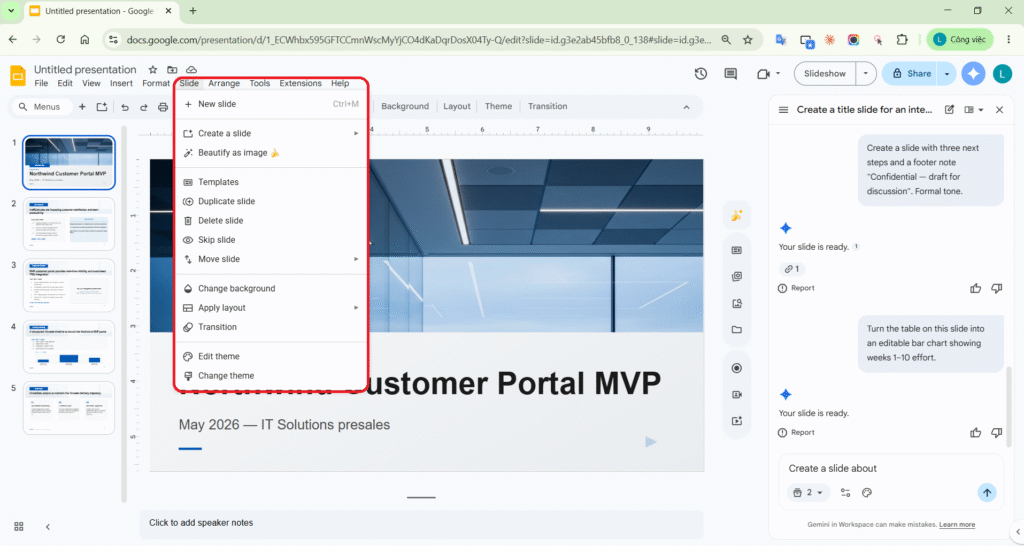
Step 12 — Beautify as image (practice, final step)
Slides: google-slides-gemini-editable-generation
6. Personal opinion — daily work use
This section is a subjective review after hands-on practice building a 5-slide deck (Northwind Customer Portal MVP) with Gemini in Google Slides — attaching Sources on Drive, Create/Insert per slide, two-column Enhance, text-box Refine, and comparing Beautify as image. Not Google’s official position.
6.1. Impressions after real use
The biggest difference vs. “AI that only writes text” in the Apr 2026 update is slides stay editable like normal Slides: after Insert I changed title/subtitle, dragged text boxes, and reshaped layout with Enhance prompts without losing native structure. The Problem slide pulled pain points from the brief Doc (TMS, tickets, NPS) when sources were attached — less copy-paste from Chat into Slides. Felt time: about 30–45 minutes for 5 slides with light manual tweaks, clearly faster than blank-slide layout from scratch.
6.2. How I’d use it day to day
| Daily task | How I’d use the feature | Practical benefit |
|---|---|---|
| Internal pitch before client send | Brief Doc on Drive → + Sources → Create each slide (title → problem → solution → timeline → next steps) → Insert | On-brand draft in a morning; PM reviews numbers and scope only |
| Revising after manager/client feedback | Enhance this slide or “two columns / less text”; Help me write per paragraph (Shorten, More formal) | No full deck remake; fix the slide that was flagged |
| Technical docs & blogs (like this post) | Run a real Slides demo, screenshot each step; prompts saved in demo-assets/ |
Guide matches real tenant UI, not Help Center theory only |
| Low-edit “poster” slides (events, backdrop) | Slide → Beautify as image on a deck copy | Fast polish; separate from slides that need weekly number updates |
| Onboarding teammates | Standardize one STYLE_Reference_Deck + one sample Doc; everyone attaches Sources | Fewer “everyone picked a different font” decks |
6.3. Personal workflow I’ll keep (post-demo)
- 15 min prep: brief Doc + style deck on Drive (avoid a totally blank deck).
- Build content: one prompt = one slide → preview → Insert (no Replace unless intentionally swapping an old slide).
- Ground sources: always attach Sources or @Project brief before slides with numbers.
- Deep edits: Enhance whole slide; Refine individual text boxes for tone only.
- Sign-off: review figures, client names, disclaimers — AI doesn’t replace legal/finance approval.
6.4. Opinion summary
For work already on Google Workspace, I treat this as a fast, controllable slide scaffold, not a replacement for designers or presenters. Highest value when you already have ideas and Drive docs and need an on-brand deck quickly. I’ll prioritize the editable flow (Create + Enhance + Insert) for any deck that still needs edits; use Beautify as image only when a static image slide is acceptable.
7. Limits & lessons from practice (objective)
7.1. Limits
- One slide per prompt — can’t build a full deck in one command; repeat Create → Insert.
- Style matching — on real UI often via Sources + a sample deck, not always a separate menu as some Help pages imply.
- Enhance / charts — layout sometimes needs Replace; charts and timelines often need manual touch-up after Insert.
- Beautify as image — image slide, not a substitute for editable flow; use on a copy if needed.
- License & rollout — requires the right Workspace/AI plan; menus may appear slowly per tenant.
7.2. Quick tips
- Attach style deck + brief Doc to Sources before the first prompt.
- Insert for new slides; Replace when editing the selected slide.
- One prompt, one goal; after Insert, try editing a text box to confirm it’s still editable.