
If you have ever used AI to generate presentation slides before—whether through extensions or third-party tools—you have probably faced the frustration of receiving your output as… flattened, uneditable images. Want to fix a minor typo? Want to change the color of a shape to match your brand guidelines? Mission impossible. You were forced to tweak your prompt and pray that the AI wouldn’t completely rearrange your original layout on the next try.
But the game has officially changed. The latest update from Google Workspace (Workspace Updates – April 2026) brings a long-awaited solution for data professionals and presenters alike: the ability to generate dynamic, fully editable presentations using Gemini AI in Google Slides.
As a workflow automation enthusiast who constantly battles complex reports and pitch decks, I put this new feature through a rigorous stress test. Here is my detailed review and guide from a technical perspective.
1. FEATURE OVERVIEW AND WORKFLOW EXTRACTION (OBJECTIVE)
Technical Overview:
The core of this 2026 update lies in its Semantic Analysis and Object-based Generation capabilities. Instead of rendering a flat image, Gemini AI now deconstructs a slide’s architectural components into independent vector objects: text boxes, shapes, icons, tables, and charts.
More importantly, through deep integration within the Google Workspace ecosystem, Gemini can read and interpret raw source files (Google Docs, Word) directly from your Google Drive. It analyzes the information hierarchy of the document and maps it into corresponding slide layouts seamlessly.
Standard Operating Steps:
- Step 1: Data Ingestion & Sync. Prepare your raw source document (Word/Docs). Open a blank Google Slides presentation (requires an Enterprise or Google One AI Premium account).
- Step 2: Initialize Gemini Panel. Click the Gemini icon in the top right corner of the interface to open the AI side panel.
- Step 3: Execute Contextual Prompting. Add a new blank slide. Input your prompt describing the preferred design style for that specific section, and use the @ symbol to link directly to your source document in Drive.
- Step 4: Layout Selection & Composition. Gemini will generate multiple dynamic layout options for the current slide. Choose the best fit, and the AI will automatically build the layout and populate the data for that page.
- Step 5: Manual Refinement & Iteration. Double-click any element on the generated slide to manually modify copy, recolor elements, or tweak formatting. Repeat Steps 3 to 5 for each subsequent slide until your deck is complete.
2. EXPERIMENT LOG: AUTOMATING FROM A WORD DOC TO A PROJECT PROPOSAL DECK
To test the AI’s actual performance under real-world conditions, I executed a practical trial with the following input and execution parameters:
Required preparations
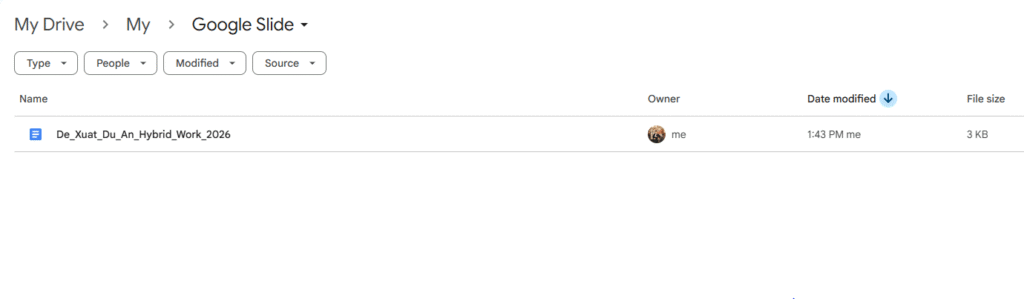
- Source Document (Input): A Word file named
De_Xuat_Du_An_Hybrid_Work_2026.docx(containing 6 detailed sections ranging from context analysis, the 3-2 hybrid model, a complex financial matrix, to a 4-phase implementation roadmap).
- Create new blank slide and using Ask AI feature
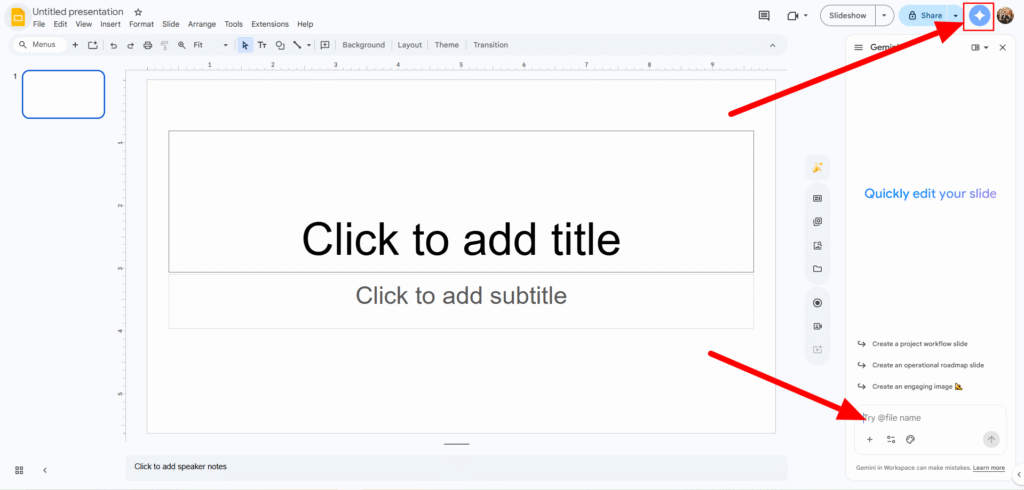
Flow these steps to create slide
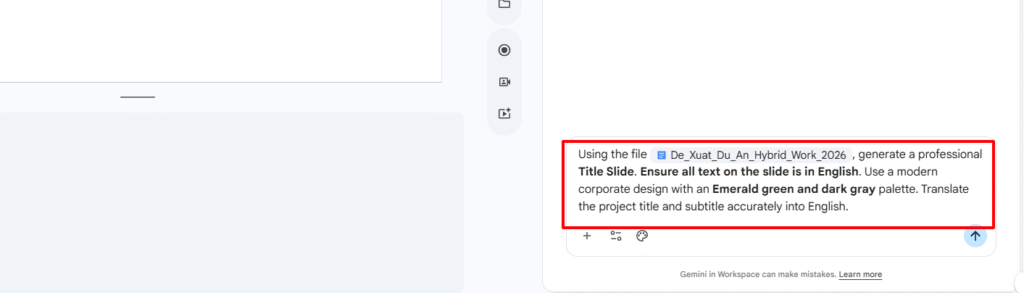
Step 1: Create first slide with prompt bellow:
Using the file @De_Xuat_Du_An_Hybrid_Work_2026.docx, generate a professional Title Slide. Ensure all text on the slide is in English. Use a modern corporate design with an Emerald green and dark gray palette. Translate the project title and subtitle accurately into English.
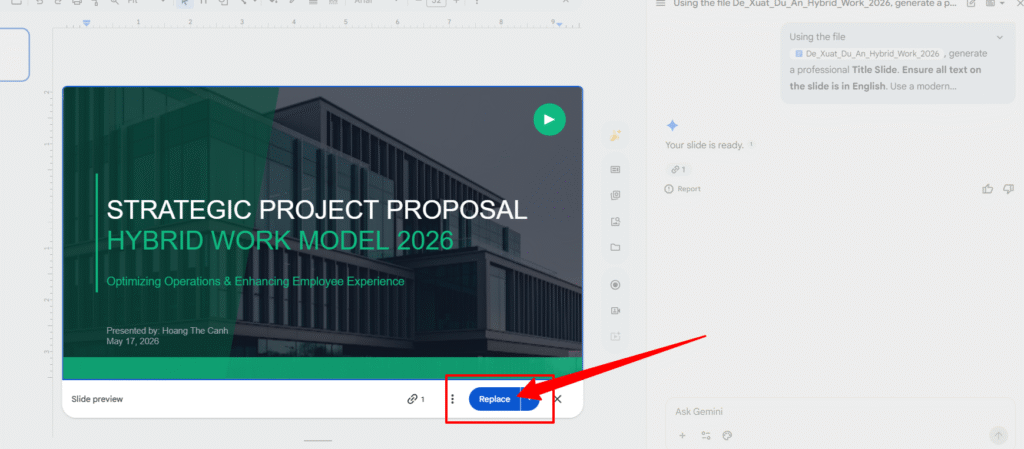
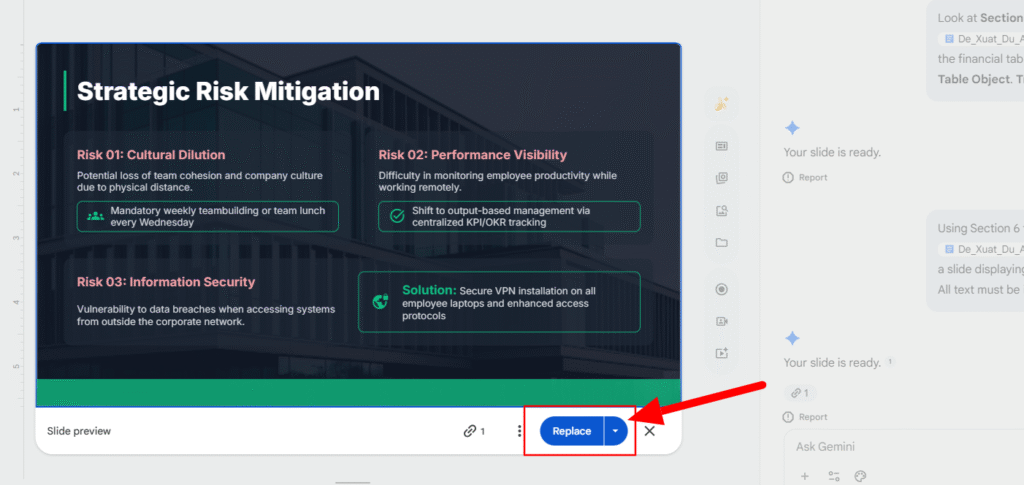
Click Replace button to replace content of existing slide
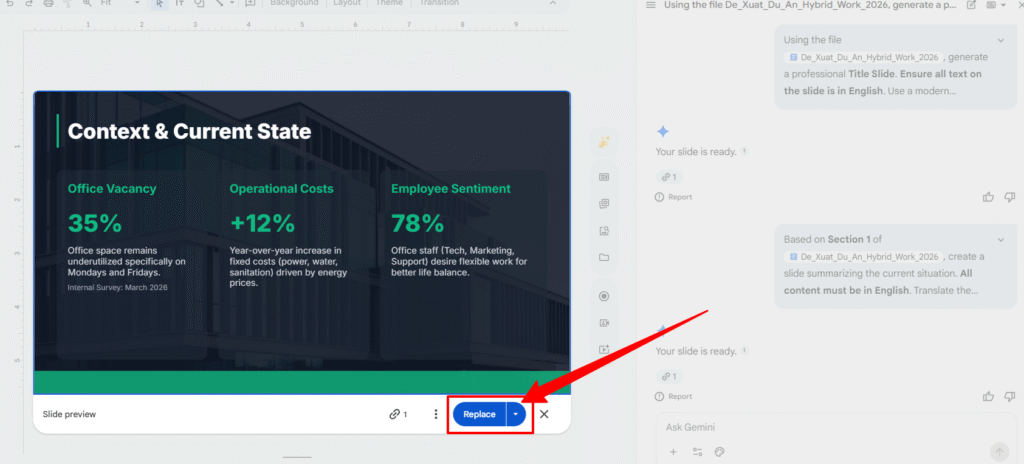
Step 2: Create a slide for the current context, Use the prompt below to generate the slide.
Based on Section 1 of @De_Xuat_Du_An_Hybrid_Work_2026.docx, create a slide summarizing the current situation. All content must be in English. Translate the bullet points about office vacancy and operational costs. Use a clean, professional layout.
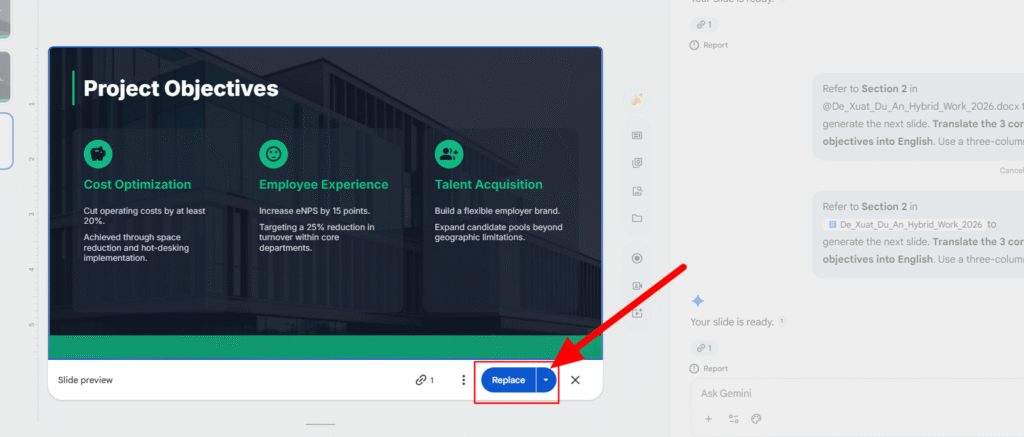
Step 3: Create a slide for Strategic Objectives, using the prompt below
Refer to Section 2 in @De_Xuat_Du_An_Hybrid_Work_2026.docx to generate the next slide. Translate the 3 core objectives into English. Use a three-column or grid layout with modern icons to visualize the goals. Keep the Emerald green theme consistent.
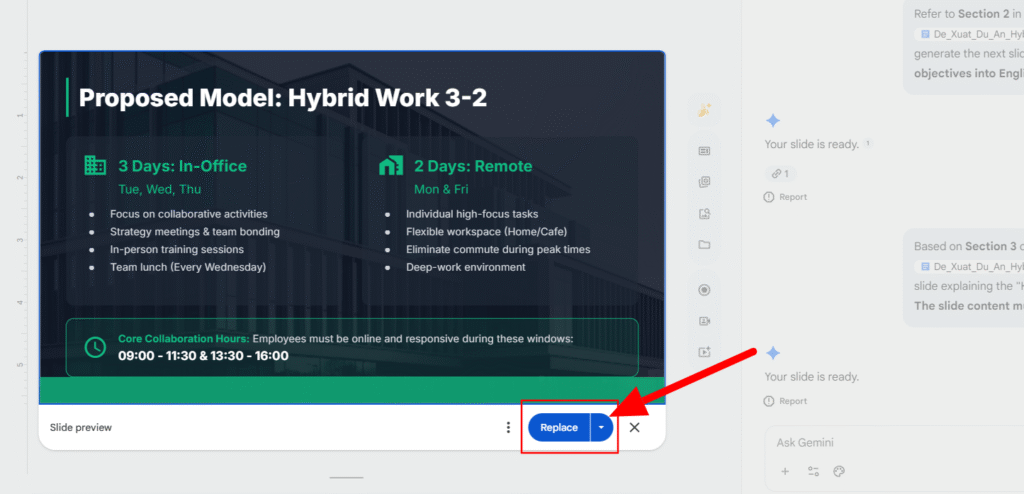
Step 4: Proposed Hybrid Model, use the prompt below
Based on Section 3 of @De_Xuat_Du_An_Hybrid_Work_2026.docx, create a slide explaining the “Hybrid Work 3-2” model. The slide content must be entirely in English. Use a split-screen or two-column layout to compare “In-office days” vs “Remote days.”
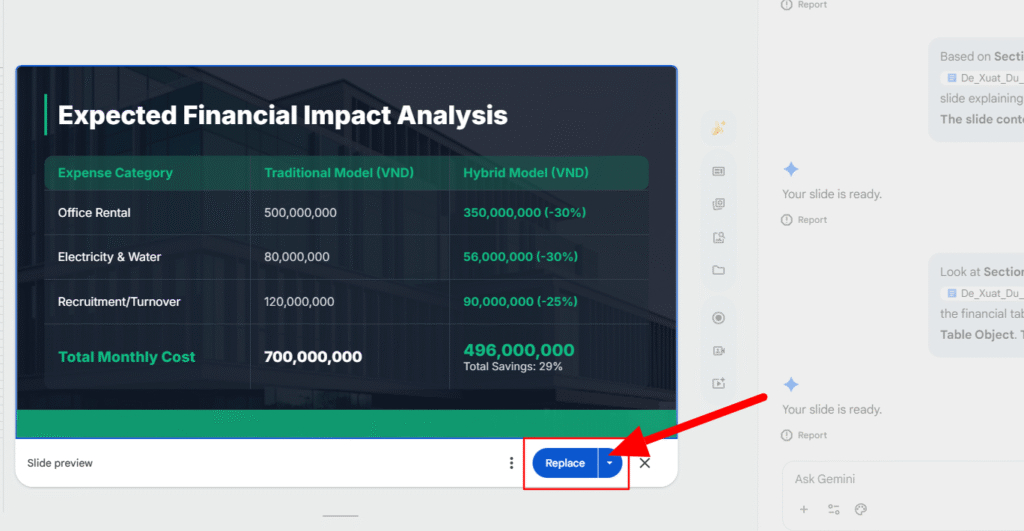
Step 5: Create a slide for the Financial Impact Table, using the prompt below
Look at Section 4 in @De_Xuat_Du_An_Hybrid_Work_2026.docx. Convert the financial table into a professional editable Table Object. Translate all row and column headers into English. Ensure the currency and percentages are clearly formatted.
Step 6: Create a slide for Risks & Mitigations, using the prompt below
Using Section 6 from @De_Xuat_Du_An_Hybrid_Work_2026.docx, generate a slide displaying the risks and their solutions. All text must be in English. Use a “Problem vs Solution” tiled layout for maximum clarity.
Step 7: Create a Q&A and Closing slide, using the prompt below
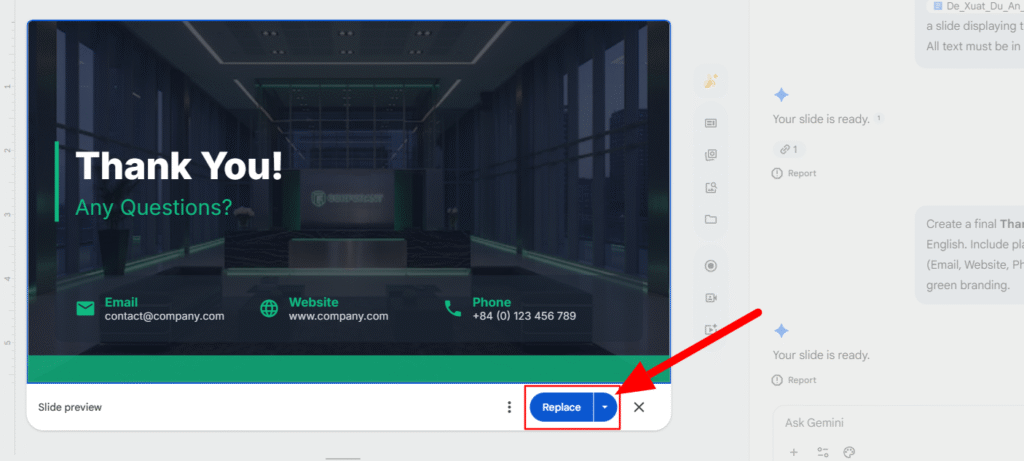
Create a final Thank You and Q&A slide in English. Include placeholder contact information (Email, Website, Phone) and maintain the Emerald green branding.
You can view my slide here: https://docs.google.com/presentation/d/1WpERnLaxhcrLm-KzXHz7nA0ShoiNQj1i_HG5D39jtRo/edit?usp=sharing
Workflow Metrics & Results:
- Processing Speed: Although Gemini currently generates one slide at a time, the performance is remarkably swift. It took approximately 10–15 seconds per slide to parse specific sections from the Word document. The entire 8-slide deck was completed in under 3 minutes, including the time to input prompts. This still represents a massive productivity leap compared to the 30–45 minutes of manual layout and formatting.
- Information Hierarchy Accuracy: For each individual command, the AI flawlessly extracted the relevant context from the tagged document (@). It correctly identified that Section 1 should be bullet points, transformed the raw data in Section 4 into an editable Table Object, and visualized the roadmap from Section 5 as a clean, structured timeline
- Modifiability Score (10/10): The true “magic” lies in the iterative nature. Since each slide is generated with independent, editable objects, I could immediately tweak the layout or refine the translation (e.g., correcting “Hot-desking”) before moving to the next slide. Changing colors or adjusting hex codes takes only seconds, ensuring the entire deck remains visually cohesive.
3. EXPERT PERSPECTIVE: PRACTICAL APPLICATIONS TO SKYROCKET DAILY PRODUCTIVITY
Personal Insight:
This new capability in Google Slides is not just a tool that “draws slides for you.” It acts as an Architectural Thinking Assistant. By generating slides page by page with fully editable elements, Google has solved the “last-mile delivery” problem in automated document processing. It provides the perfect human-in-the-loop balance, allowing us to step in, review, and fine-tune critical details on each slide before moving to the next.
How to Leverage This Feature in Your Daily Workflow:
If you are a manager, engineer, or content creator, here are three ways to extract maximum value from this feature to free up your schedule:
- Eliminate the Mechanical “Copy-Paste” Routine (Zero-Copy Workflow): Forget the old, tedious pipeline: Read Word file -> Summarize points -> Open Slides -> Create text boxes -> Paste text. Now, it is scaled down to a simple, step-by-step injection: Add a blank slide -> Type
@-> Target a specific section. Even with a page-by-page approach, you still save at least 70% of raw design time, allowing you to focus heavily on strategic messaging - Standardize Recurring Reports: For weekly or monthly reports with fixed structures, you can feed raw tabular data into Drive and instruct Gemini on each slide to apply the exact style of your previous templates. Brand consistency is maintained effortlessly without needing a graphic designer.
- Rapid Layout Brainstorming: When presenting dry, highly technical topics, you can focus on one slide and tell the AI: “Give me 3 different layout variations to visualize this specific mechanism.” Gemini’s dynamic variation engine opens up new data visualization angles on a granular level that you might not have thought of otherwise.
Final Thoughts:
AI will not replace your presentation skills or strategic thinking, but it completely redefines the speed at which you bring your ideas to life. Creating a deck might require a few more clicks now, but the control you have over each editable object is worth it. Head over to Google Slides, upload your raw documents, and let the AI handle the heavy lifting while you save your cognitive energy for what matters most.