1. Feature overview
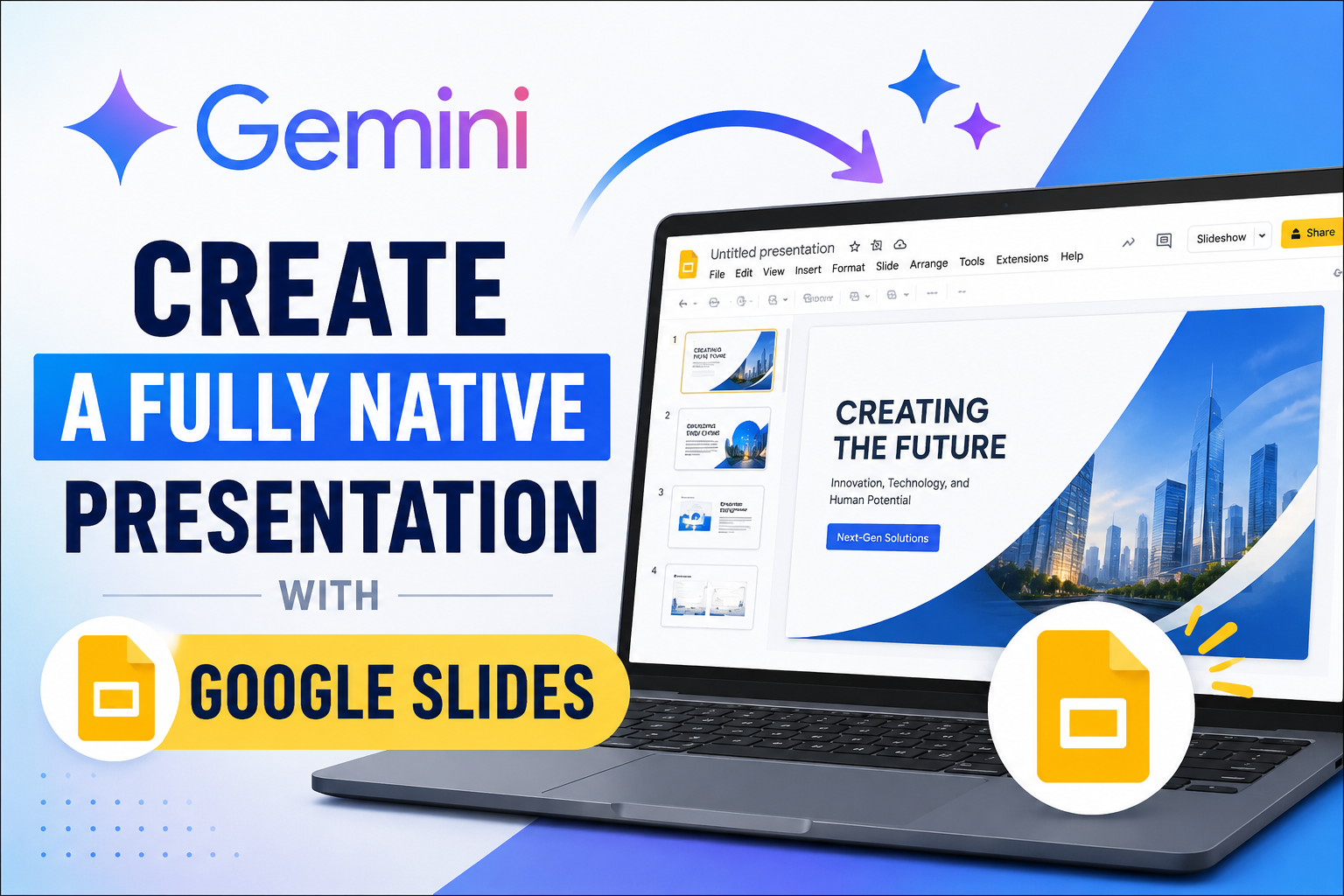
Google announced on June 30, 2026 that Gemini in Google Slides can create a complete, multi-slide presentation from a single request. This is different from the earlier workflow that normally generated one slide at a time. The new workflow can build an entire deck, including its structure, visual layout, text, images, diagrams, and other presentation elements.
The user starts by describing the topic, audience, objective, number of slides, and desired format. Gemini can then use selected Google Drive files as factual references. It can also use an existing presentation as a visual style reference so that the new deck follows a familiar color palette, spacing system, and overall look.
Before creating the slides, Gemini may ask a few optional questions. These questions can clarify the preferred tone, audience knowledge, text density, main goals, or visual style. Gemini then produces a presentation plan containing an overview, the sources it plans to use, and a slide-by-slide outline.
The plan can be edited before generation. A user can change a slide title or description, add another step, remove an unnecessary slide, and ask Gemini to update the plan. Only after the user clicks Approve does Gemini build the full presentation.
The output is described as native and editable. This means the user should be able to continue working in Google Slides by editing text boxes, moving shapes, changing images, and refining individual slides. A polished final view alone is not enough to prove native editability. The practical test is to select and change an individual object on the canvas.
The most important improvement is not only “more slides from one prompt.” It is the combination of source grounding, style matching, plan review, full-deck generation, and continued manual editing inside Google Slides.
2. Availability and rollout
At launch, full-presentation generation is available on desktop and supports English. It requires an eligible Google Workspace or Google AI plan. Google lists Business Standard and Plus, Enterprise Standard and Plus, Google AI Pro and Ultra, Google AI Pro for Education, and AI Expanded Access among the supported plans.
The extended rollout started on June 29, 2026 for both Rapid Release and Scheduled Release domains. An extended rollout can take longer than 15 days, so the feature may not appear on every eligible account immediately. Google also states that there is no separate admin control dedicated to this feature.
Google announced promotional access to higher multi-slide presentation limits through at least August 1, 2026. Per-user usage limits apply after that period. The exact limits may therefore depend on when the feature is used and which plan is attached to the account.
Workspace administrators can choose between Rapid Release and Scheduled Release. Rapid Release users are among the first to receive new features. Scheduled Release users normally receive them at least one week later. The setting is available under Admin console → Account → Account settings → Preferences → New features. A change can take up to 24 hours.
If the full-presentation option is missing, first check the desktop and English requirements, the account plan, and the domain release track. A missing option during an extended rollout does not automatically mean that the account is incorrectly configured.
3. How to generate a presentation
- On a computer, open Google Slides.
- On the start screen, click Presentation. Another entry point is a completely blank presentation with no existing slides, where the user can click Ask Gemini at the top right.
- Describe the presentation in the Gemini side panel. A useful request should include the topic, audience, goal, slide count, required slide order, tone, factual restrictions, and visual format.
- To ground the deck in existing content, click Add sources → Add from Drive, select the required files, and click Add.
- If appropriate, allow Gemini to search selected sources such as the web, Drive, Chat, or Gmail. Only enable sources needed for the task, especially when working with company data.
- To match an existing design, click Match presentation style → Add from Drive, select a presentation, and click Add.
- Submit the request. Gemini may ask optional questions about tone, audience, objectives, text density, or style. Answer them when they help clarify the result, or skip them.
- Click Next. Gemini creates a presentation plan with an overview, a list of sources, and a series of slide steps.
- Review the plan carefully. Click a slide title or description to edit it. Use Add step to add a slide and Delete to remove one. Click Update plan after making changes.
- When the structure and sources are correct, click Approve.
- Keep the Google Slides tab and Gemini side panel open while the presentation is being generated. It is safe to switch windows, but the Slides tab and panel should not be closed.
- After generation, review the entire presentation. Check its facts, order, visual consistency, accessibility, and editability. Continue editing manually or ask Gemini to refine one slide or image at a time.
4. Demo: master prompt, video, and result
Start with one master prompt. It contains the topic, facts, six-slide format, and visual rules, so no Google Doc or style deck is required.
Create a fully editable 6-slide presentation titled "Northwind Customer Portal MVP"
for an internal executive review.

Facts: support spends 12+ hours/week copying shipment status; customers have no
self-service dashboard; NPS dropped 8 points. The MVP includes login, shipment
list and filters, status timeline, PDF labels, CSV export, and read-only TMS API
integration. Targets: 40% fewer "Where is my order?" tickets and weekly active
users equal to at least 25% of active B2B accounts. Risks: TMS API rate limits
and legal review for sub-account data.

Create exactly 6 slides: title; executive summary; current-state problem;
proposed solution with an editable Customer → Portal → TMS API flow; scope and
10-week timeline; and success metrics, risks, and next steps.

Use only these facts. Do not invent financial figures, quotes, savings, or
commitments. Use a clean 16:9 white design with navy/cyan accents, native
editable objects, no more than 45 words per slide, and the footer
"Confidential — internal draft".
Hands-on video
The video shows the full workflow: opening Gemini in Slides, entering the master prompt, reviewing and updating the plan, approving generation, checking the completed six-slide deck, and confirming that individual objects remain editable.
Slide: Northwind Customer Portal MVP Executive Review
5. General assessment of the practice result
In practice, Gemini was able to create a complete presentation from one master prompt through a clear workflow. Reviewing and editing the plan before generation gave me more control over the structure instead of immediately receiving a deck with an unknown flow.
The generated result generally followed the topic, format, and visual direction described in the prompt. It provided a useful starting draft that could be refined instead of requiring the presentation to be built from a blank canvas.
The most useful aspect was that the slide elements remained editable in Google Slides. Text, objects, and individual slides could still be adjusted after generation, making the workflow more practical than receiving a flattened image or rebuilding the deck manually.
However, the output should still be treated as a draft. Content, figures, text density, layout, and consistency need to be reviewed before the presentation is used in real work. Overall, the feature can reduce preparation time, but it does not replace human review and final polishing.
6. My opinion: practical use in daily work
After completing the demo, I would use full-presentation generation as a controlled first-draft tool rather than an automatic publishing system. Its biggest advantage is the plan-review stage: correcting the story before generation is faster than rebuilding a finished deck.
For proposals and presales work, I can place the customer problem, proposed solution, scope, metrics, and required slide order in one prompt. Gemini can produce the first deck while I spend more time checking evidence, customer language, delivery commitments, and commercial decisions.
For weekly project reviews, I can reuse a fixed structure for progress, metrics, risks, decisions, and next actions. This can make reports easier to compare from week to week, although changing project data still needs to be checked before each meeting.
For training and onboarding, I can turn a process into an initial lesson structure and then let subject-matter experts edit examples, reorder slides, and adapt the native deck for different teams. For executive briefings, I can specify the decision required and impose a word limit per slide to avoid text-heavy output.
My practical workflow would be: prepare verified facts, define the required format, review the plan before approval, verify the generated content and editability, then finish the deck manually for hierarchy, accessibility, brand details, and sensitive stakeholder language.
The feature saves the most time when the input facts and desired structure are already clear. It accelerates preparation; it does not replace fact checking or professional judgment.
7. Conclusion
The hands-on test shows that Gemini in Google Slides can turn one detailed prompt into a complete presentation that follows a specified six-slide format. The plan-review step gives the user control before generation, and the resulting native elements remain available for normal editing afterward.
The feature is best viewed as a fast first-draft engine. It can reduce time spent building structure and layouts, but the user remains responsible for factual accuracy, visual quality, accessibility, and final approval. Used with a clear prompt and a disciplined review process, it can make proposals, project updates, training decks, and executive briefings significantly faster to prepare.