I installed Microsoft’s Skill Recorder, recorded one ordinary part of my day — reading tech news and sharing it to Slack — and let it turn that single demonstration into a reusable SKILL.md. Here is what the tool is, how the install went, and how well it actually understood my work.
1. What Microsoft Skill Recorder is
Skill Recorder is a desktop app from Microsoft that captures an on-screen work session and turns it into a reusable procedure an AI agent can carry out. Instead of sitting down to write a long prompt describing a task step by step, you simply do the task once while the app watches — it records your clicks, app switches, the pages you visit and, if you enable it, your spoken narration. It then uses the GitHub Copilot CLI to reconstruct that session as one overall intent plus an ordered list of steps, and finally generates either a SKILL.md file (an on-demand procedure) or an Automation (something that runs on a schedule or trigger). The generated skills are meant to be loaded into Microsoft Scout, Microsoft Copilot Cowork, or Copilot Studio.
This is the shift the tool is really about. We are used to “prompt engineering” — writing good instructions for an AI. Skill Recorder proposes “demonstration engineering“: you teach by doing rather than by describing. That matters because the people who know a business process best are often not the people who enjoy writing precise prompts. It is also privacy-conscious by design — capture and processing stay on your machine until you press Analyze, and only then is the session sent to Copilot. And it does not blindly replay clicks: it generalizes from a single example and prefers an app’s native tools over mimicking the cursor, so recording one form submission teaches the agent to handle similar forms broadly.

2. Installing it locally (commit-pinned, macOS)
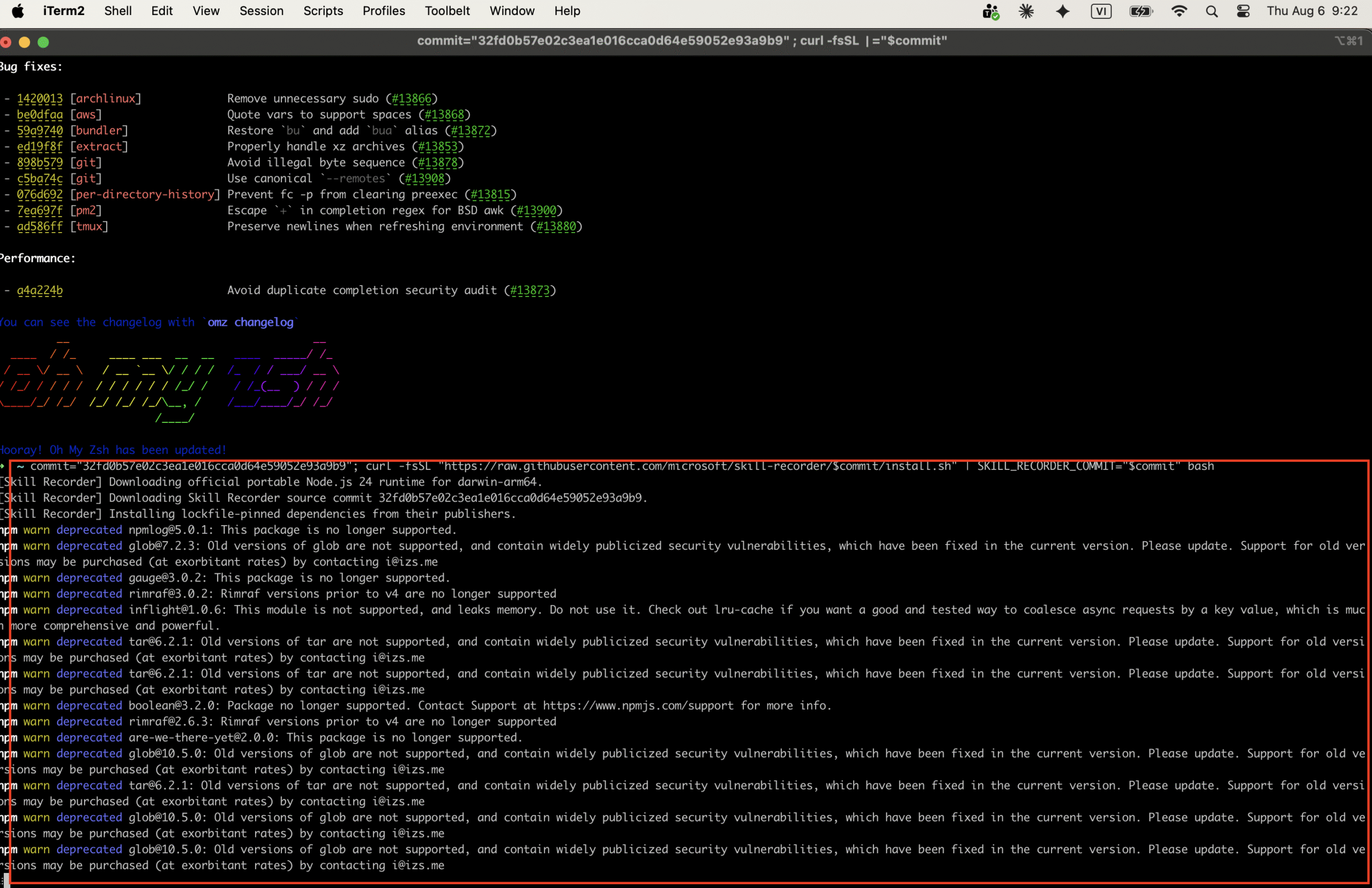
The repository ships a deliberately strict, commit-pinned installer rather than a downloadable binary. You paste a one-line command in which a full 40-character commit SHA appears twice — once to pin the install script itself, once to pin the exact source it builds. You are told never to substitute a branch name like main, because that defeats the pinning. I used the latest release, v0.3.1 (commit 32fd0b57…), on my MacBook Air:
commit="32fd0b57e02c3ea1e016cca0d64e59052e93a9b9"; curl -fsSL "https://raw.githubusercontent.com/microsoft/skill-recorder/$commit/install.sh" | SKILL_RECORDER_COMMIT="$commit" bash
No administrator rights and no pre-existing Node.js are needed — the installer downloads a portable Node.js 24 runtime (checksum-verified), fetches the exact source commit, installs lockfile-pinned dependencies, runs a license check and creates a launcher. You will see a stream of npm warn deprecated lines during this step; they are noise from old transitive dependencies, not errors, and the install completes normally.
3. First launch and setup
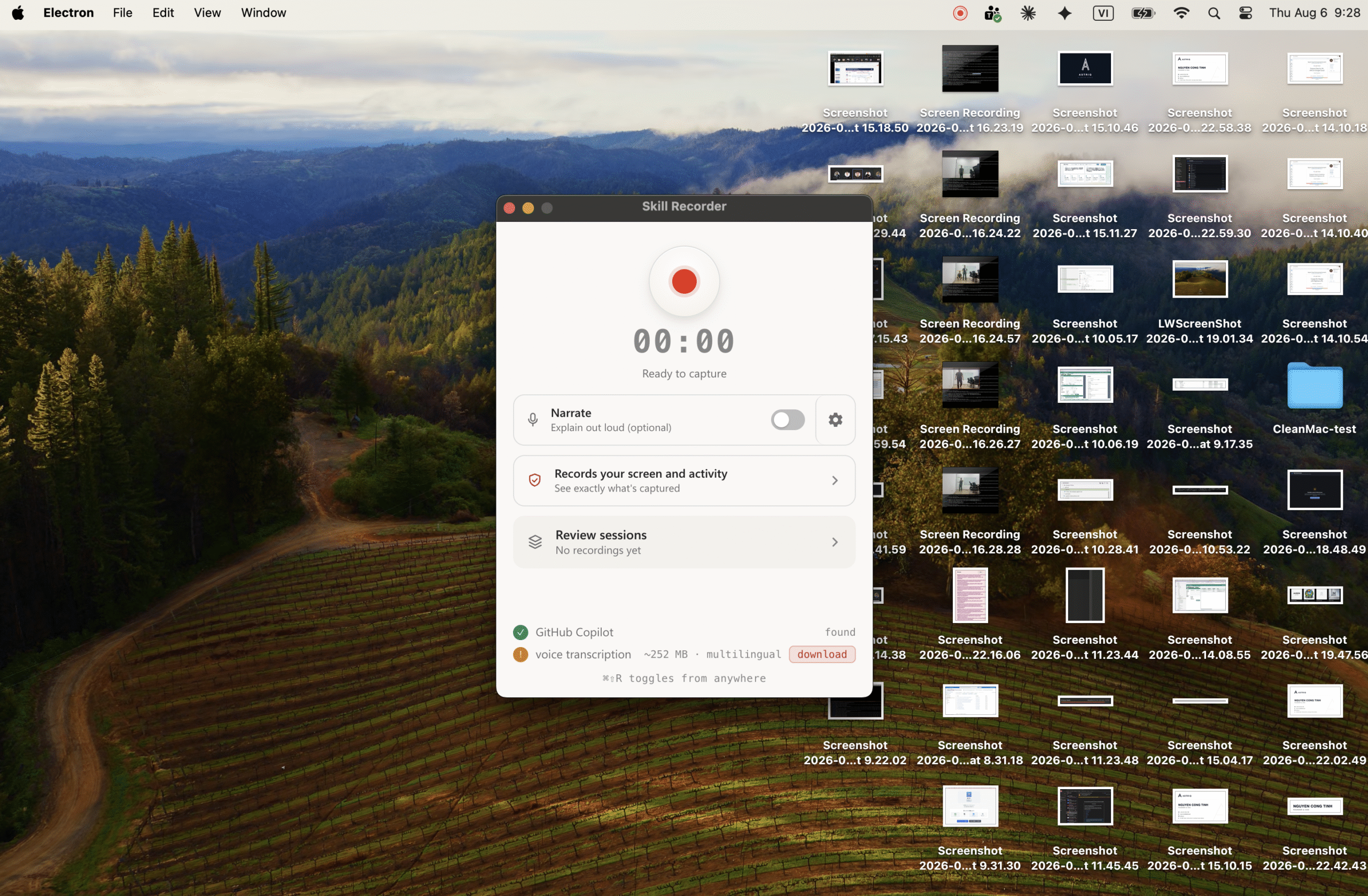
On first run macOS asks for Screen Recording and Accessibility permissions — both are required, or the app cannot see your clicks and windows. The window is refreshingly simple: one record button, a Narrate toggle for optional voice, and a “Review sessions” list. Two status lines matter: GitHub Copilot — found (Analyze depends on it) and a multilingual voice transcription model of about 252 MB. That multilingual detail turned out to be important.
4. Recording a real workflow, then Analyze
I chose a task I genuinely do most days rather than a toy example: finding a fresh technology story and sharing it with my team. On camera I opened Chrome, went to X (Twitter), found a new release announcement — the launch of Gemini Pro — read it, formed a short personal opinion on why it mattered, opened Slack, wrote a brief take and posted it to our gen-ai channel. I narrated the whole thing out loud in Japanese as I worked. Then I stopped the recording and pressed Analyze: Copilot reconstructed the session into one intent and an ordered list of steps, and I exported it with Create → Skill. This is the SKILL.md it produced:
---
name: share-tech-article-to-slack
description: "search web for Gemini 3.5 Pro news → fetch article → compose share
  message → optionally post to Slack webhook or provide text to paste"
allowed-tools:
  - core/web_search
  - core/web_fetch
  - Write
  - Read
---

Procedure
1. Search for recent public articles about the topic (core/web_search)
2. Confirm which URL to use
3. Fetch the chosen article (core/web_fetch)
4. Extract a short excerpt and draft an impact blurb
5. Compose the share message (Write)
6. Post to Slack via incoming webhook (optional)
7. Provide the message for manual paste (fallback)
5. How accurate were the generated steps?
Overall the Analyze step captured the intent of my workflow correctly and, honestly, more faithfully than I expected. The ordered steps — search for a recent article on the topic, choose one, fetch it, draft a short personal-impact comment, compose the message and post to Slack — line up well with what I actually demonstrated and narrated. In a couple of places it even added sensible steps I did not spell out, such as an explicit “confirm which URL to use” and a manual-paste fallback for when automated posting is not available.
The deviations all come from the tool generalizing my concrete actions into reusable, native-tool equivalents rather than replaying my exact clicks. I found the news by scrolling my X feed in Chrome, but the skill records that as a generic web-search step; I posted by typing into our gen-ai channel, but the skill generalizes that to “POST to a Slack incoming webhook, or fall back to manual paste.” It also baked my example topic into the description (pinned to “Gemini 3.5 Pro” rather than left as a clean parameter), and one or two per-step tool labels are slightly off — “draft an impact blurb”, for instance, is associated with a fetch action when it is really a writing step. None of this breaks the skill; it just means that for production use I would tighten it to point back at X and at the real channel. The trade-off is deliberate: by preferring native agent tools over literal UI replay, the skill stays reusable and does not shatter the moment a button moves.
6. Japanese language handling
Because I narrated the entire session in Japanese, this became the most interesting part of the test. Skill Recorder ships with that on-device multilingual transcription model, so it transcribed my Japanese narration locally, and when I ran Analyze, Copilot translated it into English for the generated intent and steps. The result was accurate: the English intent and the ordered steps genuinely matched what I had said and done in Japanese, with no garbled characters and no mistranslation of the core meaning. As a way of turning spoken Japanese into a working English procedure, it worked very well.
On skill names specifically: you do not type the name yourself — the app auto-generates it, and it always comes out as an English, ASCII kebab-case slug (mine became share-tech-article-to-slack). So “Japanese in skill names” is less a bug than a design choice: Japanese is fully supported as spoken input and is translated cleanly into the skill body, but the machine-generated name is always normalized to English. If you rely on Japanese identifiers to organize skills, you will not get them from the generated name — keep the Japanese in the narration and description instead.
7. Reflection: demonstration engineering in my daily work
One routine task in my role is an obvious candidate — in fact it is the exact one I recorded. Most days I curate AI and technology news: I scan sources like X, read the notable releases (the Gemini Pro launch here is typical), write a short personal assessment of why it matters for our team and post it to our gen-ai Slack channel. It is genuinely useful for the team, but it is repetitive and consumes a fixed slice of time every morning. Turning it into a recorded skill means I can hand the mechanical parts — searching, fetching, drafting a first-pass blurb and posting — to the agent, and spend my own attention only on the judgement part: deciding which story actually deserves the team’s attention and sharpening the opinion.
What makes this realistic is precisely the demonstration angle. I did not have to write a long, careful prompt describing the process — I just did my job once while recording, and the skill was generated from that. And it is not hypothetical: I imported this SKILL.md into Claude Cowork and used it to pull a news item, generate a take with my own angle and push it toward Slack. Extending the same idea, other repetitive parts of my day are equally recordable — turning client emails into tickets, or compiling standup notes. That is what makes demonstration engineering feel less like a novelty and more like a practical way to offload the routine scaffolding of the job while keeping the parts that need human judgement.
8. Demo video
https://drive.google.com/file/d/1OjnFJX9YtjKoOC2PLGnrwaqDhEAfyKT8/view?usp=sharing
Tool: github.com/microsoft/skill-recorder · Release v0.3.1 · Installed and tested on macOS (Apple Silicon), August 2026.