Building a deck from a blank page is one of those tasks that quietly eats an afternoon. You know the story you want to tell, but you still have to fight with layouts, hunt for icons, balance text boxes, and recolor everything so it looks like it belongs together. For most of us, the “thinking” part takes ten minutes and the “making it look decent” part takes two hours.
That gap is exactly what Google just closed. As announced on the Google Workspace Updates blog, you can now generate a complete, multi-slide presentation directly inside Google Slides using Gemini — from a single natural-language prompt. And the key word is native: what Gemini produces isn’t a flat image or a locked template. Every slide, text box, and shape is a real, fully editable Slides object you can rework like anything else you’d build by hand.
We put the feature through a real end-to-end run at Scuti to see how it actually behaves. Here’s what we found, step by step.
What’s actually new
Generating slide content with AI isn’t brand new — but three things make this release genuinely useful for day-to-day work:
- It builds the whole deck, not just an outline. One prompt produces a titled, themed, multi-slide presentation with layouts, accent colors, icons, and data callouts already in place.
- It grounds itself in your context. You can point Gemini at files in Google Drive, let it search Gmail or Chat, and even attach an existing deck so the new one matches your brand style.
- Everything stays editable. Because the output is native Slides content, you can tweak a headline, drag a shape, recolor a section, or ask Gemini to regenerate a single slide — no re-export, no starting over.
Who gets it
At the time of writing, the feature is rolling out to a broad set of plans. According to Google’s support documentation, it’s available (on desktop, with the language set to English) to:
- Google Workspace Business Standard and Plus, and Enterprise Standard and Plus
- Google AI Pro and Ultra subscribers, including the Google AI Pro for Education add-on
- Customers with the AI Expanded Access add-on
The rollout began at the end of June 2026 as an extended release, so exactly when it lands can depend on your organization’s release track — more on that at the end.
The hands-on walkthrough
For our test we asked for something close to home: a short business deck on how AI and Gemini are reshaping smart manufacturing (MES). Here’s every step.
Step 1 — Open the feature
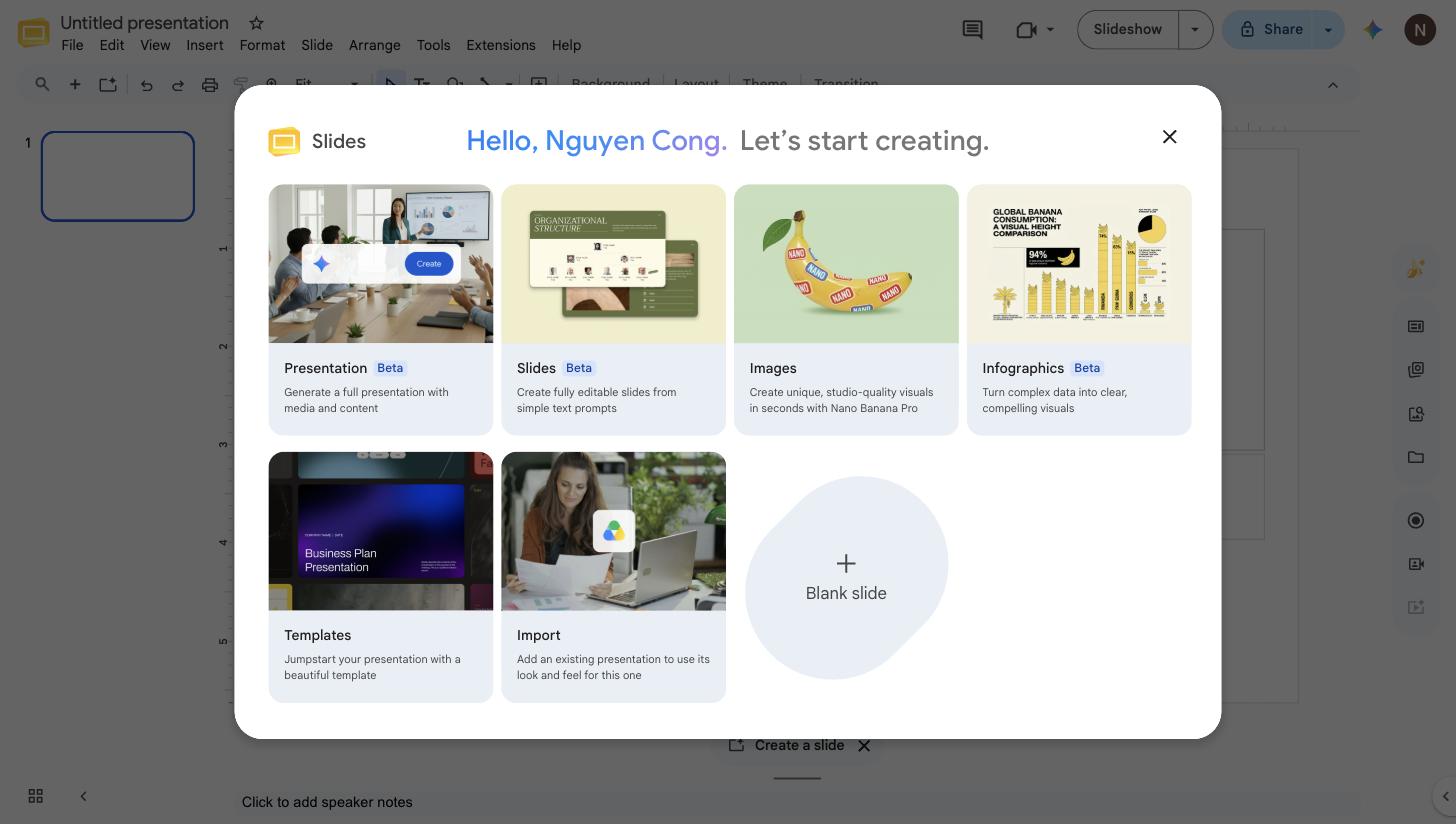
Create a new presentation, and Slides greets you with a “Let’s start creating” panel. The option you want is Presentation — “Generate a full presentation with media and content.” (If you’re already in a blank deck, you can also open the Gemini side panel and choose Ask Gemini.)
Step 2 — Describe what you want
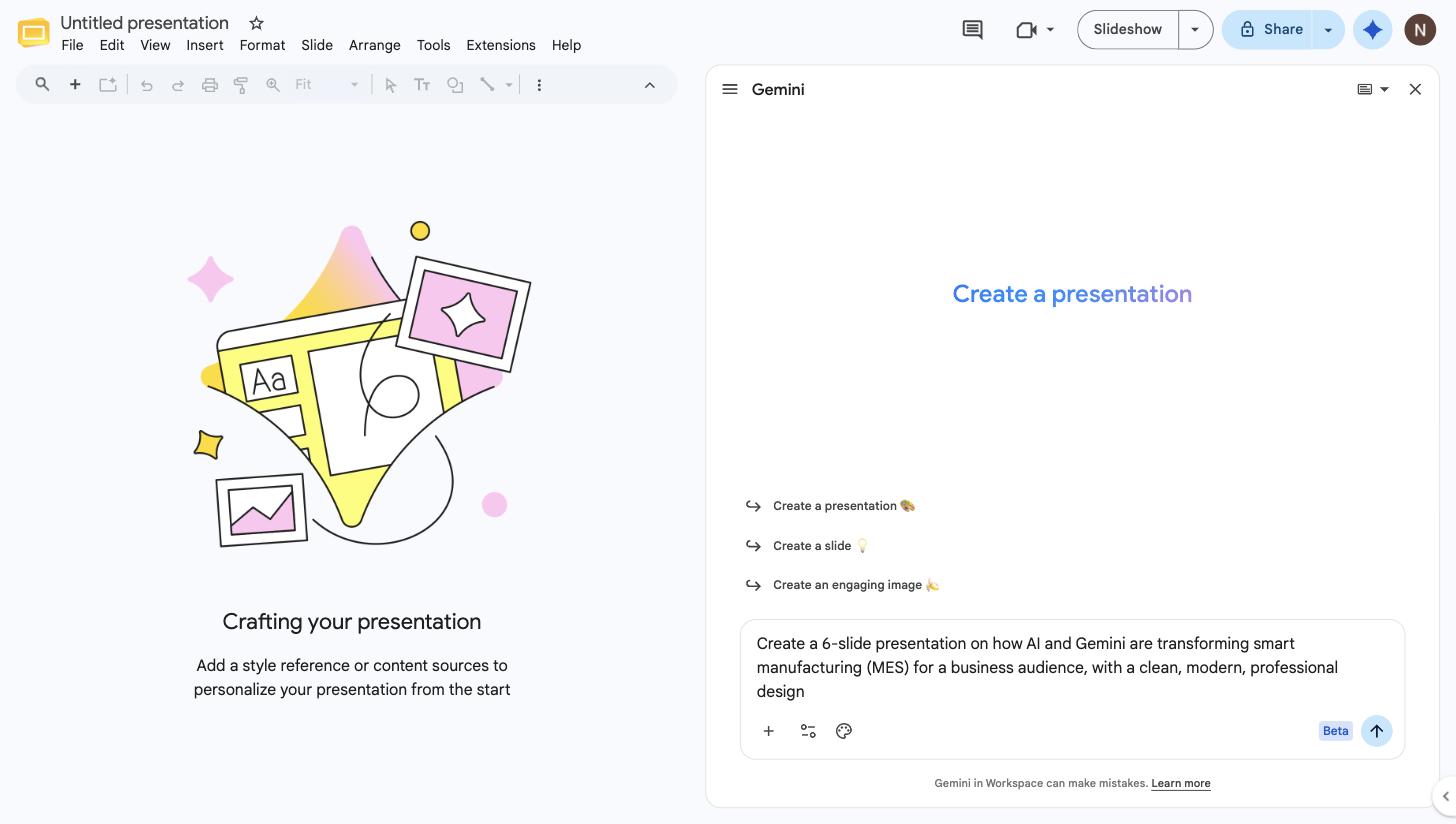
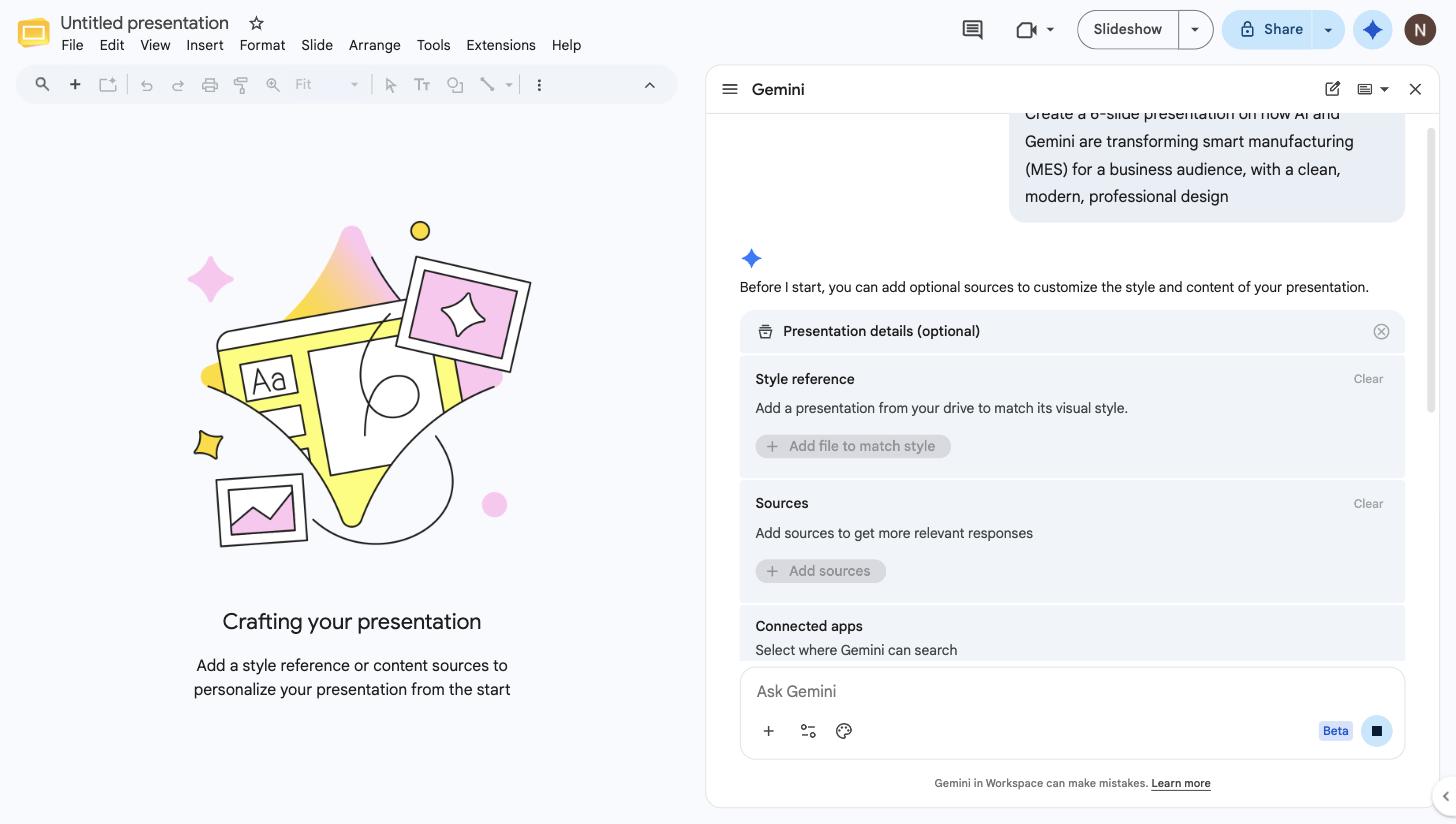
In the Gemini side panel, describe your presentation in plain language. The more direction you give — topic, number of slides, audience, and tone — the closer the first draft lands. Our prompt was:
Create a 6-slide presentation on how AI and Gemini are transforming smart manufacturing (MES) for a business audience, with a clean, modern, professional design.
Step 3 — (Optional) Add sources and a style reference
Before it starts, Gemini offers to personalize the deck. You can add a file to match style (attach an existing presentation and the new one inherits its visual language), add sources from Drive for grounded, accurate content, and choose which connected apps — Drive, Gmail, Chat, or Web — Gemini is allowed to search. This is the step that turns a generic deck into your deck.
Step 4 — Answer a few clarifying questions
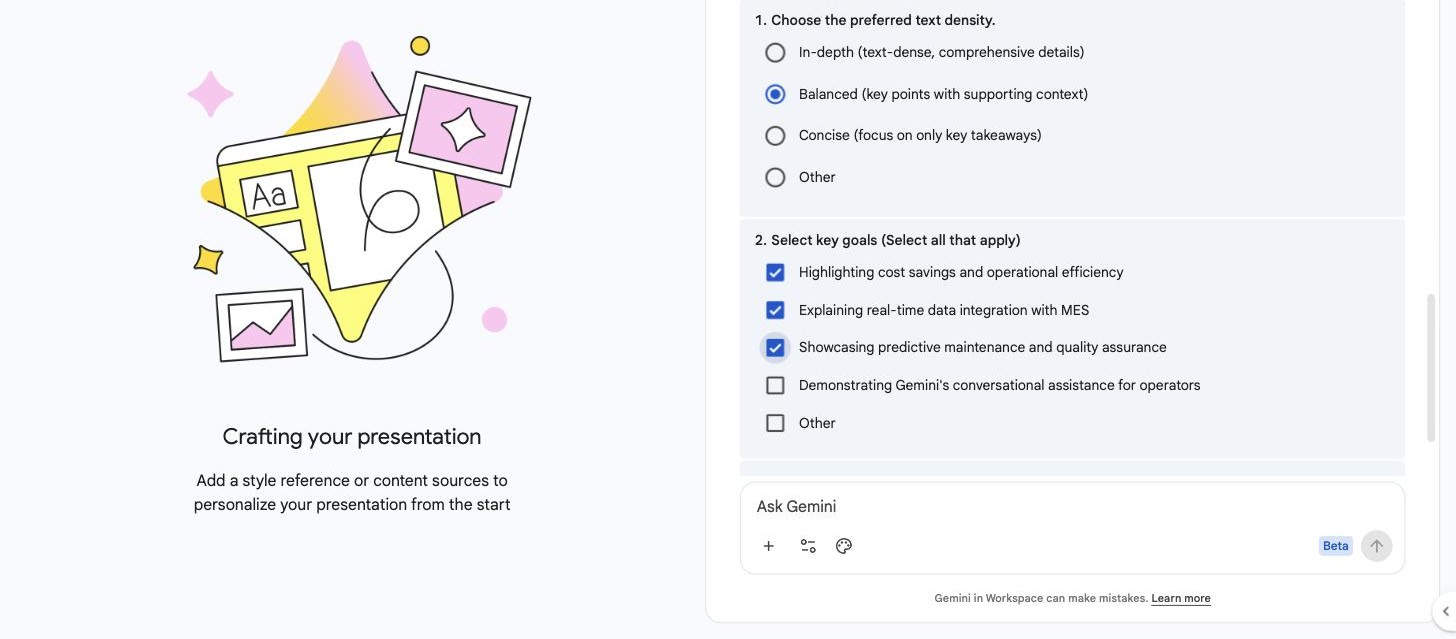
Rather than guessing, Gemini asks a couple of quick, optional questions to sharpen the result — in our case, the preferred text density and the key goals to emphasize. You can answer, or skip and move on. We chose a balanced density and asked it to highlight cost savings, real-time data integration, and predictive maintenance.
Step 5 — Review and refine the plan
Here’s the part that builds trust: before generating a single slide, Gemini shows you the plan — the overall theme, the audience, and a slide-by-slide outline. You can rename slides, add or remove them, and regenerate the plan until the structure is right. Nothing is committed to the canvas yet.
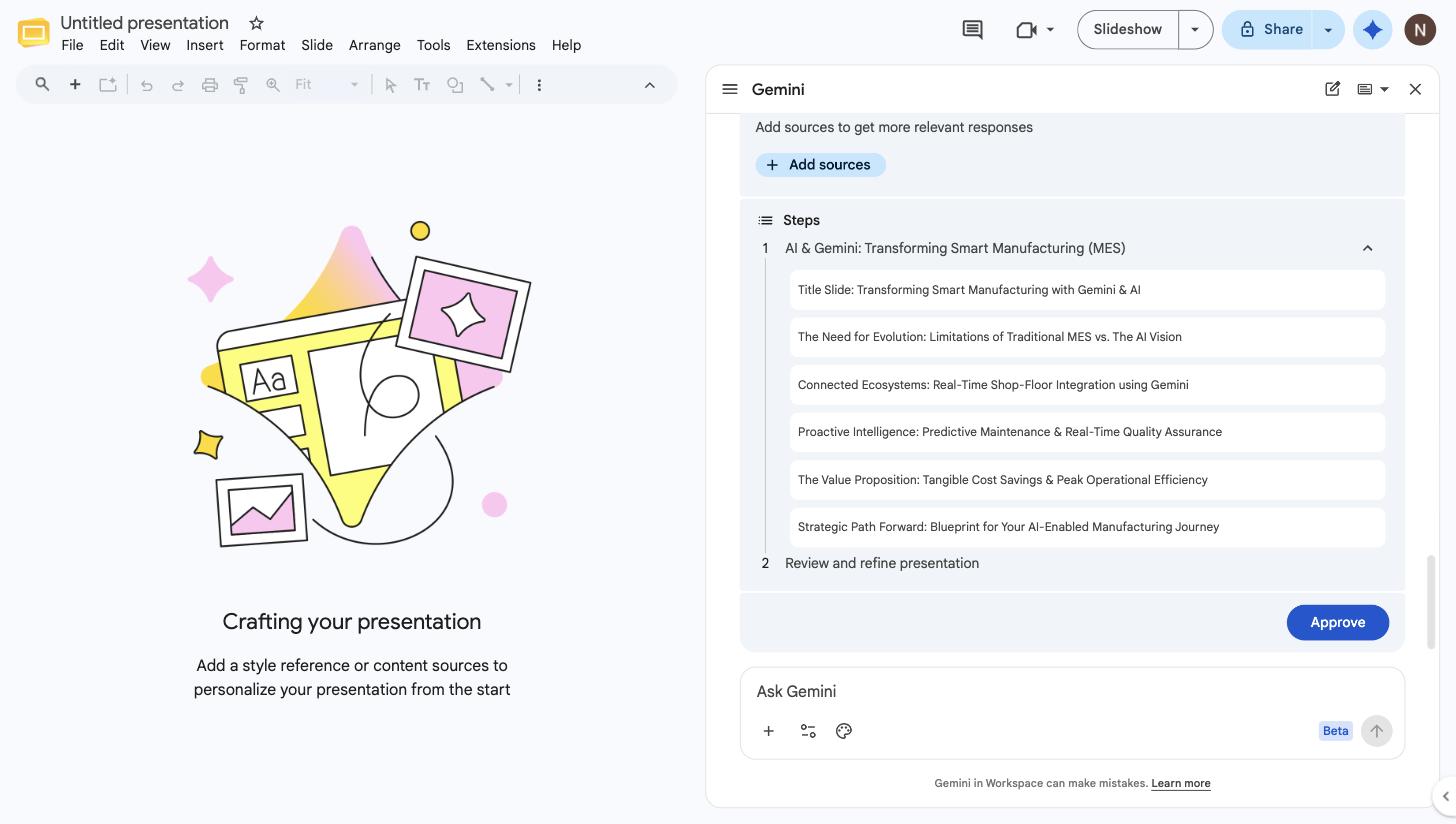
Step 6 — Approve and let Gemini build
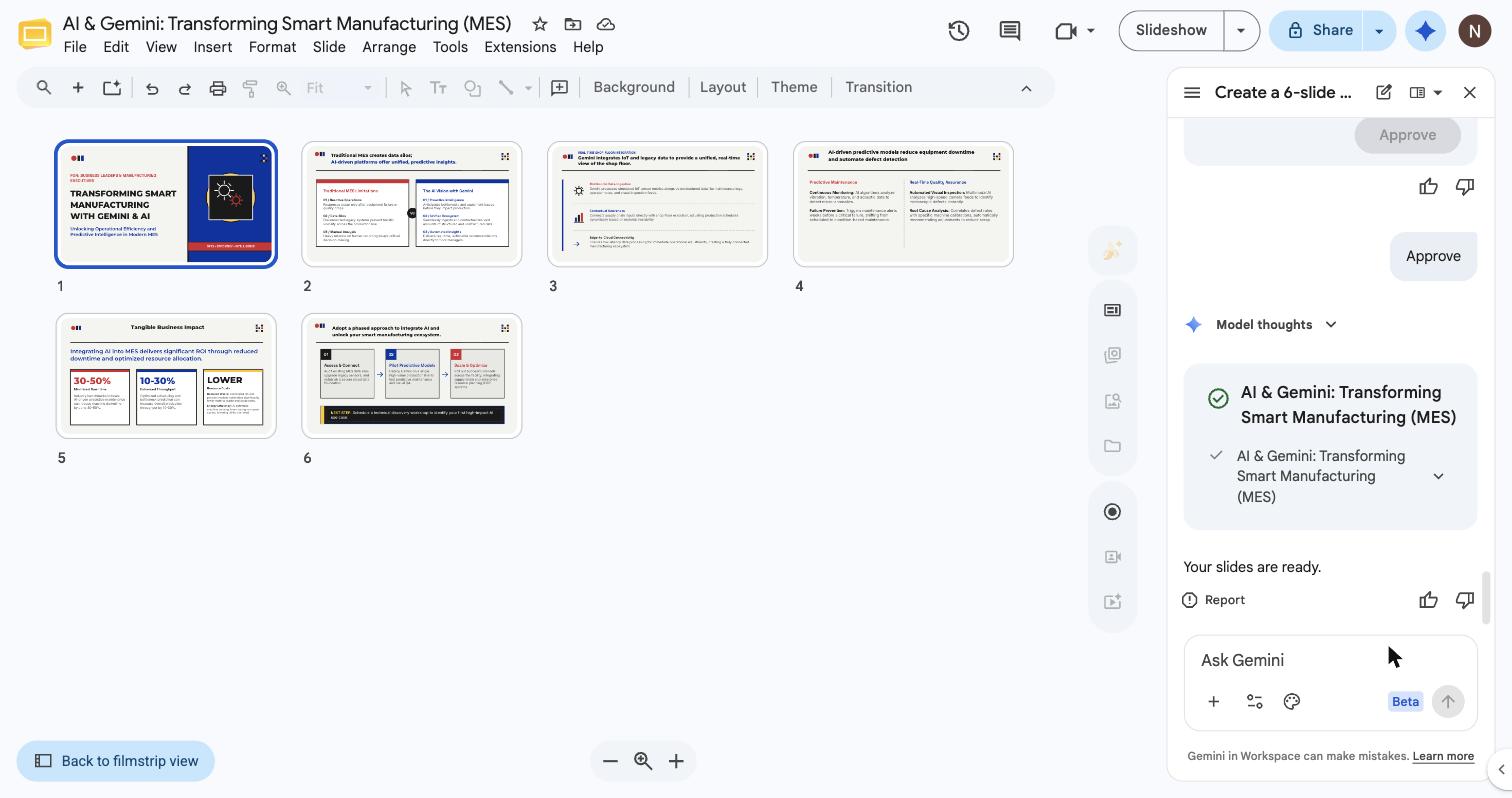
Click Approve, keep the tab open, and Gemini goes to work — defining the visual style, laying out each slide, and generating imagery. A minute or so later, the deck is done.
The result
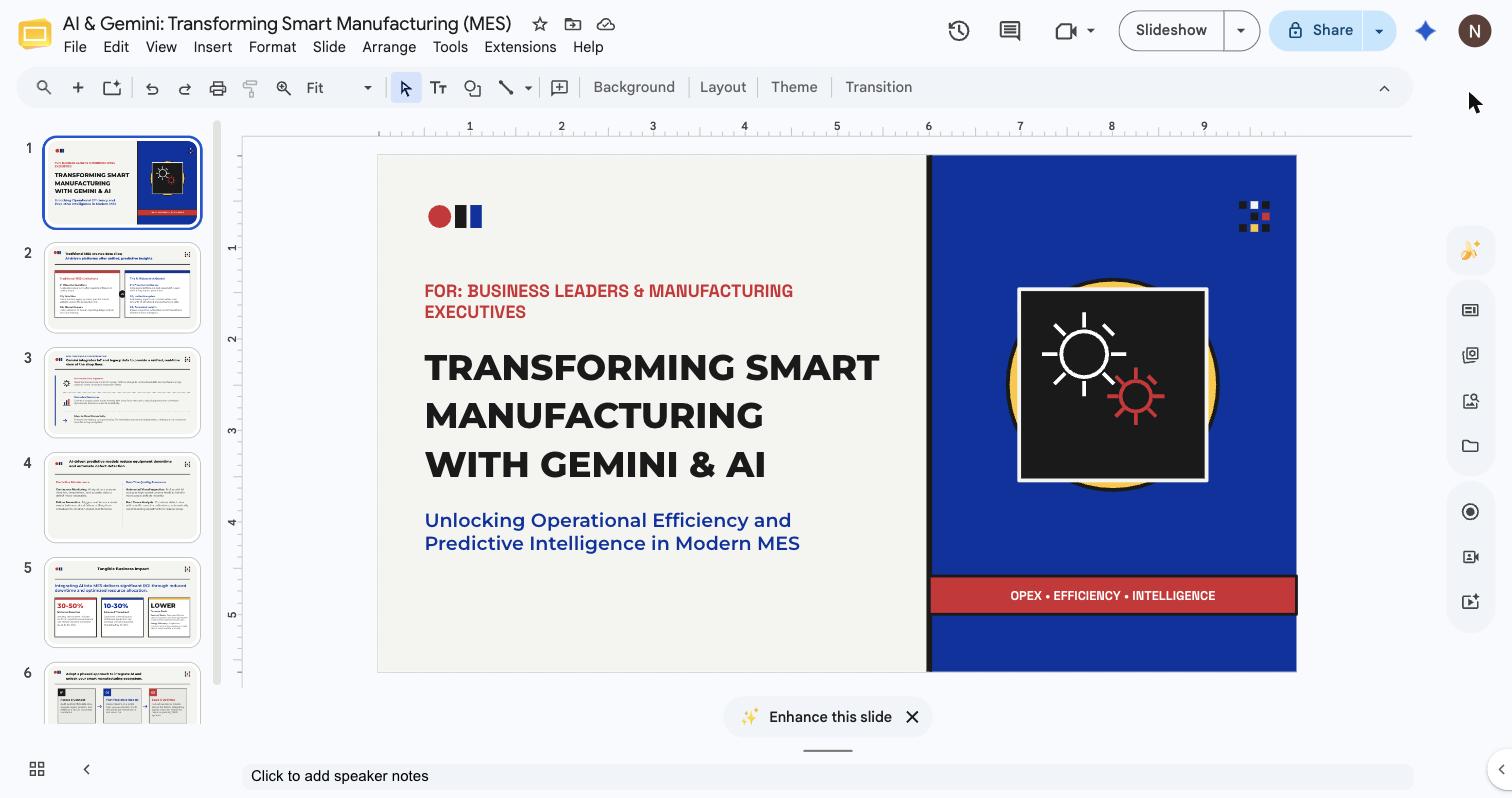
The finished deck opened with a polished title slide — a clean two-column layout, a consistent accent palette, an icon motif, and a tagline strip — followed by five content slides covering the MES story we asked for, complete with a data-driven “Tangible Business Impact” slide and a phased roadmap to close.
Most importantly, it’s all native Slides content. Every element is selectable and editable, and you can even ask Gemini to Enhance this slide or regenerate individual pieces.
Why this matters
The obvious win is time. A first-draft deck that used to take one to two hours now takes a few minutes — and it starts from something structured and on-brand rather than a blank slide.
But the subtler win is where it happens. Because generation lives inside Slides and produces editable objects, there’s no awkward hand-off between an “AI tool” and your real document. You draft with AI and finish by hand in the same place, using the app your team already knows. Pair it with a style reference and a couple of Drive sources, and Gemini becomes less of a novelty and more of a genuine first-draft engine for proposals, internal updates, training material, and pitches.
A couple of practical notes from our run: give the prompt real specifics (audience and slide count matter), use the plan-review step to fix structure before generating, and treat the first output as a strong draft to polish — not a final deliverable. As with any AI, a quick fact-check on generated figures is always worth the minute.
A note for admins: when will your team see it
If the option hasn’t appeared for your organization yet, it may come down to your release track. Google’s admin guidance explains the two options: Rapid Release domains get new features first, while Scheduled Release domains receive them at least a week later, giving IT time to prepare. Admins can switch tracks under Admin console → Account → Preferences → New features, with changes typically taking effect within 24 hours. Features themselves also roll out at different speeds — anywhere from a couple of days to more than two weeks — so a short wait is normal even on Rapid Release.
Final thoughts
Gemini in Google Slides is a small change in workflow with an outsized effect on output. It removes the slowest, least creative part of building a presentation while leaving you in full control of the result. For teams that live in Google Workspace, it’s one of those features that quietly becomes part of how you work.
At Scuti, we’re always exploring how generative AI can take the friction out of everyday work — so teams spend their time on the thinking, not the formatting. Our mission is simple: to make services people love, by the power of Gen AI.