
AI Quest Type 2 (Investigate How). Both flows below were built and Test-run live in Google Workspace Studio: a weekly prompt and a Gemini-summarized report + executive summary to Chat. Real execution output is included as evidence; screenshots mark where each capture goes.
1. The Scenario
A project manager needs a weekly status roundup without chasing everyone. Dummy data is fine. The routine:
- Friday 16:00 — automatically ask the team four fixed questions (this week / next week / risks / help needed).
- Team members reply in a shared Weekly Status Google Sheet (one row each).
- Friday 17:30 — Gemini summarizes the sheet into a Weekly Report Doc and posts a 3–7 line executive summary back to Chat.
This is split into two flows: a prompt flow and a report flow.
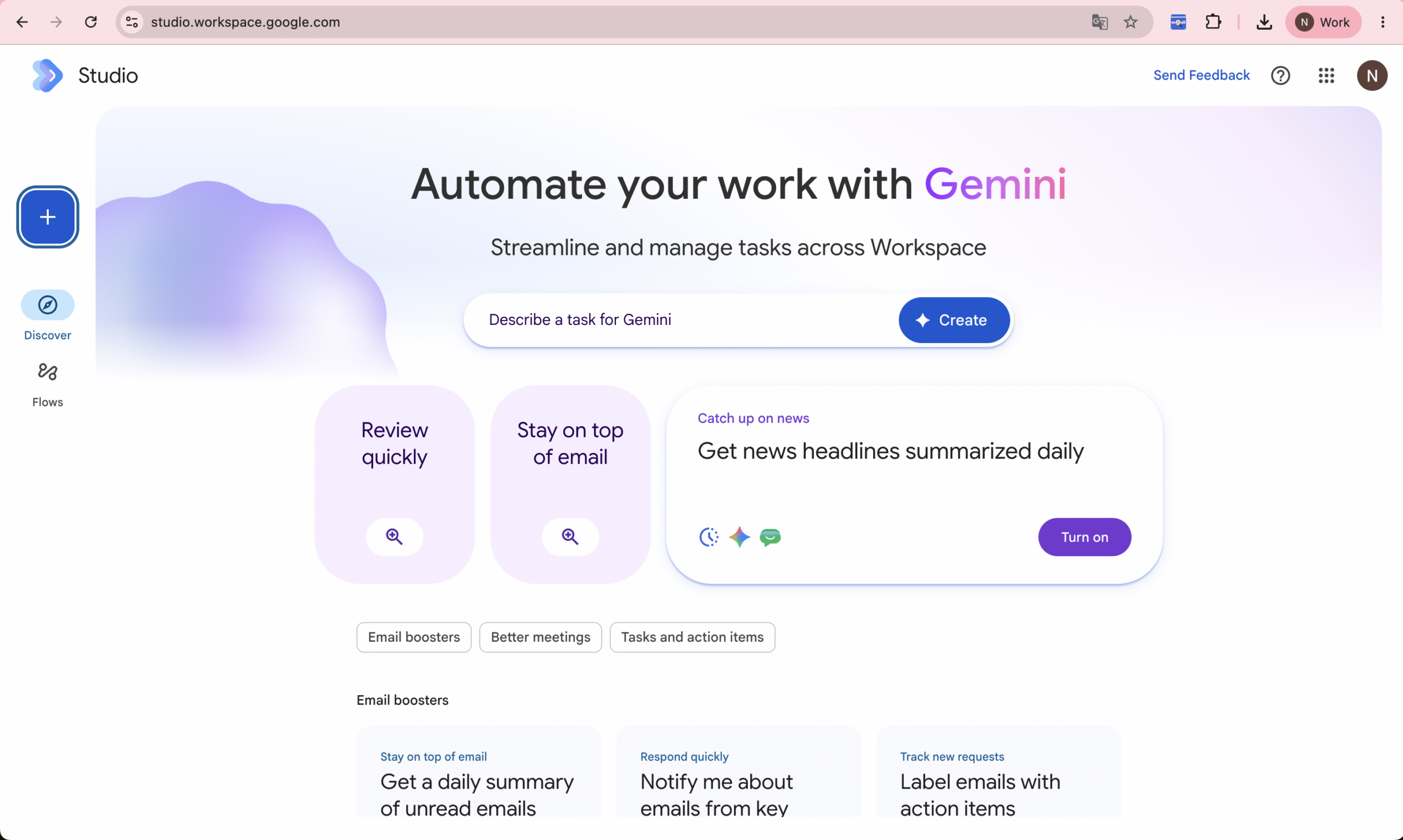
📷 SCREENSHOT 1 — Workspace Studio “Discover” home — account access
2. Flow A — Friday Standup Prompt
Flow name: AI Quest 2 - Weekly Standup Prompt
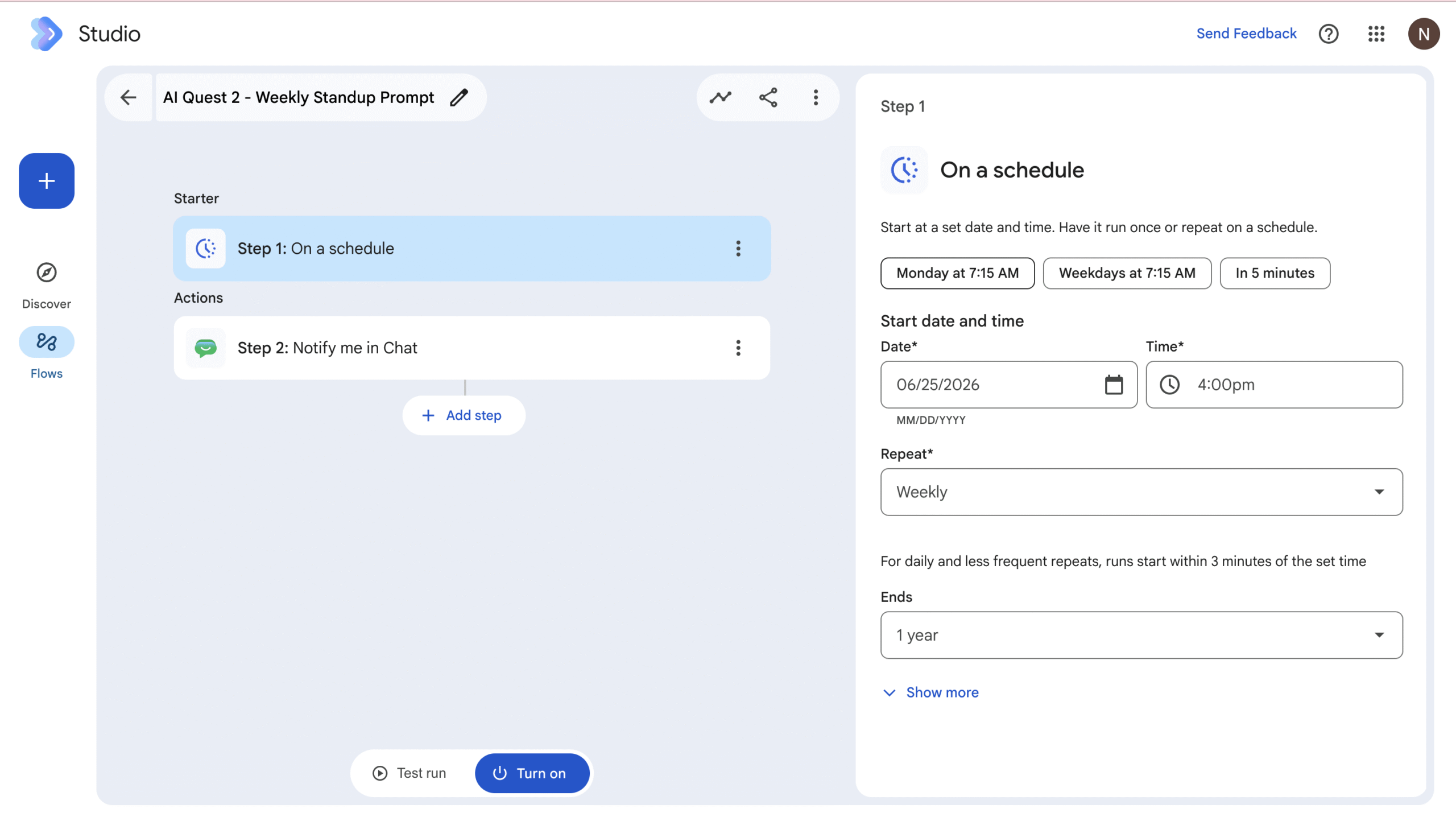
Step 1 — Starter: On a schedule
Set Time = 16:00, Repeat = Weekly on Friday. The Date field is just the start date.
📷 SCREENSHOT 2 — Flow A → Step 1 “On a schedule”: Weekly, Friday 16:00
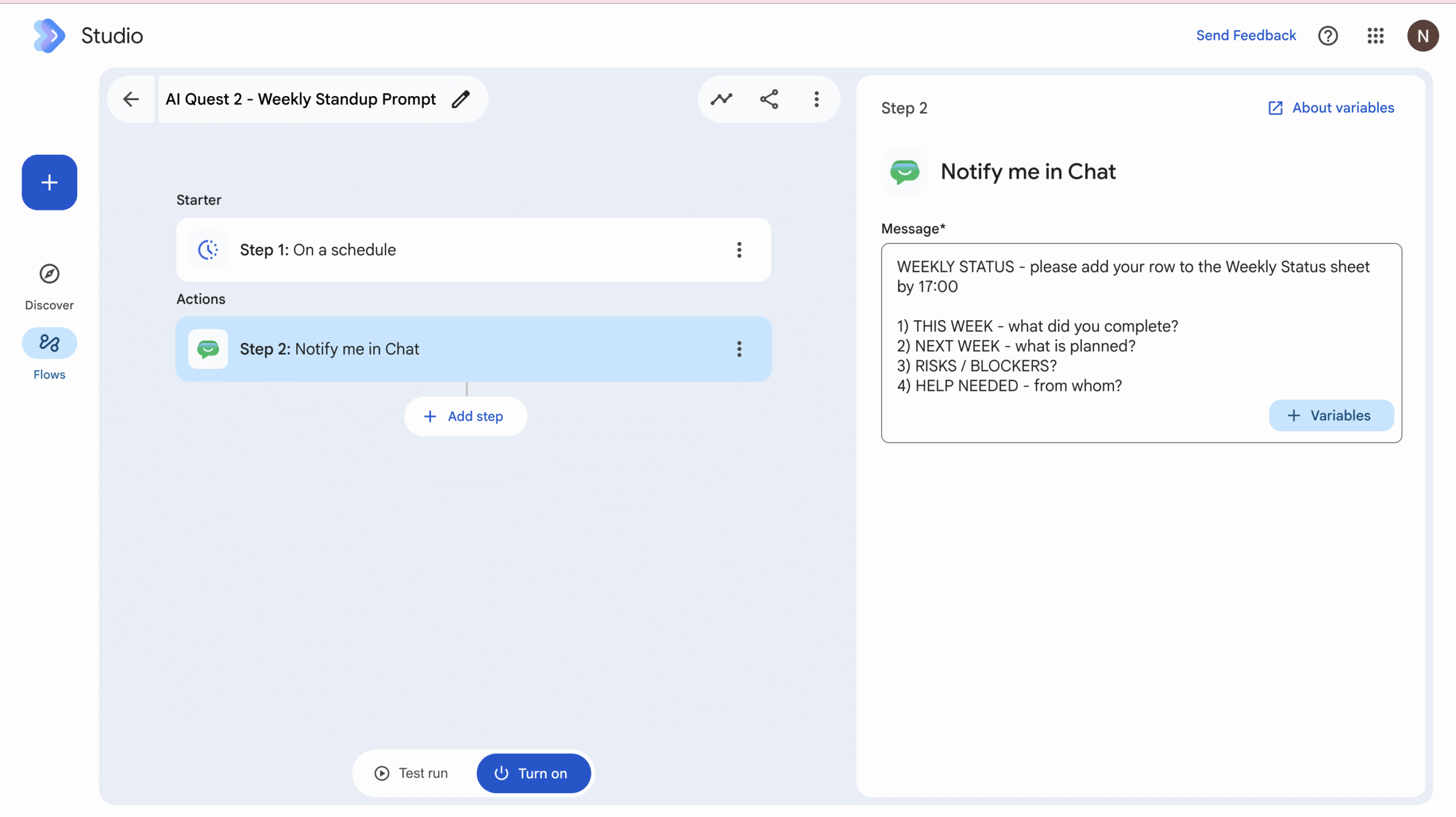
Step 2 — Notify me in Chat (the four questions)
📋 WEEKLY STATUS — please add your row to the Weekly Status sheet by 17:00

1) THIS WEEK  — what did you complete?
2) NEXT WEEK  — what is planned?
3) RISKS / BLOCKERS?
4) HELP NEEDED — from whom?
Finding (verified in Flow 1 of the companion article): Studio’s Chat action is
Notify me in Chat— it DMs the flow owner only; there is no “post to a space” action. To broadcast to the whole team space, use aSend a webhookstep pointed at the space’s incoming webhook URL instead.
📷 SCREENSHOT 3 — Flow A → Step 2 “Notify me in Chat”: the four questions
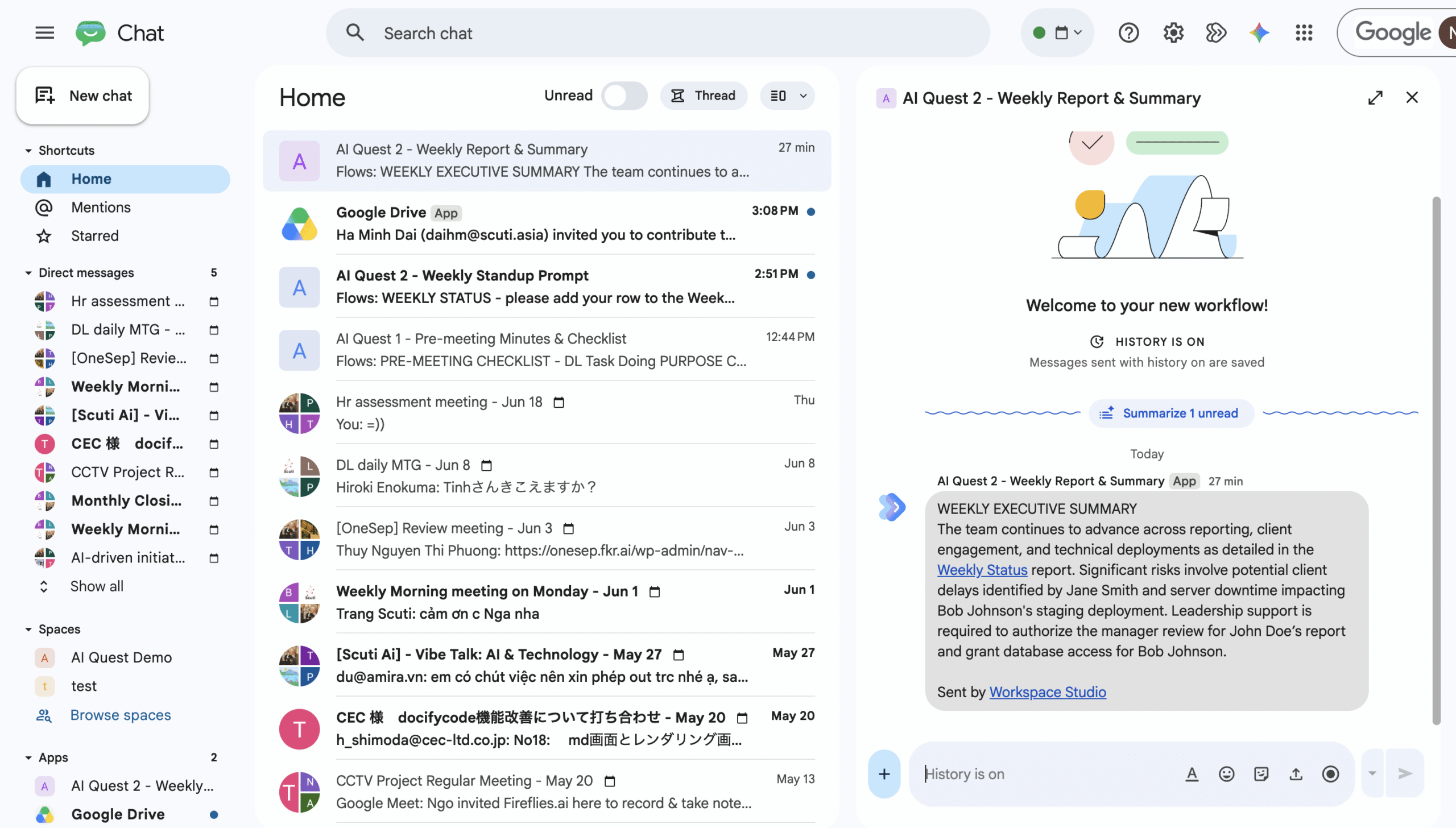
📷 SCREENSHOT 4 — Flow A → the Chat notification received
3. Flow B — Weekly Report & Executive Summary
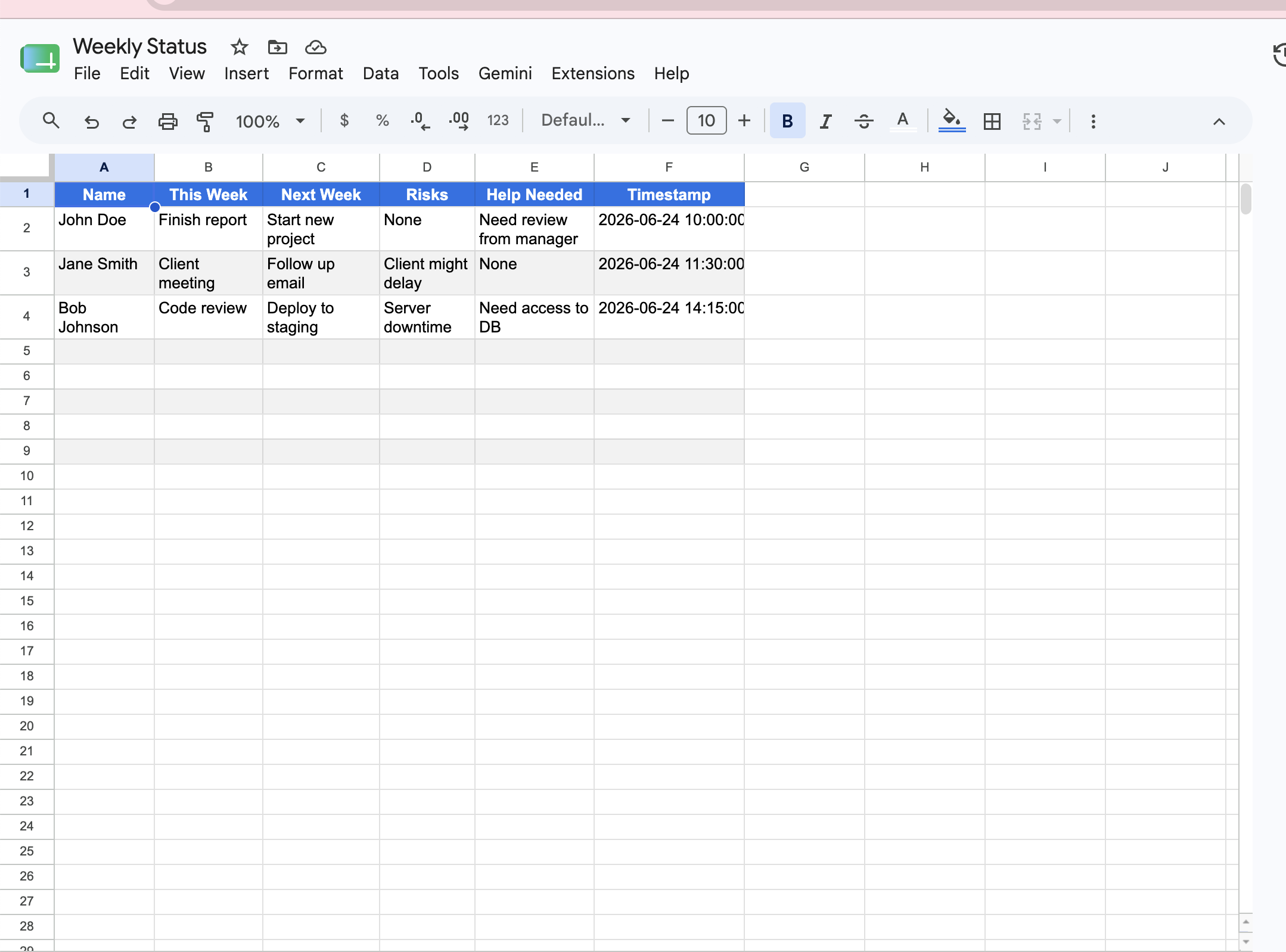
Flow name: AI Quest 2 - Weekly Report & Summary. Collection source: a Weekly Status Google Sheet with one row per member.
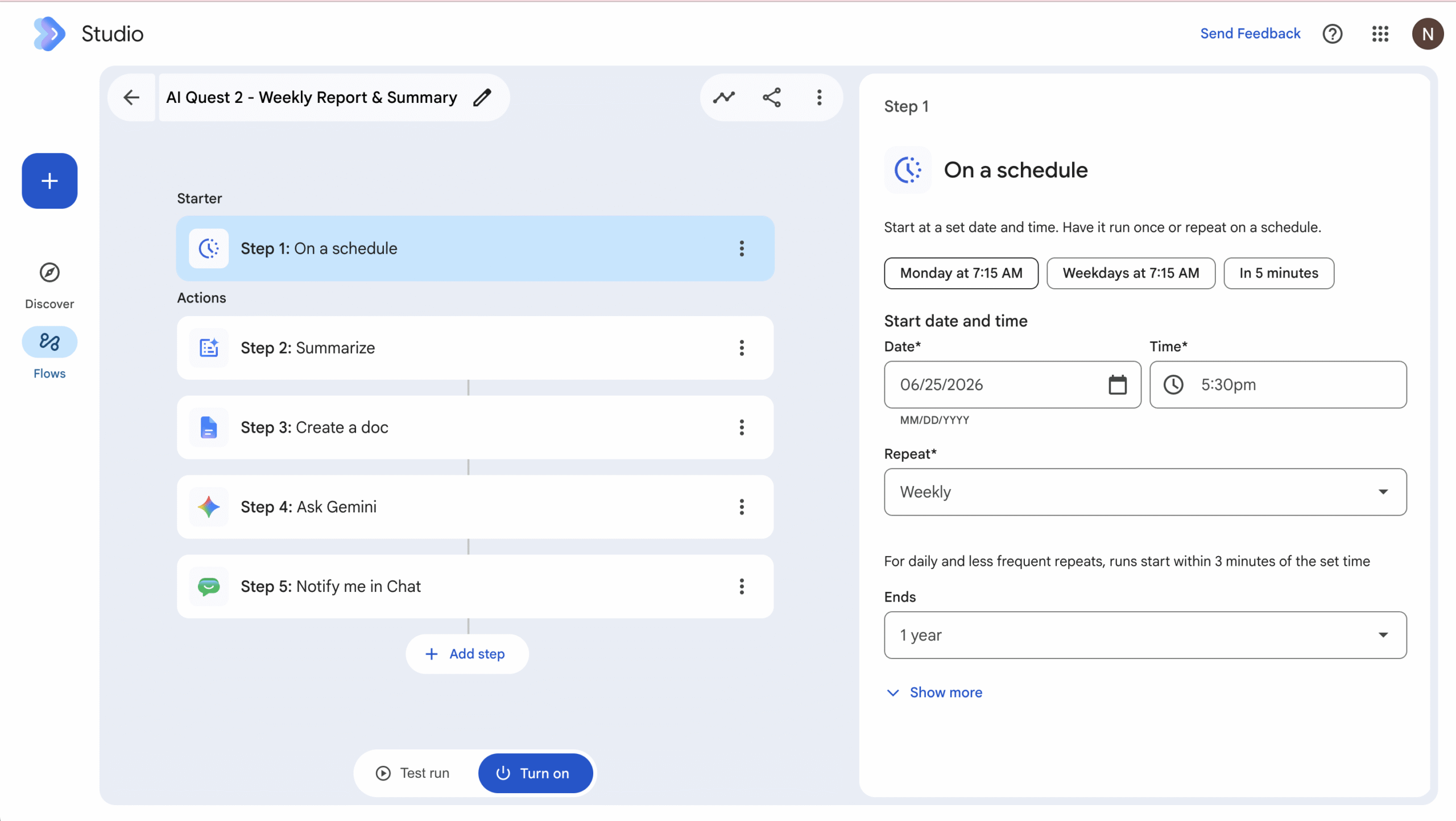
Step 1 — Starter: On a schedule
Time = 17:30, Repeat = Weekly on Friday (90 min after the prompt, giving people time to reply).
📷 SCREENSHOT 5 — Flow B → Step 1 “On a schedule”: Weekly, Friday 17:30
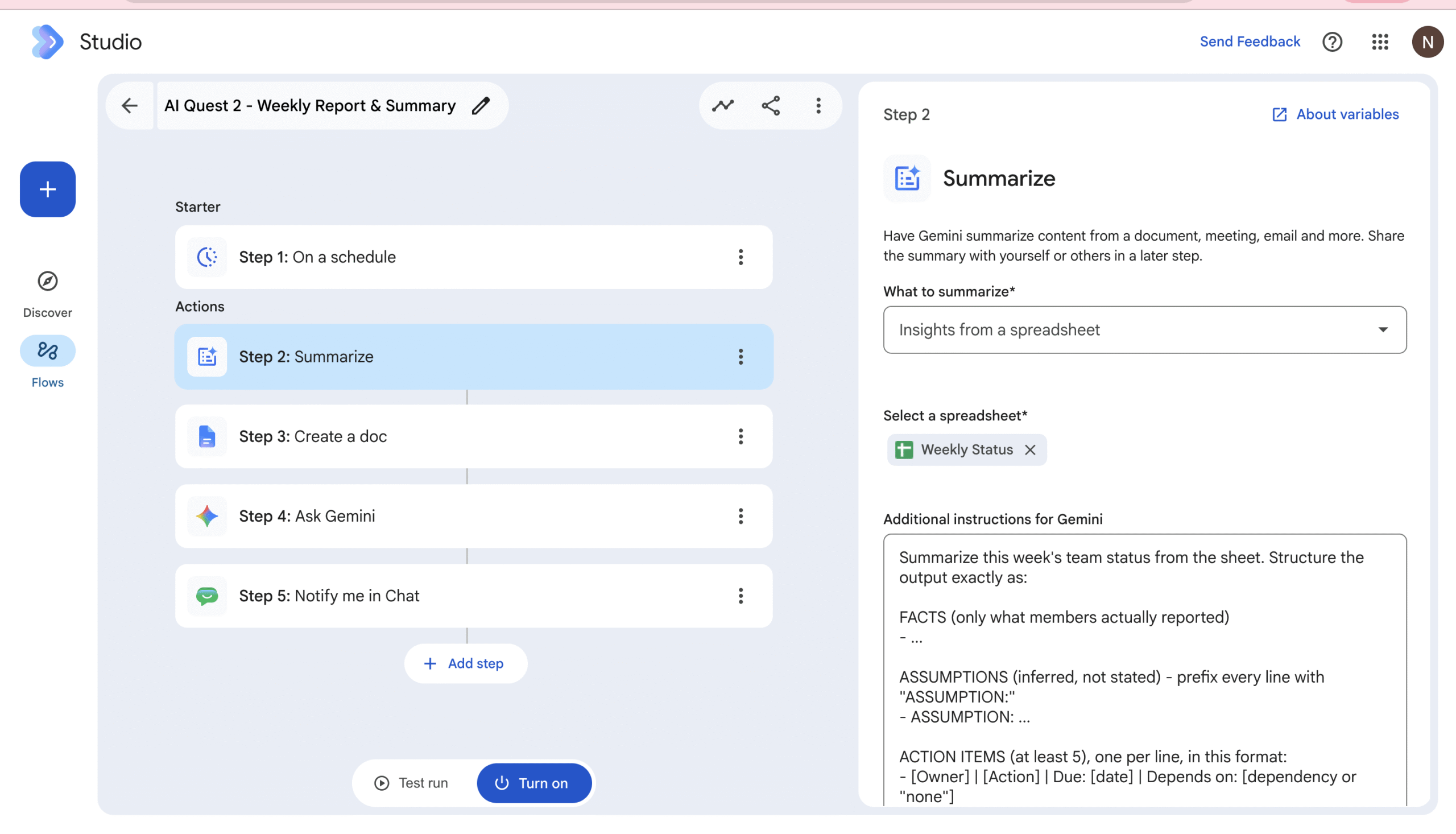
Step 2 — Summarize (Insights from a spreadsheet)
What to summarize = Insights from a spreadsheet; Select a spreadsheet = the Weekly Status sheet. Additional instructions for Gemini:
Summarize this week's team status. Structure the output as:

FACTS (only what members actually reported)
- ...

ASSUMPTIONS (clearly inferred, not stated) — prefix every line with "ASSUMPTION:"
- ASSUMPTION: ...

ACTION ITEMS (at least 5), one per line, in the format:
- [Owner] | [Action] | Due: 2026 | Depends on: [dependency or "none"]

Keep facts and assumptions strictly separated. Do not invent owners or dates;
if unknown, write "TBD".
📷 SCREENSHOT 6 — Flow B → Step 2 “Summarize”: Insights from a spreadsheet + the instructions
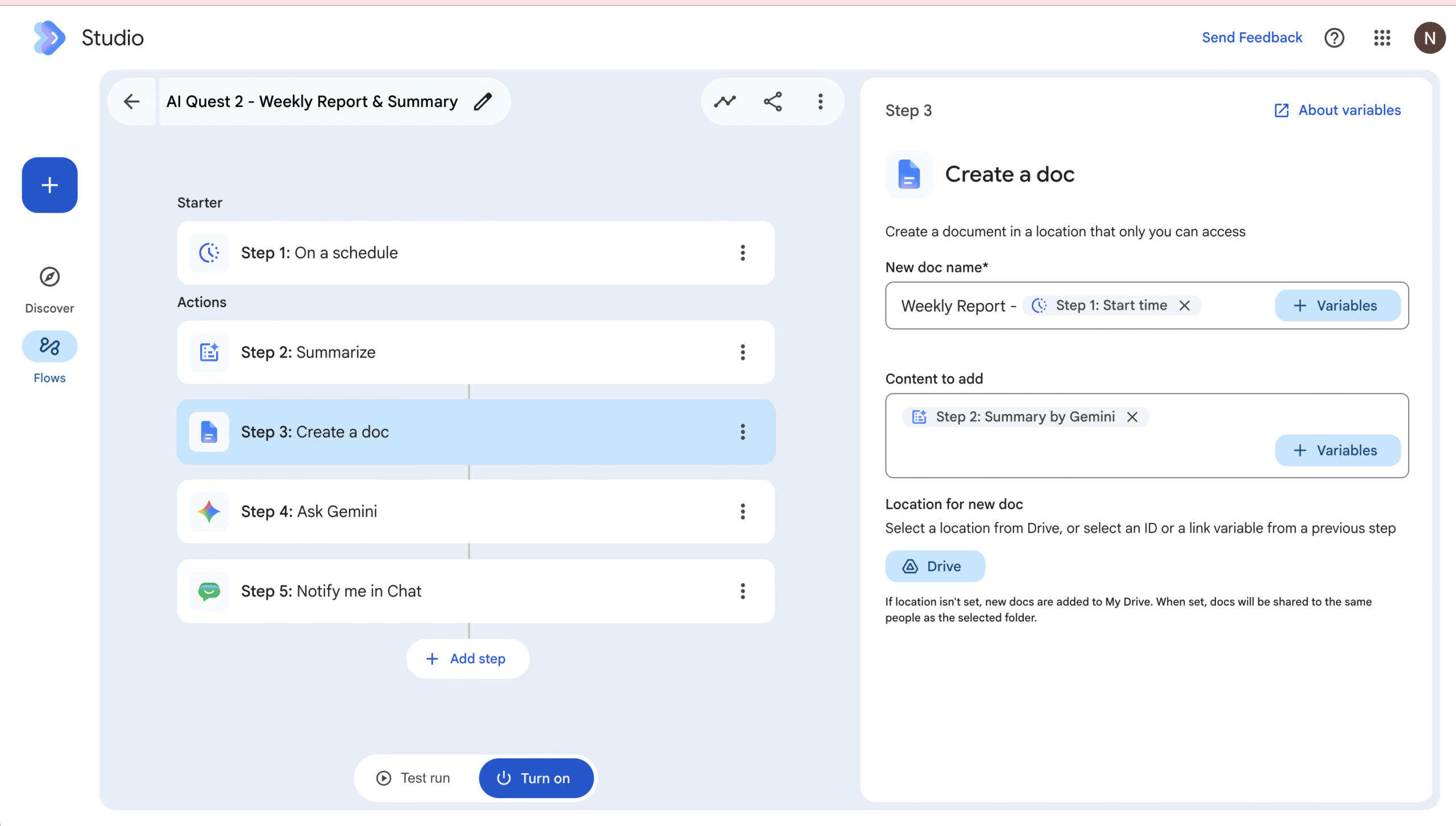
Step 3 — Create a doc (the weekly report)
New doc name = Weekly Report - {{Step 1: Scheduled date}}; Content to add = {{Step 2: Summary by Gemini}}; Location = a Shared Drive Weekly Reports folder.
📷 SCREENSHOT 7 — Flow B → Step 3 “Create a doc”: weekly report name + summary content
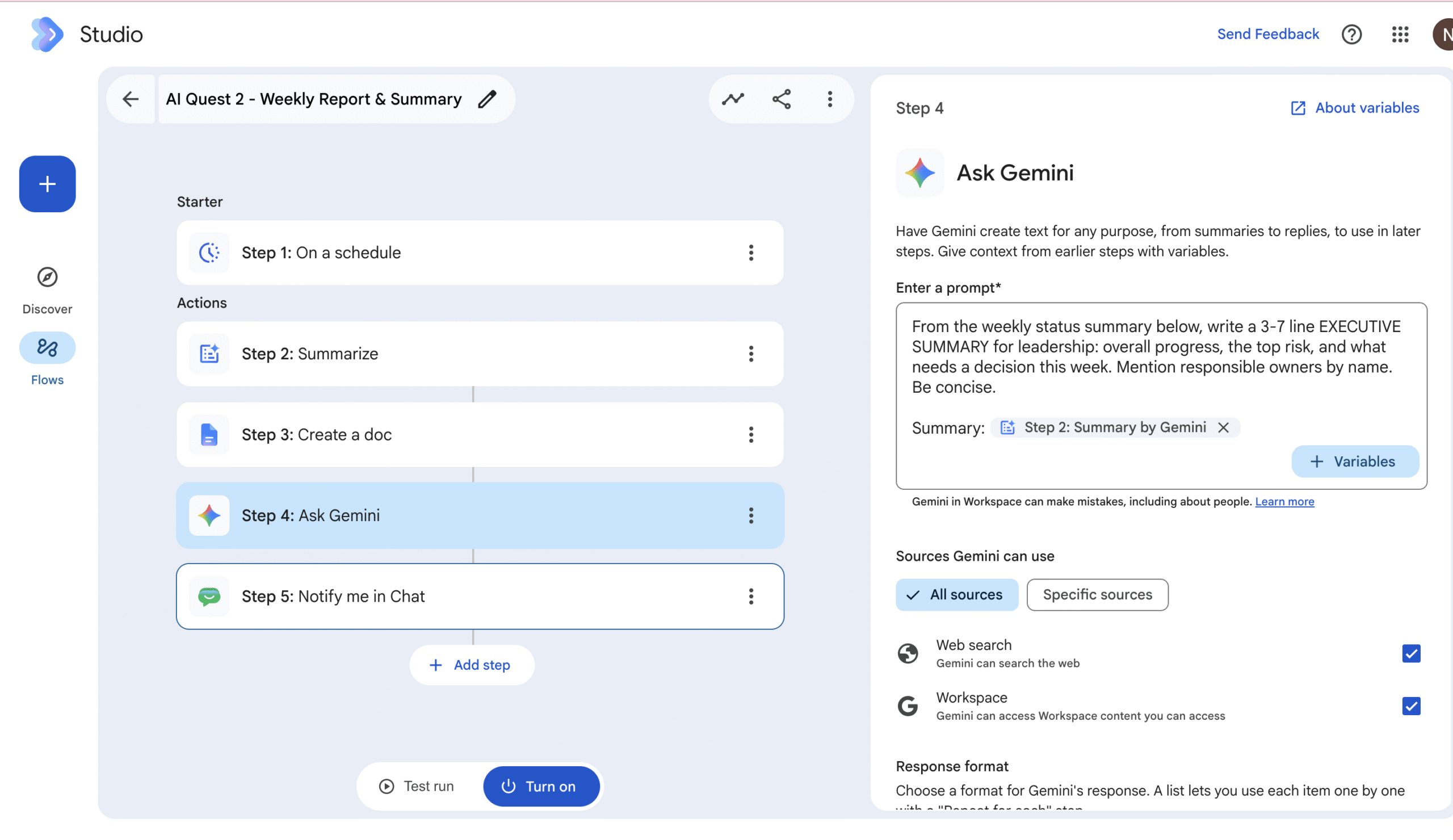
Step 4 — Ask Gemini (3–7 line executive summary)
From the weekly status summary below, write a 3-7 line EXECUTIVE SUMMARY for
leadership: overall progress, the top risk, and what needs a decision this week.
Mention the responsible owners by name. Be concise.

Summary: {{Step 2: Summary by Gemini}}
📷 SCREENSHOT 8 — Flow B → Step 4 “Ask Gemini”: executive-summary prompt
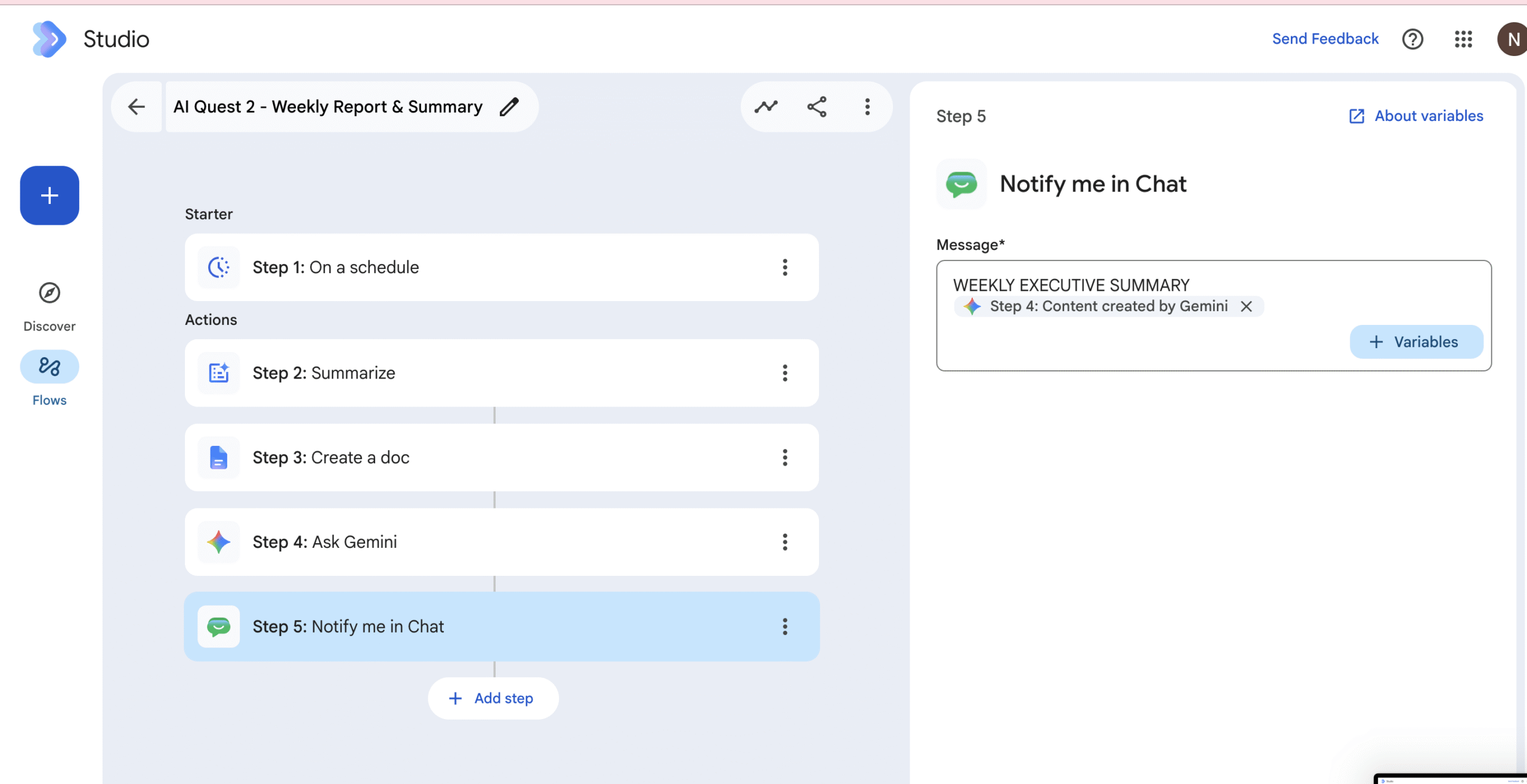
Step 5 — Notify me in Chat (post the executive summary)
Message = {{Step 4: Content created by Gemini}}. (In a team space, @mentions are added by addressing owners by name; Studio’s self-notify posts to the owner’s DM.)
📷 SCREENSHOT 9 — Flow B → Step 5 “Notify me in Chat”: the executive summary
📷 SCREENSHOT 10 — The generated Weekly Report Doc and/or the Chat executive summary
Test run — live execution evidence
Flow A Test run: Step 1 On a schedule → Step 2 Notify me in Chat → Run Completed (the four questions were delivered to Chat).
Flow B Test run produced real, correctly-structured output from the dummy Weekly Status sheet:
FACTS
- John Doe finished a report and is starting a new project; needs a manager review.
- Jane Smith joined a client meeting and will send a follow-up email; flagged a potential client delay.
- Bob Johnson did a code review and plans a staging deployment; flagged server-downtime risk, needs DB access.

ASSUMPTIONS
- ASSUMPTION: John Doe's report is needed for the current project phase.
- ASSUMPTION: Jane Smith's client meeting requires external follow-up.
- ASSUMPTION: Bob Johnson's deployment depends on resolving database-access permissions.
- ASSUMPTION: server downtime could impact the staging schedule.
- ASSUMPTION: members submit these updates as a regular weekly cadence.

ACTION ITEMS
- [John Doe] | Finish report | Due: TBD | Depends on: none
- [John Doe] | Submit report for management review | Due: TBD | Depends on: Manager review
- [Jane Smith] | Send follow-up email to client | Due: TBD | Depends on: none
- [Bob Johnson] | Complete code review | Due: TBD | Depends on: none
- [Bob Johnson] | Deploy to staging | Due: TBD | Depends on: Database access
Step 3 then created the doc Weekly Report – June 24, 2026; Step 4 (Ask Gemini) produced a concise executive summary naming the owners (John Doe, Jane Smith, Bob Johnson) and the decisions leadership must make; Step 5 posted it to Chat. Run Completed.
4. Output Quality Requirements
The Summarize instruction (Step 2) enforces the quality gate: a FACTS block (only reported items), a separate ASSUMPTIONS block (every line prefixed ASSUMPTION:), and at least 5 ACTION ITEMS each carrying Owner | Action | Due | Depends-on. Unknown owners/dates are forced to TBD rather than invented — preventing hallucinated commitments.
5. Operational Requirements
Drive location & naming: store reports in a Shared Drive → Weekly Reports/ folder (team-owned, not a personal My Drive). Naming convention: Weekly Report - {ISO week, e.g. 2026-W26} for weekly, Monthly Report - {YYYY-MM} for monthly.
Duplicate runs in the same period: the weekly schedule fires once, but a manual re-run would make Create a doc produce a second doc with the same name (Drive allows duplicate names). Decide a policy:
- Append — switch to
Add to a doc(After existing content) on a single rolling “Weekly Reports” doc, so each run appends a dated section. - Overwrite — keep one doc per week and clear/replace its body.
- Abort — add a
Get sheet contents+Check ifguard: if no new rows since last run, stop.
Recommended: append to a rolling doc keyed by week — it is idempotent and keeps history.
6. Failure Modes & Mitigations
- Chat self-notify only. Questions/summary go to the owner’s DM, not the team space. Mitigation:
Send a webhookto the space’s incoming webhook for true broadcast. - Low response rate. If the sheet is empty the summary is misleading. Mitigation: gate Flow B with
Get sheet contents+Check if(rows > threshold) before summarizing; otherwise send a reminder instead. - Formatting drift. Members write inconsistently. Mitigation: the strict FACTS/ASSUMPTIONS instruction normalizes output and prevents inferred items being presented as facts.
- Truncation on long input. Many long rows can exceed the model’s effective window. Mitigation: cap the rows summarized, or summarize per-team then combine.
- Duplicate runs / idempotency. Manual re-runs create duplicate report docs. Mitigation: week-keyed naming + append-to-rolling-doc, or an abort guard (see §5).
- Schedule timezone.
On a scheduleruns in the flow owner’s timezone — verify it matches the team’s, or the “Friday 16:00” prompt lands at the wrong local time.
7. Reproducibility
Weekly Status sheet schema (row 1 headers):
Name | This Week | Next Week | Risks | Help Needed | Timestamp
Naming: Weekly Report - {ISO week} / Monthly Report - {YYYY-MM}. Drive: Shared Drive > Weekly Reports/.
Parameterized vs fixed: variables = scheduled date, the Gemini summary, the executive summary; fixed = the four questions, the Summarize instruction, the schedule cadence, sheet header names.
Reusable building block: On a schedule → Summarize (spreadsheet) → Create/Add to a doc → Ask Gemini → Notify in Chat. Swap the spreadsheet source and instructions to retarget it to a monthly back-office report.
8. Summary
Two scheduled Workspace Studio flows turn a weekly status chase into an automated routine: a Friday prompt, a Gemini-summarized report Doc with facts/assumptions separated and 5+ owner-tagged action items, and an executive summary delivered to Chat — with response-rate, idempotency, and timezone pitfalls handled so the team can rely on it every week.