

PART 1: FEATURE OVERVIEW
Fill with Gemini is a smart feature in Google Sheets designed to transform spreadsheets from rigid grids into context-aware assistants. It automates data entry and simplifies data preparation by eliminating manual typing, web scraping, or drafting complex formulas (like VLOOKUP, INDEX/MATCH, or REGEX).
Instead of working for the spreadsheet, the spreadsheet now works for you through Intent Inference and Gemini’s real-time connection to Google Search and the Workspace ecosystem.
3 Core Capabilities That Automate Data Entry
- Smart Pattern Recognition (Drag-and-Drop): Provide 1 or 2 examples in the first rows, drag the fill handle down, and Gemini will deduce the underlying logic from your column headers and surrounding data to fill the rest.
- Prompt-to-Fill (Command-Based): Highlight a blank range, click the Gemini Fill icon, and type your request in plain English (e.g., “Find the capital city for these countries”). Gemini will look up the information and populate the cells instantly.
- Content Processing & Analysis: Gemini goes beyond numbers; it understands text. You can command it to summarize long paragraphs, translate languages, or read customer feedback and categorize it (e.g., Positive, Negative, Neutral).
Traditional Method vs. “Fill with Gemini”
| Task | Traditional Method (Old) | With “Fill with Gemini” (New) |
| External Research (Finding websites, capitals, ticker symbols) | Google search each item -> Copy -> Paste into Sheets (Takes hours). | Highlight cells -> Type: “Find the official website for these companies” -> Done in seconds. |
| Data Cleaning (Splitting full names, extracting addresses) | Write complex, error-prone text formulas like LEFT, RIGHT, or MID. |
Fill out the first row manually -> Drag down for the AI to replicate the pattern. |
| Qualitative Analysis (Sentiment analysis on user feedback) | Manually read every row and type out categories (Tiring and tedious). | Prompt: “Read the feedback column and label each row as Positive or Negative” for the entire dataset at once. |
PART 2: PRACTICAL TESTING & RESULTS
A sample spreadsheet was set up to simulate a routine market research and product management workflow.
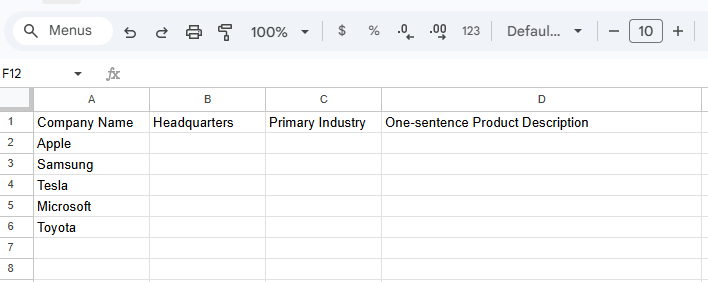
1. Sample Spreadsheet Setup
A table was created with 4 columns:
- Column A: Company Name (Pre-filled: Apple, Samsung, Tesla, Microsoft, Toyota).
- Column B: Headquarters Country (Blank).
- Column C: Primary Industry (Blank).
- Column D: One-sentence Product Description (Blank).
2. Specific Steps Taken
- Step 1: Opened Google Sheets and selected the blank range
B2:B6(Headquarters Country). - Step 2 (Testing Prompt-to-Fill): Clicked the Gemini Fill prompt icon next to the selection and entered: “Look up the country where the headquarters of the companies in Column A are located.” Clicked Apply.
- Step 3 (Testing Drag-and-Drop Pattern): In cell
C2(Industry for Apple), typed “Tech/Electronics” manually. Hovered over the bottom-right corner ofC2to trigger the smart fill handle, and dragged it down toC6. - Step 4 (Testing Content Generation): Selected the range
D2:D6(Description), clicked the Gemini Fill tool, and entered: “Write a concise, one-sentence description of each company’s most iconic product based on their name.” Clicked Apply.
3. Results
- Column B (Country): Gemini populated the data with 100% accuracy (USA, South Korea, USA, USA, Japan) in about 3 seconds.
- Column C (Industry – Drag & Drop): The AI accurately deduced the categorization logic and filled the remaining rows: Samsung (Tech/Electronics), Tesla (EV/Energy), Microsoft (Software/Tech), Toyota (Automotive).
- Column D (Product Description): It generated high-quality, natural-sounding sentences (e.g., for Apple: “Famous for the iPhone lineup and its cohesive iOS ecosystem”). There were no text formatting issues.
PART 3: PERSONAL OPINION & PRACTICAL APPLICATION
Personal Opinion
“Fill with Gemini” is a massive evolutionary leap from the older “Smart Fill” feature, which could only recognize basic text patterns already present in your sheet. By embedding a Large Language Model (LLM) directly into individual cells, Google Sheets transitions from a passive calculator into an active Research Assistant. Its greatest strength is democratizing data manipulation—you no longer need to memorize syntax; you just need to know how to ask.
Practical Application in Daily Work Processes
To improve daily productivity, this feature can be applied to three specific workflows:
- Automating Competitor & Market Research:
- Application: When building a list of 50 prospective leads or competitors, entering just their names and website URLs is enough. “Fill with Gemini” can automatically pull estimated revenue, company size, or core products into adjacent columns, eliminating the need to visit 50 different websites manually.
- Streamlining Data Cleaning and Parsing:
- Application: Exported CRM data is frequently messy (e.g., an address column combining street, city, and zip code into one cell). Gemini Fill can be used to split these into distinct columns using a simple prompt like “Extract the city and zip code from the address column,” avoiding risky string formulas.
- Bulk Sentiment Analysis on Customer Feedback:
- Application: When handling hundreds of rows of customer survey feedback, instead of reading them row-by-row, a “Sentiment” column can be created. Running Gemini Fill with the prompt: “Read the feedback in Column X and label it as Positive, Negative, or Neutral” categorizes large volumes of qualitative data with just a few clicks.
Conclusion
“Fill with Gemini” marks a paradigm shift in spreadsheet management, moving us away from the technicalities of formula syntax toward strategic data orchestration. By acting as an on-demand research assistant and data processor directly inside the grid, it effectively bridges the gap between data collection and execution. Integrating this feature into our daily routines will eliminate the friction of low-value, repetitive tasks—ultimately saving 1 to 2 hours of manual work daily and allowing the team to focus entirely on high-level analysis and decision-making.