
1. The Strategic Edge of AI Video Training
In a fast-growing enterprise, communicating knowledge and Standard Operating Procedures (SOPs) often hits cost and time barriers. High-quality training video production traditionally required complex editing skills, expensive recording hardware, and hours of post-production. This often results in “Knowledge Decay,” where information becomes outdated or is relayed through sterile, less effective text documents.
Google Vids serves as your AI Architect, completely redefining the production landscape. By fusing the linguistic reasoning of Gemini with the vast resources of Google Workspace, Vids empowers any employee to become a professional storyteller. The “Help me create” feature does more than write scripts; it synthesizes context from existing Docs or Slides to build a dynamic visual storyboard, making training more intuitive, engaging, and interactive than ever before.
STRATEGIC PILLAR: Google Vids enables Dragon Asia AI to transform Static Knowledge (Text SOPs) into Dynamic Knowledge (AI Video), ensuring absolute consistency in project execution for the entire Account Management team.
2. The Scenario: Standardizing Lead Labels
Our training video focuses on: “The 2026 Lead Classification Protocol”. This 3-minute video covers the critical parts:
- The importance of correct labeling.
- Distinguishing between “Hot”, “Warm”, and “Deferred” labels.
- Live demonstration on the CRM interface.
Final video:
Video of the process:
Link Drive: Vids Exports
Link Google Vids: The 2026 Lead Classification Protocol
3. The Generative Workflow with Standardized Prompts
Step 1: The “Multi-Scene” Strategy (3-Min Goal)
To reach a 3-minute video (180 seconds) with 8-second scenes, you need around 22-23 independent segments. Use the following English prompts in the Veo sidebar to build each part:
| Segment (8s each) | English Prompt (Copy & Paste to Veo) |
|---|---|
| 1. Intro | “Cinematic intro: Welcome to the CRM Lead Labeling training.” |
| 2. Definition | “What is a CRM and why is it our source of truth?” |
| 3. Highlight | “The importance of lead data accuracy for business success.” |
| 4. Problem | “Show a messy database with unorganized and lost leads.” |
| 5. Consequence | “Sales reps losing opportunities due to poor data quality.” |
| 6. Solution | “Introduction to the Professional Lead Labeling System.” |
| 7. Category: Hot | “Definition of ‘Hot’ leads: Fast action required icons.” |
| 8. Category: Warm | “Definition of ‘Warm’ leads: Nurturing required icons.” |
| 9. Category: Cold | “Definition of ‘Cold’ leads: Long-term follow up icons.” |
| 10-20. Technical Demo | Detailed prompts for: “Find Status field”, “Click Hot label”, “Click Save”, “Check CRM sync”… |
| 21-23. Outro | “Summary of benefits: Clean reports and higher sales conversion.” |
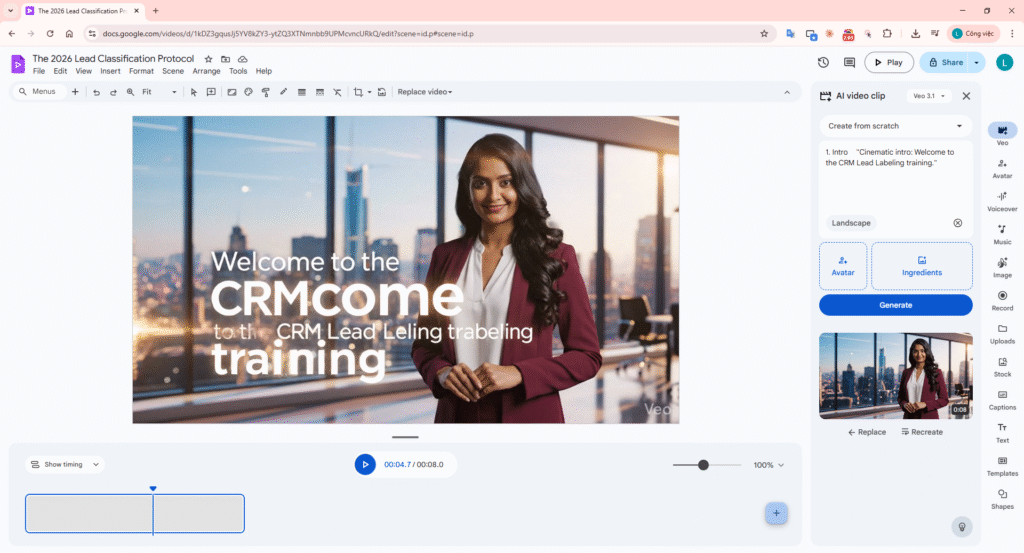
GENERATING A SEQUENCE FROM PROMPTS
Step 2: Reviewing the Generated Canvas Scenes
After Step 1 is complete, the AI applies the sequence directly to the editor (Canvas). This is your chance to review the alignment between the text and the overall generated context before deep customization.
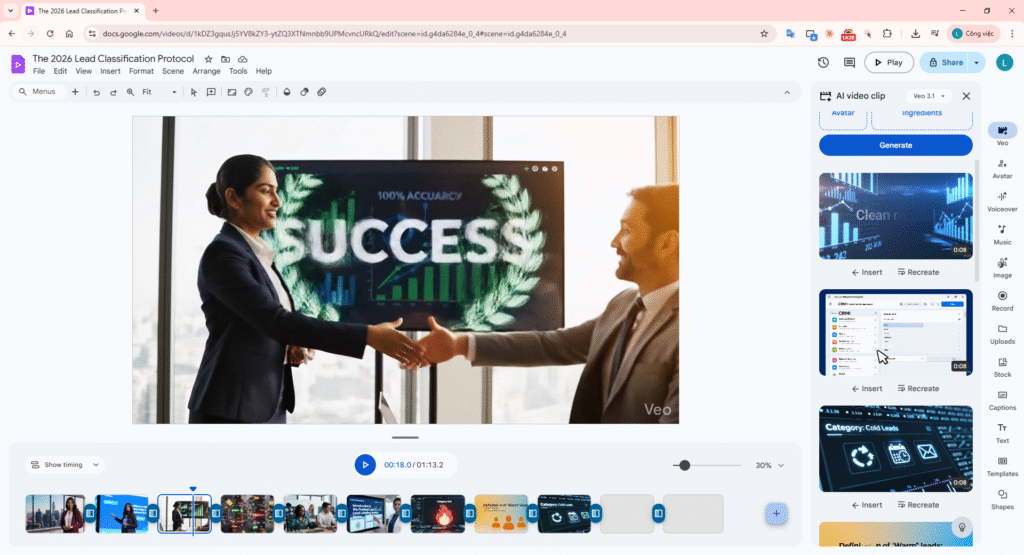
GENERATED CANVAS VIEW
You can customize individual animations between scenes for a smoother flow.
Step 3: AI Image Generation for the End Screen
To personalize your training video, create a professional credits screen (End Screen). Click the Image button in the sidebar, go to the AI tab, and use a prompt:
Image Prompt: “A sleek, professional dark-mode tech background for a video end screen. Include high-quality minimalist elements with space for text ‘Created by PhatLT Scuti Tech’. Premium aesthetic, 3D lighting.”
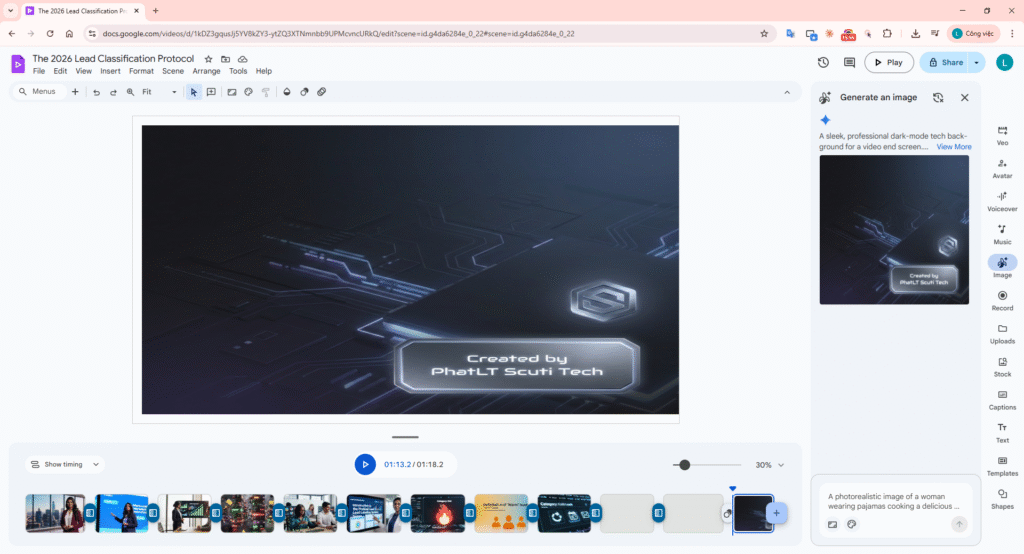
END SCREEN GENERATION
Step 4: AI Voiceover (Describing the End Screen)
Click the Voiceover button (waveform icon). Paste the following script to narrate your professional End Screen generated in Step 3:
Voiceover Script: “This training video was created and edited by PhatLT Scuti Tech. We hope these guidelines help our Sales team operate the CRM with maximum precision and efficiency. Thank you for watching and see you in the next session!”
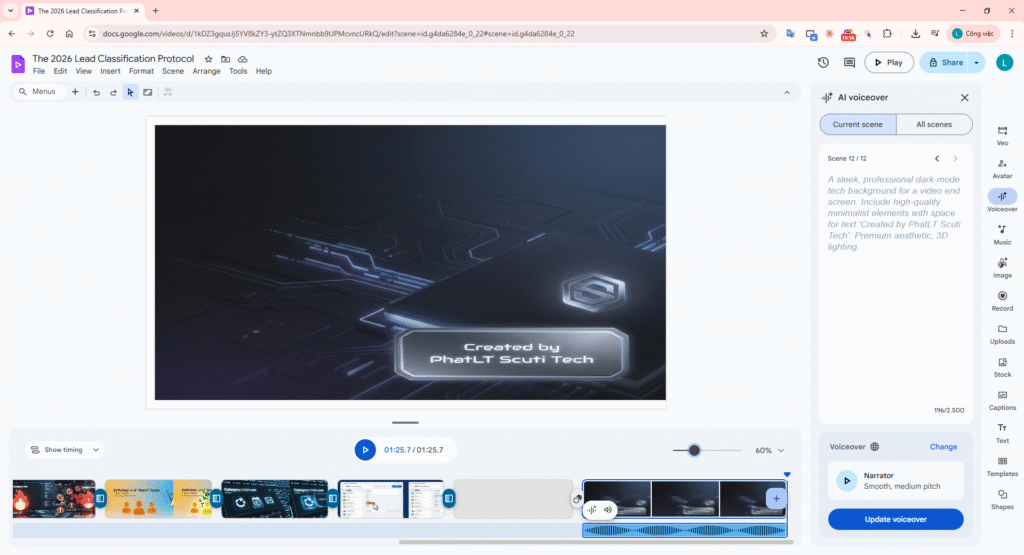
VOICEOVER PANEL (CREDITS)
Advanced Personalization: Sidebar Features
Beyond the basics, use these powerful tools in the right sidebar to elevate your video:
- Generate Avatar: Create a virtual AI presenter to lead the video instead of a real webcam.
- Music: Add background tracks from the library or use AI to generate original melodies.
- Record: Capture live screen demos or real webcam introductions (Recording Studio).
- Upload: Link company assets (logos, images, localized assets) from Drive or your PC.
- Stock: Access millions of high-quality clips and photos.
- Captions: Auto-generate highly accurate subtitles.
- Text & Shapes: Add titles and graphic callouts to highlight key CRM fields.
- Templates: Use pre-built layouts for rapid scene formatting.
Step 5: Final Result Image
Your video is ready with AI images, professional voiceover, and custom credits—all without complex recording equipment.
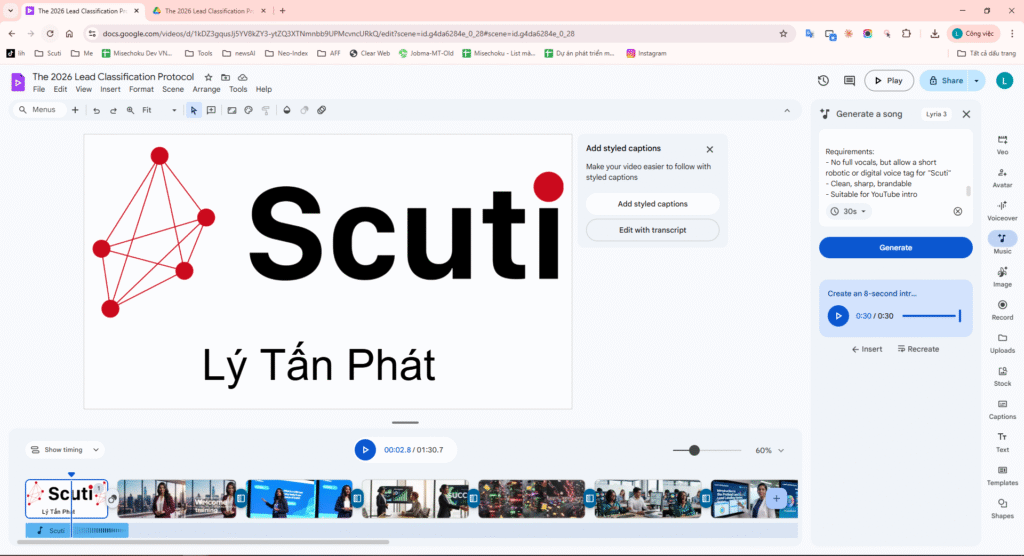
VIDEO PLAYER SHOWING THE RESULT
4. Workflow Analysis: AI Accept vs. Human Edit
In this project, we don’t let AI do 100%. Here is how we optimize the editing workflow:
| Video Component | Status (AI vs. Human) | Rationale & Adjustments |
|---|---|---|
| Storyboard Structure | 90% Accept | AI organizes chapters logically; only minor title renaming was needed. |
| Illustrative Imagery | 40% Change | Replaced some generic stock with real company CRM screenshots. |
| Voiceover | 100% Accept | AI voices are highly natural, saving hours of manual recording. |
| Instructive Content | Manual Capture | AI cannot access internal systems; live demos must use Recording Studio. |
5. Publishing & Knowledge Maintenance
The final video is managed centrally:
- Storage Location: Google Drive > My Drive > Vids Exports > File Video Export.
- Access Control: Set to “Viewer” for the org, and “Content Manager” for the L&D team.
- Updates: When CRM rules change, simply reopen the Vids project, swap the demo scene, and save. The sharing link remains identical!
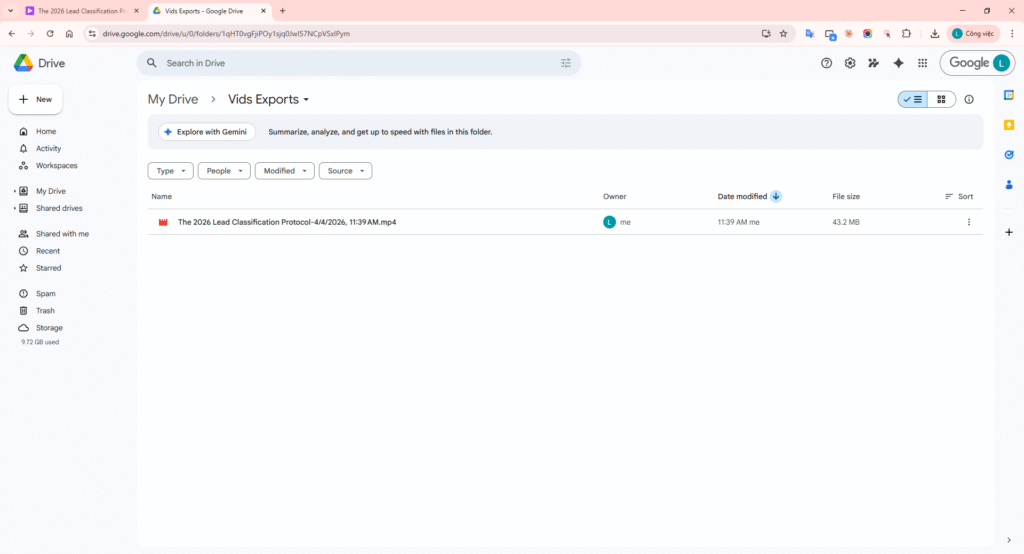
DRIVE VIDEO PLAYER & SHARE SETTINGS
6. Conclusion: What can Google Vids actually do?
Through the lead labeling workflow, we’ve seen that **Google Vids** is more than just a video editor—it’s an **all-in-one AI content production assistant**. Specifically, Google Vids enables enterprises to:
- Automate Storyboarding (Veo AI): With a single prompt, the system builds scene structures, text content, and visual layouts in seconds.
- Generate Unique Brand Assets: Create custom 3D illustrations and stock art based on specific requirements without copyright concerns.
- Professional Narration: High-quality Text-to-Speech in multiple languages with natural intonation, eliminating manual recording costs.
- Integrated Demo Capture: Recording Studio allows for seamless screen recording (CRM, ERP…) with personalized webcam overlays.
- Smart Post-Production: Auto-generate synced captions, add background music, and apply transitions with simple clicks.
In summary, Google Vids reduces internal training video production time by 90%. Anyone, regardless of technical editing skills, can create premium training content that spreads organizational knowledge quickly and accurately.