
1. Introduction: The Strategic Shift to Integrated Digital Agreements
In an era where operational velocity and market response times are keys to organizational survival, the traditional paper-based document model is revealing massive structural vulnerabilities. It’s not just a matter of printing or shelf space—it’s about the “Data Fragmentation” (Data Fragmentation) that places businesses in a high-risk position regarding legal and data integrity. The legacy cycle: drafting in a siloed editor -> Exporting to PDF -> Sending as an unencrypted Email attachment -> Signers printing to sign -> Scanning back -> Disjointed manual storage. Each of these intermediary steps represents a “blind spot” where human error, version confusion, and information leakage can occur at any moment.
Google Drive eSignature is not merely a tool for digital signing; it represents a new operational philosophy—Native Operations. By executing the agreement cycle at the “heart” of where the document was born and resides, the system completely eliminates the notorious “Version Hell.” Built upon robust international legal frameworks like the U.S. E-SIGN Act and global electronic commerce regulations, this solution provides an absolute guarantee of document integrity. Every signature is encrypted and protected by Google’s multi-layered security infrastructure, transforming each contract into a secure, transparent digital asset with immediate legal enforceability worldwide.
2. Demo: NDA Signing for Dragon Asia AI
Using a professionalized NDA template, we will walk through the signing process between Dragon Asia AI (Side A) and AI Quest Solution (Side B/Vendor).
3. The 12-Step Journey: From Setup to Completion
Step 1: PDF Preparation & Flow Initialization
Open the NDA file in Drive. From the Tools menu, select eSignature to activate the configuration sidebar on the right.
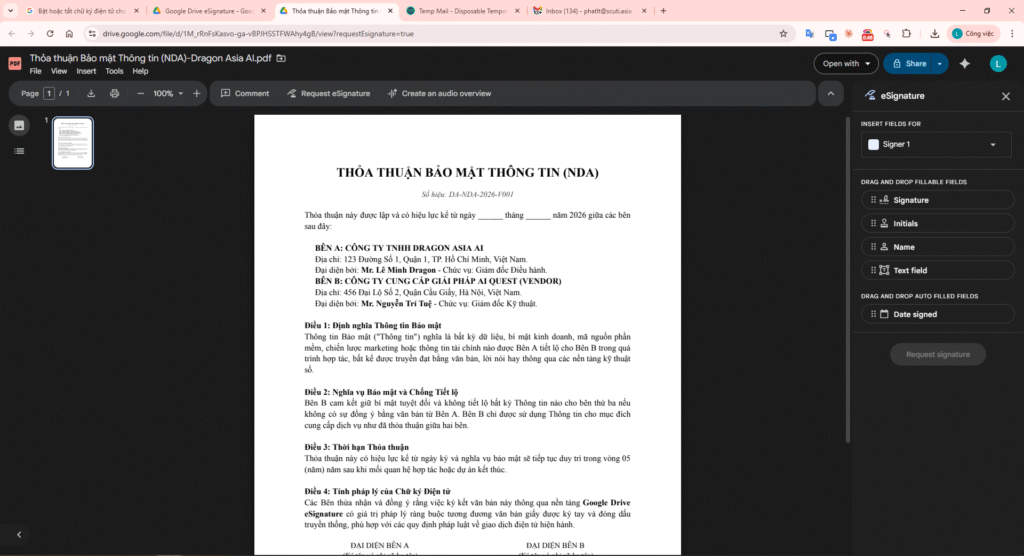
Preparation & Initialization
Step 2: Field Mapping (Field Placement)
Drag and drop the necessary fields (Signature, Initial, Name, Date Signed) to the correct lines on the contract template.
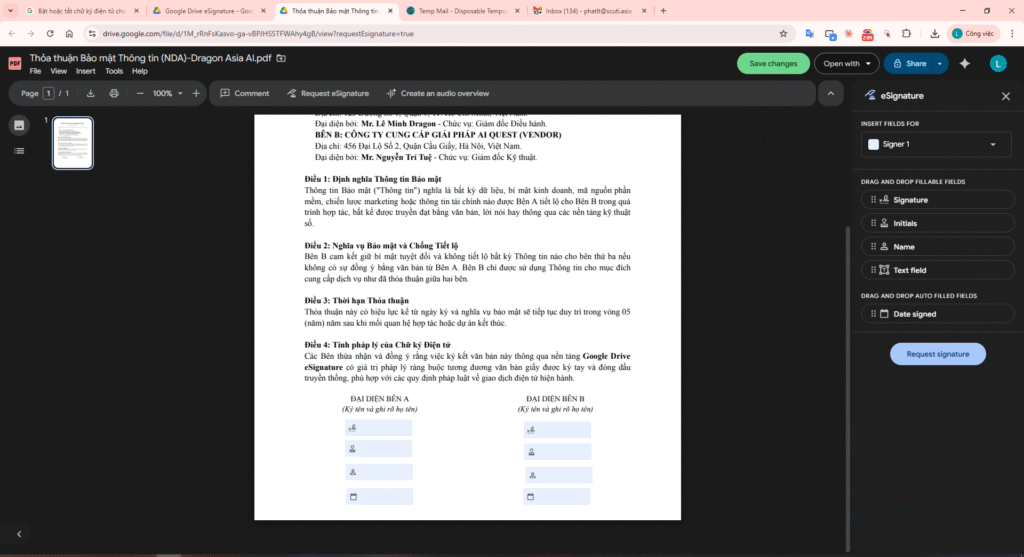
Field Placement
Step 3: Configuring Signers & Signing Order
Define the list of stakeholders. Enable the Signing Order toggle to enforce a specific sequence between parties.
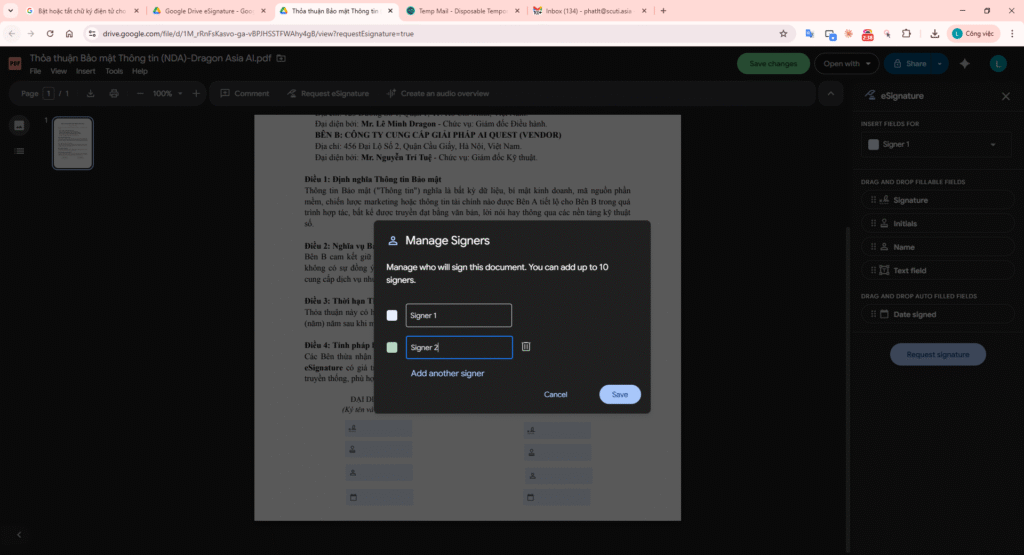
Signer List Configuration
Step 4: Visual Distinction (Sequential Colors)
The system automatically organizes fields with two distinct colors, allowing the initiator to easily verify which field belongs to which signer.
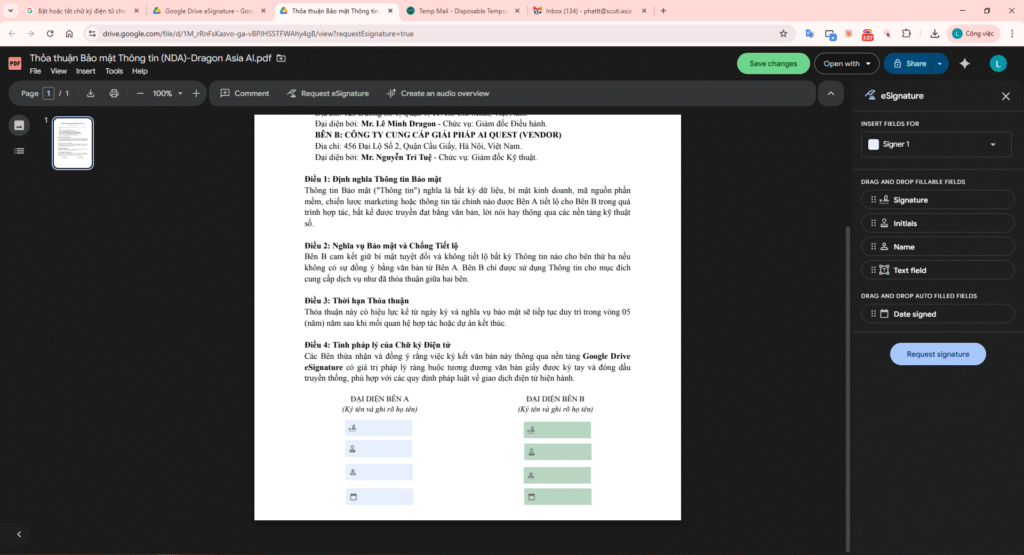
Distinctive Colors for Signers
Step 5: Invoking the Request & Email Entry
Click the Request Signature button. In the dialog box, enter the signers’ email addresses in the exact order you defined.
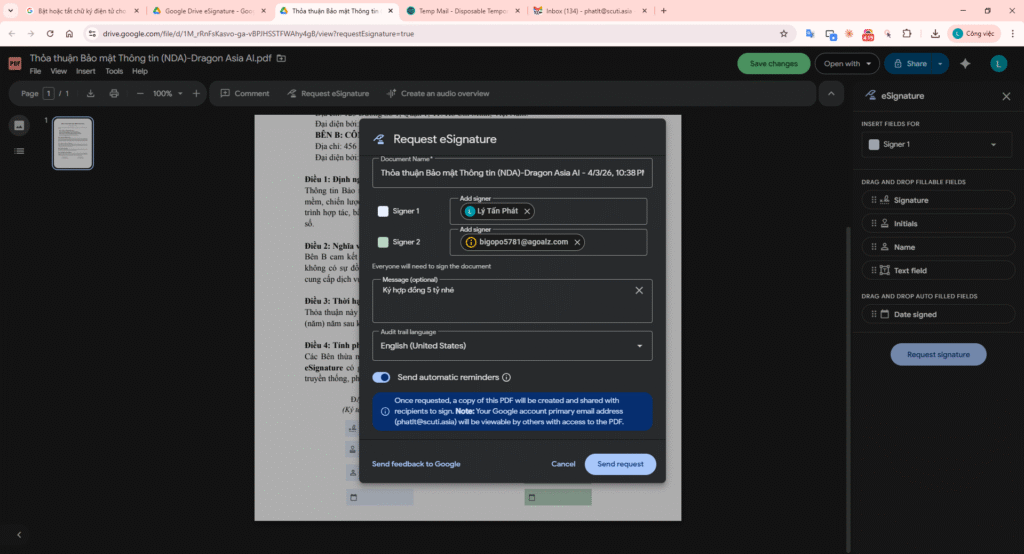
Entering Signer Emails
Step 6: Request Deployment & Success Confirmation
After clicking Send Request, the system provides a confirmation screen indicating the request has been successfully dispatched.
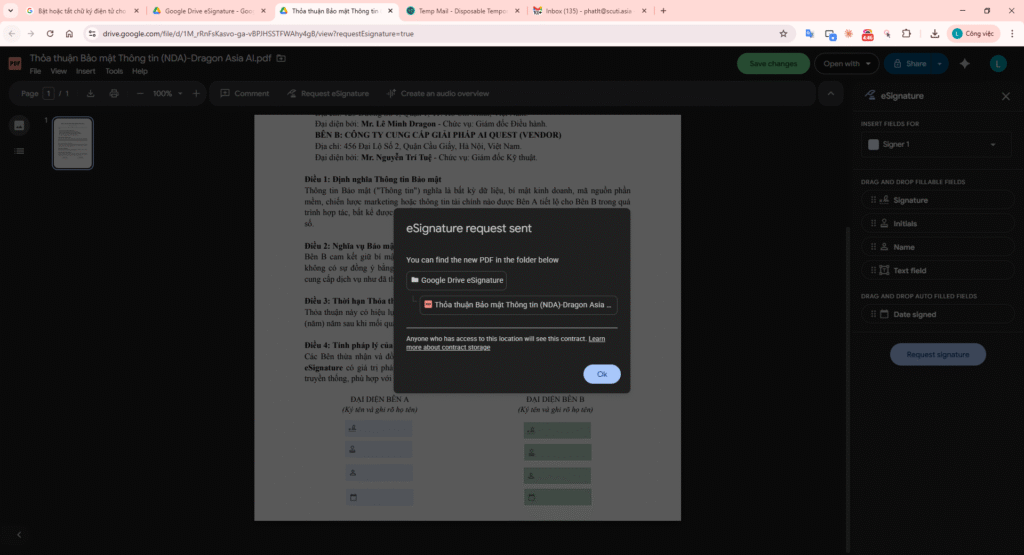
Successful Request Deployment
Step 7: Signer 1 Intake (The Email Invitation)
The first signer checks their Gmail inbox and clicks the Sign (or Review and Sign) button to access the secure signing portal.
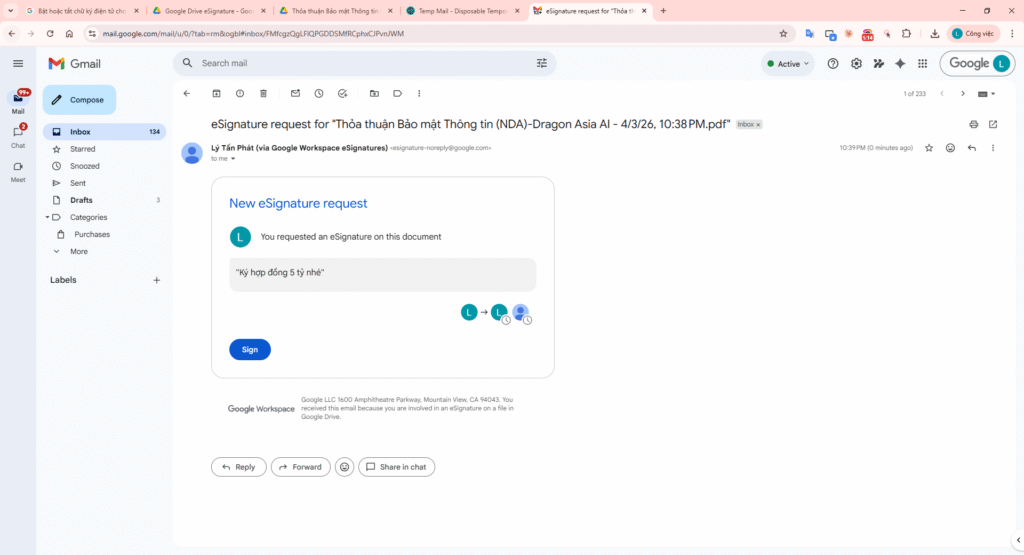
Email Signer 1 Portal
Step 8: Digital Ink (Adopt and Sign) – Signer 1
Type the full name. The system provides an artistic font or allows for a manual drawing. Then, click Adopt and sign to finalize.
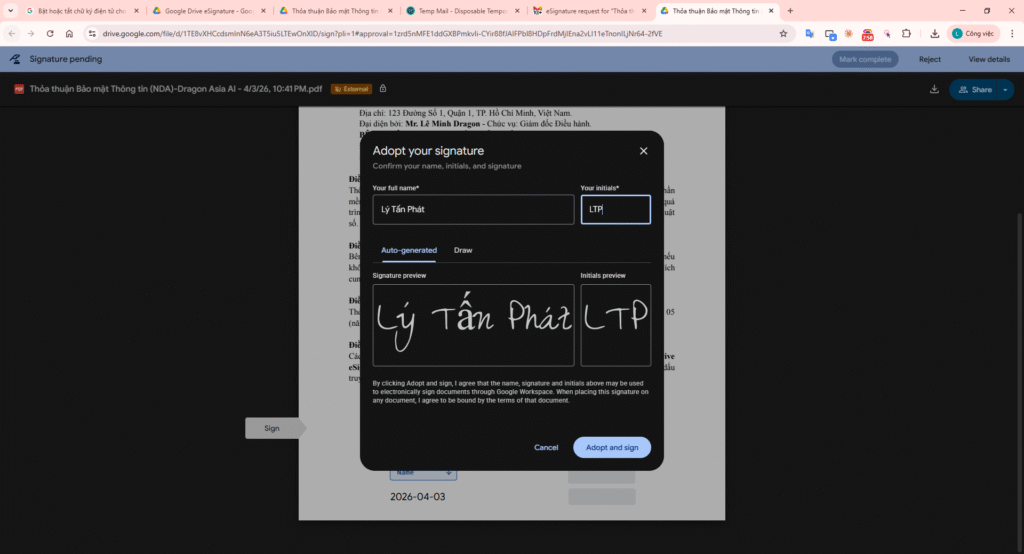
Adopt and sign – Signer 1
Step 9: Signer 2 Intake (Sequential Invitation)
Once Signer 1 completes the task, Signer 2 immediately receives an invitation to provide the final approval signature.
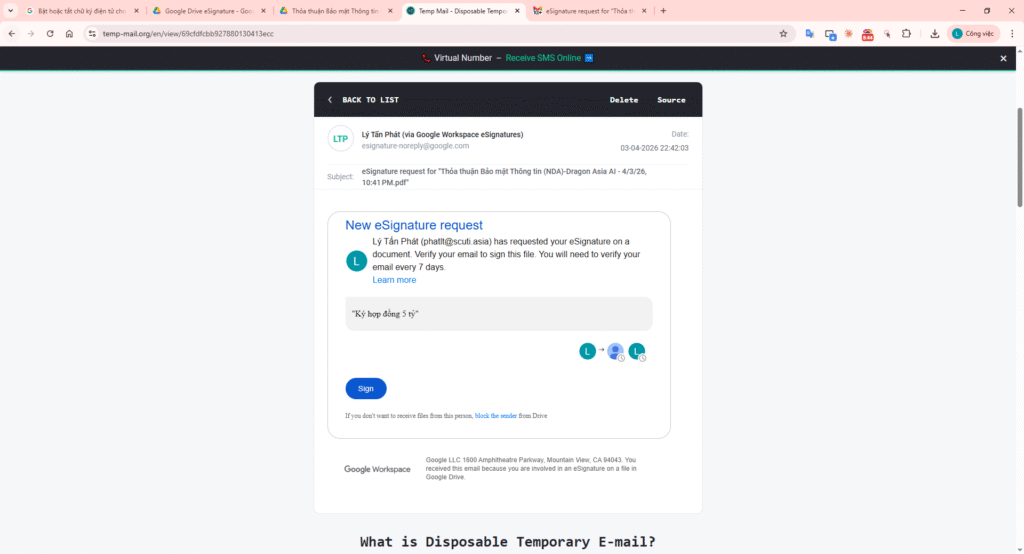
Email Signer 2 Portal
Step 10: Digital Ink (Adopt and Sign) – Signer 2
Signer 2 performs the same actions as in Step 8 to confirm their agreement on the document.
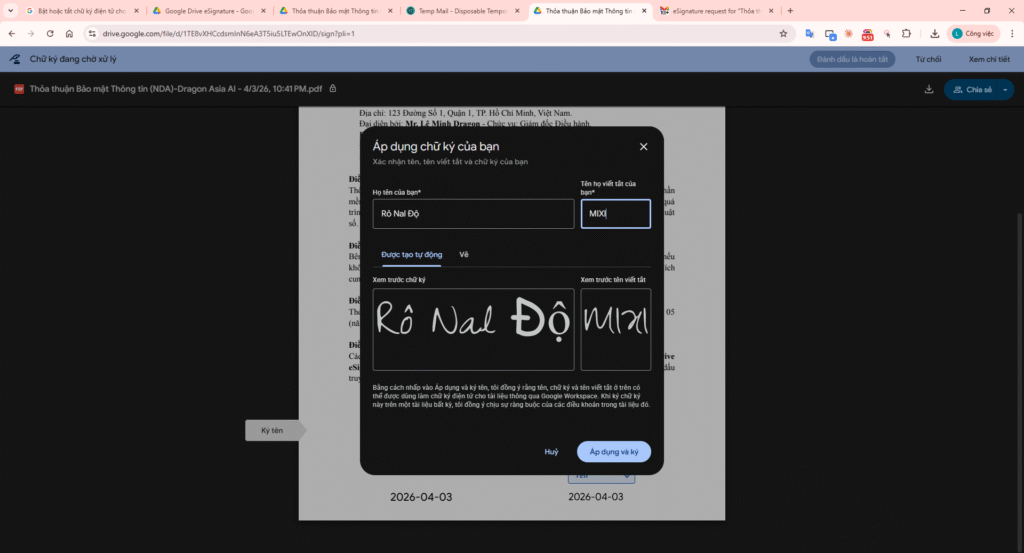
Adopt and sign – Signer 2
Step 11: Security Lock (Private Signed Artifact)
Upon completion, a new PDF file appears in Drive with the suffix [Signed]. It starts in Private mode (with a lock icon) for privacy protection.
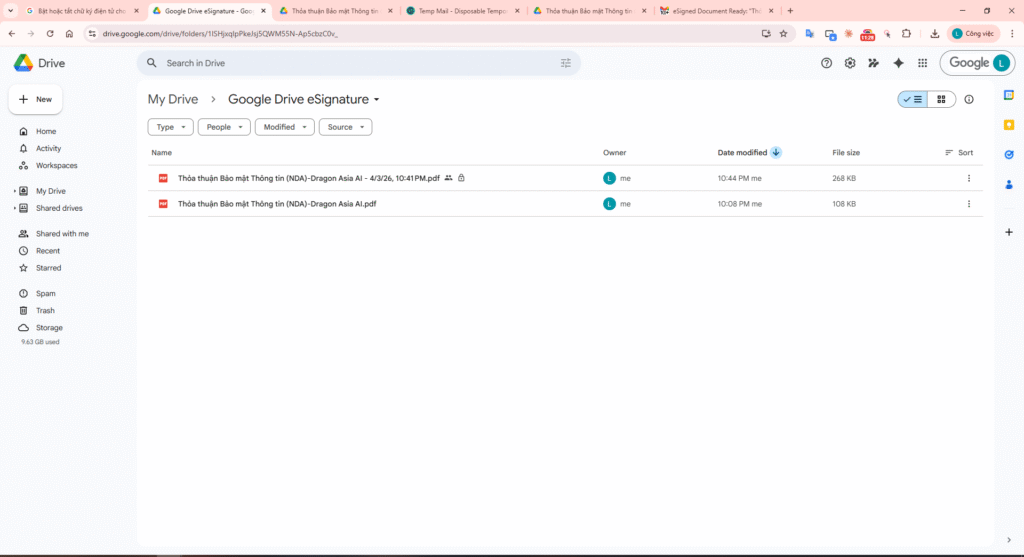
Private Signed Artifact
Step 12: The Final Executed Contract
Open the finished file to see all parties’ signatures and the Audit Trail Certificate at the end, validating the document’s legal integrity.
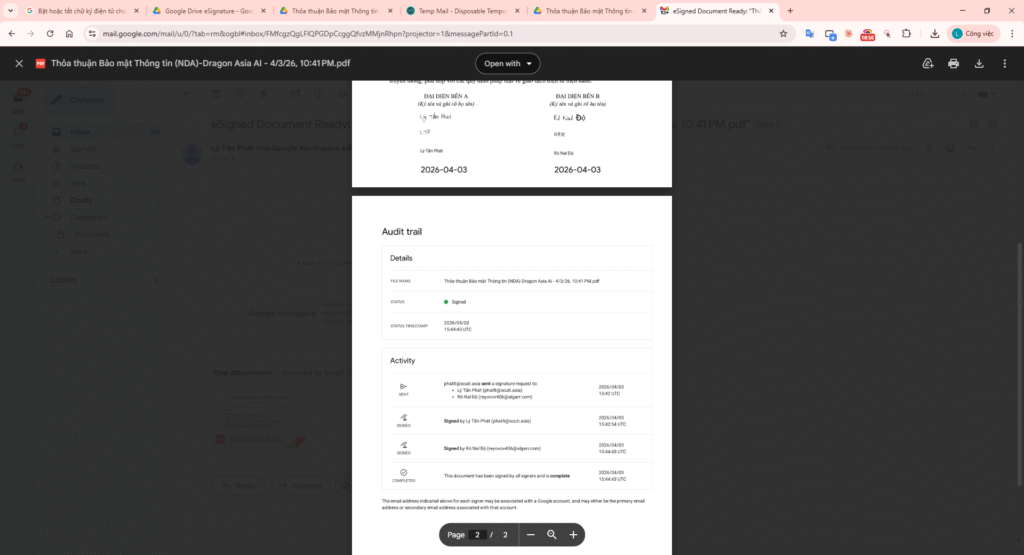
Final Completed Contract
Folder Drive: Google Drive eSignature
File PDF Completed: THỎA THUẬN BẢO MẬT THÔNG TIN (NDA)
Video Demo:
4. Operational Rules: Security & Control
SIGNER IDENTITY
Google verifies signer identity via Google Account or OTP, ensuring validity under E-SIGN and eIDAS standards.
VERSION CONTROL
The original PDF is FILE-LOCKED during the signing process. Any edit requires canceling and restarting the request flow.
5. Failure Mode Lab (Troubleshooting)
| Scenario | Root Cause | Resolution (Fix) |
|---|---|---|
| Access Denied Error | Restrictive Drive file permissions. | Set sharing to “Anyone with link” or invite via Gmail directly. |
| PDF Locked for Editing | An active eSignature request is in progress. | Cancel the current request or use “Make a copy”. |
| Wrong Signer Email | Typo during the role assignment. | Edit Request or Cancel and republish a new request. |
6. Conclusion: Driving the Future of Operational Excellence
Taking a broader view, the implementation of Google Drive eSignature at Dragon Asia AI is not just a time-saving trick or a way to save a few reams of paper. It is a strategic declaration of Operational Excellence—the pursuit of operational perfection. In modern business, reputation is built not only on product quality but also on the professionalism, transparency, and speed of every legal and contractual touchpoint with clients and partners.
By digitizing the NDA and contract signing lifecycle, we are constructing a clean, immutable “Digital Footprint” that serves as a powerful foundation for auditing, risk management, and regulatory compliance. This is the cornerstone of Digital Maturity. When repetitive, high-stakes tasks are handled automatically and accurately by Google Workspace, human talent gains the cognitive space to focus on creative strategies that bring true value to the organization. Start with a single digital signature to activate a comprehensive and sustainable digital transformation journey for your office today.