

Manually processing resumes is one of the most time-consuming tasks for HR departments. When candidates submit PDFs, recruiters often waste valuable hours copying and pasting information like names, contact details, and skills into a tracking spreadsheet.
In this tutorial, I’ll show you how to build a fully automated, low-code pipeline to solve this. We will use Google Workspace Studio (and its visual, drag-and-drop integration tools), the Google Drive API, and the power of Gemini AI (accessible via an “Extract” AI Skill node).
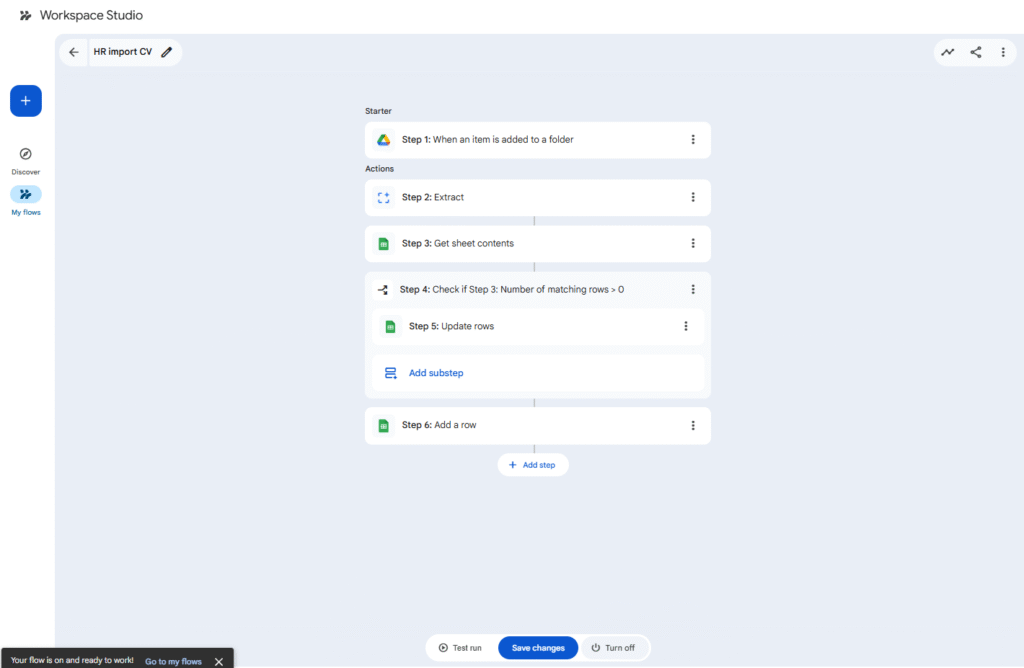
Our automation is simple but powerful: Trigger on a new PDF in Drive ➔ Extract candidate fields using AI ➔ Check for duplicates in Sheets ➔ Update or append the row.
Best of all? This solution requires zero custom code, leveraging the built-in capabilities of Google Workspace Studio and Gemini’s multimodal power to read PDFs directly.
- The HR Scenario & Setup
To keep this tutorial safe, we will strictly use dummy PDFs (no real personal data).
Step 1.1: Security and Folder Permissions
Security and privacy are paramount. First, lock down your folders:
Set sharing to Restricted. Access should only be granted to the HR team. Interviewers can be given Viewer access.
Create HR_Incoming_CVs (for new CVs)
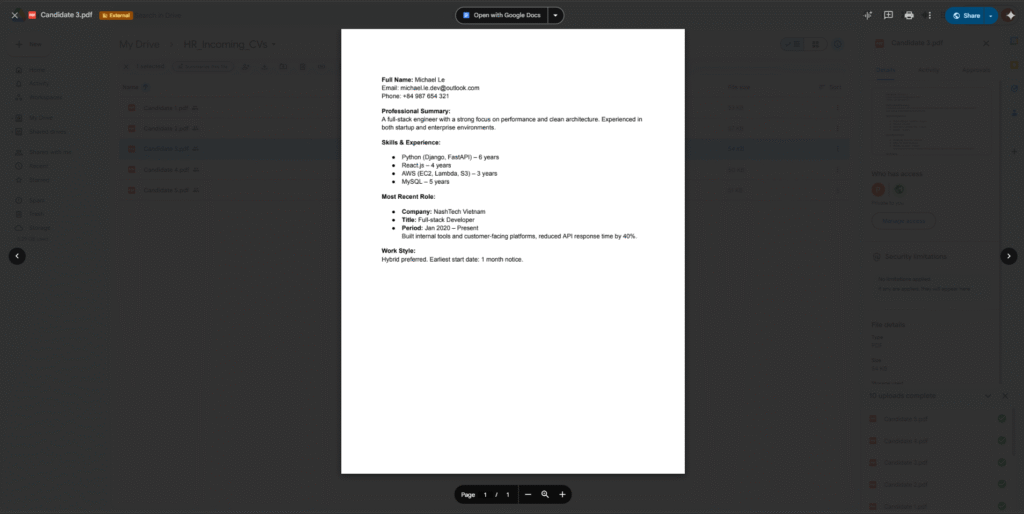
Example a pdf CV:
Step 1.2: Database Schema (Google Sheets)
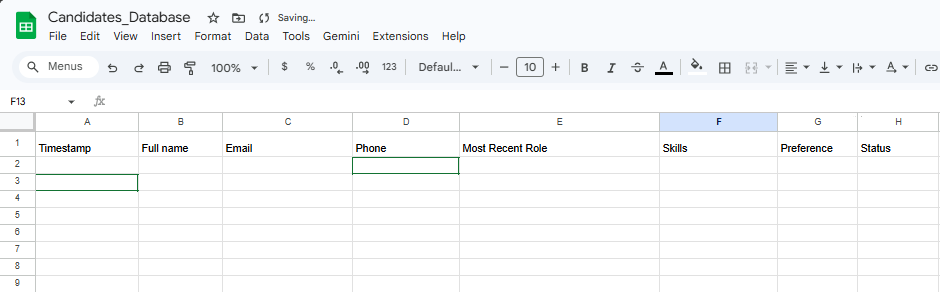
Create your Candidates_Database Google Sheet. Define an explicit column schema in the header row:
- A: Timestamp
- B: Full Name
- C: Email (Our unique key for duplicate detection)
- D: Phone
- E: Most Recent Role (Company – Title (Period))
- F: Skills (Format: Language/Framework – Years)
- G: Preference (Work style / Earliest start date)
- H: Status (New / Updated – Needs Review)
2. Building the Visual Workflow
Open Google Workspace Studio (or Google Cloud Application Integration). Create a new integration flow. We will now build the core logic by dragging and dropping Starter and Step nodes.
Step 2.1: The Trigger (Google Drive Starter)
The first node in any flow is the Starter. We want our automation to run every time a new resume arrives.
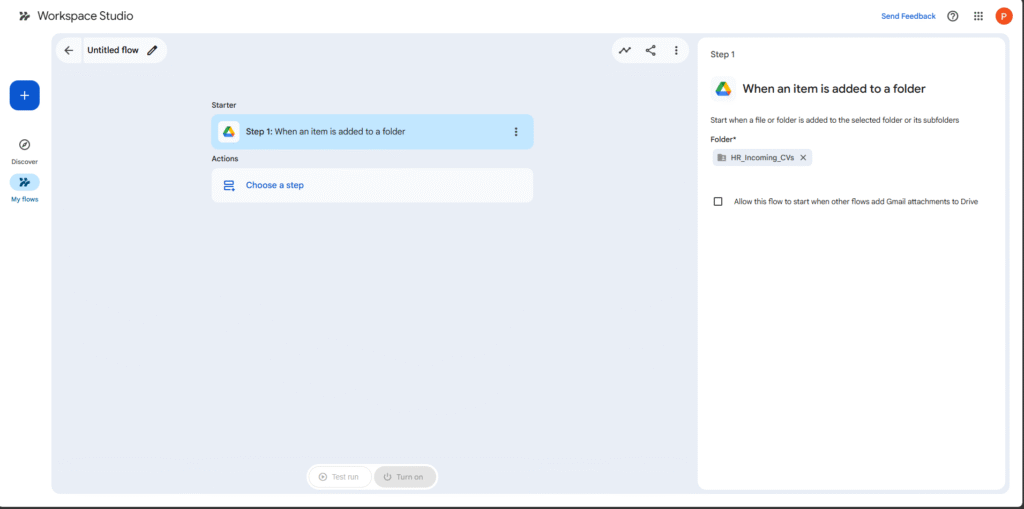
- Drag the Google Drive Starter onto the canvas.
- Configure it with the event: “When an item is added to a folder”.
- Select your HR_Incoming_CVs folder.
- This starter will capture the new PDF file and make its data available as variables for the next steps.
Step 2.2: AI Extraction (The “Extract” AI Skill Step)
This is where the magic happens. We will use an AI Skill node to tap into Gemini’s multimodal capabilities. Unlike a traditional pro-code approach that requires an OCR step, Gemini can read PDF content directly.
- Drag the Extract step (from the AI Skills group) onto the canvas.
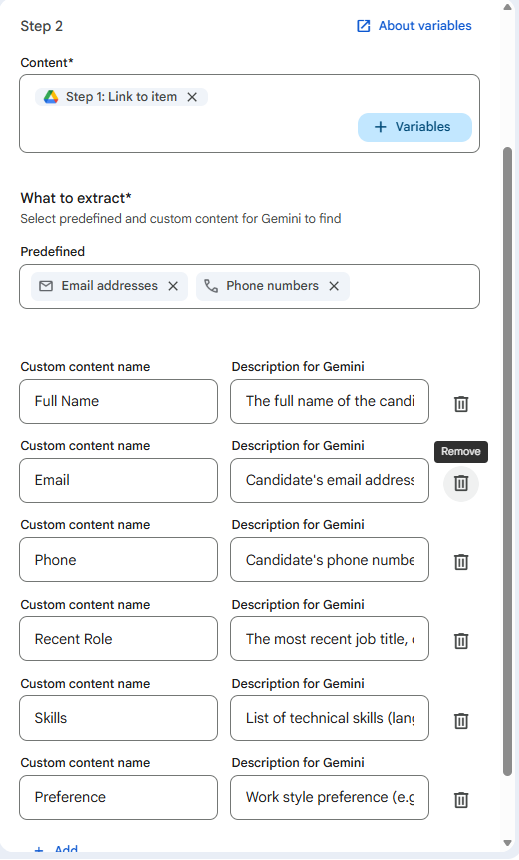
- Content to analyze: This is critical. Don’t type text. Click the + Variables button and select the file variable output from Step 1: Google Drive Starter (e.g., File).
- Fields to extract: This is your Prompt Engineering. Click + Add for each field you want to extract and provide a clear description for Gemini:
| Custom content name | Description for Gemini |
|---|---|
| fullName | The full name of the candidate. |
| Candidate’s email address. Return strictly the email string. | |
| phone | Candidate’s phone number, including country code (e.g., +84). |
| recentRole | The most recent job title, company name, and time period. |
| skills | List of technical skills (languages/frameworks) and years of experience. |
| preference | Work style preference (e.g., remote, hybrid) and earliest start date. |
3. Implementation: Duplicates & Branching
Now, let’s implement the operational logic. We need to check if this is a new candidate or an existing one updating their CV.
Step 3.1: Searching for Duplicates (Google Sheets – Find a Row)
We will use the candidate’s email as our unique identifier to search our database.
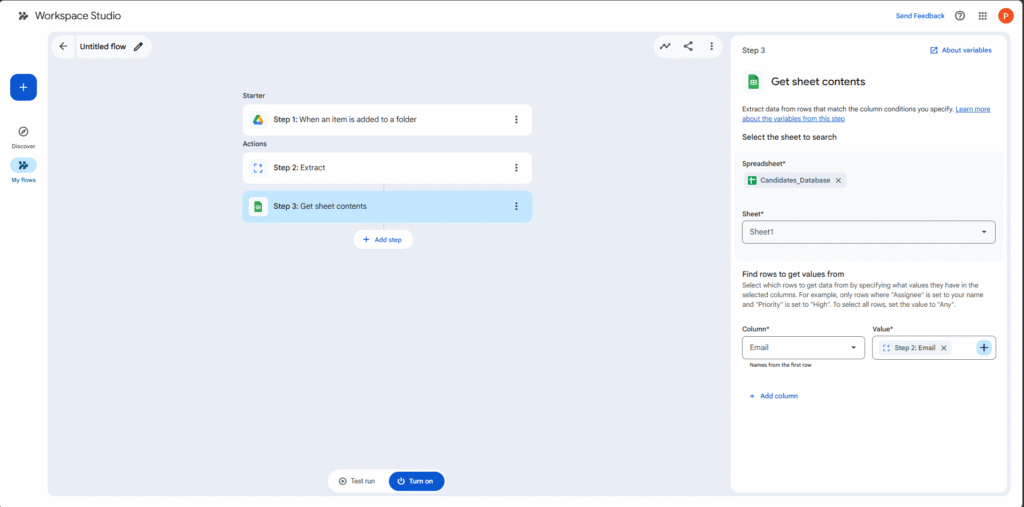
- Drag the Google Sheets – Find a row step onto the canvas. (If you can’t find it, you might need to scroll down the Actions list or use a similar “Lookup” action).
- Spreadsheet & Sheet: Select your Candidates_Database and Sheet1.
- Conditions:
- Column to search: Select the Email column (Column C).
- Value: Click + Variables and select the email variable extracted from Step 2 (Extract).
Step 3.2: Defining the Branching Logic (If / Else Condition)
Workspace Studio uses a visual If / Else block to create different paths based on a condition.
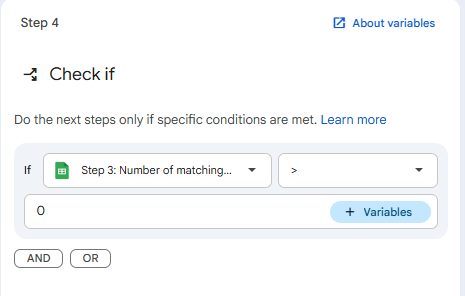
- Drag the If / Else step (from the Logic group) onto the canvas.
- Condition:
- Variable 1: Select the Row ID (or Number of matching rows) variable returned from Step 3 (Find a row).
- Operator: Select I > 0
- This means “If we found a matching email in the sheet…”
Step 3.3: Branching: Update vs. Add Row
After Step 4, your workflow will visually split into two branches: THEN and ELSE.
Branch 1: THEN (The candidate already exists – Update)
- Drag the Google Sheets – Update rows (or Update a row) step into this branch.
- Row ID to update: Map it to the Row ID from Step 3.
- Update data: Map the variables from Step 2 (fullName, phone, skills, etc.) to the respective sheet columns.
Branch 2: ELSE (This is a new candidate – Add)
- Drag the Google Sheets – Add a row step into this branch.
- Map data: Map all the variables from Step 2 to the correct sheet columns.
- Status Column: Enter the fixed value “New”.
4. Verification & Operational Requirements
No automation is perfect. Let’s document how we verified the system and addressed the core operational requirements.
Data Validation Sample (Scanned PDFs Included)
To validate the pipeline and its branching behavior, I ran 10 test cases using 5 distinct dummy PDFs. I included 2 scanned-image PDFs to test Gemini’s multimodal power. The validation sample shows that Gemini natively processed the scanned PDFs with no additional OCR steps needed.
| Candidate PDF Source | Target Field | PDF Source Text | Extracted Value in Sheets | Status |
|---|---|---|---|---|
| CV #1: Daniel Tran | Recent Company | Senior Backend @ FinTech Hub | FinTech Hub | ✅ Pass |
| CV #1: Daniel Tran | Skills | React (4y), Node, Python (1y) | React – 4 yrs, Node, Python – 1 yr | ✅ Pass |
| CV #2: Jane Doe (Scanned) | Full Name | (From header) Jane Doe | Jane Doe | ✅ Pass |
| CV #2: Jane Doe (Scanned) | Preference | Flexible to remote. Ready in 2 weeks. | Remote / Start: 2 weeks | ✅ Pass |
| CV #3: John Smith | (Contact section) [email protected] | [email protected] | ✅ Pass | |
| CV #3: John Smith | Recent Title | Lead Developer (2020-Present) | Lead Developer | ✅ Pass |
| CV #4: Maria Garcia | Preference | Open to hybrid, ASAP start preferred | Hybrid / Start: ASAP | ✅ Pass |
| CV #4: Maria Garcia | Full Name | (From header) Maria S. Garcia | Maria S. Garcia | ✅ Pass |
| CV #5: Kenji Tanaka (Scanned) | Skills | Fluent in English. C# (5 yrs), .NET, SQL. | C# – 5 yrs, .NET, SQL | ✅ Pass |
| CV #5: Kenji Tanaka (Scanned) | (Contact section) [email protected] | [email protected] | ✅ Pass |
Proving Branching & Duplicate Detection
I used the system’s execution logs to prove that the duplicate detection and branching logic worked as designed:
Case 1: New Candidate (Emily Nguyen) The logs show that when Emily’s CV was uploaded, Step 3 (“Get sheet contents”) returned “No rows matched conditions”. As a result, Step 4 (“Check if”) reported “Conditions weren’t met”, and the flow correctly routed to the Add a row step. The final sheet entry shows Emily as a “New” candidate.
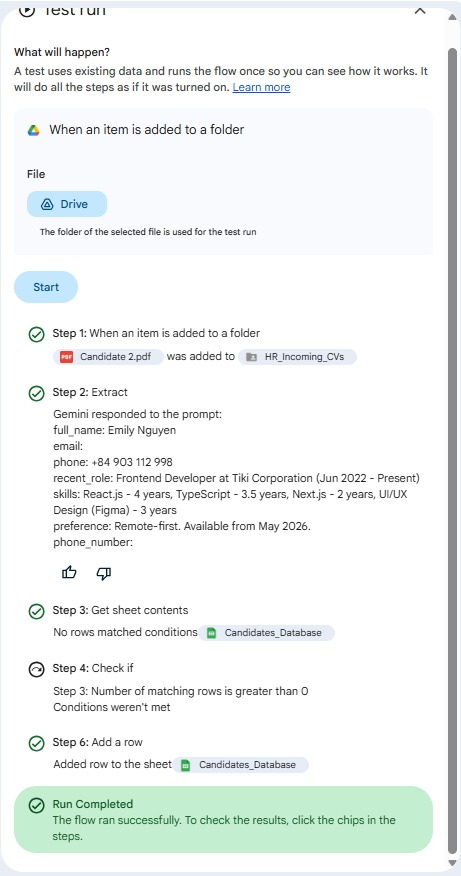

Case 2: Updated Candidate (Emily Nguyen – Re-submission) When I re-submitted the exact same file for Emily, the logs changed. Step 3 returned a Row ID (proving a match). Step 4 then reported “Conditions met”, and the flow routed to the Update rows step. This proves the “duplicate-detection rule” and “branching behavior” was successfully implemented without code.
Video demo: https://youtu.be/SNMT_zrIgcU
⚠️ Note on Using Email as a Unique Identifier
In the demo video, I initially attempted to use the candidate’s email as the unique key for deduplication. However, this approach did not work reliably because the system occasionally failed to extract the email field from certain CVs (especially scanned PDFs or inconsistent formats).
As a result, some records could not be properly identified or matched.
To resolve this issue, I switched to using the phone number as the primary key instead. Phone numbers proved to be more consistently extracted across different CV formats, making the deduplication process more stable and reliable.
5. Security & Logs (Production Ready)
To finalize the pipeline for HR use, we must document security and logging behavior. Assume no external sharing by default.
- Google Drive Folder Permissions: The input folder (HR_Incoming_CVs) must have sharing set to Restricted. Access is only granted to the HR department’s user group. This prevents unauthorized access to candidate PII.
- Google Sheet Sharing Scope: The Candidates_Database sheet must also be set to Restricted. The automation runs with an internal service identity, so only HR and necessary recruiters can view the database.
- Execution Logs: All script executions and AI interactions are securely stored within the Google Workspace Studio Execution Logs tab. You can view the history of every single CV processed, which node ran, and any errors that occurred.
Conclusion
By using Google Workspace Studio and the multimodal “Extract” skill Powered by Gemini, we transformed a time-consuming HR bottleneck into a seamless, no-code pipeline. The power of Gemini allows us to process standard and scanned PDFs directly.
If you’re a recruiter or an HR professional, I highly recommend exploring these visual, low-code tools. If you’re a developer, consider building these “pro-code” “Custom Steps” using Apps Script (like our previous OCR experiment!) to extend the pipeline’s capabilities even further.
Happy automating!
References / Further Reading
This automated pipeline was inspired by and built upon concepts from the following resources:
- Google Workspace Developer Blog: Google Workspace Studio: Extract PDF data to Sheets automatically
- YouTube Tutorial 1: Extract Data from PDFs to Google Sheets
- YouTube Tutorial 2: Automate PDF Processing in Workspace