
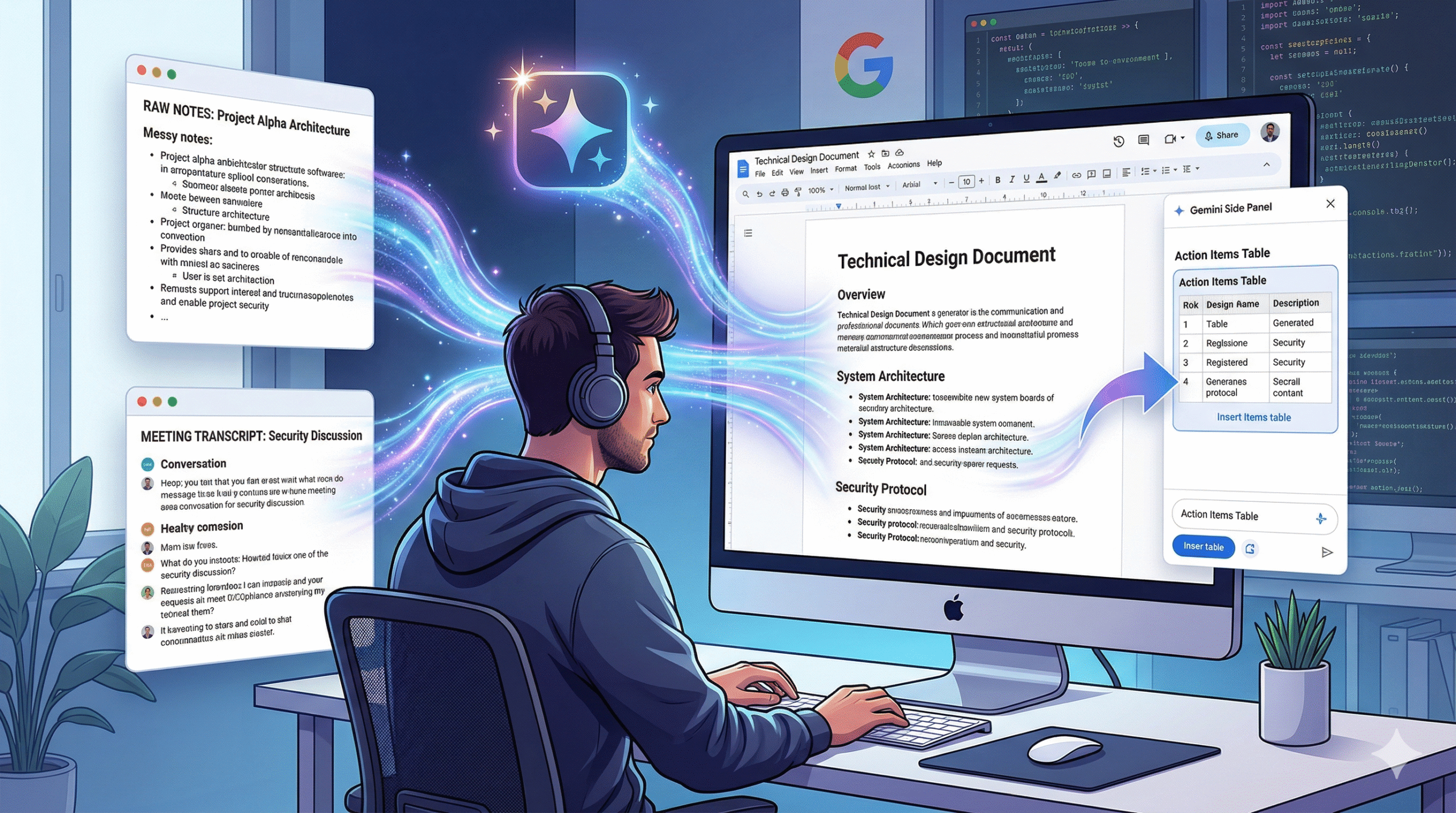
Let’s be honest: as developers, we love building systems, but writing the documentation for them is usually our least favorite task. However, a solid Technical Design Document (TDD) is what keeps the whole team aligned.
Recently, I started using Gemini directly inside Google Docs to do the heavy lifting for me. By connecting it to my rough notes and meeting transcripts in Google Drive, I can generate a structured, professional proposal in minutes.
Here is exactly how I do it, using a real-world scenario: designing an Order Management System (OMS).
- The Scenario & Raw Materials
Instead of starting from a blank page, I dump my brain into Google Docs. For this demo, I prepared two rough files in my Google Drive:
- File 1: Project_Alpha_Architecture_Notes A messy bulleted list of my tech stack (Node.js, MongoDB, Redis, AWS EKS) and key features (RESTful API, RabbitMQ, auto-scaling).
- Project: Order Management System (OMS) Rewrite Core Stack:
- Backend: Node.js with NestJS framework.
- Database: MongoDB for order persistence.
- Caching: Redis for session and product metadata.
- Infrastructure: AWS EKS (Kubernetes), Docker. Key Features:
- RESTful API for mobile and web clients.
- Event-driven architecture using RabbitMQ for payment sync.
- Support for 5,000 concurrent users.
- Auto-scaling based on CPU/Memory usage.
- File 2: Security_Meeting_Transcript_March_2026 A raw transcript from a meeting with our Security Engineer detailing constraints (Auth0, AES-256 encryption, 100 req/min rate limit).
- Date: March 25, 2026 Participants: Alex (Lead Architect), Sarah (Security Engineer) Discussion Points:
- Sarah: We must implement Auth0 for identity management. All endpoints need JWT validation.
- Alex: Agreed. Should we encrypt the order details at rest?
- Sarah: Yes, use AES-256 encryption for the ‘Customer_Info’ fields in MongoDB.
- Alex: What about Rate Limiting?
- Sarah: Let’s set a limit of 100 requests per minute per API key to prevent DDoS. We can use the Redis instance for this.
- Alex: Noted. We will also use AWS Secrets Manager for environment variables.
With these two files saved in Drive, I opened a blank Google Doc to let Gemini work its magic.
2. Action 1: Generating the First Draft
Instead of manually piecing the architecture and security constraints together, I used Gemini’s “Help me write” feature to draft the entire document structure.
- The Action: Click the “Help me write” pencil icon in the blank Google Doc.
- The Prompt: > “Create a 2-page Technical Design Document for the Order Management System. Use the architecture details from @Project_Alpha_Architecture_Notes and security requirements from @Security_Meeting_Transcript_March_2026. Include sections: Introduction, System Architecture, Security Protocol, and Scalability. Tone: Professional and Technical.”
The Result: Gemini scanned both Drive files and generated a fully structured TDD, combining my backend choices with the security team’s constraints seamlessly. And then I insert to docs.
3. Action 2: Rewriting for the CTO (Tone Adjustment)
The initial draft was great for the engineering team, but the Introduction was a bit too detailed for our CTO, who just wants to know the business value and high-level stack.
- The Action: Highlight the “Introduction” paragraph, click the Gemini Refine icon, and select “Rewrite”.
- The Prompt: > “Rewrite this section into a concise Executive Summary for a CTO. Focus on the business value, tech stack efficiency, and security compliance. Use professional bullet points.”
The Result: Gemini instantly transformed the dense paragraph into a sharp, scannable bulleted list focusing on cost-efficiency, scalability, and security standards.
4. Action 3: Extracting Action Items
A TDD is useless without execution. Instead of manually reading through the document to figure out who does what, I had Gemini pull the data into a clean tracker.
- The Action: Open the Gemini Side Panel.
- The Prompt: > “Based on this document, create a table of implementation action items. Columns: Task Name, Priority (High/Medium/Low), and Responsible Team (Backend/DevOps/Security).”
The Result: Gemini read the active document and generated a markdown-ready table, assigning tasks like “Implement Auth0” to the Security team and “Setup EKS” to DevOps.
5. The Quality Gate: Did Gemini Hallucinate?
As developers, we know AI can sometimes invent facts (hallucination). The biggest advantage of using the @ Drive integration is that it grounds the AI in your data.
To prove this is a reliable workflow, I ran a “Quality Gate” check on the final output. Here are 5 specific factual claims Gemini made in the draft, and where they actually came from:
| Factual Claim in Final Doc | Source Document (Drive) | Status |
| “Session data will be cached using Redis.” | @Project_Alpha_Architecture_Notes | Verified |
| “The core persistence layer relies on MongoDB.” | @Project_Alpha_Architecture_Notes | Verified |
| “Identity management is handled via Auth0.” | @Security_Meeting_Transcript_March_2026 | Verified |
| “Customer data will be encrypted at rest using AES-256.” | @Security_Meeting_Transcript_March_2026 | Verified |
| “API endpoints will be rate-limited to 100 requests/minute.” | @Security_Meeting_Transcript_March_2026 | Verified |
No invented tech stacks, no fake security protocols. Just my raw data, perfectly formatted
Conclusion
Gemini in Google Docs isn’t going to replace developers—we still have to design the architecture and write the code. But by acting as a smart technical writer that can read across our Drive files, it eliminates the friction of documentation.
Next time you finish a system design whiteboard session, just dump your notes into a doc and let AI write the proposal.
References & Further Reading
If you want to dive deeper into how Gemini’s “Help me write” feature works and how to master its integration within Google Workspace, check out these excellent resources:
- Computerworld Guide: A comprehensive breakdown of how to trigger and refine prompts using the AI writing tools in Google Docs and Gmail: How to use Gemini AI to write (and rewrite) in Google Docs and Gmail – Computerworld
- Google Workspace Demos (YouTube): Visual walkthroughs of Gemini’s capabilities directly inside Docs, showing real-time text generation and formatting.