
1. Overview of Google Meet Transcripts
The Transcripts feature in Google Meet is a powerful tool for Project Managers, Business Analysts, and client-facing teams. Instead of manually typing Meeting Minutes or re-watching hours of video recordings, Google Meet automatically transcribes all dialogue into text, complete with speaker diarization and timestamps.
In this article, we provide a detailed guide covering everything from initial setup and locating the generated files in Google Drive, to implementing a Standard Operating Procedure (SOP) to manage meeting records efficiently.
Why use Transcripts over standard Video Recordings?
- Skimmable: You can quickly scan to find decisions, questions, or action items.
- Lightweight: Sharing a Google Doc is far easier than distributing heavy MP4 video files.
- Deep Integration: Easily highlight errors, leave comments, and assign tasks directly within Google Docs.
2. Realistic Meeting Scenario
To verify this feature practically, we will consider a requirement gathering scenario.
Scenario Details
- Meeting Type: Client Requirements Interview
- Duration: 5–10 minutes
- Attendees: 2–3 Speakers (Project Manager, Business Analyst, Client)
- Content: Clear topic transitions (e.g., from introducing the Homeworks app to discussing parental challenges, tutoring solutions, benefits, the founder’s inspiration, and future plans)
3. Starting Transcription (In-meeting)
To ensure content is recorded, the host or organizer must enable the Transcript feature at the beginning of the call.

Note: When the feature is turned on, all participants will receive an on-screen indicator that the call is being transcribed. This helps ensure transparency with the client.
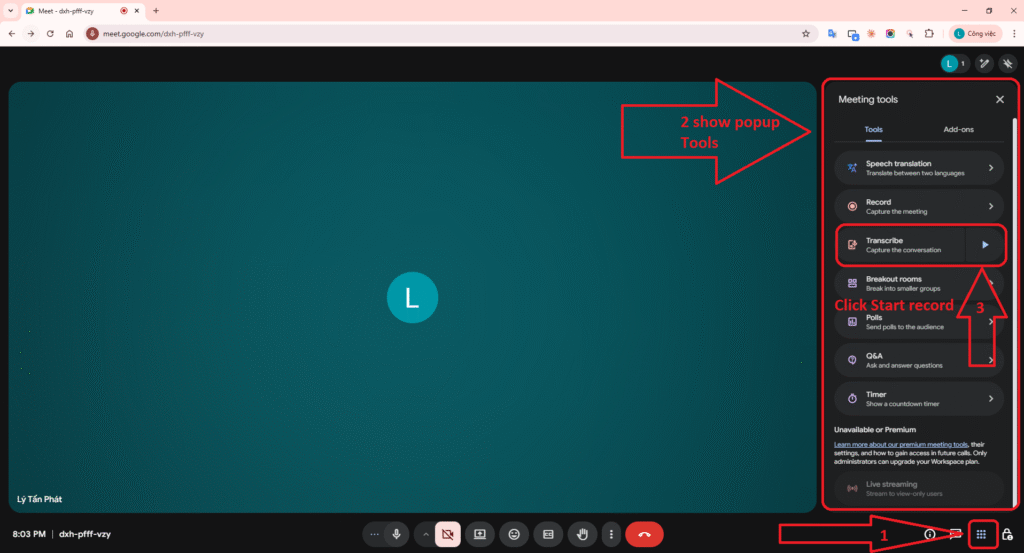
Evidence 1: Starting Transcription (In-meeting UI evidence)
4. Finding Transcripts in Google Drive
After the meeting ends, Google automatically processes and saves the transcript as a Google Doc file in Drive. Processing time depends on the meeting’s length.
| Search Criteria | Action |
|---|---|
| Folder Location | Usually saved automatically in the My Drive > Meet Recordings folder. |
| Search Keywords | Use Drive search: type:document followed by the meeting name or the word “Transcript”. |
| Google Calendar | A direct link to the file is attached to the specific Calendar event for that meeting. |
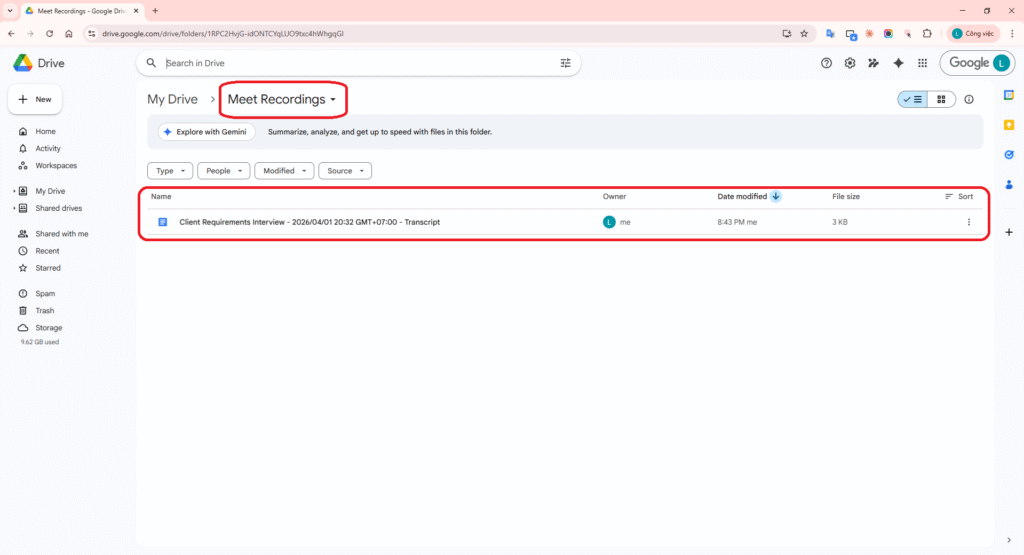
Evidence 2: Transcript file exists in Google Drive after the meeting
5. Metadata (Timestamps & Speaker Labels)
The exported Google Meet transcript contains complete metadata that helps users track the conversation easily.
Speaker Labels (Diarization)
Google uses Speaker Diarization technology to recognize who is talking. The participant’s name clearly appears next to their dialogue text.
Timestamps
Each dialogue block is accompanied by a specific timestamp from the call (e.g., 20:32), helping PMs to easily cross-reference or seek through a video recording if needed.
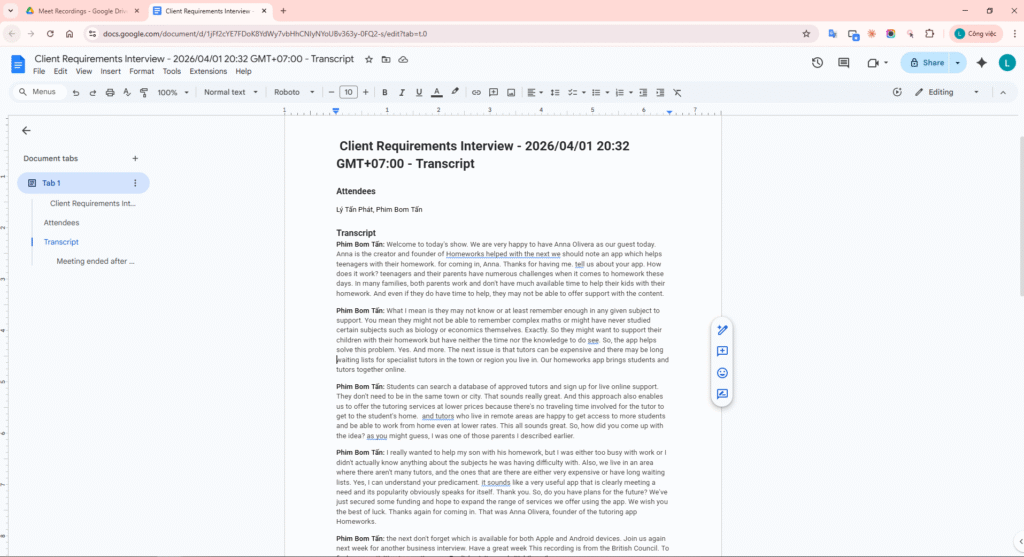
Evidence 3: File containing full Timestamps and Speaker Labels
Video Demo
6. Ownership & Sharing Rules
Storage mechanisms often face the most issues regarding permissions. You need to understand who owns the file and how sharing works.
- Owner: Belongs to the Meeting Organizer or the person who clicked “Start Transcription”.
- Internal Users: Invitees within the same Workspace domain will have “View” access via the Calendar event link.
- External Users (Clients): Usually do not have direct access to maintain security. Clicking the link will show a Request Access error.
Secure Sharing Strategy
Instead of granting individual access for each meeting, Move the Transcript file into the project’s Shared Folder, and share view access for that entire folder with the partner.
7. Troubleshooting Checklist
Use this checklist if you encounter missing Transcript buttons or storage failures.
| Check Item | Situation & Fix |
|---|---|
| Admin & Permissions | The Transcript feature is disabled at the org level (Admin Console). Contact IT to enable it for your OU. |
| Host/Co-host Privileges | Standard Participants cannot see the button. Request Co-host privileges. |
| Storage Space | The Host’s Drive is full, preventing file saving. Clean up Drive storage. |
| Device/Browser Constraints | Transcripts work best on Desktop browsers (Chrome/Edge). Mobile apps sometimes limit this feature. |
8. SOP for Project Managers (PMs)
A standard 3-step procedure for every PM hosting a Requirements meeting.
1. Meeting Naming Rules:
Always use the standardized syntax: [Project Name] – [Meeting Type] – [Client Name] – YYYY.MM.DD
Example: EcomApp – Requirement Interview – ABC Corp – 2026.10.12
2. Transcript Retrieval Rules:
Check Drive within 24h. Quickly fix any jargon terms that the AI might have misheard directly in the doc.
3. Project Folder Linking:
Do not leave the file in a personal folder. Move it to the project’s Shared Drive and attach the link to the corresponding Jira/Confluence task.
9. Conclusion & Overall Evaluation
Mastering Google Meet Transcripts saves Project Managers (PMs), Business Analysts (BAs), and the entire project team dozens of hours of manual Meeting Minutes typing every week. By automating the documentation process, the team can focus 100% of their attention on the discussion with the client instead of burying their heads in typing.
9.1 Quality & Accuracy Evaluation
While Google’s Speech-to-Text and Speaker Diarization technologies are highly advanced, reliability still depends heavily on input audio quality and spoken language. In corporate environments, calls that mix English and Vietnamese (Code-switching) can sometimes confuse the AI, leading to incorrect industry jargon transcription.
Recommendation: Never copy/paste a transcript 100% to send to a client without Reviewing it first. Always spend 5-10 minutes skimming the Google Doc to correct any misheard professional terminology.
9.2 Compliance & Privacy
Recording live speech in a call is closely tied to Data Privacy concerns. Compliance is a mandatory requirement when working with large enterprise partners or in strictly regulated markets like Europe (GDPR).
| Factor | Mandatory Regulation |
|---|---|
| Consent Approval | Verbal consent must be obtained from all participants before clicking the “Start Transcription” button. (Example: “To aid in requirements gathering, I would like to enable Transcripts for this call”) |
| Data Retention | Configure Google Vault (if applicable) to automatically delete transcripts after a set period (e.g., 6 months or 1 year) to reduce the risk of historical data leaks. |
| Access Restrictions | Only grant “View” or “Comment” access to personnel directly related to the project. External guests must not have default access unless explicitly approved. |
9.3 Summary of 3 Core Best Practices
- Strict Crosstalk Moderation: Transcripts’ number one enemy is participants talking over each other (crosstalk). The PM must act as a Moderator, calling on the next speaker or requiring use of the “Raise Hand” button. This ensures the transcript splits correctly by person.
- Input Audio (Hardware matters): Demand your internal team use headsets with noise-canceling mics instead of laptop mics and speakers. Open speakers often create an echo that corrupts the entire line of dialogue in the transcript.
- End “Orphaned” Files: By default, most transcripts fall into the creator’s `My Drive`. If this employee leaves, the document could be permanently lost. Always Move the file from `My Drive` to the project’s `Shared Drive` within 24 hours of the meeting.
Ultimately, Google Meet Transcripts is not just a convenient tool, but a perfect stepping stone to integrate with other Generative AI tools (like Gemini or ChatGPT) to fully automate the creation of Executive Summary reports. Mastering this workflow will significantly increase the team’s work quality and professionalism.
References
Start Google Meet Notes, Transcript and Recording – Google Gemini
How to Transcribe Google Meet: Eligibility, Where It Saves, and Backup Methods
Transcribe Speech During Google Meet Calls Into a Google Doc