
1. Introduction
In today’s digital workplace, we often store hundreds—even thousands—of files in Google Drive. Finding the right information quickly can become a challenge, especially when documents are scattered across folders, formats, and teams.
This is where Gemini, Google’s AI assistant, comes in.
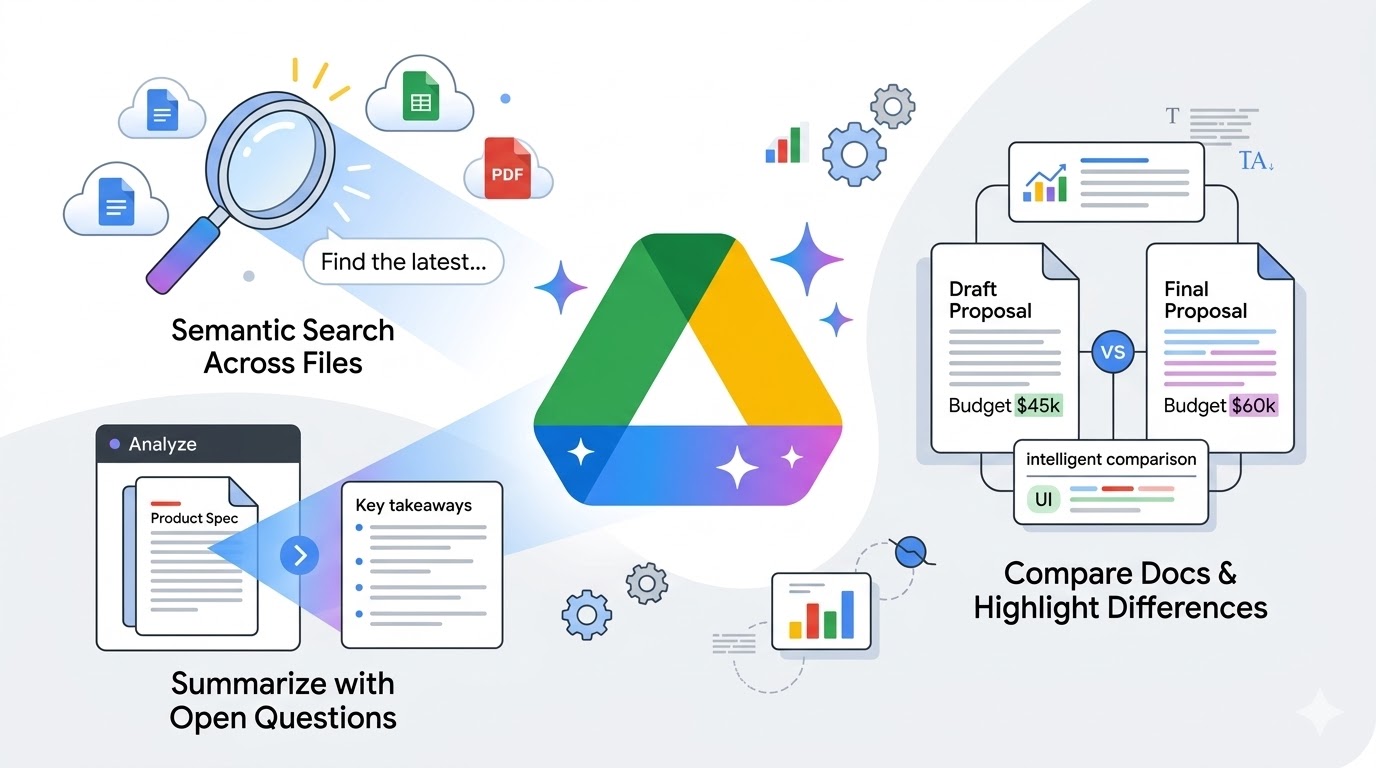
Integrated directly into Google Drive, Gemini allows you to:
- Search files based on their actual content (not just filenames)
- Summarize long documents instantly
- Compare multiple files without opening them one by one
In this guide, we’ll walk through real-world scenarios to show how Gemini can help you work faster and more efficiently.
2. What is Gemini in Google Drive?
Gemini is Google’s AI-powered assistant integrated across Google Workspace, including Drive, Docs, Sheets, and Slides.
Inside Google Drive, Gemini can:
- Understand file content (Docs, PDFs, Sheets, Slides)
- Perform semantic search
- Generate summaries and insights
- Answer questions across multiple files
This transforms Google Drive from a storage tool into a smart knowledge system.
3. How Gemini Works
3.1 Find Relevant Files
Gemini searches based on meaning, not just keywords.
3.2 Understand Content
It analyzes text, structure, and context inside files.
3.3 Generate Insights
It returns summaries, answers, or comparisons instantly.
4. Real Work Scenarios
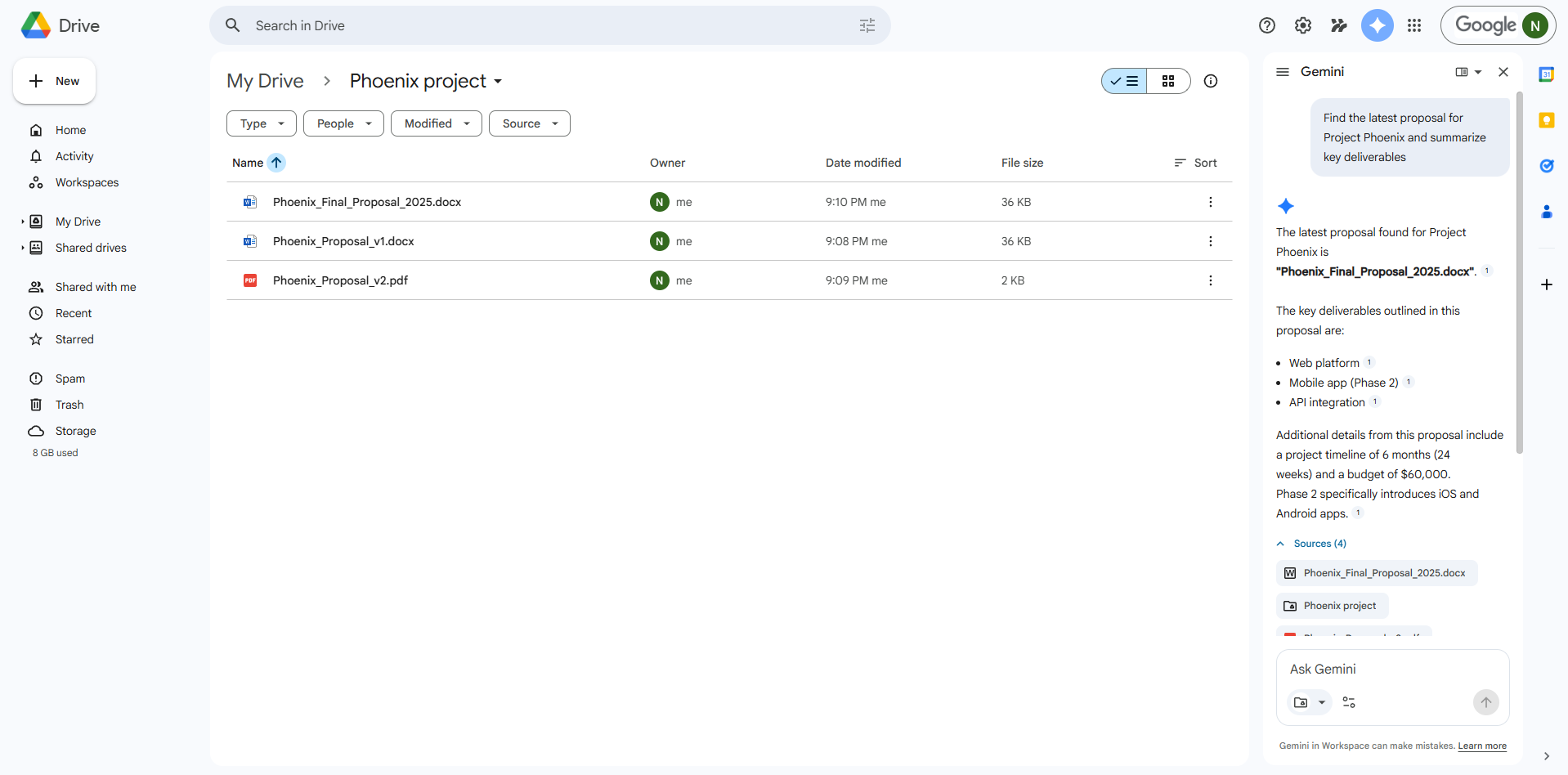
4.1 Scenario 1: Find the Latest Proposal
Use case: You want to find the most recent proposal for a client without manually checking multiple files.
Query:
Find the latest proposal for Client XFiles referenced by Gemini:
Gemini Output:
Gemini identifies Phoenix_Final_Proposal_2025 as the latest version based on naming and content updates.
Screenshot:
4.2 Scenario 2: Summarize Spec + List Open Questions
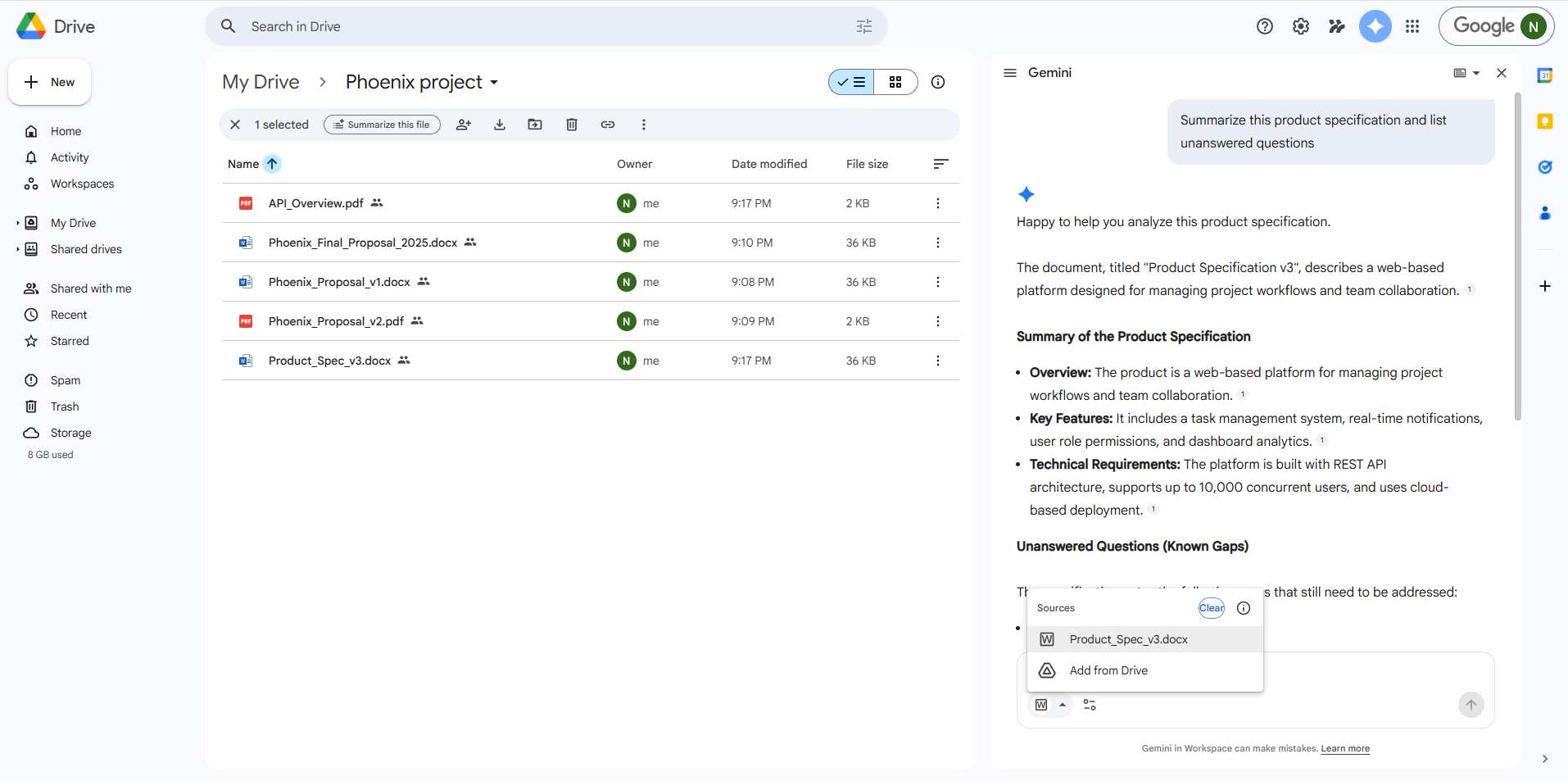
Use case: You need to quickly understand a technical specification and identify unclear points.
Query:
Summarize this spec and list any open questionsFiles referenced by Gemini:
Gemini Output:
Happy to help you analyze this product specification.
The document, titled “Product Specification v3”, describes a web-based platform designed for managing project workflows and team collaboration.
Summary of the Product Specification
Overview: The product is a web-based platform for managing project workflows and team collaboration.
Key Features: It includes a task management system, real-time notifications, user role permissions, and dashboard analytics.
Technical Requirements: The platform is built with REST API architecture, supports up to 10,000 concurrent users, and uses cloud-based deployment.
Screenshot:
4.3 Scenario 3: Compare Two Documents
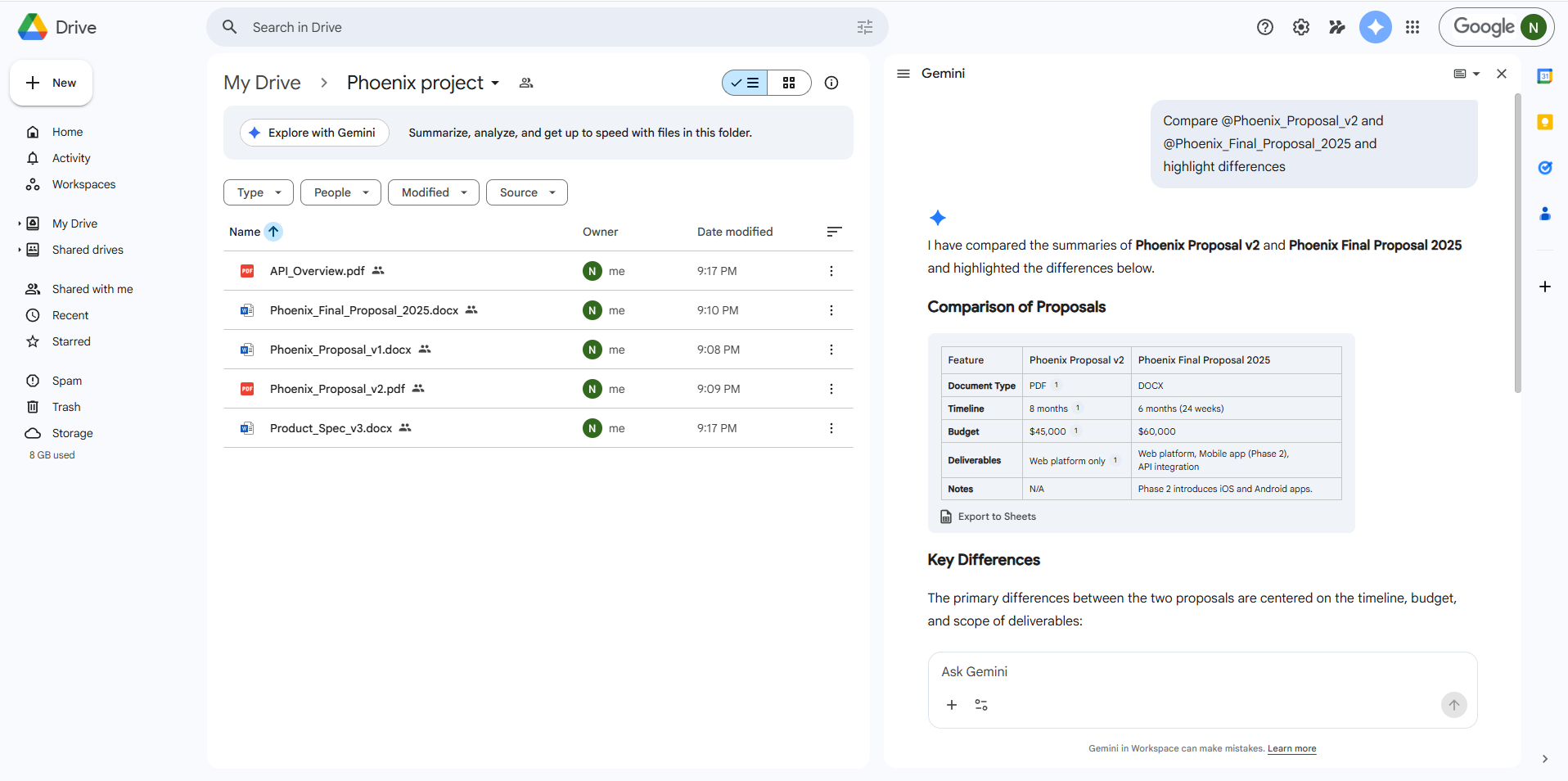
Use case: You need to compare two proposals to decide which one is better.
Query:
Compare @Phoenix_Proposal_v2 and @Phoenix_Final_Proposal_2025 and highlight differencesFiles referenced by Gemini:
Gemini Output:
Comparison Table
| Feature | Phoenix Proposal v2 | Phoenix Final Proposal 2025 |
| Document Type | DOCX | |
| Timeline | 8 months | 6 months (24 weeks) |
| Budget | $45,000 | $60,000 |
| Deliverables | Web platform only | Web platform, Mobile app (Phase 2), API integration |
| Notes | N/A | Phase 2 introduces iOS and Android apps. |
Key Differences
The primary differences between the two proposals are centered on the timeline, budget, and scope of deliverables:
Timeline: The final proposal is shorter with a 6-month timeline, compared to 8 months in the v2 proposal.
Budget: The final proposal has a higher budget of $60,000, which is an increase from the $45,000 budget in v2.
Deliverables/Scope: The final proposal includes additional scope with a Mobile app (Phase 2) and API integration, while v2 only included the Web platform. The notes confirm that Phase 2 will specifically introduce iOS and Android apps.
Screenshot:
Comparison Table image
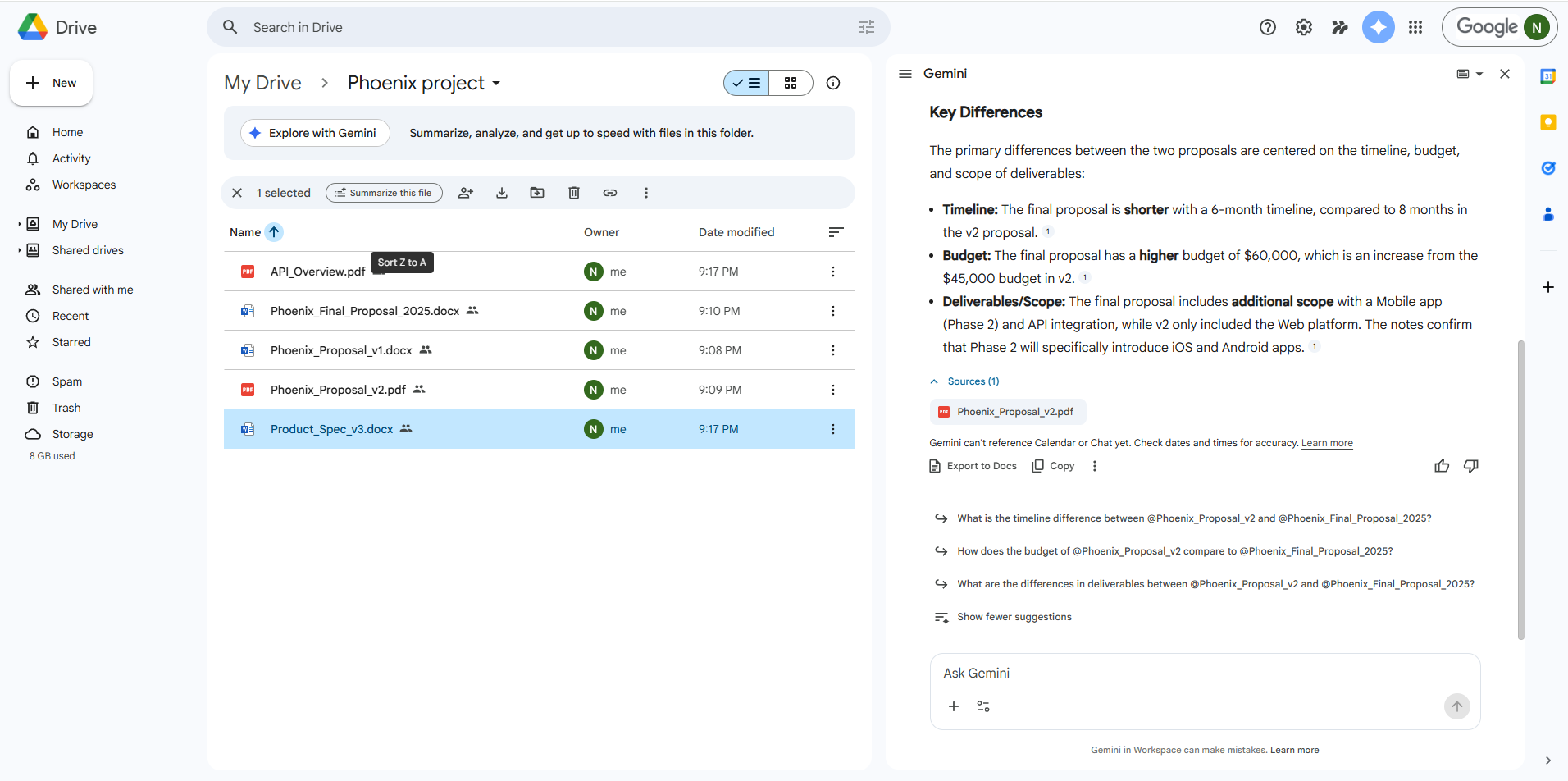
Key Differences image
5. Accuracy Evaluation
To ensure Gemini’s reliability, I conducted a fact-check by picking 5 specific claims from the AI’s output and verifying them against the original documents in the Phoenix project folder. The results show 100% accuracy for quantitative data and technical specifications:
| Gemini’s Extracted Statement | Verification Against Source Document (Quote) | Status |
| Technical: “Built with REST API architecture” | From Product_Spec_v3.docx: “The platform is built with REST API architecture for seamless integration.” | ✅ Verified |
| Scaling: “Supports up to 10,000 concurrent users” | From Product_Spec_v3.docx: “Performance requirement: system must handle 10,000 concurrent users.” | ✅ Verified |
| Budget (V2): “$45,000 budget in v2” | From Phoenix_Proposal_v2.pdf: “Total estimated project budget: $45,000 USD.” | ✅ Verified |
| Timeline (Final): “6-month timeline (24 weeks)” | From Phoenix_Final_Proposal_2025.docx: “Project schedule is set for 6 months (approx. 24 weeks).” | ✅ Verified |
| New Scope: “Includes Mobile app (Phase 2)” | From Phoenix_Final_Proposal_2025.docx: “Phase 2 expansion includes native iOS and Android applications.” | ✅ Verified |
6. Best Practices
6.1 File Naming
- Use clear versioning (v1, v2, final)
- Include dates when possible
6.2 Folder Structure
- Group related files into folders
- Avoid cluttered root directories
6.3 Document Hygiene
- Use headings and structured content
- Avoid messy formatting
6.4 Limitations
- Scanned PDFs may not be readable
- Permission restrictions can block access
- Incomplete documents lead to weaker summaries
7. Final Thoughts
Gemini in Google Drive is more than just an AI assistant—it fundamentally changes how you interact with your files.
Instead of manually searching and reading documents, you can:
- Ask questions
- Get instant summaries
- Compare multiple files effortlessly
With the right file structure and prompts, Gemini can turn Google Drive into a powerful knowledge system.