
How to Schedule Multi-Interviewer Interviews with Google Calendar Appointment Schedules
Scheduling interviews with multiple interviewers is one of the most time-consuming parts of the hiring process.
Recruiters often struggle with:
- Back-and-forth emails to find a suitable time
- Conflicting interviewer schedules
- Manual coordination errors
Using Google Calendar Appointment schedules, you can eliminate this friction by creating a
single booking link that automatically shows only the time slots when all interviewers are available.
1. What Are Appointment Schedules?
Appointment schedules are a feature in Google Calendar that allows you to:
- Create a public booking page
- Let candidates choose available time slots
- Automatically avoid conflicts
- Apply scheduling rules (buffer, duration, etc.)
2. How Multi-Interviewer Scheduling Actually Works
To make multi-interviewer scheduling work correctly, you must explicitly include all calendars in the availability check.
A slot is available ONLY if:
- Host is free
- Co-host A is free
- Co-host B is free
If you skip this step, candidates may book time slots where one interviewer is actually busy.
3. Step-by-Step Setup
3.1 Create an Appointment Schedule
- Open Google Calendar
- Click Create → Appointment schedule
- Enter:
- Title: Interview – Backend Engineer
- Duration: 60 minutes
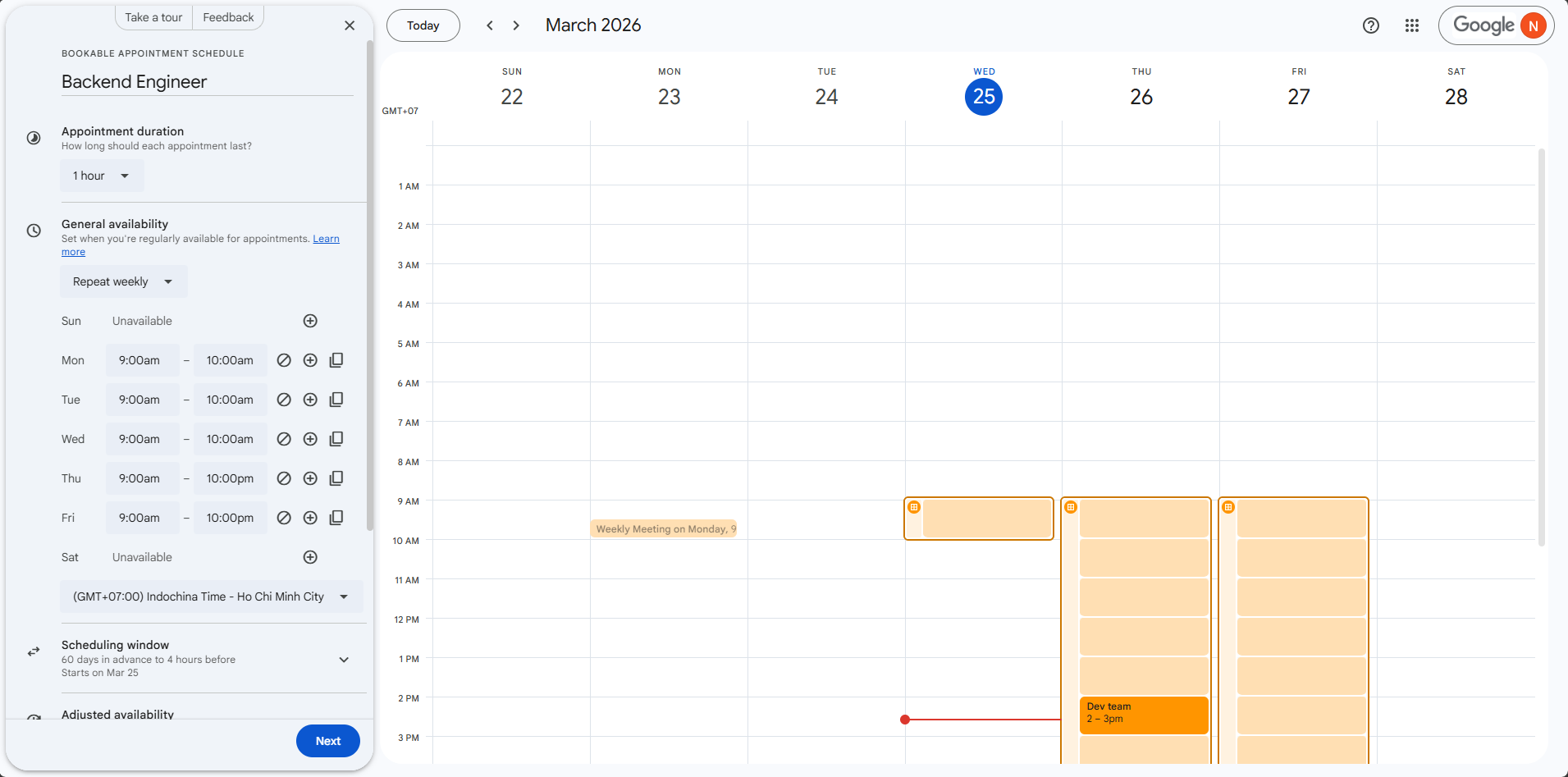
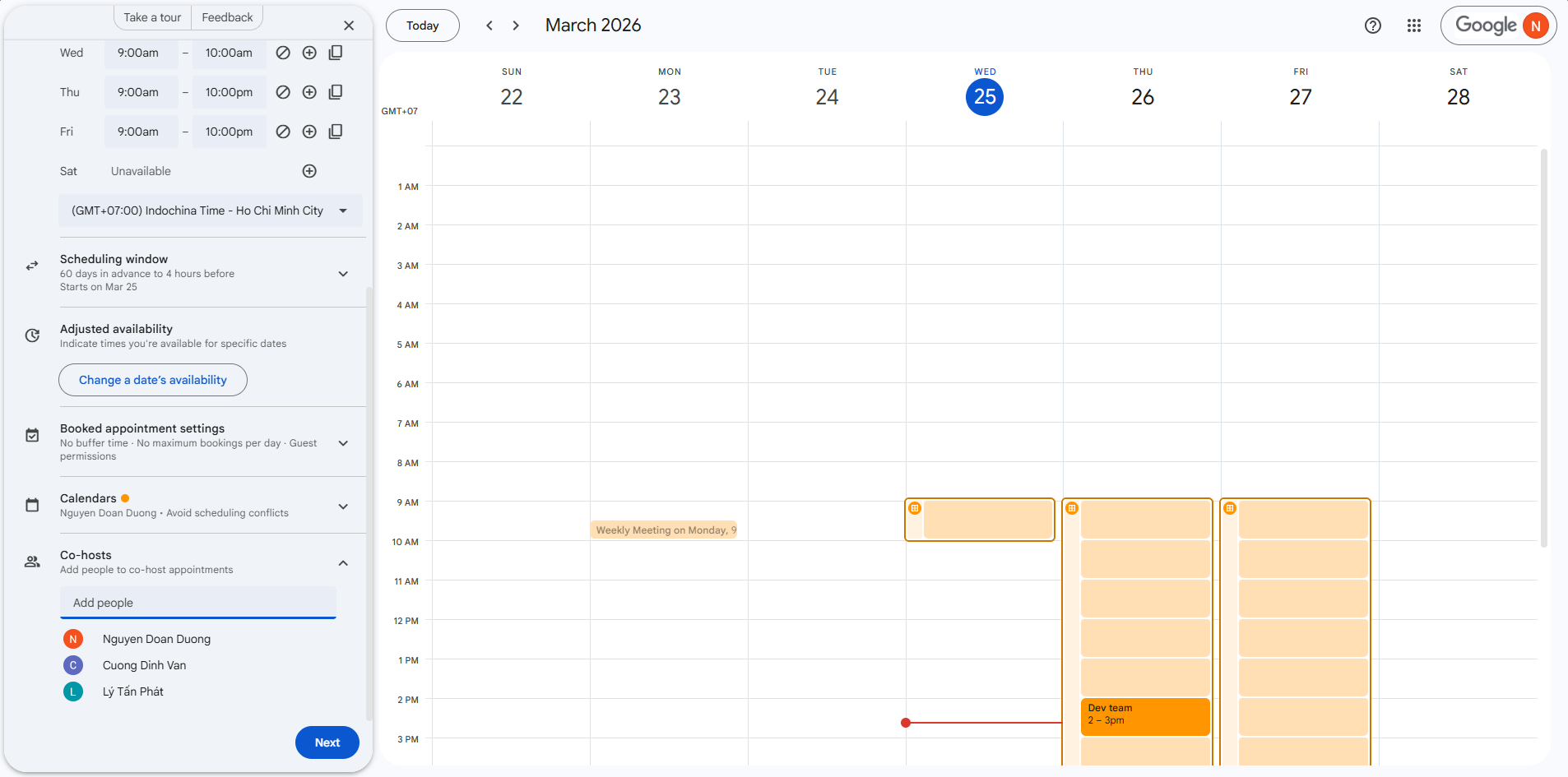
3.2 Add Co-hosts (Interviewers)
In the Co-hosts section, add all interviewer emails.
- You can add 2 or more interviewers
- They will receive calendar invites after booking
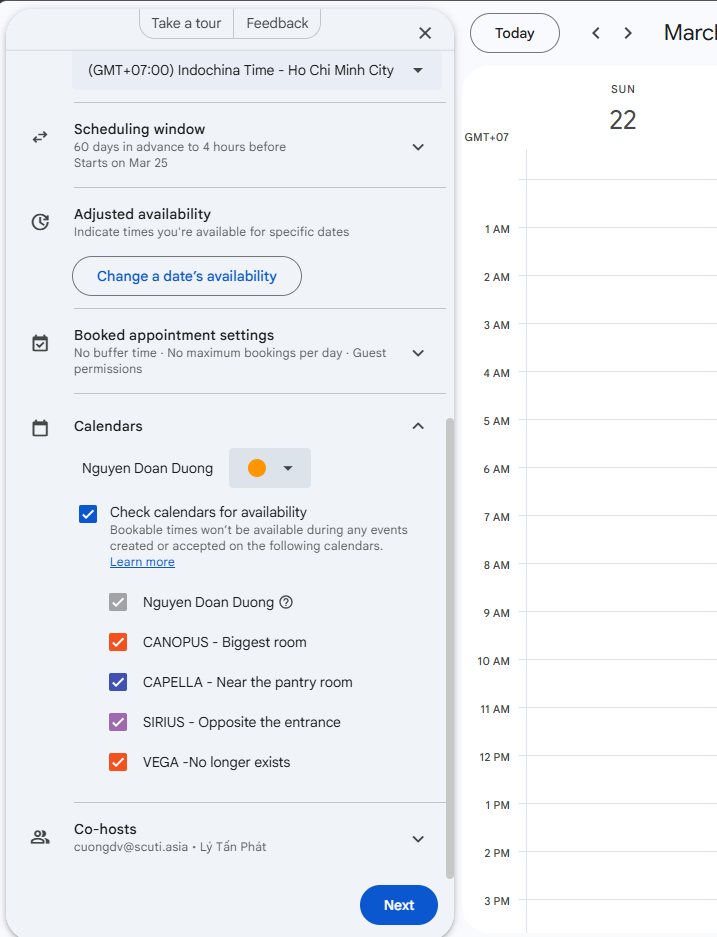
3.3 Configure Common Availability (Most Important Step)
Go to:
Calendars → Check calendars for availability
- Select your calendar
- Select ALL co-host calendars
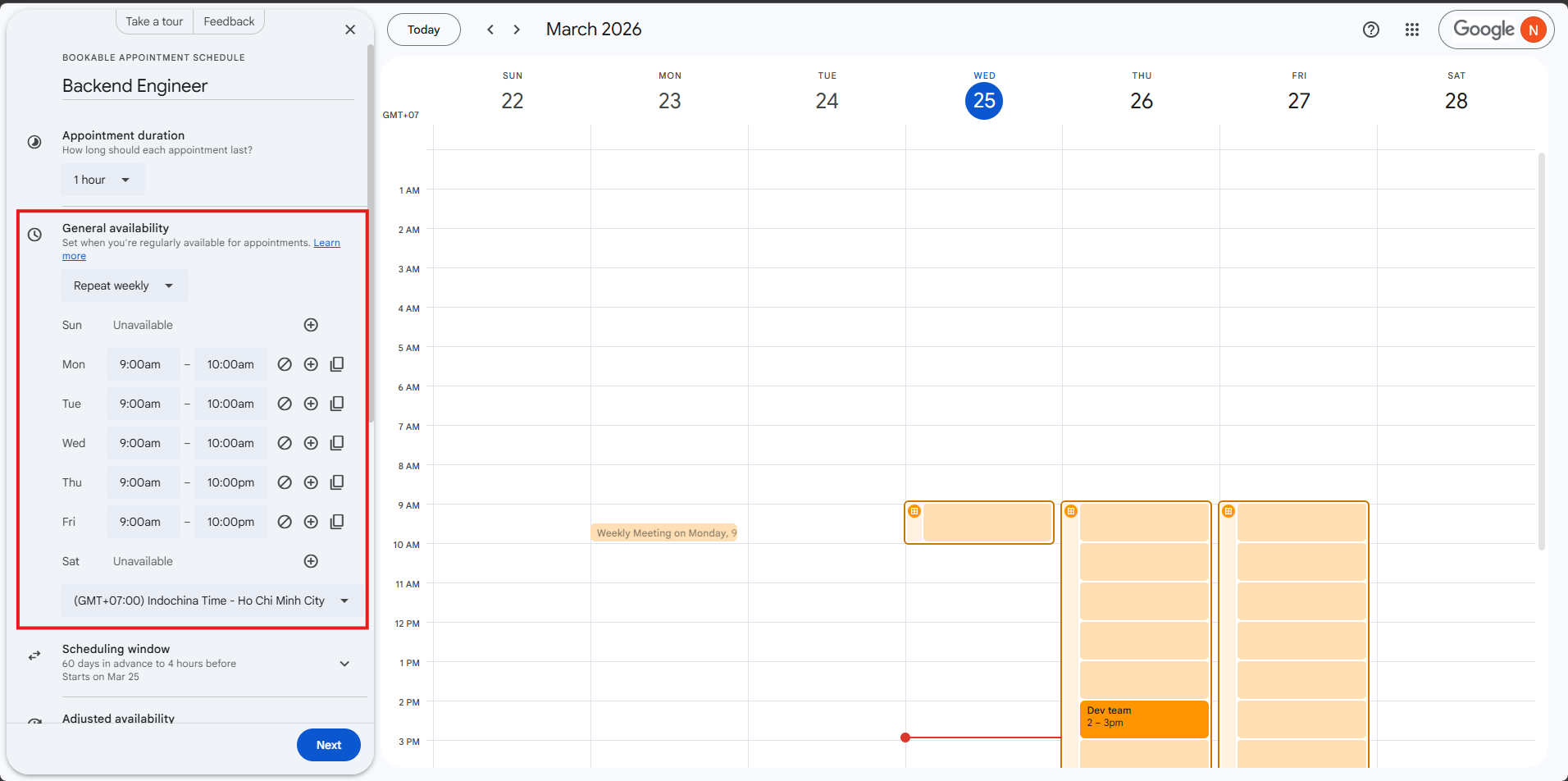
3.4 Configure Working Hours
Define when interviews can be scheduled.
Monday – Friday
09:00 – 12:00
14:00 – 17:00
You can create multiple time blocks per day to avoid lunch hours.
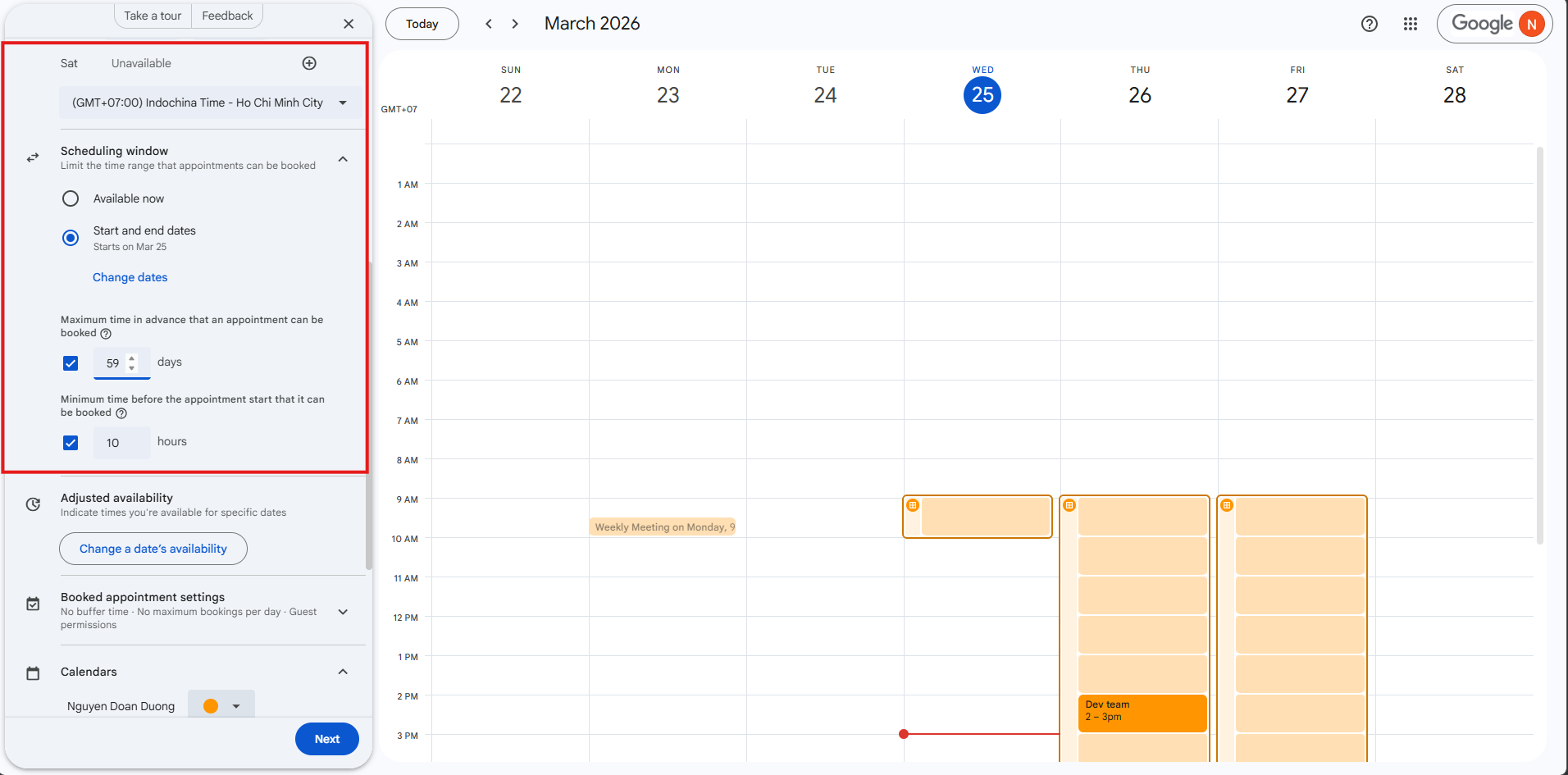
3.5 Configure Scheduling Constraints
⏱ Duration
Standard interview length (e.g., 60 minutes)
⏳ Buffer Time
Add 10–15 minutes before/after interviews to prevent back-to-back meetings.
⏰ Minimum Notice
Example: 24 hours → prevents last-minute bookings.
📅 Scheduling Window
Example:
- Minimum: 1 day in advance
- Maximum: 14 days ahead
🌍 Time Zone
Candidates will automatically see time slots in their local timezone.
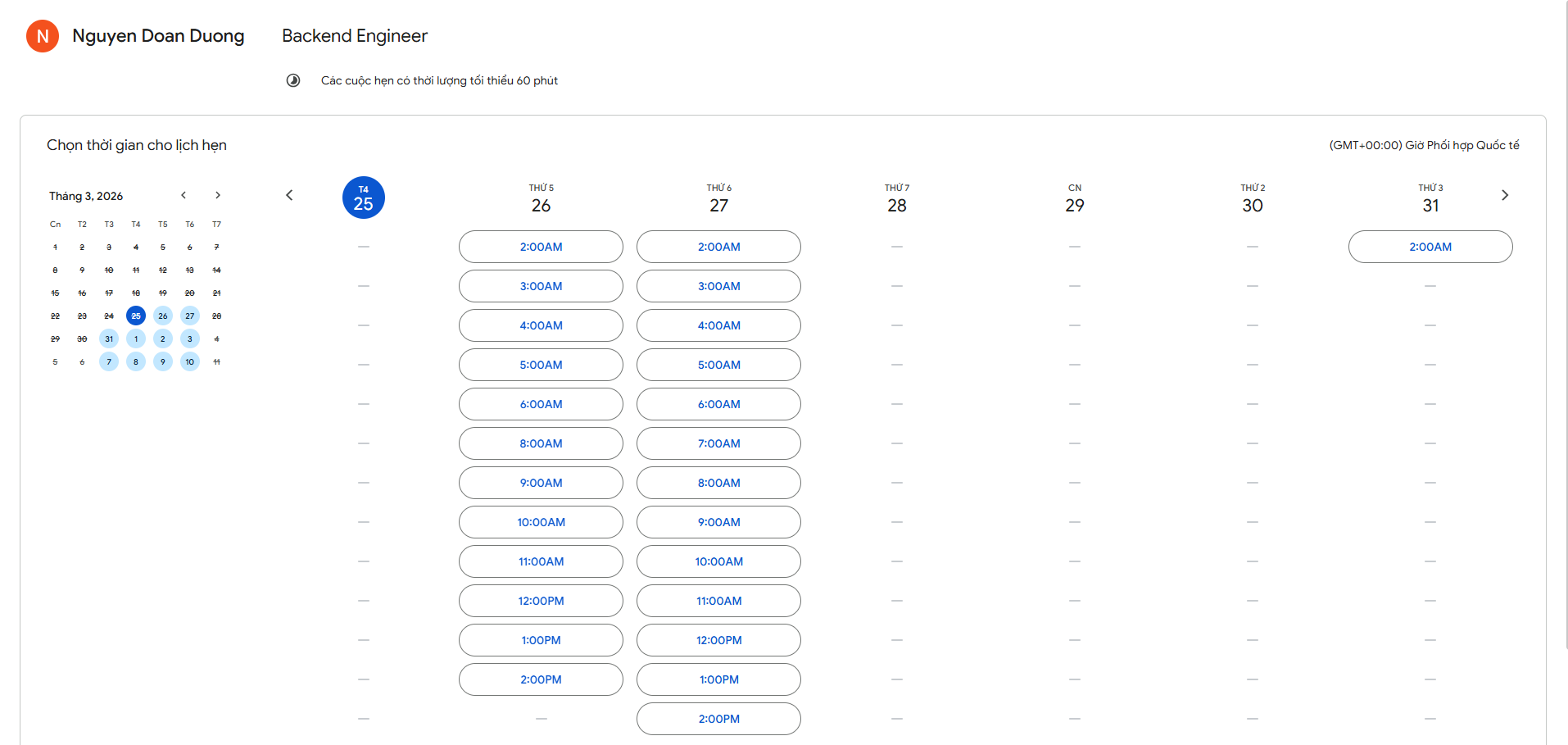
4. Candidate Booking Experience
After setup, you’ll get a booking link that you can send to candidates.
- Candidate opens link
- Sees available time slots
- Selects a time
- Receives Google Meet invite automatically
5. Candidate Email Template (How to Use It)
This is the email you send to candidates so they can schedule their interview using your booking link.
Important:
This email is not automatically sent by Google Calendar. You need to send it manually (or via your email tool).
Step 1: Understand the placeholders
In the template below, you’ll see variables like:
{{Candidate Name}}→ Replace with candidate’s real name{{Position Title}}→ Replace with the job title{{Booking Link}}→ Your appointment schedule link{{[email protected]}}→ Your contact email{{Your Name}}→ Your name
Example after replacing:
Hi John,

Thank you for your interest in the Backend Engineer role.

Please select a time using the link below:

https://calendar.google.com/appointments/...
Step 2: Where to get the Booking Link
After creating your schedule in Google Calendar:
- Click your appointment schedule
- Click “Share”
- Copy the booking page link
This is what you paste into {{Booking Link}}
Step 3: Send the email
You can send this email using:
- Gmail (manual)
- Automation tools (Mail merge, ATS, etc.)
Final Email Template (Ready to Use)
Subject: Schedule Your Interview

Hi {{Candidate Name}},

Thank you for your interest in the {{Position Title}} role.

Please select a time using the link below:

{{Booking Link}}

Interview Details:
- Duration: 60 minutes
- Platform: Google Meet
- Timezone: Automatically adjusted to your location

If no suitable time is available, please contact us at:
{{[email protected]}}

Best regards,
{{Your Name}}
6. Validation Checklist (Before Going Live)
✅ Co-host Conflict
Create a busy event → slot must disappear
✅ Buffer Time
Slots near booked time should be blocked
✅ Minimum Notice
No same-day booking allowed
✅ Timezone
Test with different locations
7. Common Failure Modes
❌ Calendar Permission Issue
Fix: Share calendar with “See all event details”
❌ Missing Availability Check
Fix: Add all calendars manually
❌ External Users Cannot Book
Fix: Enable external access in Workspace settings
❌ Visibility Issues
Fix: Use shared calendar for team
❌ Buffer Not Applied
Fix: Ensure all calendars are included
8. Best Practices
- Use a shared hiring calendar
- Keep duration consistent
- Add buffer ≥ 15 minutes
- Limit number of visible slots
9. Key Takeaway
To make multi-interviewer scheduling work correctly, you MUST include all interviewer calendars in the availability check.
—
10. Conclusion
With proper setup, Google Calendar Appointment schedules can:
- Eliminate manual coordination
- Prevent scheduling conflicts
- Improve candidate experience
This is one of the simplest yet most powerful ways to streamline your hiring workflow.