1. The Operational Philosophy: Why Manual Alignment Fails
For most high-growth organizations, the traditional “middle-man” approach to scheduling is a significant resource drain. Recruiters often spend up to 40% of their day acting as a human relay station—shuttling between interviewer tabs and candidate emails just to lock in a single 60-minute window.
The Paradox: The more elite and numerous your panel members, the higher the probability of calendar drift. Delays in scheduling are the primary cause of candidate “ghosting” as talented professionals gravitate toward more agile competitors.
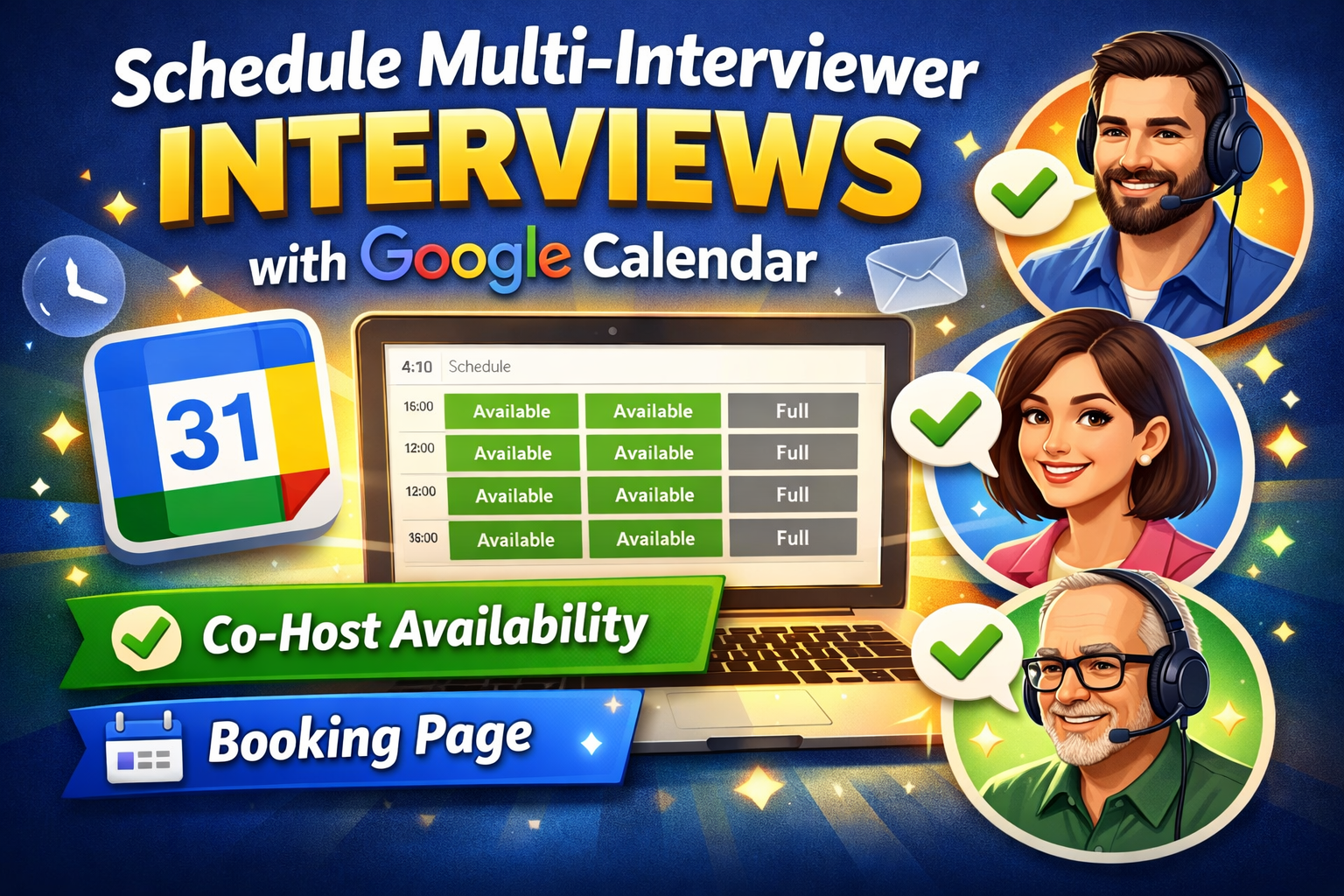
The Zero-Friction Vision: Using Google Calendar Appointment Schedules, we transition from a reactive model (asking for time) to a proactive one (opening time gateways). This ensures your panel stays focused on talent evaluation while the tech handles the logistics.
2. Unified Calendar Logic: Orchestrating Panel Parity
THE CORE PARITY RULE
Adding Co-hosts is merely a preliminary step. Functional automation requires enabling “Parity Availability Check” to sync all participants’ logic.
The system executes a real-time parity algorithm: A booking slot is ONLY materialized if the Host + Panelist A + Lead Dev B all have simultaneous free gaps. This protocol inherently protects managers from being booked over Sprint planning sessions or urgent incidents.
3. 9-Step Roadmap: Setup & Operation
Step 1: Create Appointment Schedule
In Google Calendar, use the Create (+) button and select Appointment schedule. Title: “Technical Screening – 60 phút”.
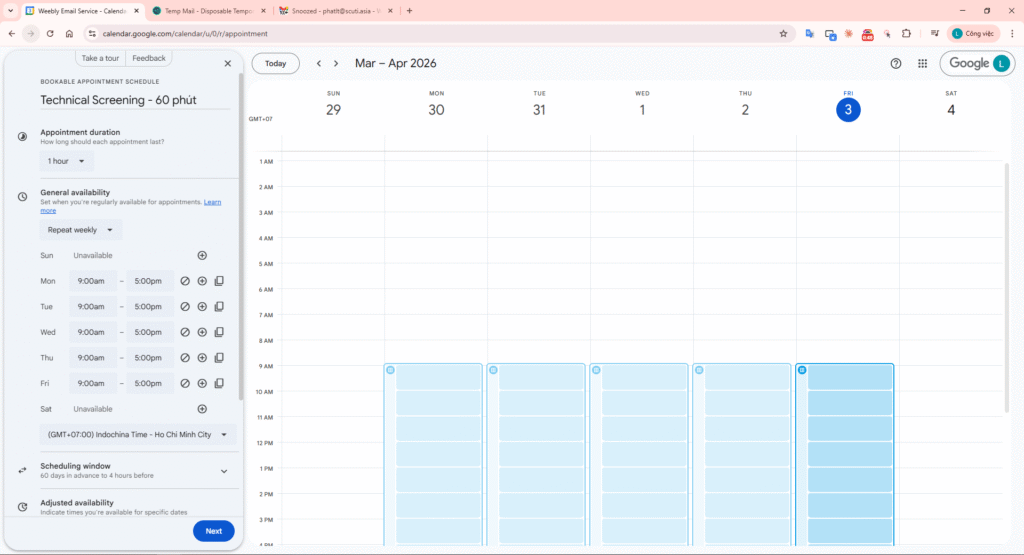
Image 1: Initial Create Appointment Schedule menu
Step 2: Panel Synchronicity (Co-hosting)
Invite your co-participants under Co-hosts. The system ensures slots only appear when everyone is free.
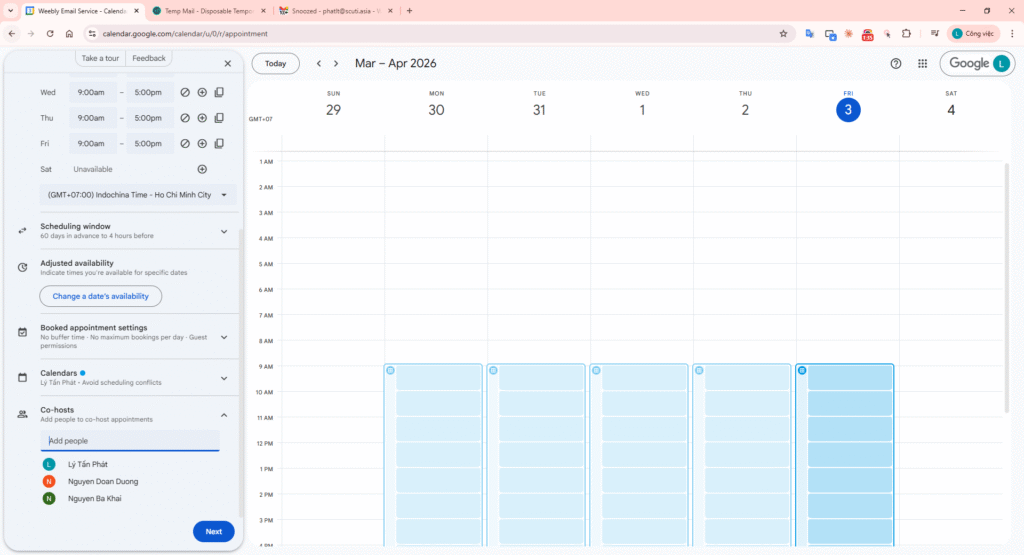
Image 2: Adding panel co-hosts
Step 3: Scheduling Window
Configure how far in advance (e.g., 60 days) and the minimum notice (e.g., 4 hours) candidates can book.
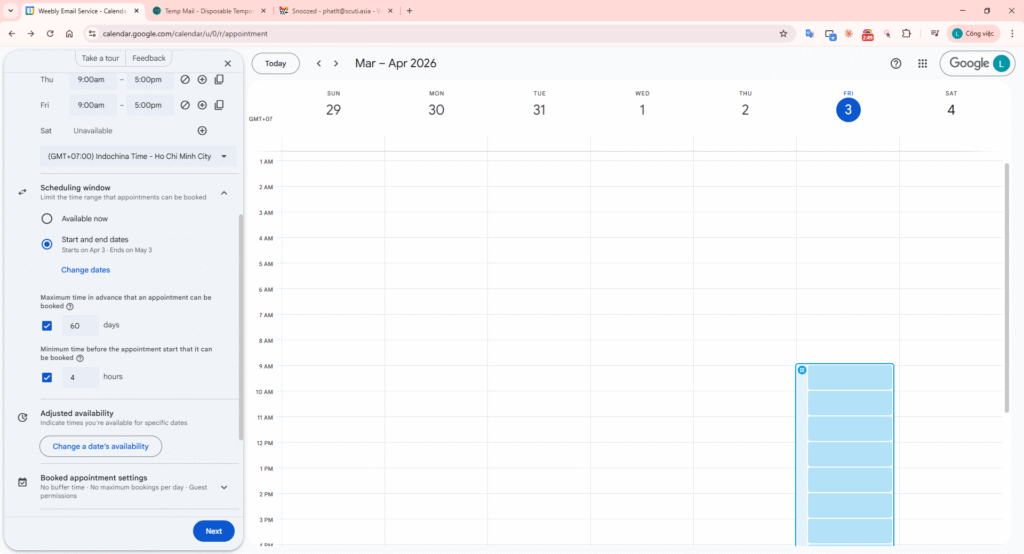
Image 3: Scheduling window configuration (60 days/4 hours)
Step 4: Guardian Constraints
- Operational Padding (Buffer): Mandatory 30-minute gap for scorecards.
- SLA Protection (Max Bookings): Limit to 3 sessions per day to maintain quality.
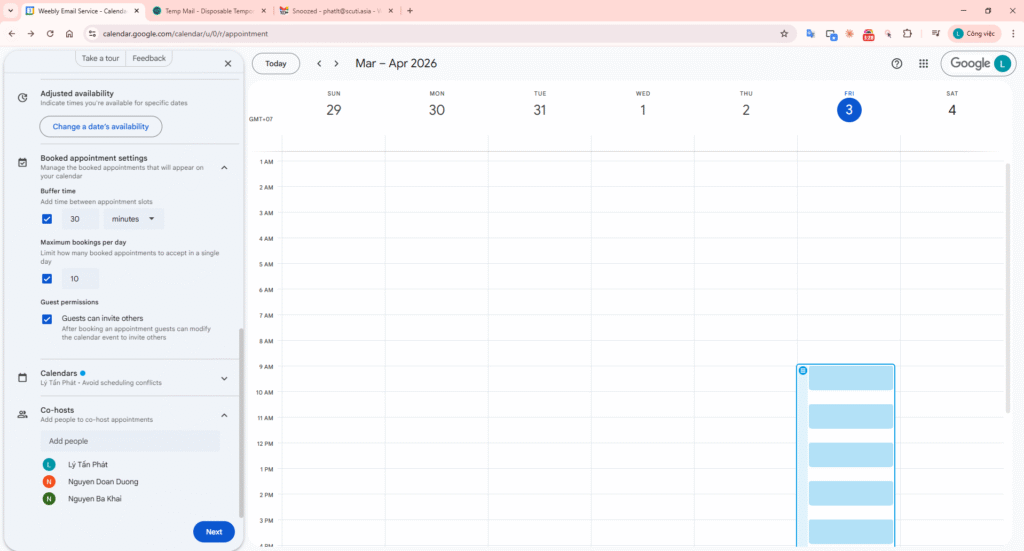
Image 4: Buffer time: 30 min and Max bookings: 10 setting
Step 5: Calendar Availability
Activate “Check calendars for availability” for all co-hosts to ensure unified parity.
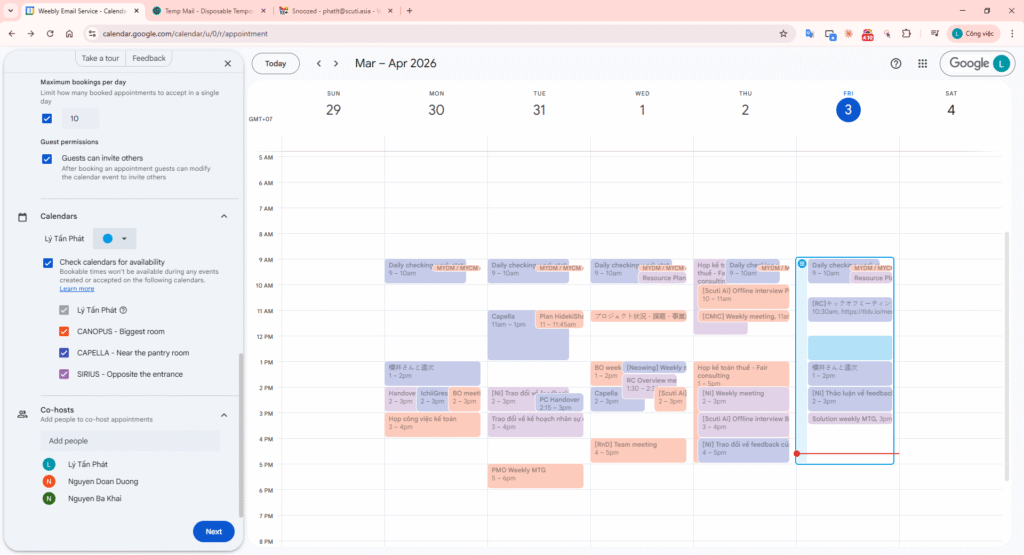
Image 5: Selecting calendars for cross-conflict scanning
4. Security & Data: Page 2 Configuration
Step 6: Booking Form & OTP Gate
Enable “Email verification” for security. Set the 4 required fields: First Name, Last Name, Email, Phone Number
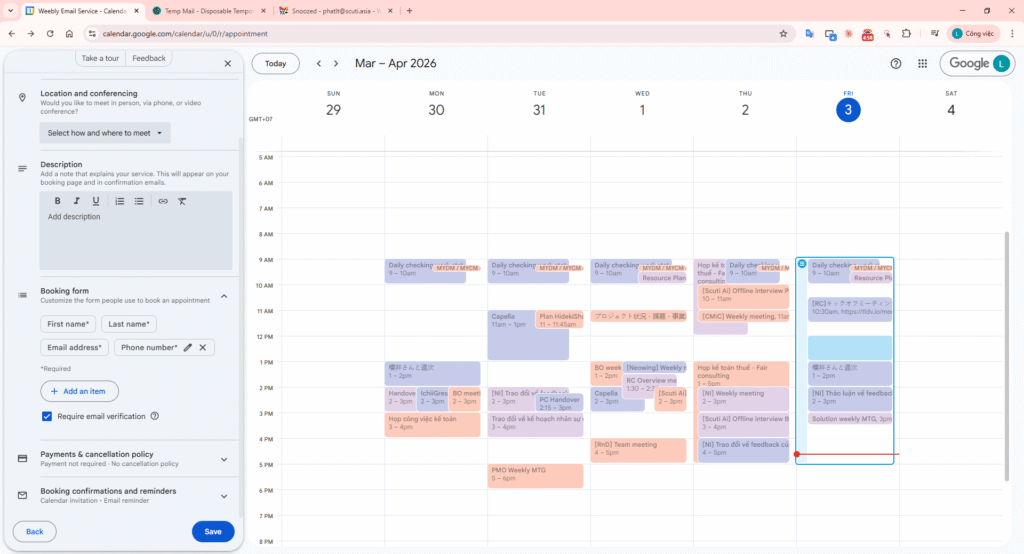
Image 6: Setting up the 4-field form and OTP verification
DISCIPLINE POLICY (CANCELLATIONS): Set a mandatory Cancellation Window (12-24 hours). This enforces professional discipline and keeps the leadership schedule stable from last-minute ghosting.
5. Live Operation Flow
Step 7: Draft Outreach Email (Template)
Open Gmail, use the template below, and paste your booking link to send to the candidate.
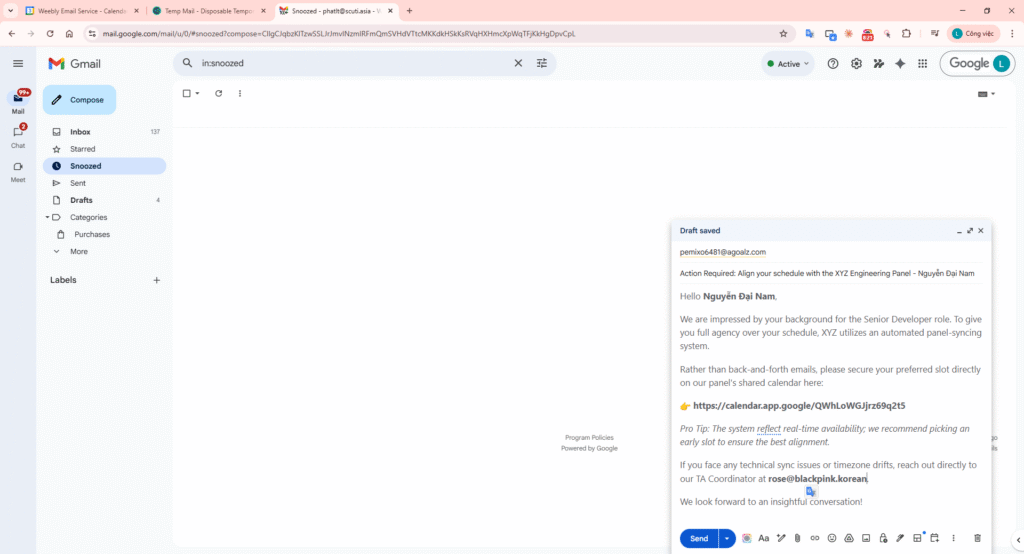
Image 7: Email draft with template and booking link
MODERN OUTREACH TEMPLATE (HIGH CONVERSION)
Subject: Action Required: Align your schedule with the XYZ Engineering Panel – [Candidate Name]
Hello [Candidate Name],
We are impressed by your background for the Senior Developer role. To give you full agency over your schedule, XYZ utilizes an automated panel-syncing system.
Rather than back-and-forth emails, please secure your preferred slot directly on our panel’s shared calendar here:
👉 [Link_Your_Booking_Gateway_Here]
Pro Tip: The system reflect real-time availability; we recommend picking an early slot to ensure the best alignment.
If you face any technical sync issues or timezone drifts, reach out directly to our TA Coordinator at [hr_email].
We look forward to an insightful conversation!
Step 8: Candidate Booking UI (Candidate View)
Candidate chooses a slot and fills in the 4 required fields: First Name, Last Name, Email, Phone Number.
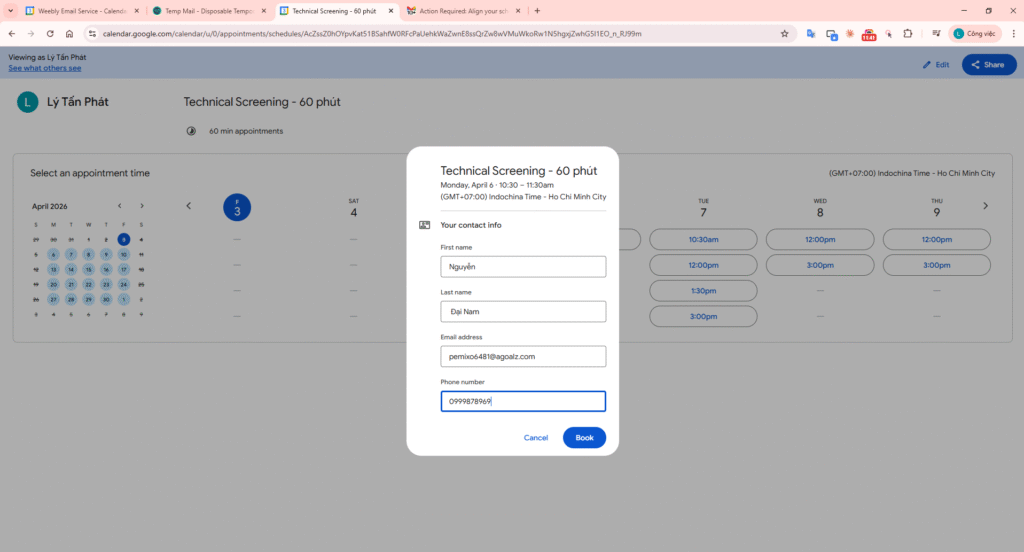
Image 8: Candidate interaction with the booking gateway
Step 9: Email OTP Verification
Candidate enters the 6-digit OTP code received via email to validate identity before confirming.
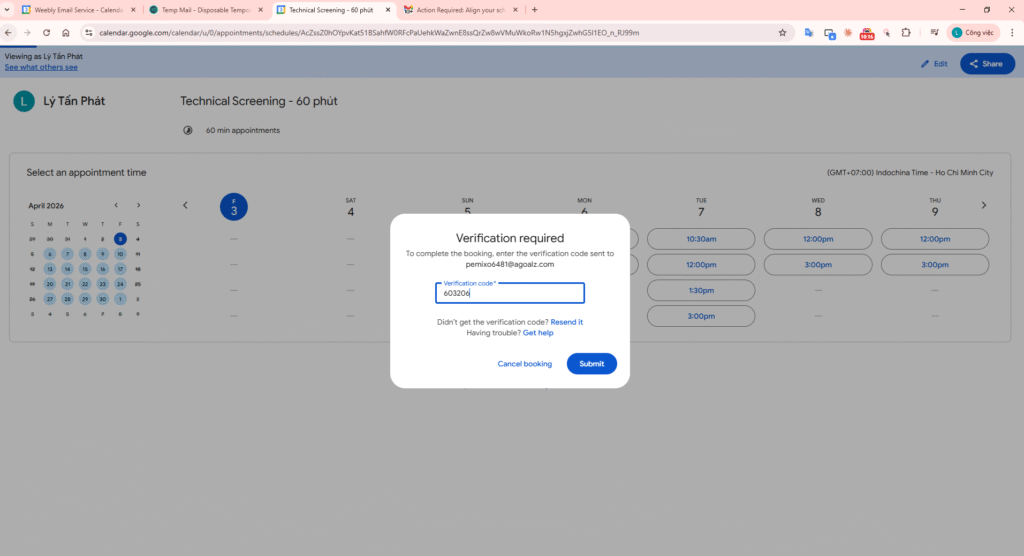
Image 9: Interface for OTP identity verification
Step 10: Success Confirmation
A final confirmation screen appears immediately after the candidate submits the booking.
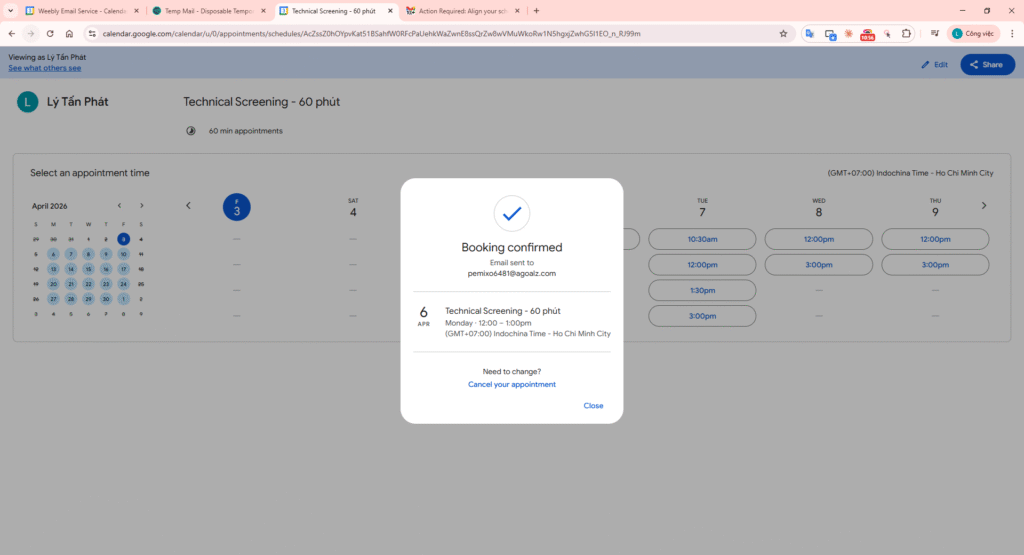
Image 10: Successful booking completion screen
6. Synchronicity & Final Verification
Step 11: Calendar Sync Check (Recruiter View)
Verify that the interview event has been automatically synchronized to the recruiter’s calendar.
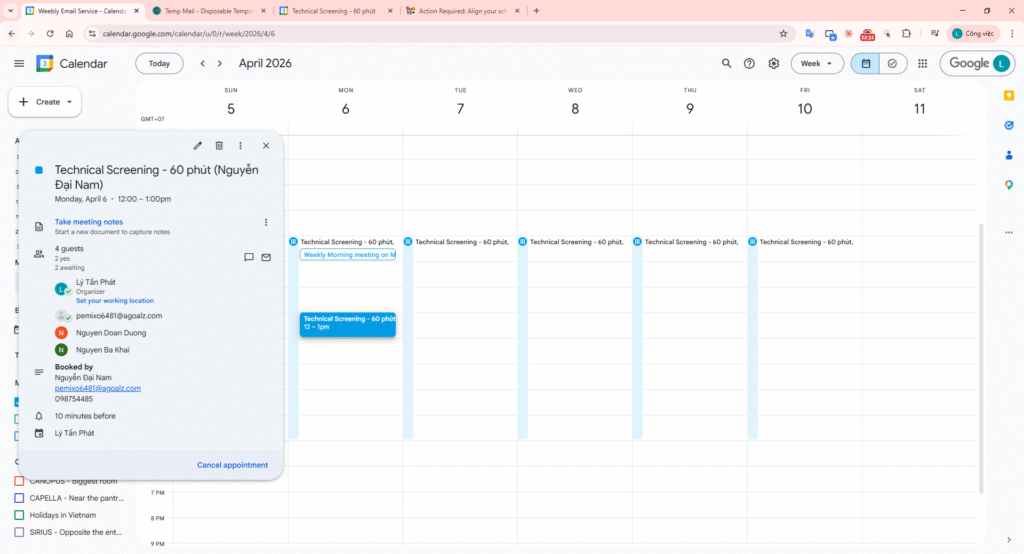
Image 11: New booking event reflected in the master calendar
Step 12: Final Confirmation Email
Check the inbox for the automatic final confirmation email sent to both parties with the Google Meet link.
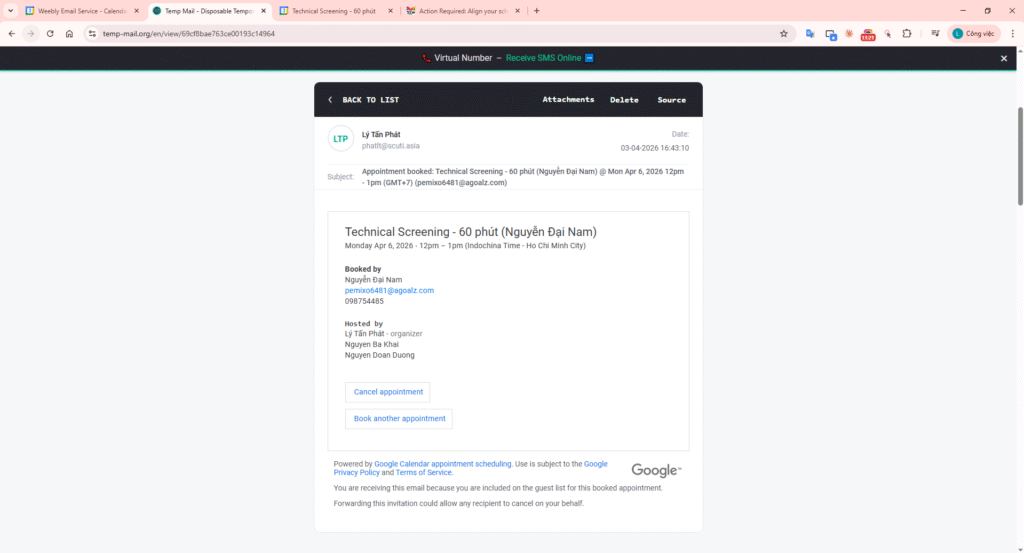
Image 12: Official confirmation notification from Google Calendar
Video Demo:
Appendix: Testing & Performance Diagnostic Protocol
To ensure your “Zero-Friction” blueprint works perfectly, conduct these two User Acceptance Tests (UAT) before going live:
UAT 1: IDENTITY SECURITY (OTP CHECK)
- Open your booking link in an Incognito/Private window.
- Complete the form as if you were the candidate.
- Goal: Verify that the system prompts for a 6-digit verification code. This confirms your security gate is active.
UAT 2: EXPERIENCE CHECK (CROSS-SYNC)
- Send the invitation email from your outreach tool to a personal address.
- Test the link on both Desktop and Smartphone.
- Goal: Ensure the booking gateway renders perfectly and the timezone detection accurately matches the candidate’s location.
6. Operational Diagnostic: Troubleshooting Panel Synchronicity
When the automation doesn’t perform as expected, run this diagnostic suite:
| Diagnostic Symptom (Issue) | The “Ghost” Cause | Resolution Protocol (Action) |
|---|---|---|
| The Double-Booking Error | Admin lacks “See Busy” permissions for a specific co-host. | Ensure Co-host has shared status visibility with the workspace creator. |
| Time-Zone Drift | “Browser-local” timezone detection is disabled. | Enable “Automatic Timezone detection” in the booking page settings. |
| OTP Delivery Failure | The verification code is being flagged by the candidate’s ISP as Junk. | Advise candidates to check Junk folders or use the “Share > Pop-up” embed method on your site. |
7. Conclusion: From Scheduling to Strategic Alignment
Implementing Google Calendar Appointment Schedules is more than a technical upgrade; it’s a commitment to a “Zero-Friction” candidate experience. By automating the coordination of multiple interviewer schedules, your recruitment team can stop acting as a “relay station” and start focusing on what truly matters: identifying and securing top talent.
In a market where speed and professional first impressions are everything, an automated, secure, and panel-synced scheduling gateway is your competitive edge. Stop managing calendars—start managing talent.