
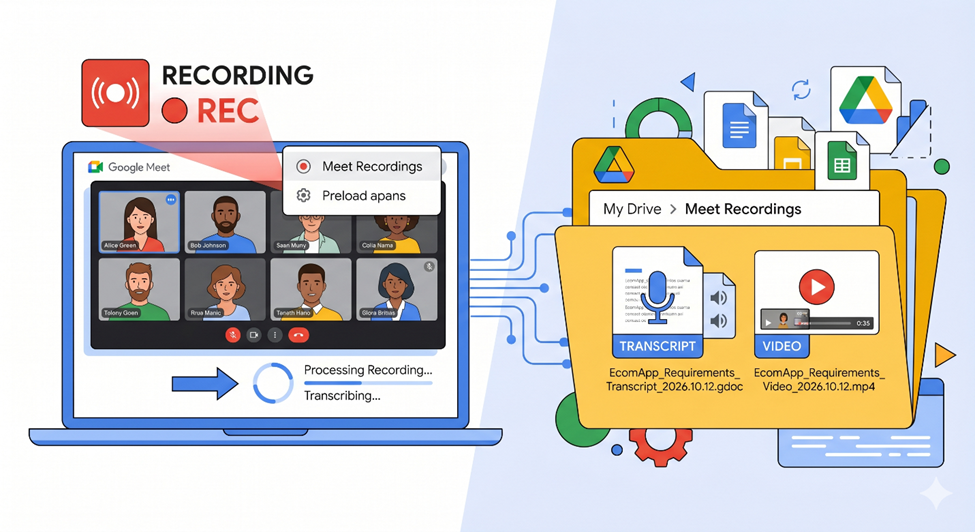
1. Introduction: Why Google Meet Transcripts are a PM’s “Secret Weapon”
Move beyond simple overviews by highlighting the strategic value.
- Labor Liberation: Eliminate manual note-taking; focus 100% on engaging with the client.
- Superiority over Video Recordings:
- Searchability: Locate key decisions or keywords in seconds.
- Minimal Footprint: In addition to being easier to share and manage than bulky MP4 files, Google Docs offer a more lightweight storage solution. Moreover, this ensures a more efficient workflow.
- Deep Integration: Assign tasks, leave comments, and highlight blockers directly within the document.
2. Technical Guide: From Setup to Retrieval
Consolidating operational steps for a smoother user experience.
2.1. In-Meeting Activation
To ensure content is recorded, the host or organizer must enable the Transcript feature at the beginning of the call.

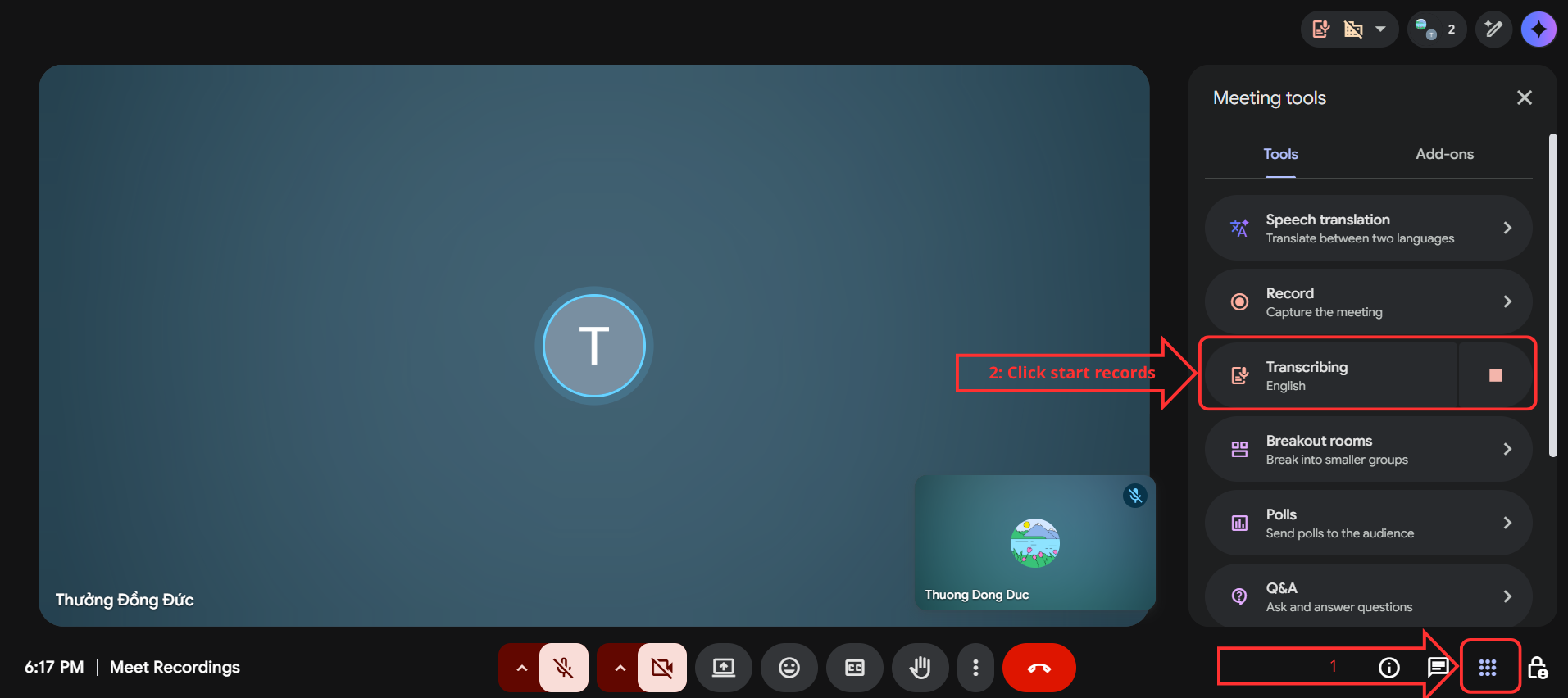
Evidence 1: Starting Transcription (In-meeting UI evidence)
- Action: The host or co-host must select “Start Transcription” at the beginning of the call.
- Transparency Note: All participants receive an on-screen notification, ensuring compliance and professional courtesy.
2.2. Locating Your Files Post-Meeting
| Method | Details |
| Google Drive | Automatically saved in My Drive > Meet Recordings. |
| Search Bar | Use the syntax type:document [Meeting Name] or keywords like “Transcript.” |
| Google Calendar | A direct link is automatically attached to the specific calendar event. |
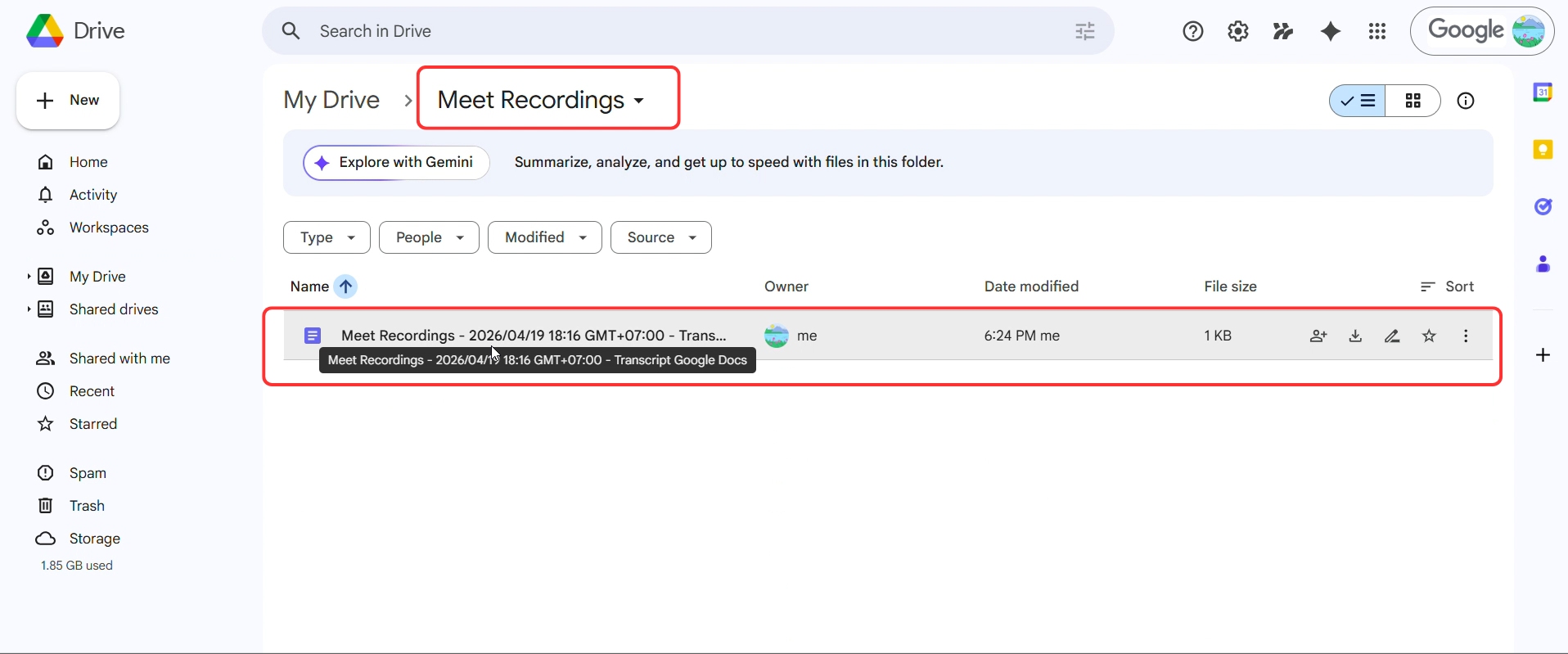
Evidence 2: Transcript file exists in Google Drive after the meeting
2.3. Metadata (Timestamps & Speaker Labels)
- Speaker Diarization: Google identifies and labels participants, making it clear who said what.
- Timestamps: Every dialogue snippet includes a timestamp (e.g., 10:15) for easy cross-referencing with video footage.
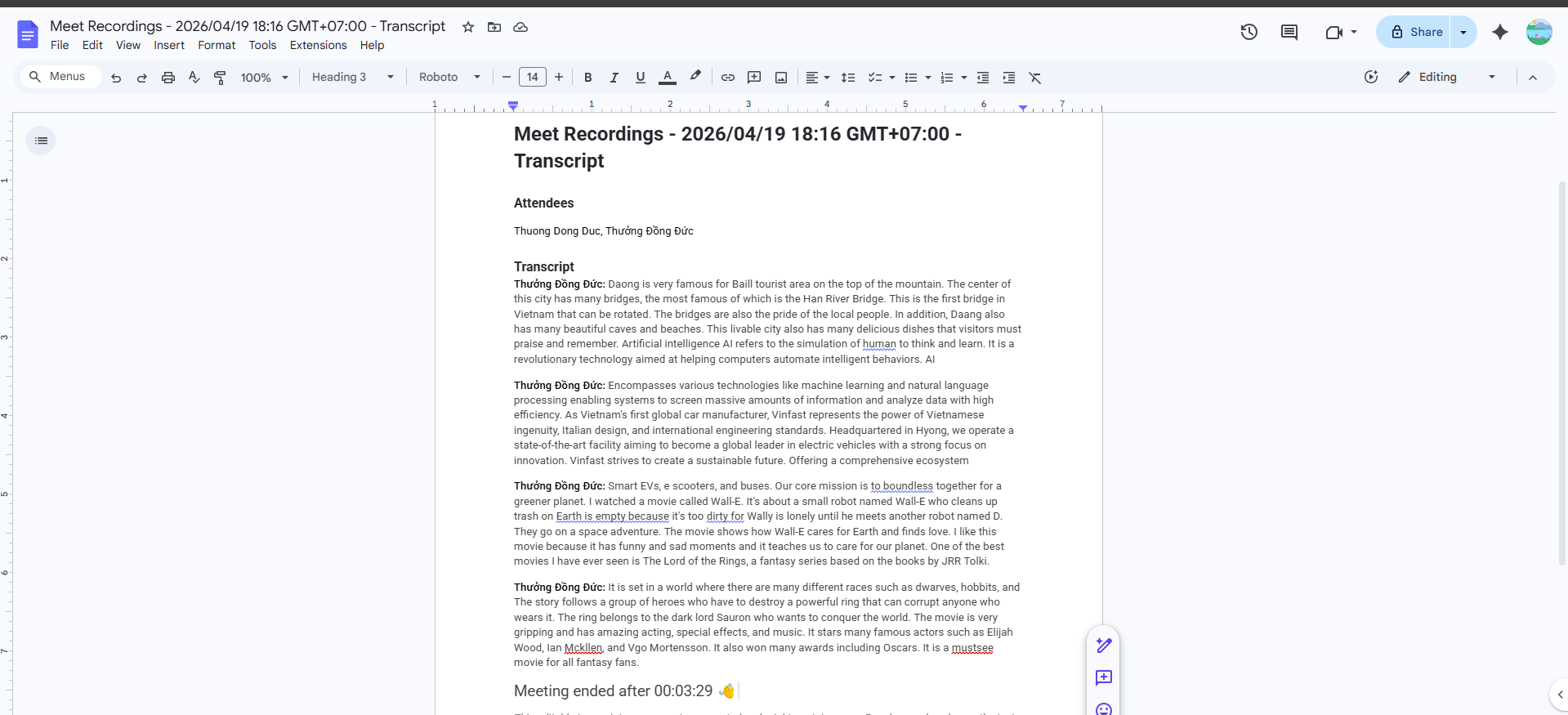
Evidence 3: File containing Speaker Labels
Video Demo
3. Ownership & Sharing Rules
Storage mechanisms often face the most issues regarding permissions. You need to understand who owns the file and how sharing works.
- Owner: Belongs to the Meeting Organizer or the person who clicked “Start Transcription”.
- Internal Users: Invitees within the same Workspace domain will have “View” access via the Calendar event link.
- External Users (Clients): Usually do not have direct access to maintain security. Clicking the link will show a Request Access error.
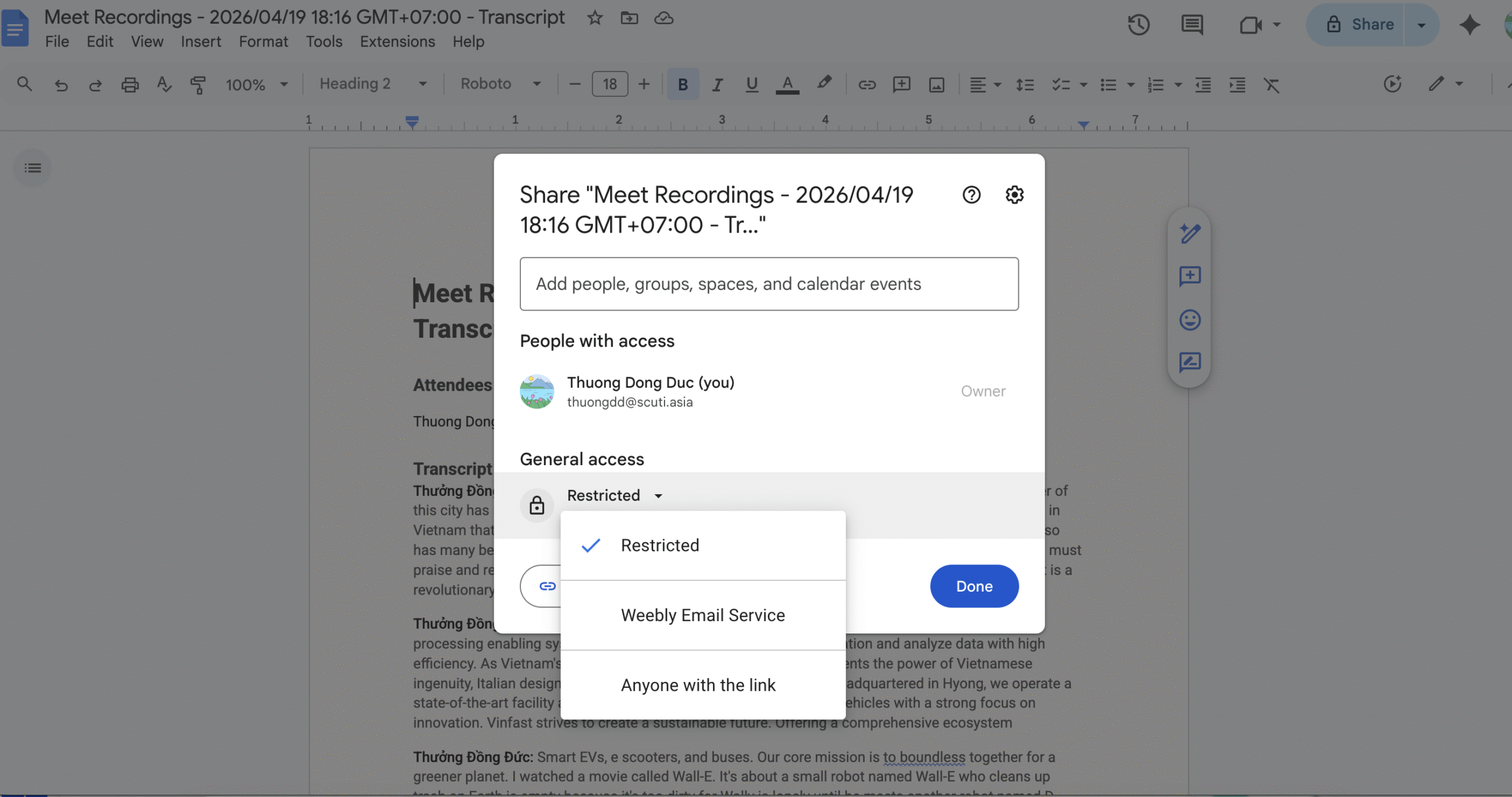
Evidence 4: Ownership & Sharing Rules
4. Standard Operating Procedure (SOP) for Project Managers
A 4-step framework to maintain professional documentation.
- Step 1: Standardized Naming Convention: Use [Project Name] – [Meeting Type] – [Client] – YYYY.MM.DD.
- Example: EcomApp – Requirements Interview – ABC Corp – 2026.10.12
- Step 2: Quality Control (QC): Spend 5–10 minutes post-meeting to correct technical jargon or acronyms the AI might have misinterpreted.
- Step 3: Centralized Storage: Move files from personal “My Drive” to a “Shared Drive” to prevent “orphan files” if a team member leaves.
- Step 4: Cross-Platform Linking: Attach the transcript link to the relevant Jira ticket or Confluence page.
5. Troubleshooting & Best Practices
A quick-reference guide for common hurdles.
| Issue | Solution |
| Missing Transcript Button | Ensure Transcripts are enabled in the Google Admin Console. |
| Storage Errors | Check if the host’s Google Drive storage is full. |
| Inaccurate Text | Minimize “crosstalk” (people speaking over each other). Use the “Raise Hand” feature. |
| Audio Quality | Use noise-canceling headsets rather than laptop speakers to avoid echoes. |
6. Security & Compliance
Critical for enterprise-level projects and international regulations (GDPR).
- Consent: Always obtain verbal consent before hitting the record/transcript button.
- Access Control: Grant “View” or “Comment” access only to relevant stakeholders. External clients should not have default access.
- Data Retention: Utilize Google Vault to set auto-deletion policies (e.g., after 6–12 months) to mitigate data leak risks.
7. Conclusion: The Gateway to AI Automation
Mastering Google Meet Transcripts is more than just saving time—it’s the foundation for advanced workflows. These transcripts serve as the perfect input for Generative AI tools (like Gemini or ChatGPT) to automatically generate executive summaries, action items, and follow-up emails, significantly boosting team professionalism and output quality.
References
Start Google Meet Notes, Transcript and Recording – Google Gemini
How to Transcribe Google Meet: Eligibility, Where It Saves, and Backup Methods
Transcribe Speech During Google Meet Calls Into a Google Doc