Optimizing Internal Operations with Google Vids: A New Era of Video Training
by
Truong Vu
April 4, 2026
In today’s modern business environment, communicating workflows is no longer confined to lengthy, static text documents. Google Vids — an AI-powered video creation app integrated into Google Workspace — has redefined how we build training materials: Fast, intuitive, and highly engaging.
1. Google Vids: A Multimedia Solution for Enterprises
Google Vids is more than just a video editor; it is an intelligent collaborator (AI-powered video creation app). This tool allows users to:
Transform ideas into scripts: Use “Help me create” to automate the storyboard generation process.
Deep Workspace integration: Connect directly to Drive, Docs, and Slides to extract data as video content.
Resource optimization: Eliminate the need for outsourced video production by utilizing professional stock assets and AI voiceovers.
2. Setup Process: “Weekly Status Report Template” for Developers
For software projects, a weekly report is not just a list of tasks—it is critical data for monitoring Project Health. Here are the steps to create a standardized template before importing it into Google Vids:
Step 1: Initialize Data Structure in Google Docs
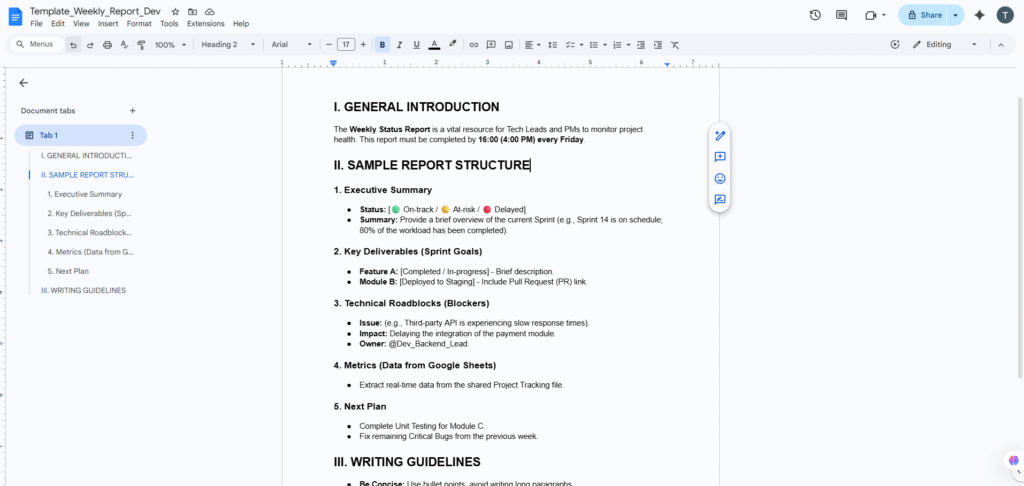
Create a Google Doc titled Template_Weekly_Report_Dev. The structure should focus on technical details and progress:
Executive Summary: A brief summary of project status (On-track, At-risk, Delayed).
Key Deliverables (Sprint Goals): Completed features or modules.
Technical Roadblocks: Logic issues, system bugs, or dependencies causing delays.
Metrics: Specific indicators such as closed PRs (Pull Requests) and bugs found/fixed.
Step 2: Deploy on Google Vids with “Help me create”
Execution Steps:
Open Google Vids.
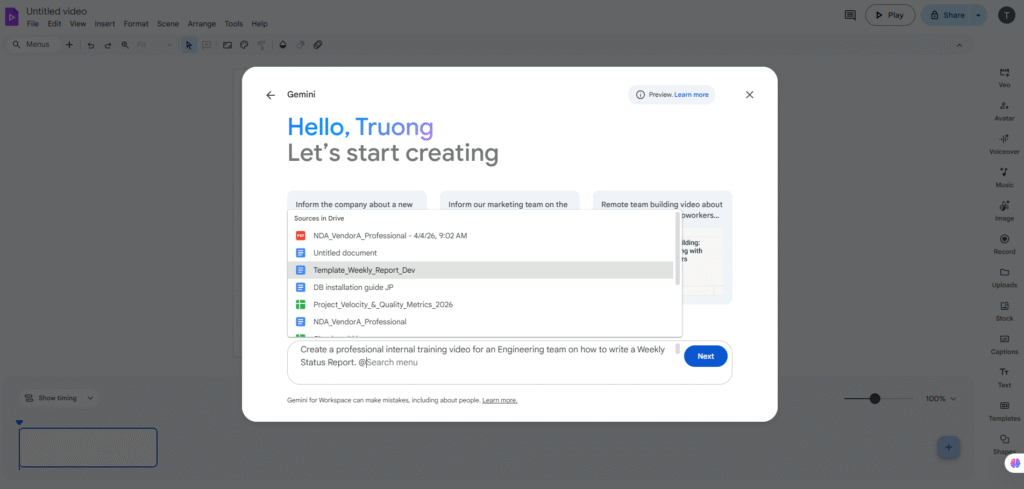
Select “Help me create”.
Type the character “ @ ” to display the list of files from your Google Drive.
The Prompt Used:
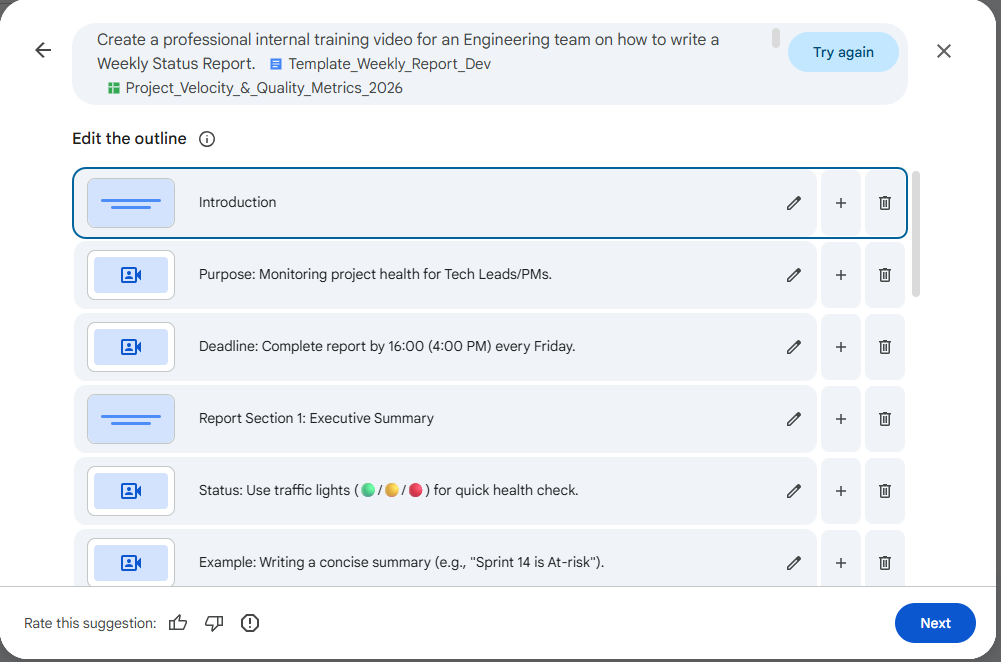
“Create a professional internal training video for an Engineering team on how to write a Weekly Status Report. Use the document ‘Template_Weekly_Report_Dev’ from Google Drive as the main content source. The video should include:
A clear introduction explaining why weekly reports are important for project health tracking.
A step-by-step walkthrough of the report structure:
Include a section explaining how to use data from the tracking sheet ‘Project_Velocity_&_Quality_Metrics_2026’:
Highlight trends (velocity, bugs, fix rate)
Explain how to identify risks (e.g., drop in velocity, increase in bugs)
Add practical examples:
Show how to write a good summary
Show how to describe a blocker clearly
Use a professional and concise tone suitable for developers.
Suggest appropriate visuals:
Text overlays for key sections
Charts or data highlights for metrics
Screen recording placeholders for demo Target video length: 2–3 minutes. Generate a structured storyboard with scenes and narration.”
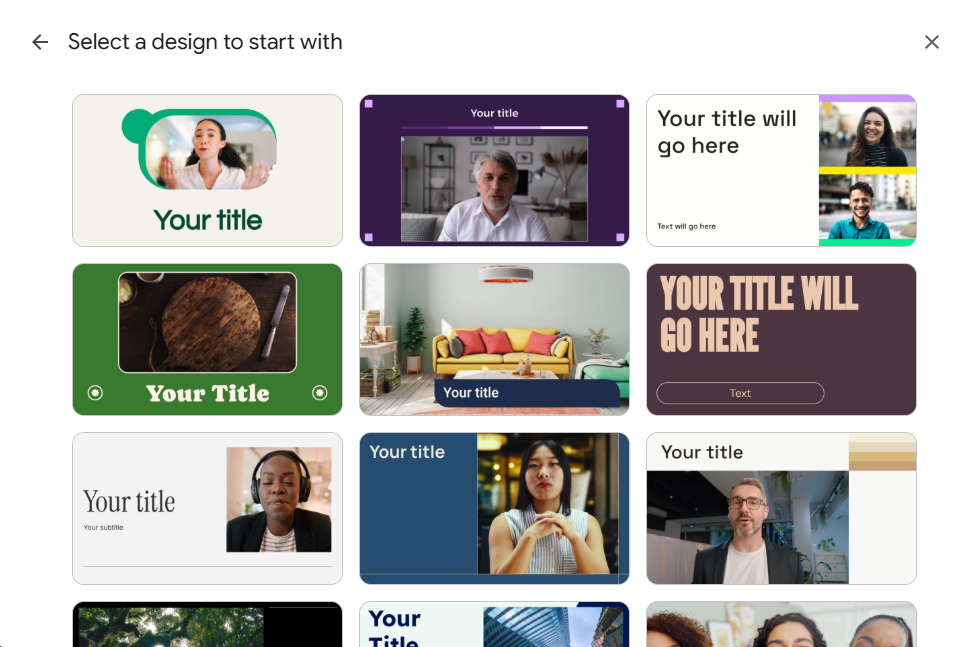
After entering the Prompt and attaching the data files (Docs & Sheets), Google Vids generates an Outline first. This is a crucial “touchpoint” for you to control the content; you can edit, add, or delete chapters. Once the script is finalized, Google Vids provides a variety of Design Templates to determine the visual “look and feel” of the video.
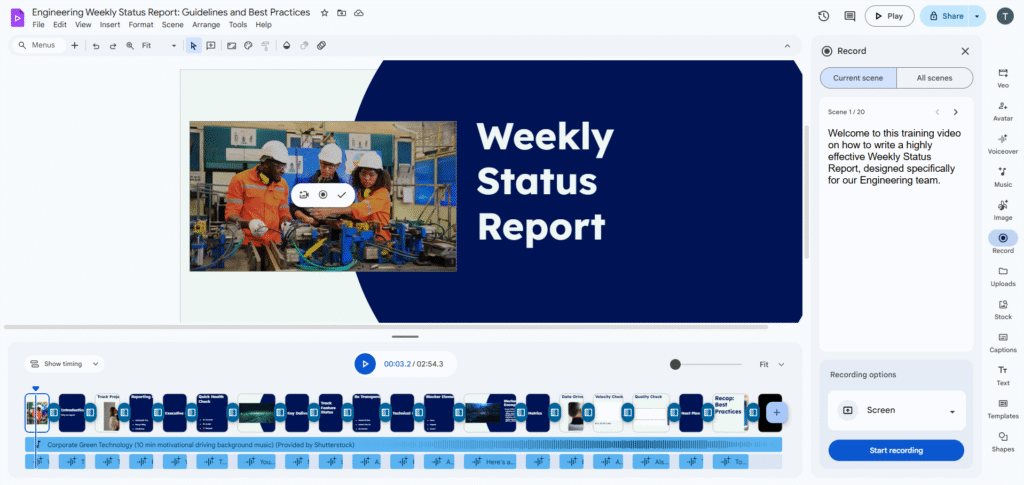
After clicking “Create video”, Google Vids synthesizes all data from Docs and Sheets with your Design choices to publish a professional training video.
1. The Perfect Blend of Content & Visuals (Visual & Audio)
The result is not just a scrolling text slide, but a full multimedia experience:
Audio: AI automatically inserts Background music matching the “Professional” style chosen, making the training less dry.
AI Voiceover: Instead of manual recording, AI uses a Natural-sounding voice to narrate the entire content based on the script from the Doc. The voice is consistent, clear, and professional.
Visual Assets: AI scans keywords in the Doc (e.g., “Developer”, “Report”, “Deadline”) to insert relevant Stock Video and images, bringing each scene to life.
3. Editing Workflow: Refining for Maximum Professionalism
1. Visual Customization with AI: “Visuals tailored for Engineers”
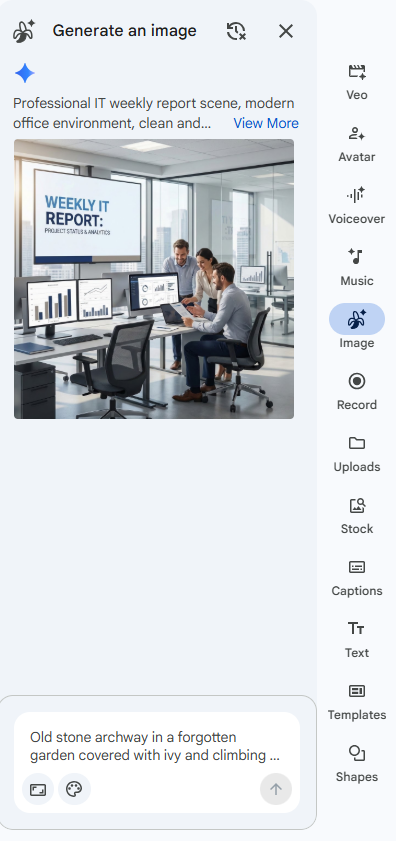
In addition to using existing stock footage, Google Vids allows me to create unique visual assets via the Generate an image feature. This makes the video more specialized.
Process: For the intro scene, instead of a generic office photo, I entered the prompt: “Professional IT weekly report scene, modern office environment, clean and minimalist design, tech team analyzing charts on a large screen.”
AI Result: The system generated a high-quality image featuring a screen correctly displaying “WEEKLY IT REPORT,” creating perfect synchronization between the script and visuals from the very first second.
2. Using Screen Recording: “Show, Don’t Just Tell”
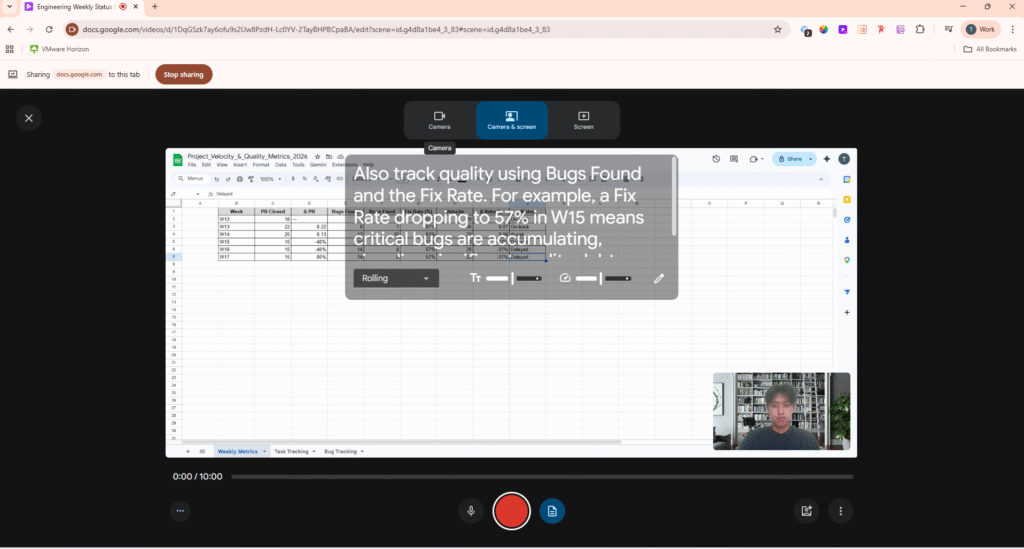
Instead of generic stock videos of people at computers, I used the Recording Studio integrated directly into Google Vids to capture real operations:
Process:
Select the scene for report-filling instructions.
Click “Record” -> Select “Screen Record”.
Perform the action: Open Project_Velocity_&_Quality_Metrics_2026, fill in the Executive Summary, attach a Pull Request link from GitHub, and update figures from Google Sheets.
Result: This screen recording is inserted directly to replace the AI’s default placeholder. This allows new employees to see exactly what the interface looks like and the steps they need to take, eliminating ambiguity.
Final Generated Video:https://drive.google.com/file/d/1IWRG6gRFKCOOniGS4SLjdzp8t-YIAmji/view?usp=sharing