
I. Mail Merge Gmail + Google Sheets Tutorial
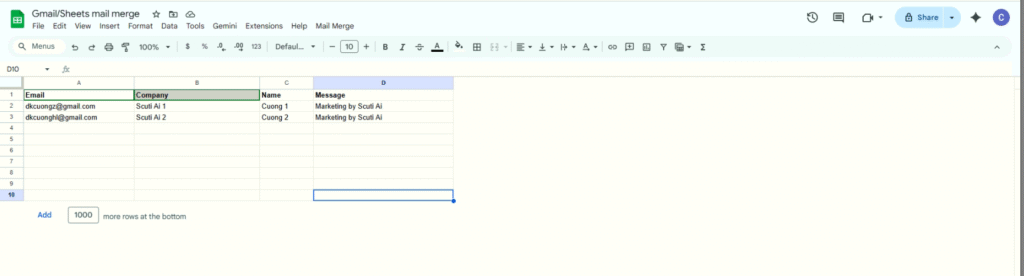
1. Setting Up Google Sheets
Create template sample :
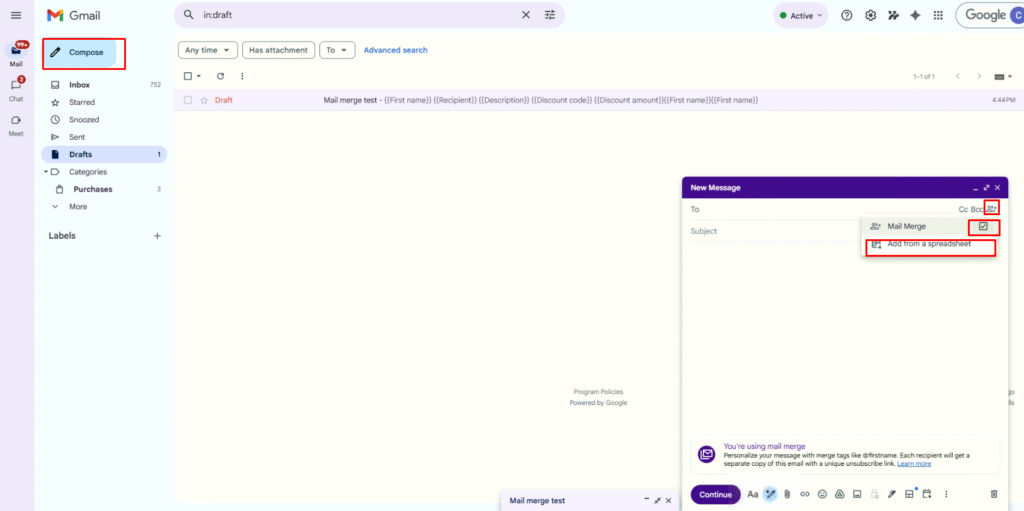
2. Setting in gmail
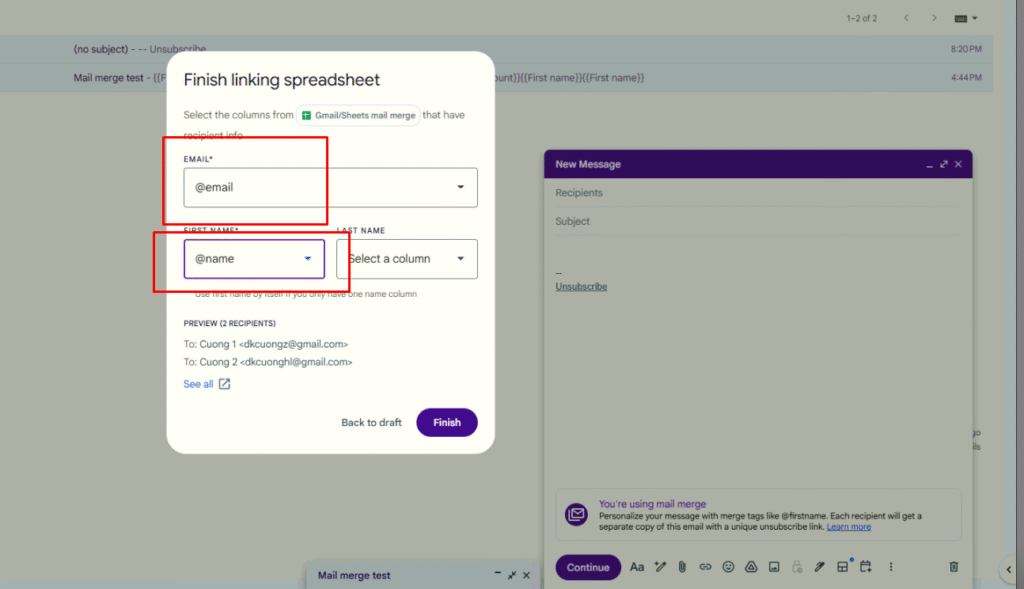
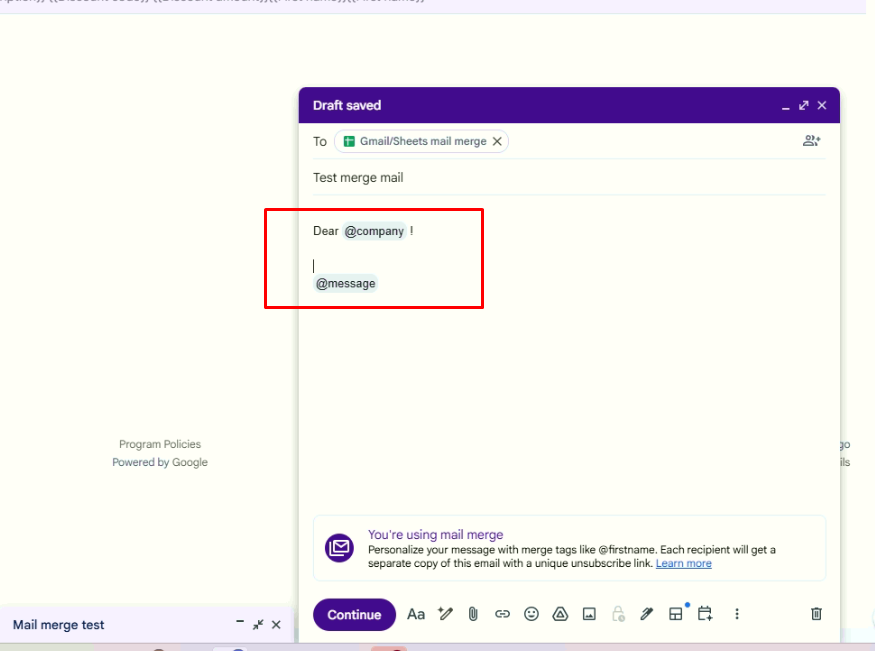
3. Sendmail
Demo :
II. Mail Merge Gmail + Google Sheets Tutorial + Google Apps Script
Overview
Mail Merge automatically populates an email template with data from Google Sheets and sends via Gmail. Uses placeholders that match column headers in Sheets.
Reference: Official Google Apps Script Mail Merge
1. Setting Up Google Sheets
Option 1: Using the Template (Recommended)
- Visit: https://developers.google.com/apps-script/samples/automations/mail-merge
- Click “Make a copy” to create a copy of the sample spreadsheet
- The spreadsheet will include:
- Recipient column (recipient email)
- Email Sent column (send status)
- Built-in Mail Merge menu
Option 2: Create Your Own Spreadsheet
| No. | Recipient | Email Sent |
|---|---|---|
| 1 | [email protected] | |
| 2 | [email protected] | |
| 3 | [email protected] | |
| 4 | [email protected] | |
| 5 | [email protected] | |
| 6 | [email protected] | |
| 7 | [email protected] | |
| 8 | [email protected] | |
| 9 | [email protected] | |
| 10 | [email protected] |
Note: Column names must remain “Recipient” and “Email Sent” for the code to work correctly.
2. Creating Gmail Draft Template
Step 1: Create Email Template in Gmail
- Open Gmail → Compose new email
- Use placeholders in the format
{{ColumnName}}to replace with data from Sheets
Step 2: Template Example
Subject: Partnership Opportunity - {{Company}}

Dear {{Name}},

I am [Your Name] from [Your Company Name].

It was great meeting {{Company}} at {{EventName}} recently. I wanted to share with you about {{KeyMessage}}.

Are you interested in {{ProductInterest}}?

I would like to propose:
- Free 30-minute product demo
- Detailed solution documentation

Would you have time to schedule a call?

Best regards,

[Your Name]
[Your Title]
[Phone Number]
[Email]

---
To unsubscribe, reply "UNSUBSCRIBE"
3. Google Apps Script Code
Opening Apps Script
In Google Sheets → Extensions → Apps Script
Main Code (Code.gs)
// CONFIGURATION - Update if you rename columns
const RECIPIENT_COL = 'Recipient';
const EMAIL_SENT_COL = 'Email Sent';

/**
 * Creates Mail Merge menu when spreadsheet opens
 */
function onOpen() {
  const ui = SpreadsheetApp.getUi();
  ui.createMenu('Mail Merge')
    .addItem('Send Emails', 'sendEmails')
    .addToUi();
}

/**
 * Gets spreadsheet configuration
 */
function getSheetData() {
  const spreadsheet = SpreadsheetApp.getActiveSpreadsheet();
  const sheet = spreadsheet.getSheets()[0];
  const lastRow = sheet.getLastRow();
  const lastCol = sheet.getLastColumn();

  // Find Recipient and Email Sent columns
  const headers = sheet.getRange(1, 1, 1, lastCol).getValues()[0];
  const recipientColIndex = headers.indexOf(RECIPIENT_COL);
  const emailSentColIndex = headers.indexOf(EMAIL_SENT_COL);

  if (recipientColIndex === -1) {
    throw new Error(`Could not find column "${RECIPIENT_COL}"`);
  }

  const dataRange = sheet.getRange(2, 1, lastRow - 1, lastCol);
  const data = dataRange.getValues();

  return {
    sheet,
    data,
    recipientColIndex,
    emailSentColIndex,
    headers
  };
}

/**
 * Sends emails from draft template
 */
function sendEmails() {
  // 1. Get draft list from Gmail
  const drafts = GmailApp.getDrafts();

  if (drafts.length === 0) {
    SpreadsheetApp.getUi().alert('No draft email found. Please create a draft first.');
    return;
  }

  // 2. Select first draft
  const draft = drafts[0];
  const draftMessage = draft.getMessage();
  const subject = draftMessage.getSubject();
  const body = draftMessage.getPlainBody();

  // 3. Confirm before sending
  const config = getSheetData();
  const { sheet, data, recipientColIndex, emailSentColIndex, headers } = config;

  // Count pending emails
  const pendingEmails = data.filter(row => {
    const email = row[recipientColIndex];
    const sent = row[emailSentColIndex];
    return email && !sent;
  });

  const ui = SpreadsheetApp.getUi();
  const response = ui.alert(
    'Confirm email send',
    `Will send ${pendingEmails.length} emails?\n\nClick "OK" to continue, "Cancel" to cancel.`,
    ui.ButtonSet.OK_CANCEL
  );

  if (response !== ui.Button.OK) return;

  // 4. Send each email
  let successCount = 0;
  let errorCount = 0;

  // Loop through each data row
  for (let i = 0; i < data.length; i++) {
    const row = data[i];
    const recipientEmail = row[recipientColIndex];
    const emailSent = row[emailSentColIndex];

    // Skip if already sent or email is empty
    if (!recipientEmail || emailSent) continue;

    // Validate email
    if (!isValidEmail(recipientEmail)) {
      sheet.getRange(i + 2, emailSentColIndex + 1).setValue('Invalid email');
      errorCount++;
      continue;
    }

    // Replace placeholders in content
    let emailBody = body;
    let emailSubject = subject;

    // Replace each column in headers
    for (let j = 0; j < headers.length; j++) {
      const placeholder = '{{' + headers[j] + '}}';
      const value = row[j] || '';

      // Replace in subject and body
      emailSubject = emailSubject.split(placeholder).join(value);
      emailBody = emailBody.split(placeholder).join(value);
    }

    // Send email
    try {
      GmailApp.sendEmail(recipientEmail, emailSubject, emailBody, {
        name: '[Your Name]',
        replyTo: '[email protected]'
      });

      // Mark as sent
      sheet.getRange(i + 2, emailSentColIndex + 1).setValue(new Date());
      successCount++;

      // Delay to avoid rate limit
      Utilities.sleep(1000);

    } catch (error) {
      sheet.getRange(i + 2, emailSentColIndex + 1).setValue('Error: ' + error.message);
      errorCount++;
    }
  }

  // 5. Show results
  ui.alert(
    'Complete!\n\n' +
    'Sent successfully: ' + successCount + '\n' +
    'Failed: ' + errorCount
  );
}

/**
 * Validates email format
 */
function isValidEmail(email) {
  if (!email) return false;
  const emailRegex = /^[^\s@]+@[^\s@]+\.[^\s@]+$/;
  return emailRegex.test(email);
}
4. Advanced Customization
Adding Bcc, Cc, ReplyTo
Find the GmailApp.sendEmail() section and add parameters:
GmailApp.sendEmail(recipientEmail, emailSubject, emailBody, {
  name: '[Your Name]',
  replyTo: '[email protected]',
  bcc: '[email protected]',    // Add Bcc
  cc: '[email protected]',   // Add Cc
  from: '[email protected]'  // Send from another account
});
Emoji/Unicode Support
If emails contain emojis, use MailApp.sendEmail() instead of GmailApp.sendEmail():
MailApp.sendEmail(recipientEmail, emailSubject, emailBody, {
  name: '[Your Name]'
});
Adding Attachments
GmailApp.sendEmail(recipientEmail, emailSubject, emailBody, {
  name: '[Your Name]',
  attachments: [DriveApp.getFileById('FILE_ID')]
});
5. Operational Controls
5.1. Send Limits
Add configuration variables at the top of the script:const CONFIG = {
MAX_EMAILS_PER_DAY: 50, // Limit emails per day
DELAY_MS: 1000 // Delay between emails (ms)
};
5.2. Opt-Out (Unsubscribe)
Add at the end of each email:
---
To unsubscribe from emails, reply "UNSUBSCRIBE"
5.3. Error Handling
| Error Type | Handling |
|---|---|
| Invalid email | Write “Invalid email” to Email Sent column |
| Gmail error | Write “Error: [message]” to Email Sent column |
| Rate limit | Auto delay and retry |
5.4. Logging
Data is written directly to the Email Sent column:
- Timestamp when sent successfully
- “Invalid email” if email is invalid
- “Error: [message]” if there was an error
6. Quality Checklist – Preventing Misinformation
BEFORE SENDING ANY EMAIL
Content Verification Checklist:
- Event Confirmation: Verify where you ACTUALLY met them
- EventName must be an event YOU attended
- DO NOT add event names you never attended
- Conversation Content Confirmation: What you write must be what you ACTUALLY discussed
- KeyMessage must be the topic you ACTUALLY discussed
- DO NOT fabricate “as discussed in our conversation”
- Product Interest Confirmation: Only mention products they SAID they were interested in
- ProductInterest must be what the customer SPECIFIED
- DO NOT guess or assume
- Company Information Verify: Double-check company name is correct
- Don’t misspell company names
- Don’t add fake job titles
- Final Review Before Sending:
- Read the email out loud once
- Check placeholder is replaced correctly
- Check no unreplaced placeholders ({{}}) remain
Golden Rule
“If you’re not sure, DON’T write it”
| DO WRITE | DON’T WRITE |
|---|---|
| “Thank you for meeting me at…” | “I discussed with you about…” (if you don’t remember) |
| “Are you interested in…” | “As we discussed…” (if not sure) |
| “I would like to learn more about…” | “We agreed…” (if not yet) |
7. How to Run the Script
Step 1: Open Mail Merge Menu
In the configured spreadsheet:
- Click the Mail Merge menu at the top
- Select Send Emails
Step 2: Authorize (First Time)
- “Authorization required” window appears
- Click Continue
- Select your Google account
- Click Allow (allow Apps Script to access Gmail)
Step 3: Send Emails
- Click Mail Merge > Send Emails again
- Paste the Subject line of the draft and click OK
- Confirm the number of emails to send
- Wait for script to complete
Step 4: Check Results
- The Email Sent column will show timestamp when sent successfully
- Check your inbox to see received emails
8. Test Data Example (10 Rows)
Sheet with All Columns
| Recipient | Company | Name | KeyMessage | EventName | ProductInterest | Email Sent |
|---|---|---|---|---|---|---|
| [email protected] | TechCorp | John Smith | New product introduction | Tech Expo 2026 | AI Solutions | |
| [email protected] | Innovate Ltd | Sarah Johnson | Strategic partnership | Digital Summit | Cloud Services | |
| [email protected] | StartupXYZ | Mike Chen | Product demo | Innovation Day | Mobile App | |
| [email protected] | DataPro | Emma Davis | Free consultation | Data Conference | Analytics | |
| [email protected] | CloudTech | Alex Wong | Tech exhibition | Tech Week | Cloud Infra | |
| [email protected] | AIVentures | Lisa Park | AI solutions | ML Summit | Machine Learning | |
| [email protected] | CyberSec | David Kim | Information security | Security Forum | Cybersecurity | |
| [email protected] | IoTGroup | Anna Lee | IoT platform | Connect 2026 | IoT Solutions | |
| [email protected] | BlockChain | Ryan Taylor | Blockchain | Crypto Expo | DeFi | |
| [email protected] | GreenTech | Maria Garcia | Sustainable business | Eco Summit | Sustainability |
9. Summary
Quick Start Checklist
- Visit the template link and click “Make a copy”
- Enter email list in the Recipient column
- Add custom columns (Company, Name, etc.)
- Create Gmail draft with
{{ColumnName}}placeholders - Run Mail Merge > Send Emails
- Check results in Email Sent column
Important Notes
- Placeholders must exactly match column names in Sheets (including spaces)
- Use Make a copy from the official link to get the complete script
- Do not send bulk emails to people who haven’t consented to receive emails
- Comply with anti-spam laws and data protection regulations
Demo
Source: Google Apps Script Mail Merge