Google Stitch: Creating UI Mockups with AI
A practical walkthrough and evaluation of Google Stitch for UI mockup creation
1. Main Features Summary
- Generate UI designs from text descriptions
- Convert sketches or images into UI layouts
- Create multiple design variations from a single prompt
- Update specific UI sections without regenerating the whole design
- Basic color and theme adjustments
- Export designs to code, Figma, or Google AI Studio
2. Step-by-Step: Creating a Mockup
- Log in to Google Stitch using a Google account
- Create a new Web or Mobile project
- Enter a text prompt or upload an image
- Generate the initial UI design
- Refine the design using partial updates
- Adjust colors and layout
- Export the final design
3. Initial Setup
Google Stitch is fully web-based. No installation is required.
Users only need to access the Stitch website and sign in with a
Google account to start designing immediately.
4. Make a Single Design
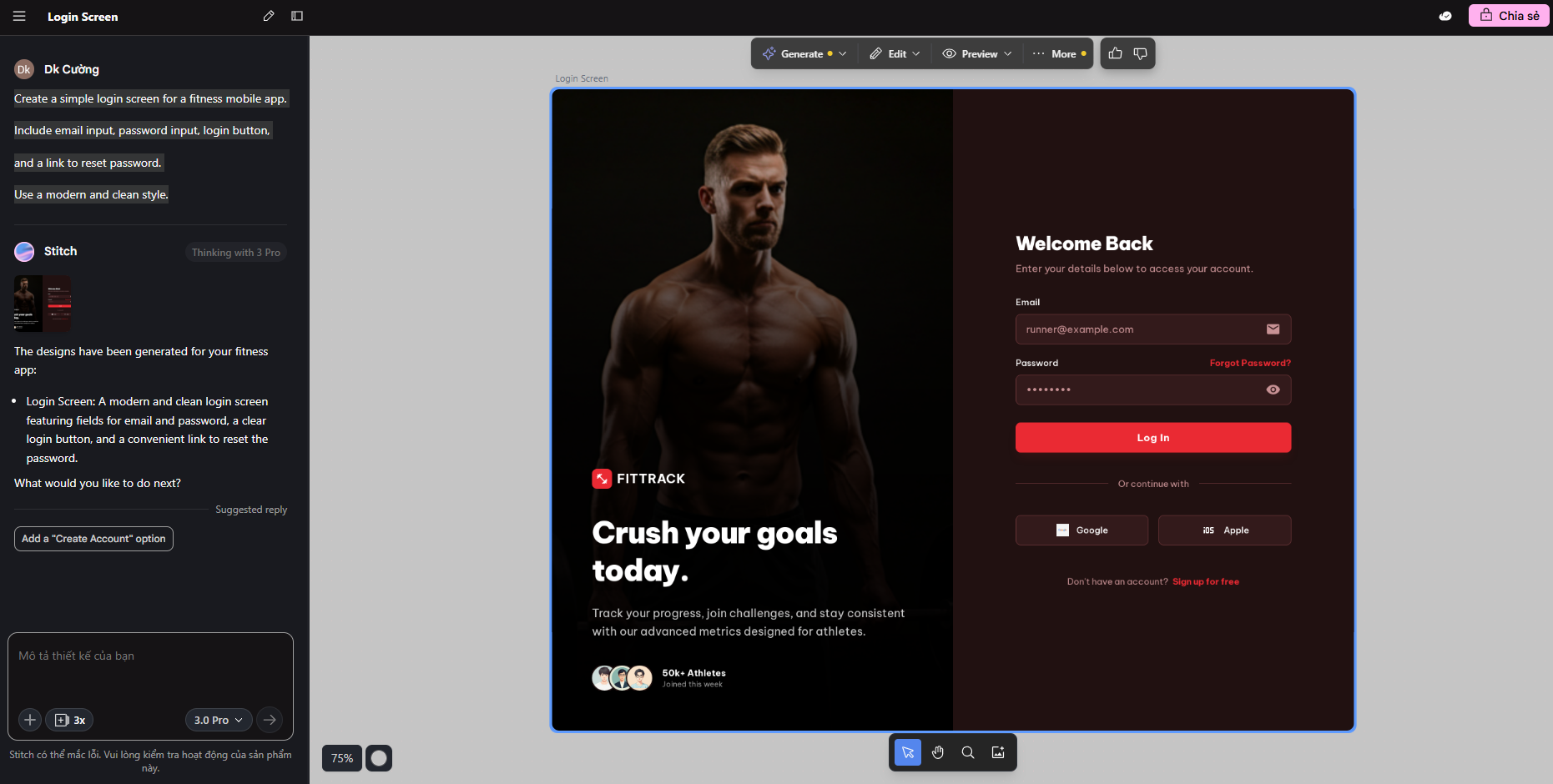
By providing a simple text prompt, Stitch generates a complete
UI layout. This is ideal for quickly visualizing a product idea.
Example prompt:
Create a clean mobile login screen with
email and password inputs and a primary action button.
Result :
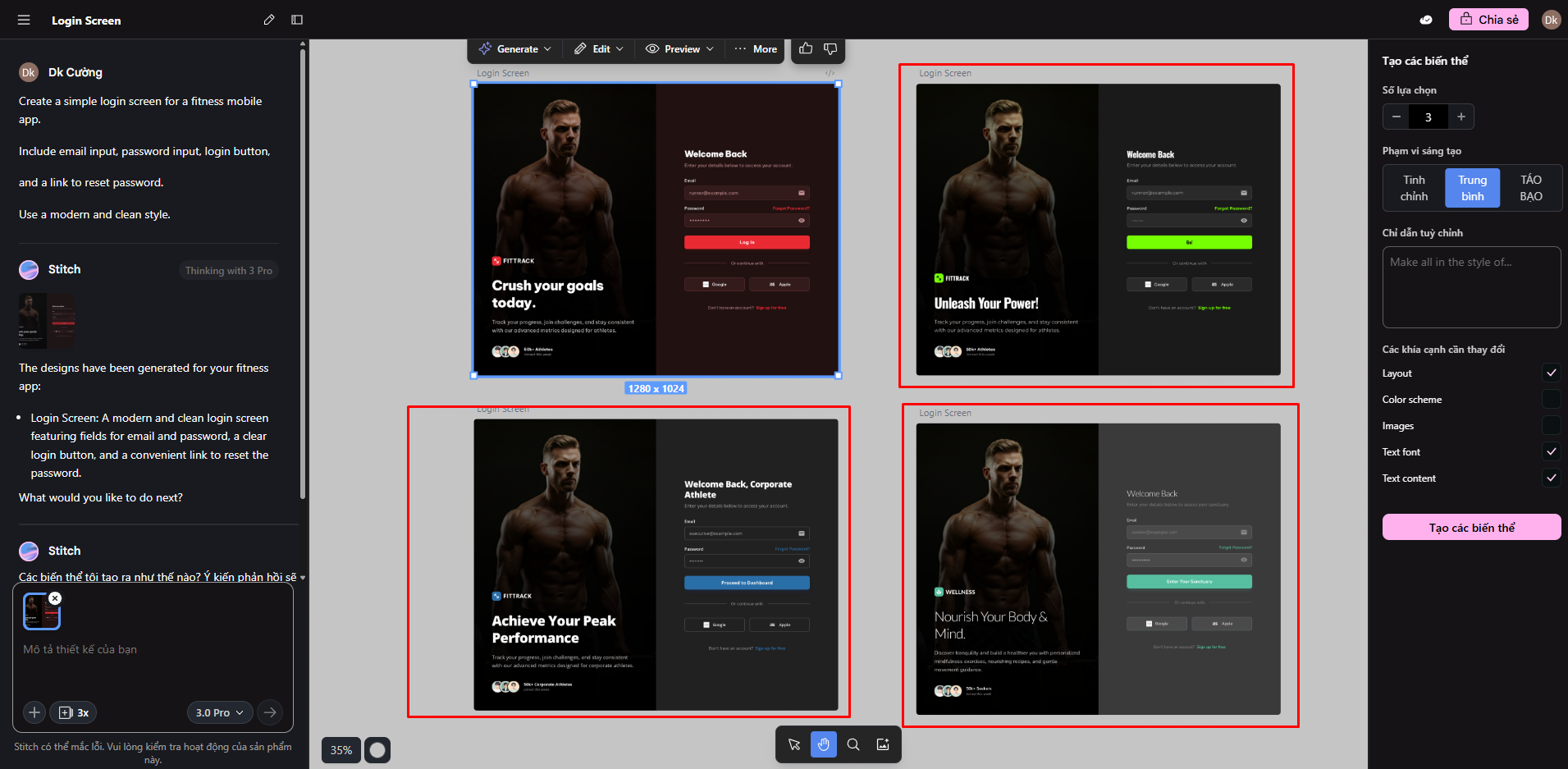
5. Make Multiple Variations
Stitch can generate multiple design variations from a single prompt.
This allows teams to compare layouts, spacing, and styles before
choosing a final direction.
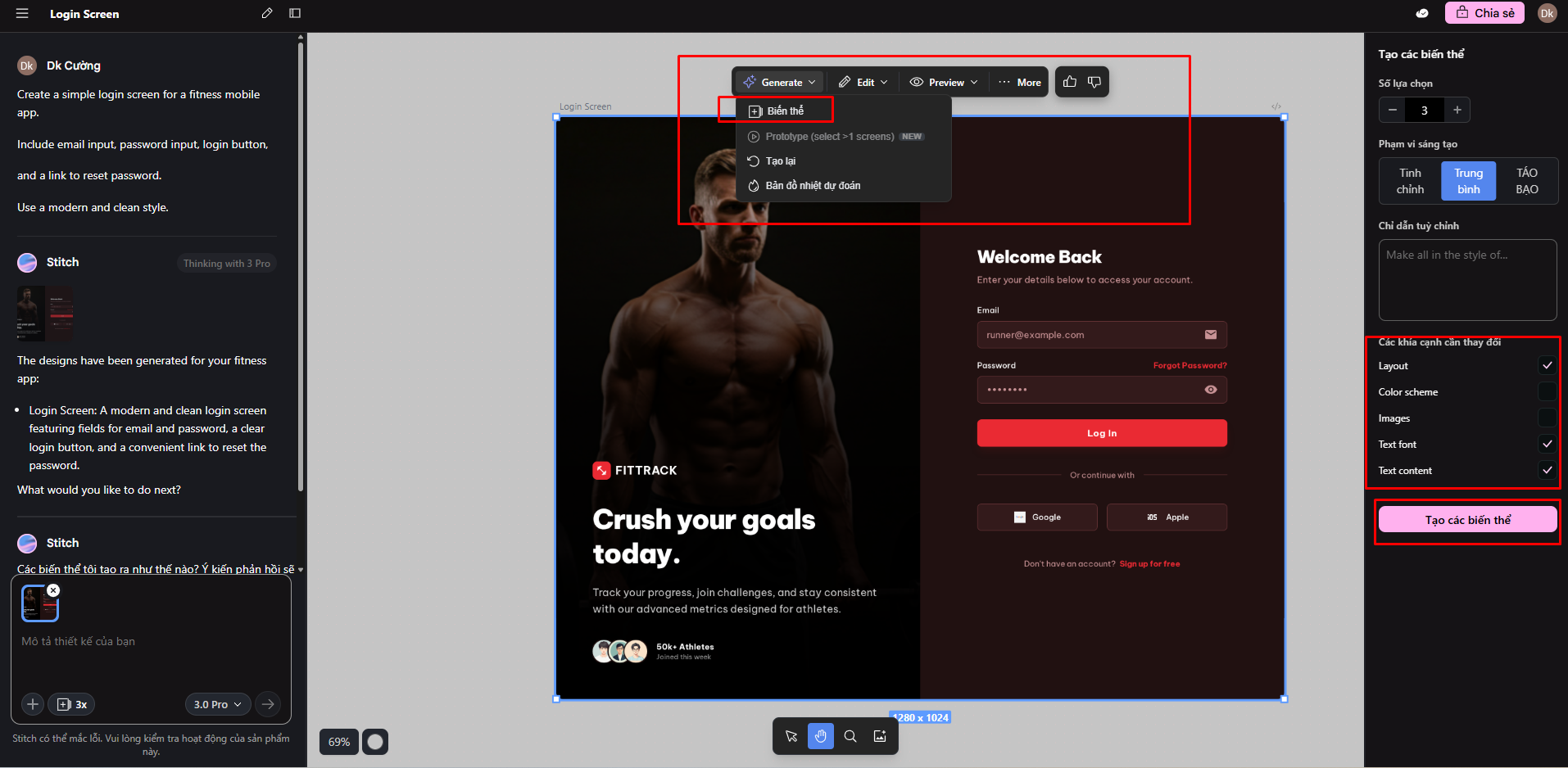
Result :
6. Image to Design
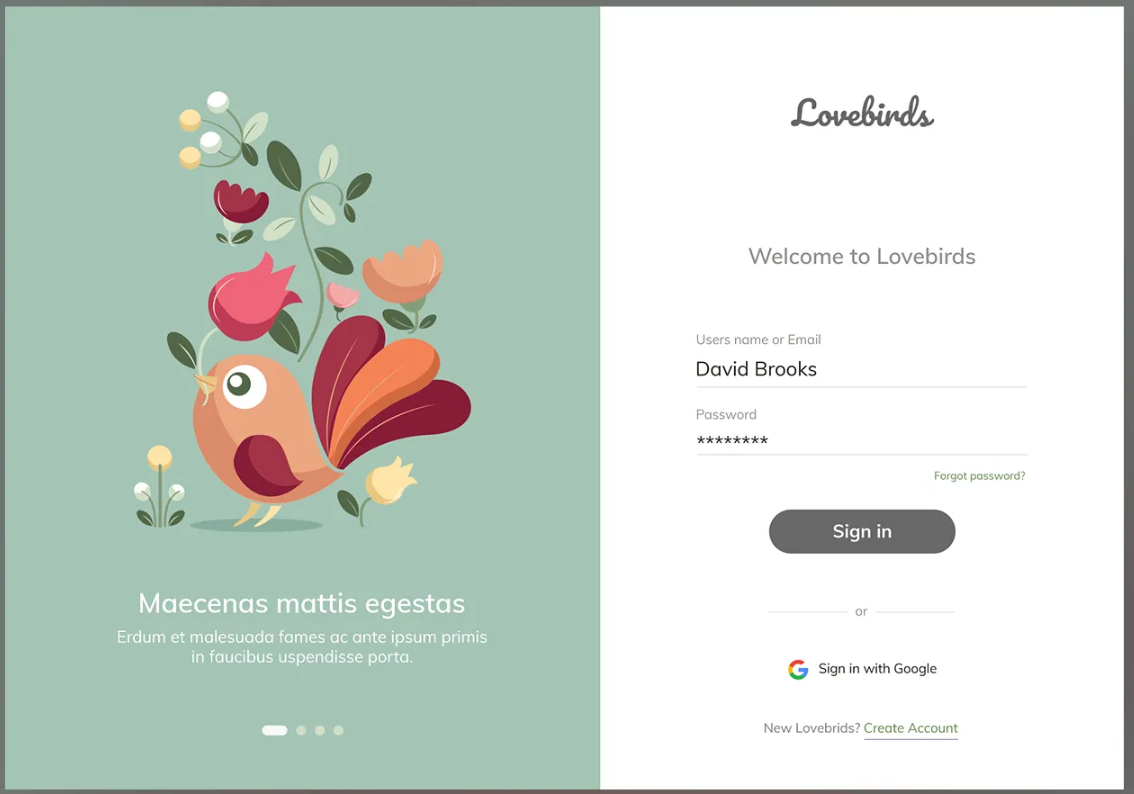
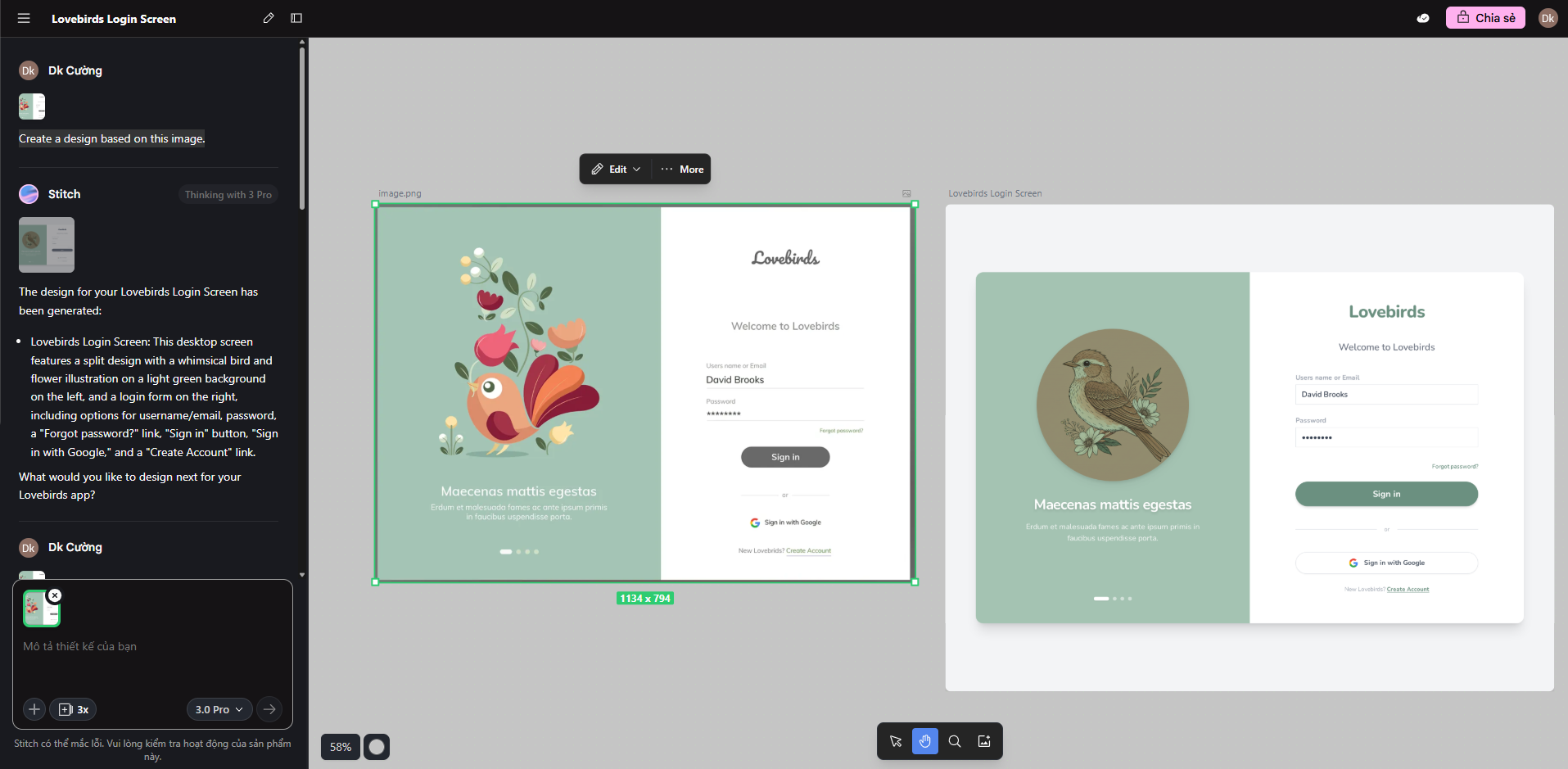
Users can upload sketches, wireframes, or screenshots.
Stitch analyzes the structure and converts it into a digital UI layout,
accelerating the transition from idea to mockup.
Image sample :
Prompt :
Create a design based on this image.
Result :
7. Partial Update (Annotation Function)
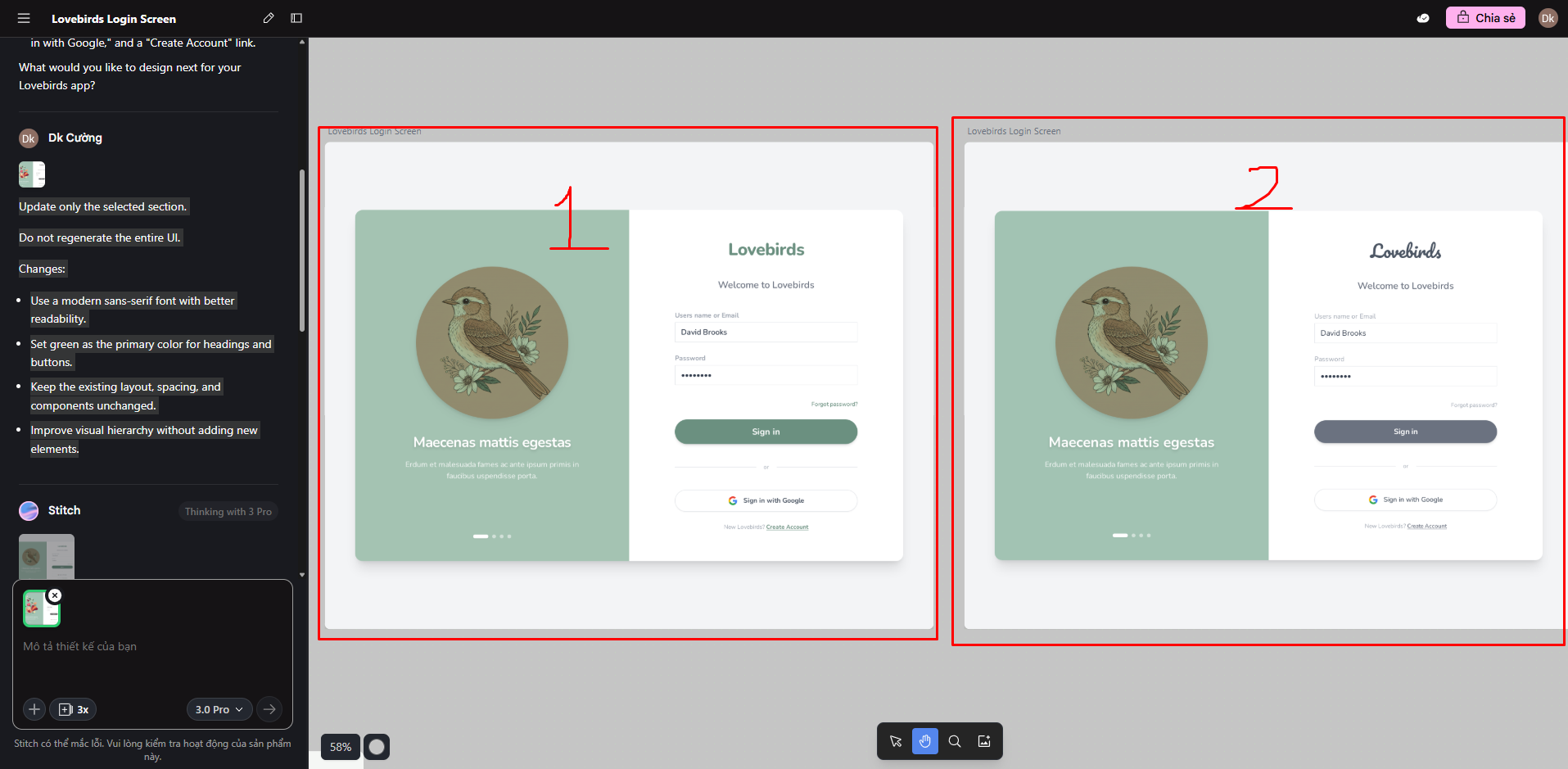
Instead of regenerating the entire UI, Stitch allows partial updates.
Designers can request changes such as adjusting a button style
or modifying text hierarchy while keeping the rest of the design intact.
Prompt :
Update only the selected section.
Do not regenerate the entire UI.
Changes:
Use a modern sans-serif font with better readability.
Set green as the primary color for headings and buttons.
Keep the existing layout, spacing, and components unchanged.
Improve visual hierarchy without adding new elements.
Result :
8. Adjust Color Balance
Stitch provides basic color customization options,
enabling quick theme or tone adjustments.
This is sufficient for mockups but limited for detailed brand systems.
Prompt :
Adjust the color balance for this section.
Apply a soft, neutral color tone suitable for a mockup.
Do not change layout or components.
Result :

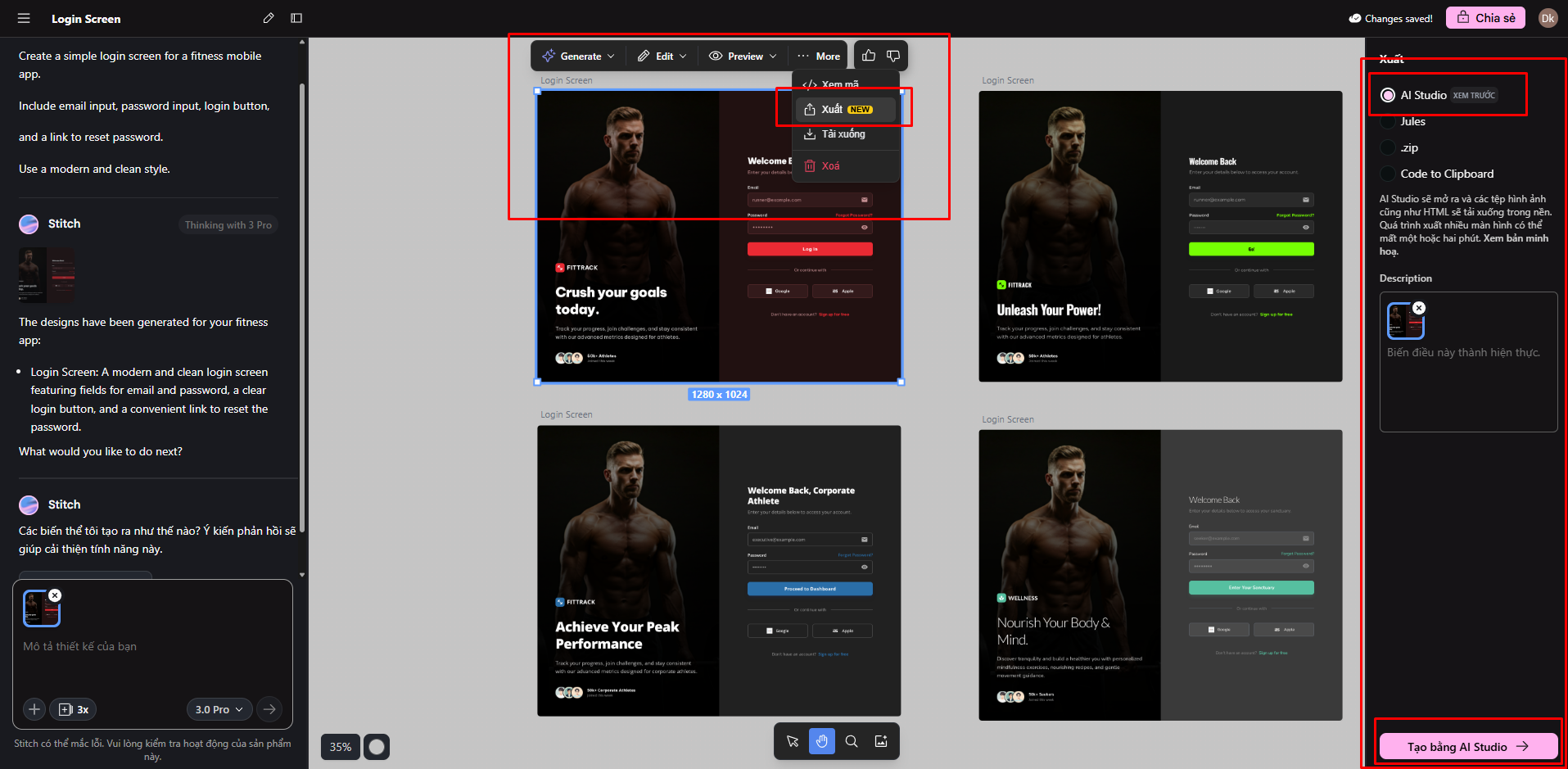
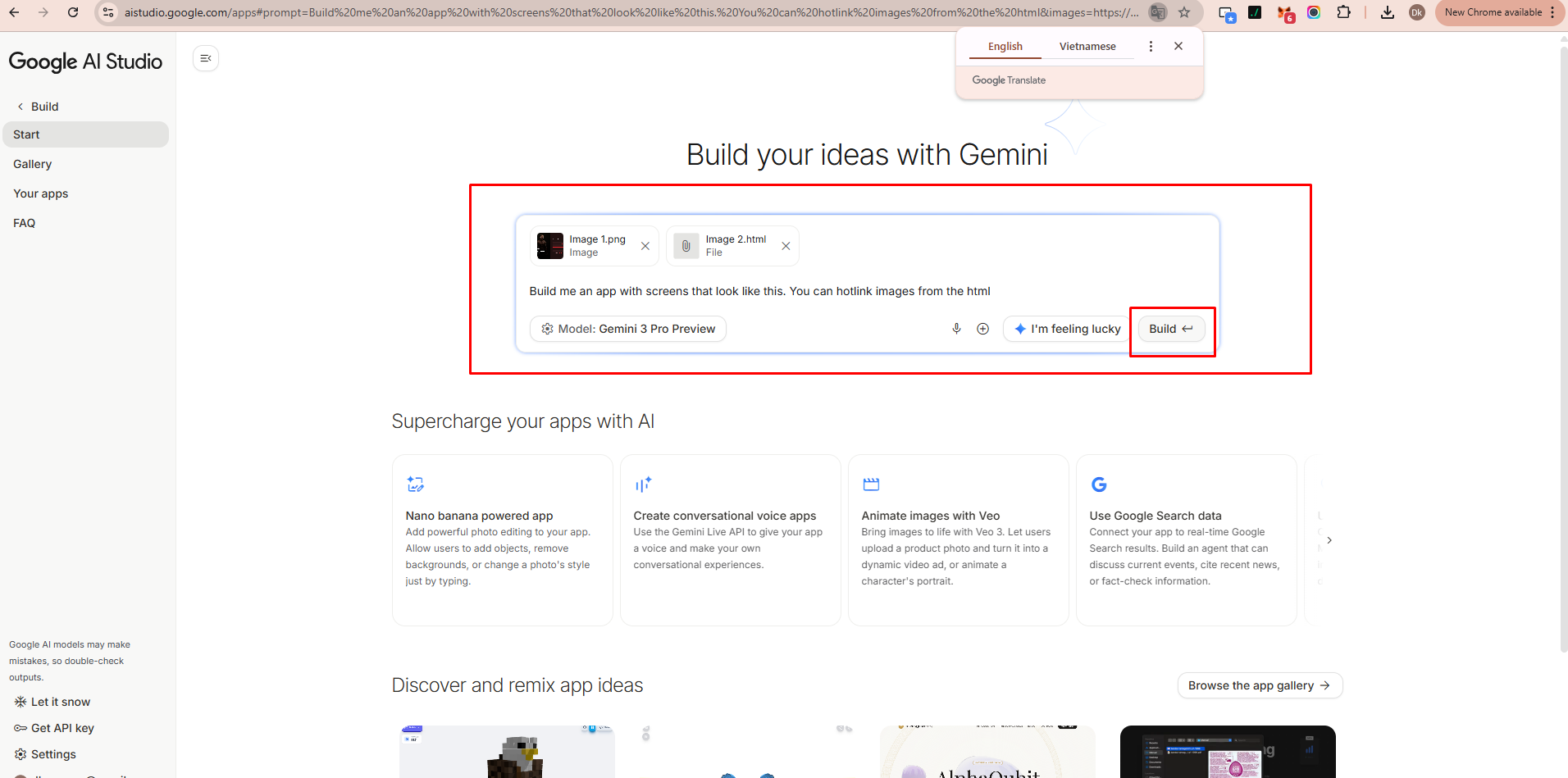
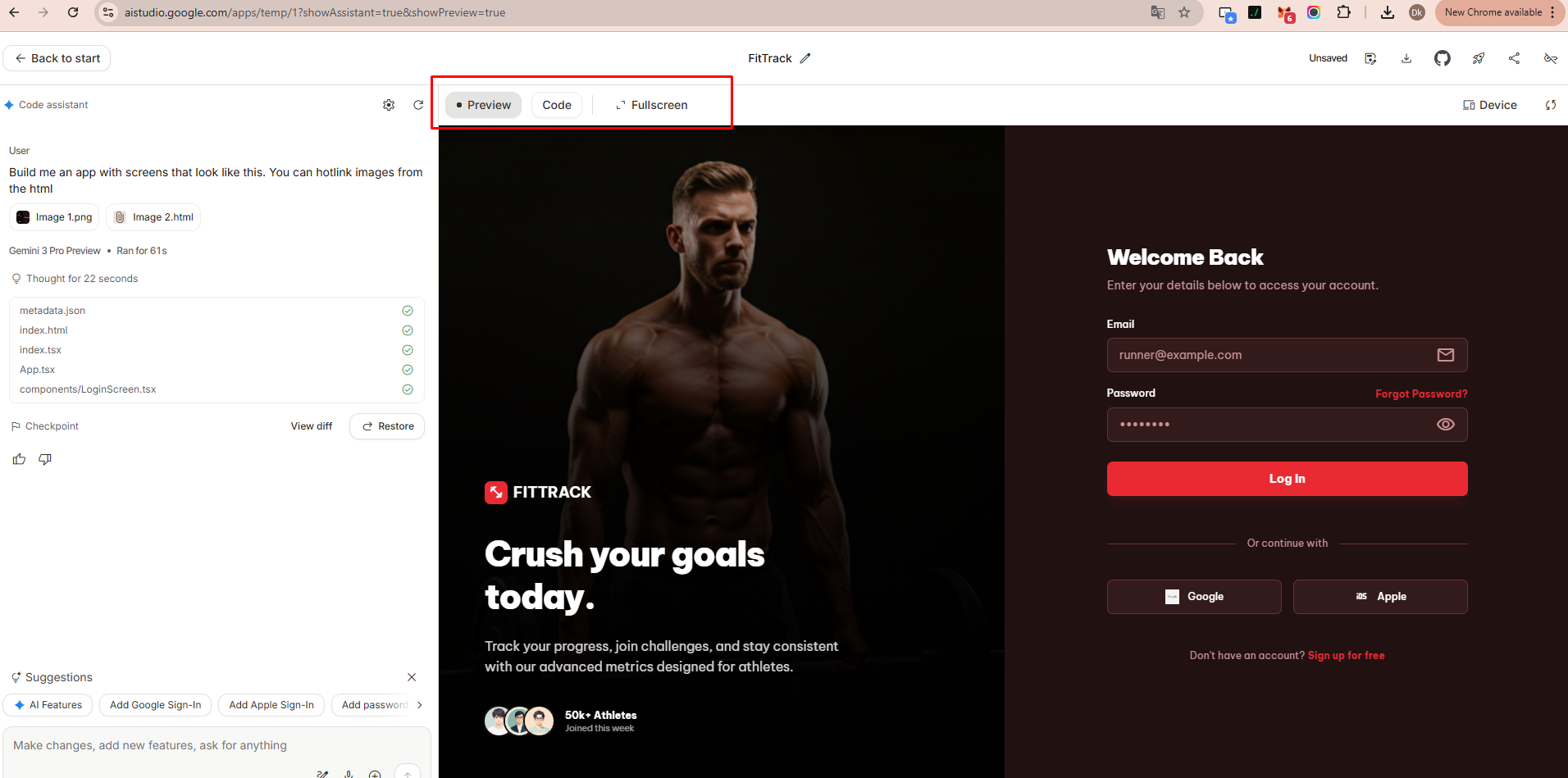
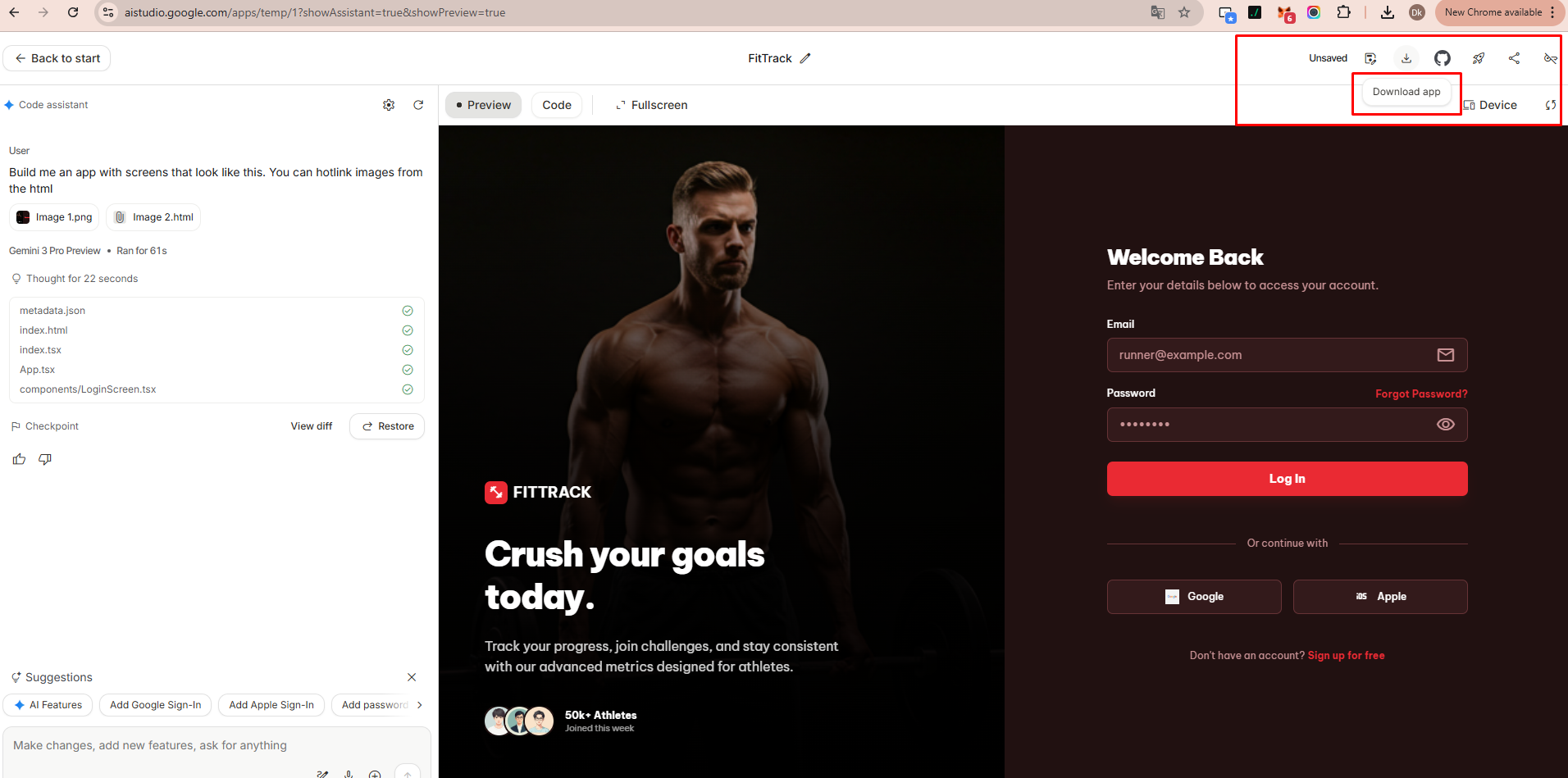
9. Export to Google AI Studio
Finished designs can be exported to Google AI Studio,
where they can be combined with AI logic and application workflows.
This creates a smooth transition from design to development.
10. Opinion: Best Use Cases
Google Stitch is most convenient for early-stage ideation,
MVP development, and rapid prototyping.
It works especially well for developers, product managers,
and small teams that need quick visual feedback.
For complex design systems or high-fidelity UI work,
traditional tools like Figma remain more suitable.