1. Overview of Google Workspace Studio
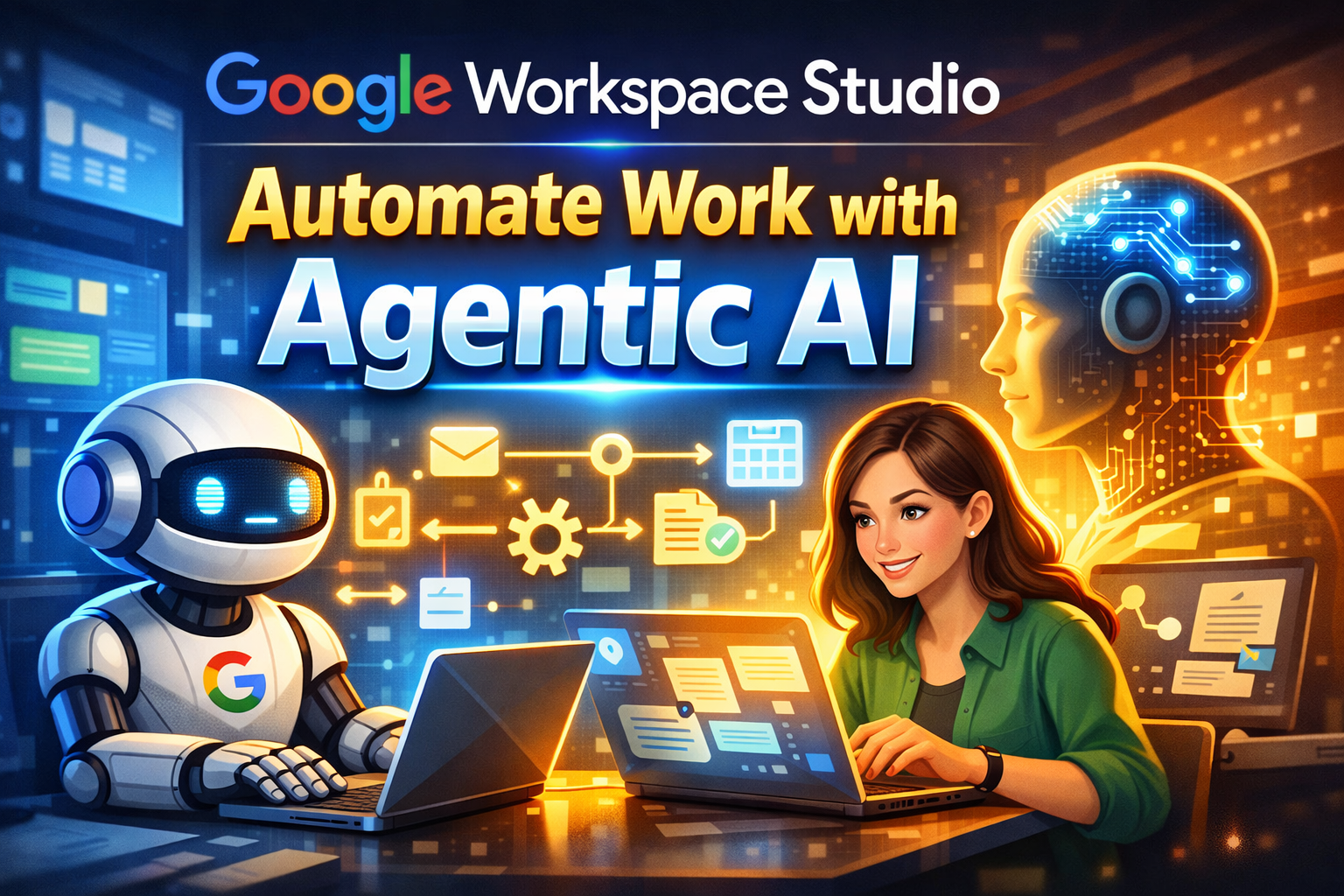
Google Workspace Studio is Google’s latest AI-powered workflow automation tool, deeply integrated with the Google Workspace ecosystem (Gmail, Drive, Sheets, Docs, Chat, Calendar, Forms, Tasks) and powered by Gemini AI as its intelligent processing engine.
Workspace Studio is the generally available (GA) evolution of the previously alpha-released Google Workspace Flows. It enables users to create automated flows (workflows) without writing any code, saving time on repetitive daily tasks.
Key Highlights:
- No-code: No programming required — drag-and-drop, select steps, or describe in natural language.
- AI-powered: Gemini auto-generates flows, summarizes emails, extracts data, and makes decisions.
- Cross-app: Connects Gmail, Sheets, Drive, Chat, Calendar, Forms, Tasks + third-party apps (Salesforce, Asana, Jira, Slack, Mailchimp, Confluence).
- Direct access: Available at studio.workspace.google.com or from within Workspace apps.
2. How It Works — Flow Architecture
Every flow in Workspace Studio has 2 main components:

2.1. Starter (Trigger)
A Starter is the event that launches your flow. When the event occurs, the flow runs automatically. Examples: receiving a new email, a scheduled time, a new file added to Drive, a form submission, etc.
2.2. Steps (Actions)
Steps are the tasks the flow performs after being triggered. Each flow can have multiple steps, which execute sequentially — each step completes before the next begins.
2.3. Variables (Dynamic Data)
Variables are placeholders for data from the starter or previous steps. They allow you to pass dynamic data between steps, making flows powerful and flexible.
Example: When an email arrives, you can use the [Email subject] variable from the starter to insert the email subject into a Chat message in the next step. To insert a variable, click in a text field and press @ or click the Variables + button.
3. The Workspace Studio Interface
Workspace Studio has 3 main pages:
3.1. Discover Page
This is the home page at studio.workspace.google.com. From here you can:
- My flows: View a list of all flows you’ve created.
- Create from scratch: Build a custom flow from a blank canvas.
- Use flow templates: Browse pre-built flows by app or use case.
- Create with AI: Describe what you want in natural language and Gemini builds the flow.
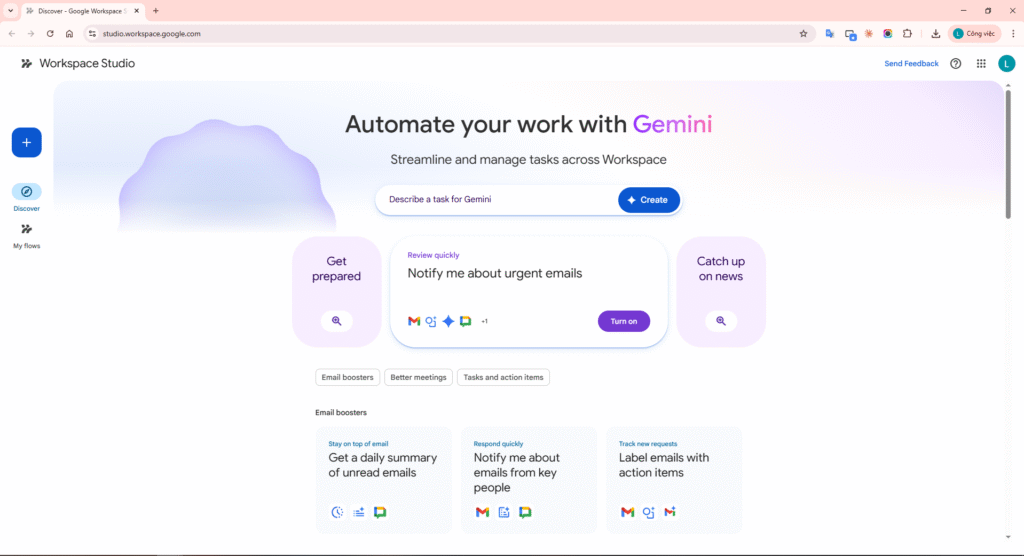
Image 1: Discover Page — the main interface of Google Workspace Studio
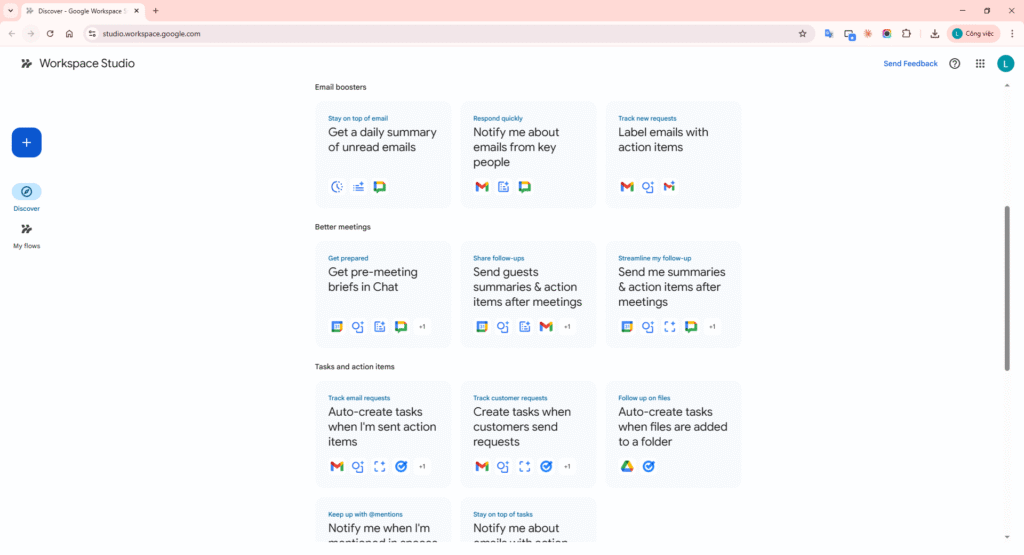
Image 2: Templates List — pre-built flows organized by app and use case
3.2. Flow Editor
When you open or create a flow, the editor allows you to:
- Select and configure the Starter and Steps.
- Add, delete, and reorder steps.
- Insert variables from previous steps.
- Rename, copy, delete, and share the flow.
- Test run: Execute the flow immediately to verify.
- Turn on: Activate the flow to run automatically.
3.3. Activity Page
After a flow runs, review its history here:
- Expand details for each run.
- Filter by status: Completed, In Progress, Error.
- View start times for each run.
- Refresh for the latest data.
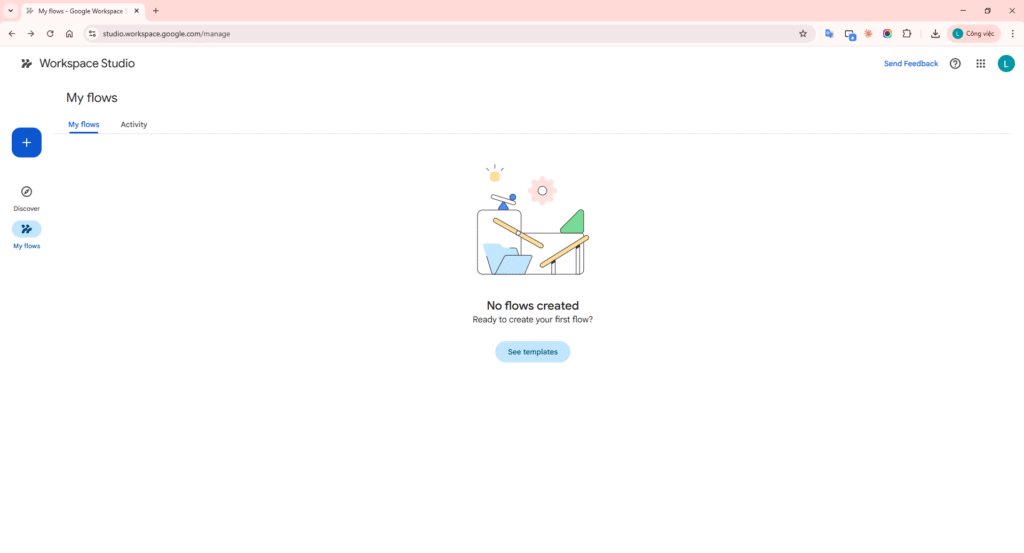
Image 3: My Flows Page — list of all flows you’ve created
4. Complete Starters & Steps Reference
4.1. All Available Starters
| Starter | Description | Example |
|---|---|---|
| On a schedule | Flow runs at specific date/time | Every Monday morning, create a new Google Doc for weekly meeting notes |
| When I get an email | Runs when new email arrives (filter by label, sender, subject, attachment) | When an email with subject “Invoice” and attachment arrives, save to Drive |
| When someone joins a space | Runs when someone joins a Chat space | Send welcome message with project document links |
| When I get a chat message | Runs when a message is posted in a Chat space | If message contains “urgent”, create a high-priority task |
| When I’m mentioned | Runs when you’re @mentioned in Chat | Auto-create a task in your to-do list |
| When an emoji reaction is added | Runs when someone reacts with a specific emoji | When someone reacts with a check mark, send an “approved” email |
| When a sheet changes | Runs when a value in a specific column/row changes | When status changes to “Complete”, archive the row |
| When an item is added to a folder | Runs when a new file/folder is added to a Drive folder | When new contract PDF is added, send a copy to the legal team |
| When a file is edited | Runs when a specific file’s content is modified | Notify Chat space when “Project Plan” is edited |
| When an item in a folder is edited | Runs when a file within a folder is modified | Post in team Chat when marketing docs are updated |
| Based on a meeting | Runs before/after a Calendar event | 15 minutes before meeting, send agenda link to Chat |
| When a meeting transcript is ready | Runs when a meeting transcript becomes available | Summarize transcript and create tasks with action items |
| When a form response comes in | Runs when a new form response is submitted | Add info to Sheet and send confirmation email |
4.2. All Available Steps
AI Steps
| Step | Description | Example |
|---|---|---|
| Ask Gemini | Custom prompt for Gemini to generate text, answers, or transform data | Draft a polite response to high-priority client emails |
| Ask a Gem Preview | Use a specialized AI agent (Gem) for specific tasks | Use “Brainstormer” Gem to generate marketing taglines |
| Recap unread emails | AI-generated summary of important unread emails | End of day recap posted to a private Chat space |
| Extract | Gemini finds and pulls specific information from content | Extract “Order Number” and “Shipping Address” from confirmation emails |
| Decide | Gemini makes a true/false decision based on content analysis | Determine if an email is “urgent” to control flow branching |
| Summarize | Gemini generates a summary from documents, meetings, or emails | Summarize a project proposal and post key points to Chat |
Tool Steps
| Step | Description |
|---|---|
| Check if | Continue the flow only if specific conditions are met (conditional logic) |
| Filter a list | Process only certain items from a list generated by a previous step |
App Steps (Gmail, Chat, Sheets, Drive, Docs, Tasks)
| App | Available Steps |
|---|---|
| Gmail | Draft an email, Draft a reply, Add/remove labels, Mark read/unread, Star/unstar, Archive, Notify me by email |
| Chat | Notify me in Chat |
| Sheets | Add a row, Update rows, Clear rows, Get sheet contents |
| Drive | Add email attachments to Drive, Create a folder |
| Docs | Create a Google doc, Add to a doc |
| Tasks | Create a task |
Third-party Integrations Alpha
| App | Capabilities |
|---|---|
| Asana | Create projects, sections, tasks, subtasks |
| Confluence | Create pages |
| Jira | Create issues and comments |
| Mailchimp | Manage subscribers and campaigns |
| Slack | Send messages in Slack workspace |
5. Three Ways to Create a Flow
| Method | Description | Best For |
|---|---|---|
| 1. Use a Template | Select a pre-built flow with logic already configured; just customize parameters | Quick start with common tasks |
| 2. Create from Scratch | Choose your own starter, add steps, configure variables manually | Full control, unique use cases |
| 3. Describe with AI | Write a natural language description and Gemini builds the flow for you | Fastest creation, edit afterward |
6. Template Workflow: Daily Email Summary
The most popular starter workflow — automatically summarize unread emails and send yourself a daily digest via Google Chat.

Step 1: Choose the Template
- Go to studio.workspace.google.com.
- On the Discover page, find the “Get a daily summary of unread emails” template.
- Click it → the Flow Editor opens with pre-built logic.
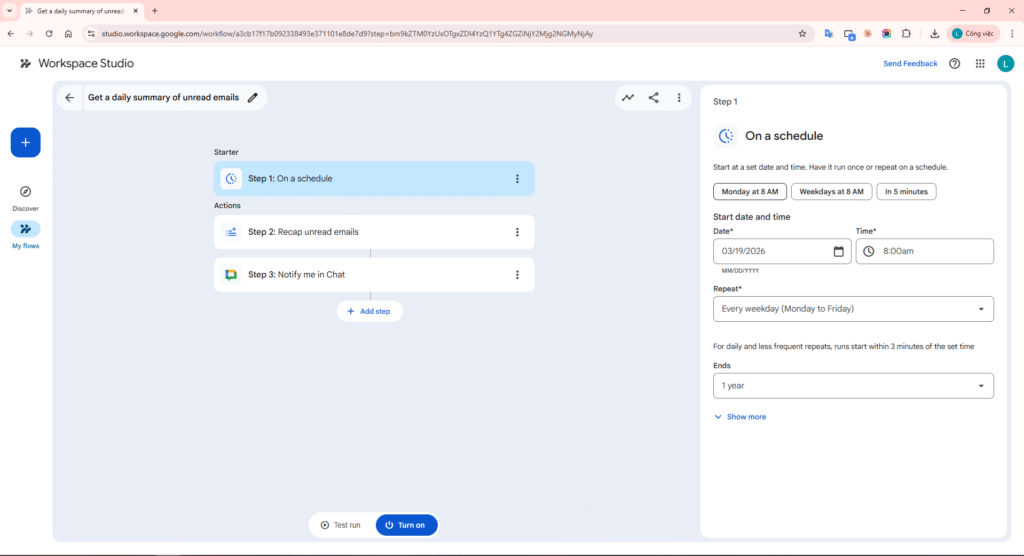
Image 4: Selecting the “Get a daily summary of unread emails” template — Flow Editor opens with 3 pre-built steps
Step 2: Configure the Flow
The template comes with 3 steps pre-configured. Click through each to understand how it works:
Step 2.1: On a schedule (Starter)
- This is the starter — it determines when the flow runs.
- Default: every weekday morning.
- You can change the frequency (daily, weekly) and time to fit your routine.
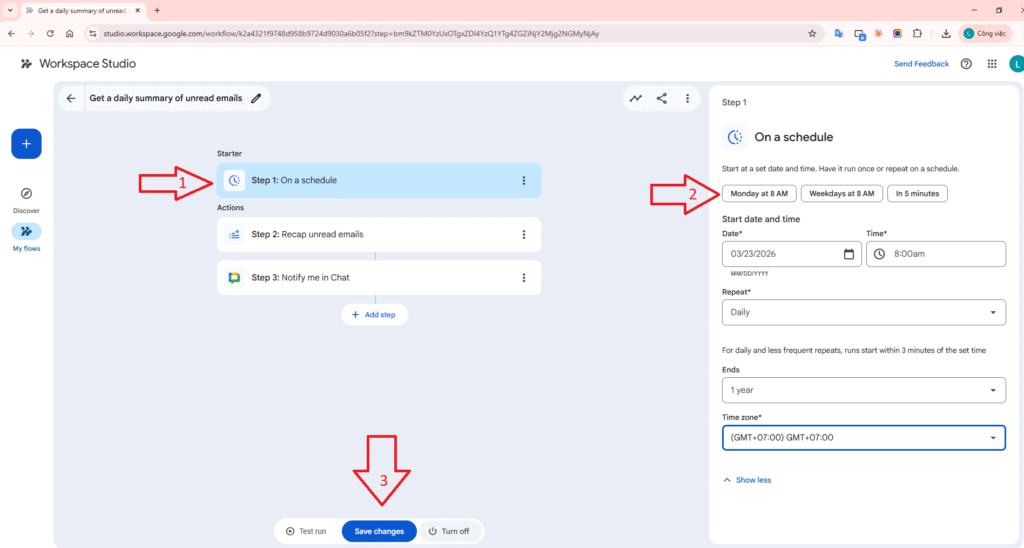
Image 5: Configuring the “On a schedule” Starter — set frequency and run time
Step 2.2: Recap unread emails (AI Step)
- This AI-powered step scans your unread emails.
- Configured to look at emails from “Yesterday”.
- Gemini generates a concise summary of the content.
- You can keep the default prompt/settings or customize them.
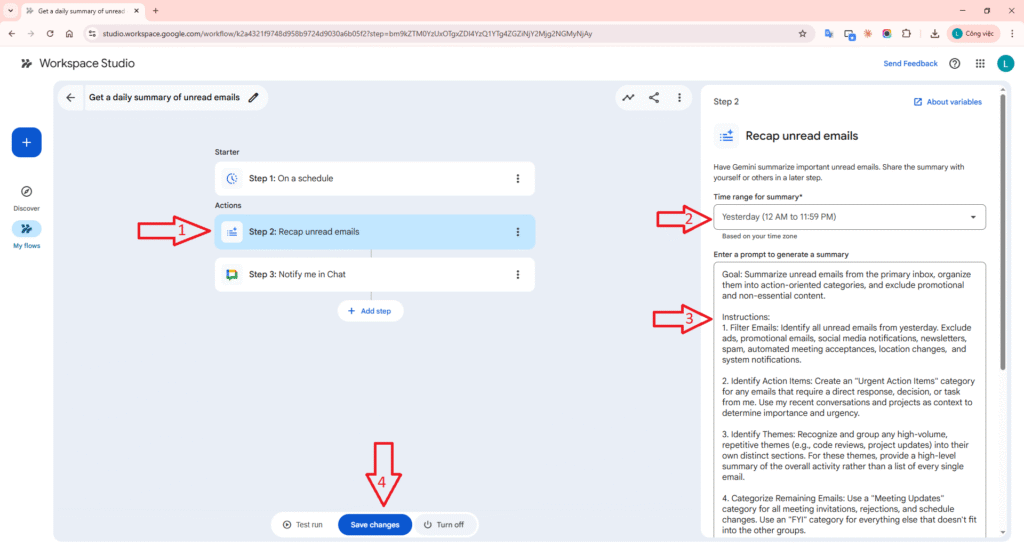
Image 6: Configuring the AI Step “Recap unread emails” — Gemini summarizes emails from Yesterday
Step 2.3: Notify me in Chat (Action Step)
- Sends a direct message to you via Google Chat.
- The “Message” field contains a blue variable chip: [Step 2: Summary of unread email].
- This variable takes the AI summary from Step 2 and inserts it into the message.
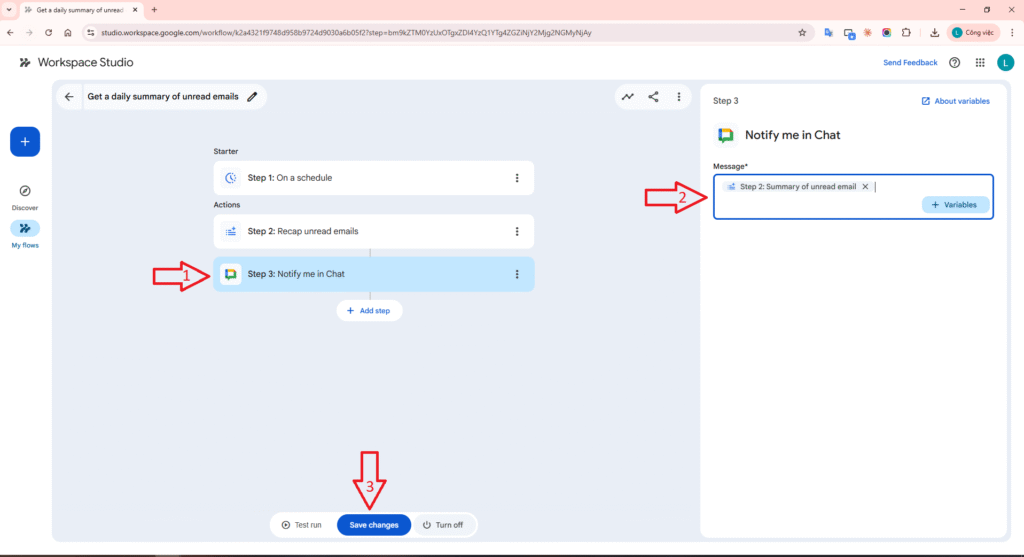
Image 7: Configuring “Notify me in Chat” — variable chip [Summary] passes data from the previous step
Step 3: Test & Turn On
Important: A test run performs real actions — it will send messages, update files, and create events. Verify your configuration before testing.
- Click Test run → Start at the bottom of the flow editor.
- The flow runs immediately. If successful:
- You receive a summary message in Google Chat.
- The editor shows “Run Completed”.
- If everything looks good, click Turn on to activate the flow.
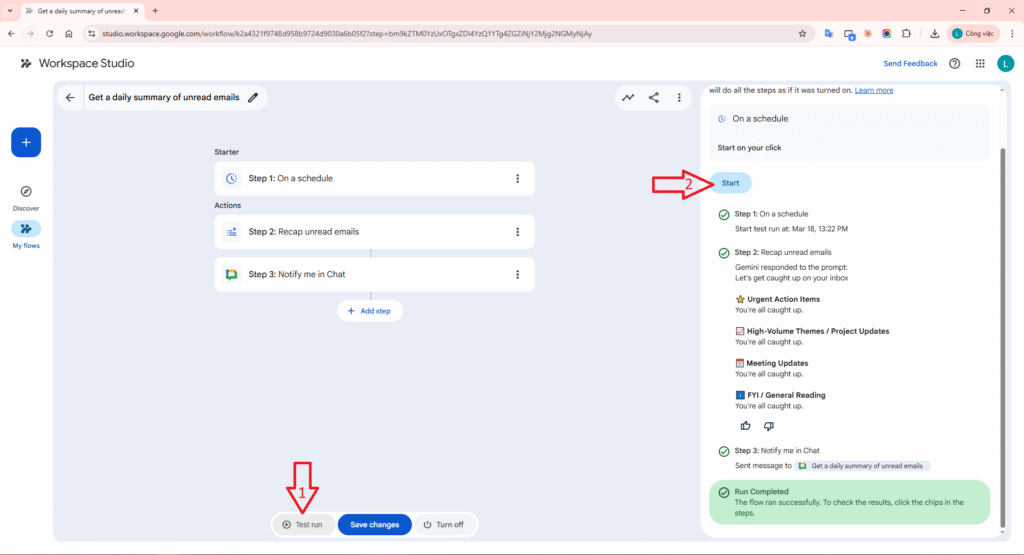
Image 8: Test run — Flow executed successfully, showing “Run Completed”
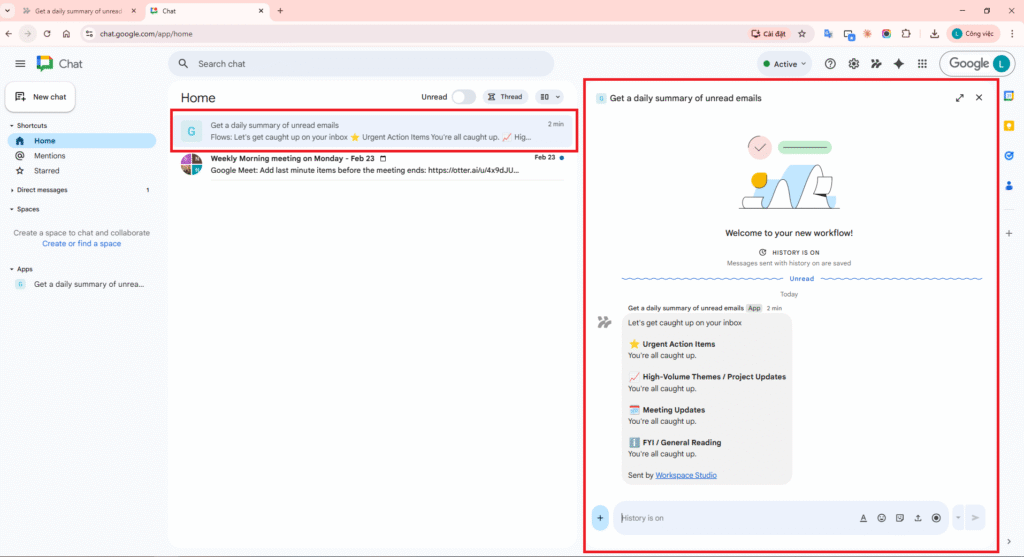
Image 9: Result in Google Chat — AI-generated email summary message
Result: Every weekday morning, you’ll receive an AI-generated summary of your unread emails right in Google Chat — no need to open Gmail and read each email individually.
7. From-Scratch Workflow: Auto-reply Invoice Emails
Build a flow from scratch that automatically drafts a reply whenever you receive an email containing the word “Invoice”.

Step 1: Choose Your Starter
- Go to studio.workspace.google.com.
- Click “Create from scratch”.
- From the Starters list, select “When I get an email”.
- In the filter field, enter: Invoice.
- This tells the flow to only trigger when an email contains “Invoice” in its subject or body.
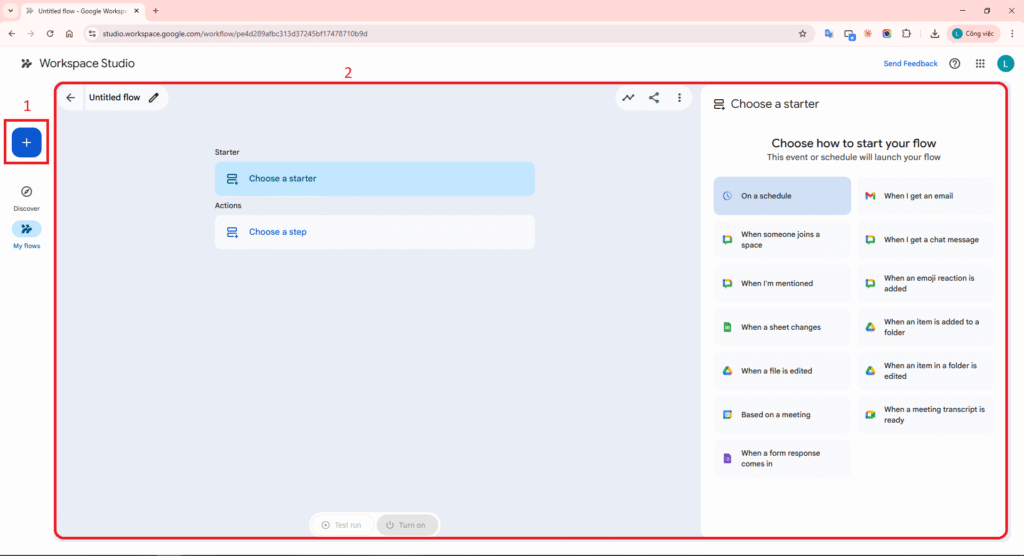
Image 10: Create from scratch — blank canvas with Starters selection
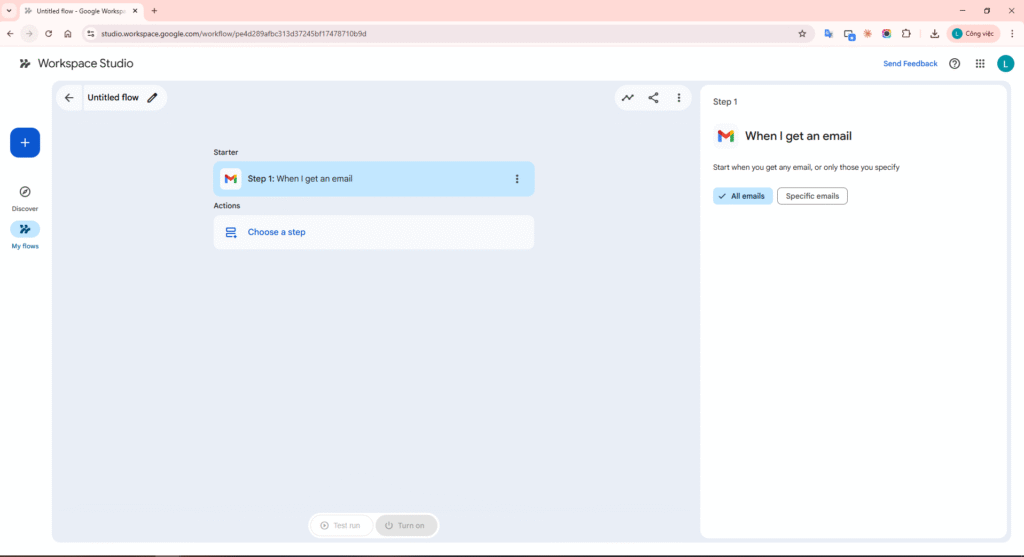
Image 11: Selecting “When I get an email” Starter with “Invoice” filter
Step 2: Add a Step
- Below your starter, click “Choose a step”.
- Under the “Gmail” category, select “Draft a reply”.
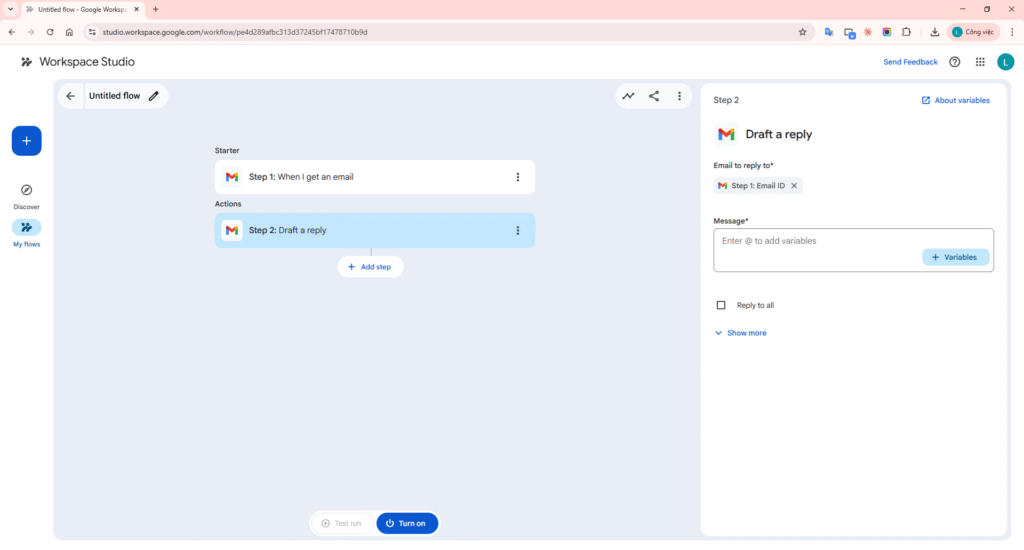
Image 12: Adding the “Draft a reply” Step from the Gmail category
Step 3: Use Variables for Dynamic Content
In the draft reply message field:
- Type: Hello,
- New line, type: I received the invoice regarding:
- Click Variables + or type
@→ select [Email subject] from the starter. - New line, type: I will review it and get back to you.
The draft message will look like this:
Hello,

I received the invoice regarding: [Email subject]

I will review it and get back to you.
Where [Email subject] is a variable chip that gets replaced with the actual email subject when the flow runs.
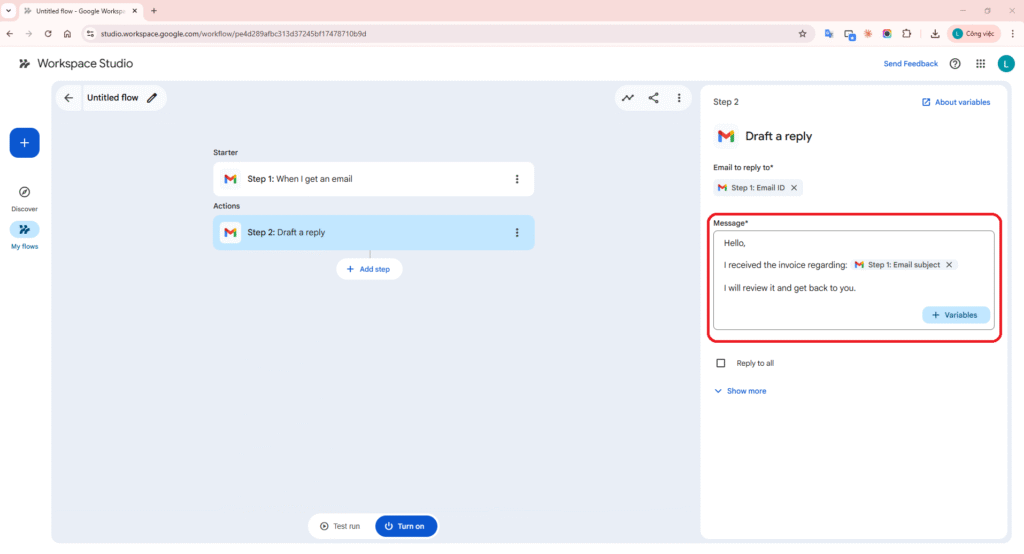
Image 13: Composing the draft reply with the [Email subject] variable chip
Step 4: Name, Test & Turn On
- Click the flow name at the top to rename it, e.g., “Auto-reply Invoice Emails”.
- Click Test run.
- A new window appears allowing you to select a recent email matching your starter conditions.
- In the “Email received” field, enter: Invoice to find matching emails.
- Select an email → Click Start.
- If successful: “Run Completed” appears and a new draft is in your Gmail Drafts folder.
- Click Turn on to activate the flow.
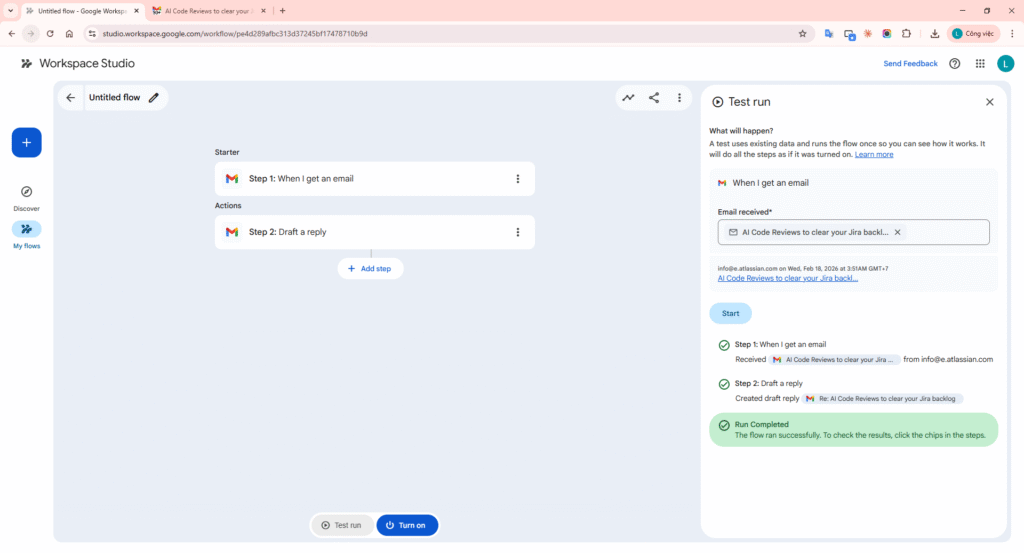
Image 14: Test run — selecting a matching “Invoice” email and running the test
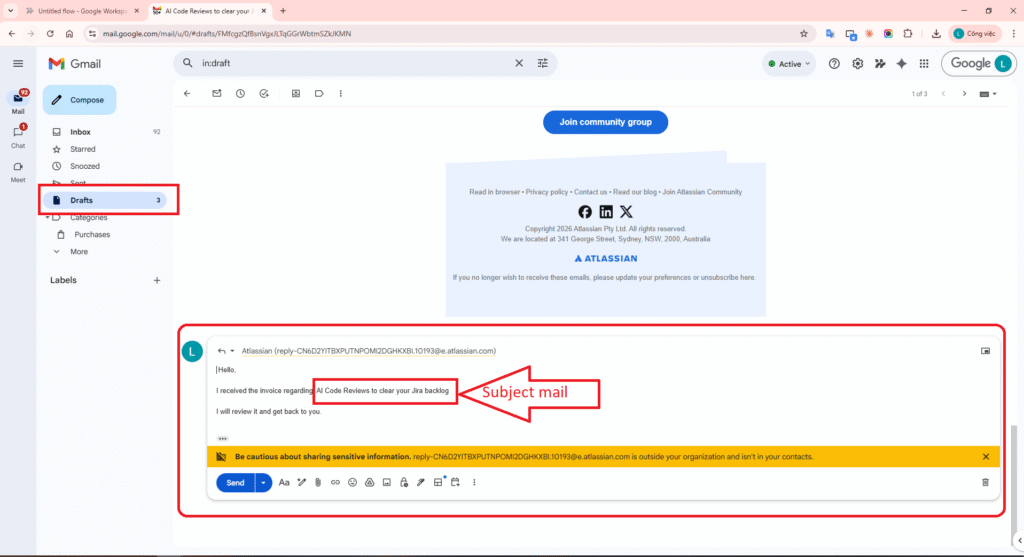
Image 15: Result in Gmail Drafts — auto-generated reply draft with actual email subject
Result: Whenever you receive an email containing “Invoice”, Gmail automatically creates a polite draft reply. You just review and send — saving valuable response time.
8. Custom Workflow: Smart Meeting Notes Pipeline
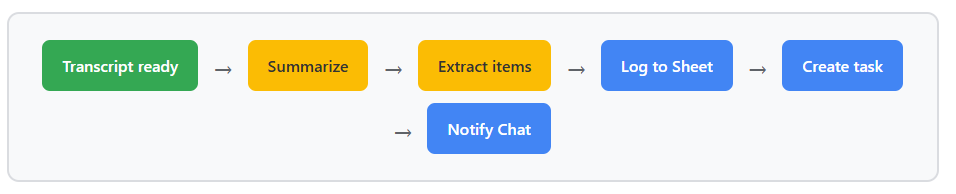
This is a custom-designed workflow that combines multiple powerful Workspace Studio features to create a fully automated intelligent meeting processing pipeline.
Goal
When a meeting ends and its transcript becomes available:
- Gemini automatically summarizes the meeting.
- Gemini extracts action items (tasks to be done).
- Meeting information is logged to a Google Sheet for tracking.
- A task is created in Google Tasks for follow-up.
- The team is notified via Google Chat with the summary and action items.
Detailed Build Steps
Starter: When a meeting transcript is ready
- Select the “When a meeting transcript is ready” starter.
- The flow automatically triggers when a Google Calendar event gets a new transcript.
- No filter needed — applies to all meetings with transcripts.
Step 1: Summarize (AI Step)
- Select “Summarize” from the AI Steps category.
- Input: the transcript from the starter (using the [Meeting transcript] variable).
- Gemini creates a concise summary covering: main topics, decisions made, and key discussion points.
Step 2: Extract (AI Step)
- Select “Extract” from the AI Steps category.
- Input: the transcript from the starter.
- Configure Gemini to extract: Action items, Responsible person, Deadline.
Step 3: Add a row to Sheet
- Select “Add a row” from the Sheets category.
- Choose a pre-created Google Sheet called “Meeting Log”.
- Map the columns:
- Date: Variable [Meeting date] from starter
- Meeting Title: Variable [Meeting title] from starter
- Summary: Variable [Step 1: Summary]
- Action Items: Variable [Step 2: Extracted data]
Step 4: Create a task
- Select “Create a task” from the Tasks category.
- Title: combine [Meeting title] + “Follow-up”.
- Description: use [Step 2: Extracted data] containing the action items list.
Step 5: Notify me in Chat
- Select “Notify me in Chat”.
- Compose the message using variables:
Meeting Notes: [Meeting title]

Summary:
[Step 1: Summary]

Action Items:
[Step 2: Extracted data]

Logged to Meeting Sheet. Task created.
Test & Turn On
- Rename the flow: “Smart Meeting Notes Pipeline”.
- Click Test run → select a recent meeting with a transcript.
- Verify: Sheet has a new row? Task created? Chat notification received?
- If everything works, click Turn on.
Result: After every meeting, you don’t need to manually take notes. AI summarizes the discussion, extracts action items, logs everything to a Sheet for tracking, creates a reminder task, and notifies the team. The entire pipeline executes within seconds of the transcript becoming available.
Extensions: You can add a “Check if” step to only process meetings with specific keywords (e.g., “Sprint Review”), or add a “Decide” step for Gemini to classify meeting importance before sending notifications.
9. Tips & Best Practices
9.1. Effective Flow Design
- Start simple: Create flows with 2-3 steps first, test thoroughly, then expand.
- Use templates as a base: Even for custom flows, starting from the closest template and modifying it is faster.
- Name clearly: Give flows descriptive names for easy management when you have many.
- Always test first: Always Test run before Turn on. Remember that tests perform real actions.
9.2. Smart AI Steps
- Write specific prompts: Instead of “summarize this”, write “Summarize the key decisions and action items from this meeting in bullet points”.
- Combine Decide + Check if: Use Decide for AI evaluation, then Check if for logic branching.
- Extract over Summarize: When you need structured data (names, numbers, dates), use Extract instead of Summarize.
9.3. Variables Are Key
- Always use variable chips (press @) instead of hardcoding data.
- Variables let flows process actual runtime data, not static values.
- Combine static text + variables for professional, personalized content.
9.4. Sharing & Collaboration
- Flows can be shared via link — recipients can copy and customize.
- Use the Activity page to debug when flows encounter errors.
- Filter by status (Error) to quickly identify issues.
10. Availability & Requirements
| Requirement | Details |
|---|---|
| Google Workspace Edition | Business Starter, Standard, Plus Enterprise Standard, Plus Education Fundamentals, Standard, Plus, Teaching & Learning add-on |
| AI Features | Requires Gemini to be enabled by admin Google AI Ultra for Business or Google AI Pro for Education |
| Age Restriction | School accounts under 18 cannot use AI features |
| App Access | Templates appear based on which apps you have access to |
| Third-party | Asana, Confluence, Jira, Mailchimp, Slack (currently in Alpha) |
| Access | studio.workspace.google.com or from within Workspace apps |
11. Conclusion
Google Workspace Studio represents a significant leap in bringing AI automation to every Google Workspace user. With its intuitive no-code interface, built-in Gemini AI capabilities, and multi-app connectivity, Workspace Studio helps you:
- Save time: Automate repetitive tasks (emails, meeting notes, form processing).
- Reduce errors: AI processes consistently without missing steps.
- Focus on what matters: Let machines handle admin tasks while you focus on creative work.
- Easy to start: Pre-built templates or natural language descriptions to Gemini.
Whether you’re a beginner or experienced with automation, Workspace Studio provides the tools from simple templates to complex multi-step flows with conditional logic and AI.
References:
Video: Get started with Google Workspace Studio
Video: Google Workspace Studio – Everything You Need to Know