1. Overview: What Can gws Do?
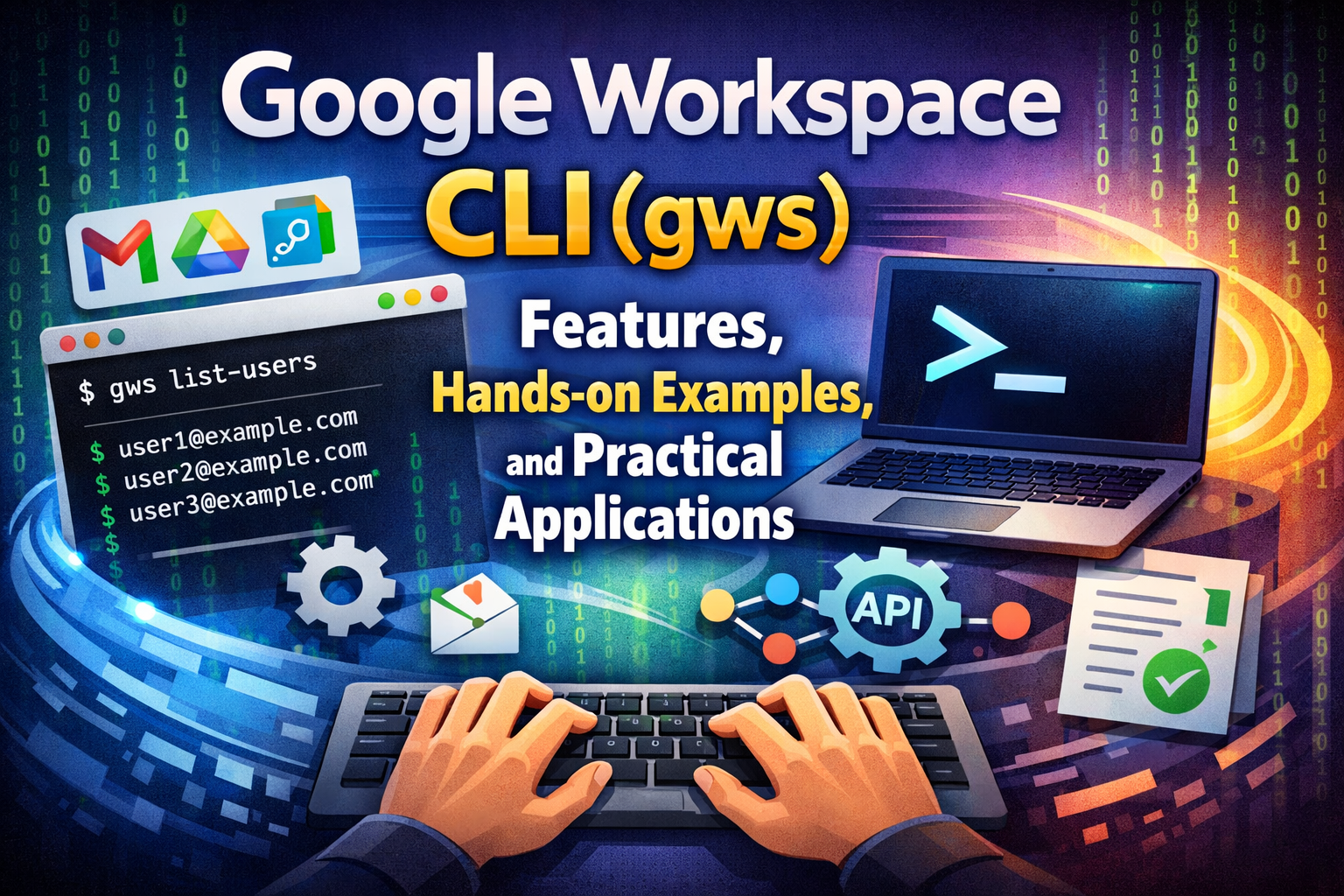
Google Workspace CLI (gws) is a command-line tool that lets you interact directly with virtually every Google Workspace service straight from your terminal, including:
- Google Drive – list, search, upload, download, create, delete, and manage file permissions
- Gmail – read, search, triage, send, reply to, and forward emails
- Google Calendar – view schedules, create events, manage invitations
- Google Docs / Sheets / Slides – create, read, and edit document content
- Google Chat – send messages to Spaces, create new Spaces
- Admin SDK – manage users, groups, and organizational units (for Workspace Admins)
- Google Tasks, Meet, Classroom and many more services
The important thing to understand is that this is not just a thin wrapper around the Google API. gws is built on a fundamentally different architecture — which I will explain in the next section.
2. Architecture & Core Differentiators
2.1. Dynamic Command Generation (No Hardcoded APIs)
Most CLIs hardcode their list of commands and parameters into the source code. When Google updates an API, the maintainer team has to update the CLI and release a new version.
gws does the opposite. When you run a command, it automatically calls the Google Discovery Service — a special Google API that provides complete real-time metadata about all available APIs (endpoints, parameters, schemas). gws reads that metadata and generates the corresponding commands on the fly at runtime.
This means when Google introduces a new API endpoint, gws supports it immediately with no update required. This is why gws is so remarkably future-proof.
2.2. Structured Output (JSON, Table, YAML, CSV)
gws returns structured output, defaulting to JSON. This makes it exceptionally well-suited for integration with other tools:
- Pipe into jq on Linux/Mac to filter and transform JSON
- Pipe into ConvertFrom-Json in PowerShell to process the data
- Use the —format table flag for a human-readable table view
- Export with –format csv to import directly into Excel
2.3. AI-Ready with a Built-in MCP Server
gws ships with a built-in Model Context Protocol (MCP) Server, allowing AI agents like Gemini or Claude to connect directly to gws and interact with your Google Workspace data. An LLM can be given a prompt like “find any emails from my manager this week and summarize them” without writing any additional integration code.
2.4. Agent Skills – 100+ Pre-built Shortcuts
In addition to raw API commands, gws includes a system of Skills — pre-built shortcut commands designed for common real-world tasks. For example:
- gws gmail +triage – Summarizes your unread emails into a clean table (instead of returning complex raw JSON)
- gws gmail +read – Reads a specific email’s content, automatically decodes the base64 encoding, and extracts plain text
- gws gmail +watch – Listens for incoming emails in real-time and streams them as NDJSON
- gws drive +upload – Uploads a file with automatic metadata handling, far simpler than the raw API
2.5. Dry-Run Mode
The –dry-run flag lets you inspect the exact HTTP request that would be sent (URL, method, headers, body) without actually executing it. This is invaluable for learning the API or debugging your commands safely.
Here’s a real example I ran myself:
npx @googleworkspace/cli drive files list --dry-runOutput returned:
{
  "body": null,
  "dry_run": true,
  "is_multipart_upload": false,
  "method": "GET",
  "query_params": [],
  "url": "https://www.googleapis.com/drive/v3/files"
}
3. Installation & Authentication (Windows Gotchas)
Step 1: Install gws via NPM
Open Windows Terminal (PowerShell) and run the following command:
npm install -g @googleworkspace/cliAlternatively, use npx to run without a global install:
npx @googleworkspace/cli --versionA successful installation will output:
gws 0.22.5
This is not an officially supported Google product.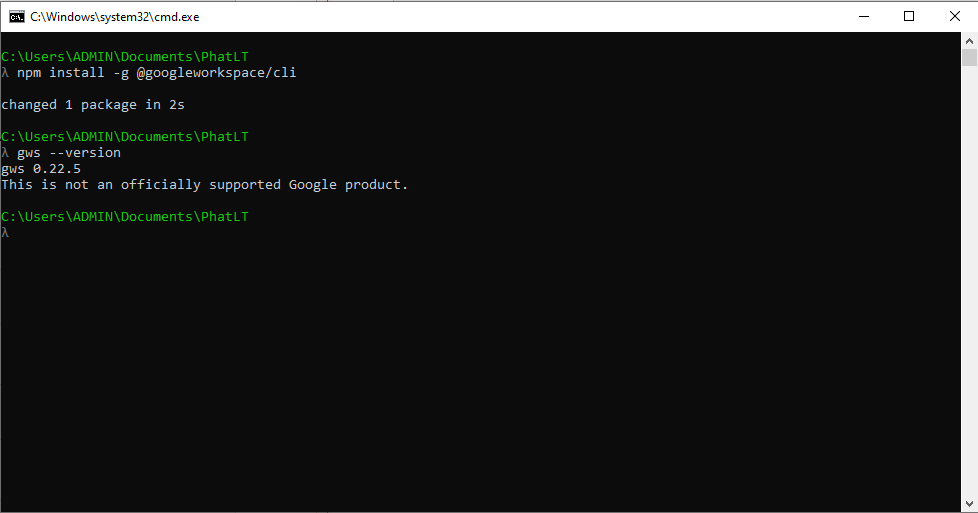
Successful Installation
Step 2: Create OAuth Credentials in Google Cloud Console
This is the step many users skip and then run into errors. gws requires an “OAuth App” inside your Google Cloud project to authenticate.
- Go to console.cloud.google.com
- Create or select an existing Project
- Go to APIs & Services → Library, and enable the APIs you want to use (Google Drive API, Gmail API, Calendar API, etc.)
- Go to APIs & Services → Credentials → Create Credentials → Create OAuth client ID
You Must Configure the Consent Screen First: If this is a new Project, Google will immediately block you with the warning: “To create an OAuth client ID, you must first configure your consent screen” and show a Configure consent screen button. This step is mandatory — you cannot skip it.
How to resolve it:
- Click the Configure consent screen button
- Choose External (for a personal Gmail account) or Internal (for a Google Workspace organization)
- Fill in App name (e.g., “GWS CLI”), User support email, and Developer contact email
- Click Save and Continue through the Scopes and Test users pages (you can leave these blank and just click Next)
- Return to Credentials → Create Credentials → Create OAuth client ID
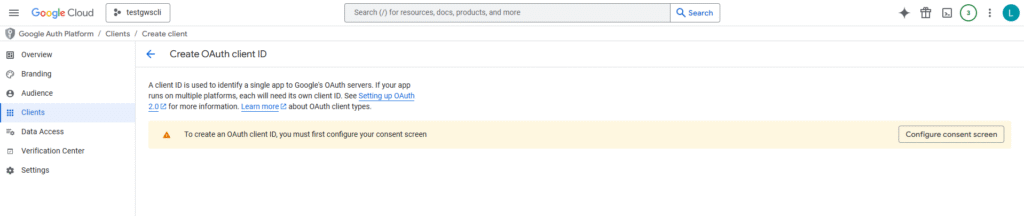
“Configure consent screen” warning message
Once the Consent Screen is configured, continue with the Client ID creation:
- Set the Application type to: Desktop app
- Give it a name (e.g., “GWS CLI”) and click Create
- Copy the generated Client ID and Client Secret
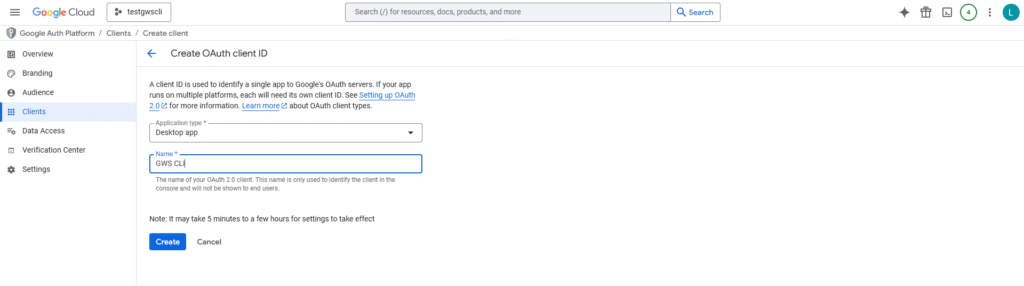
Google Cloud Console, Credentials page
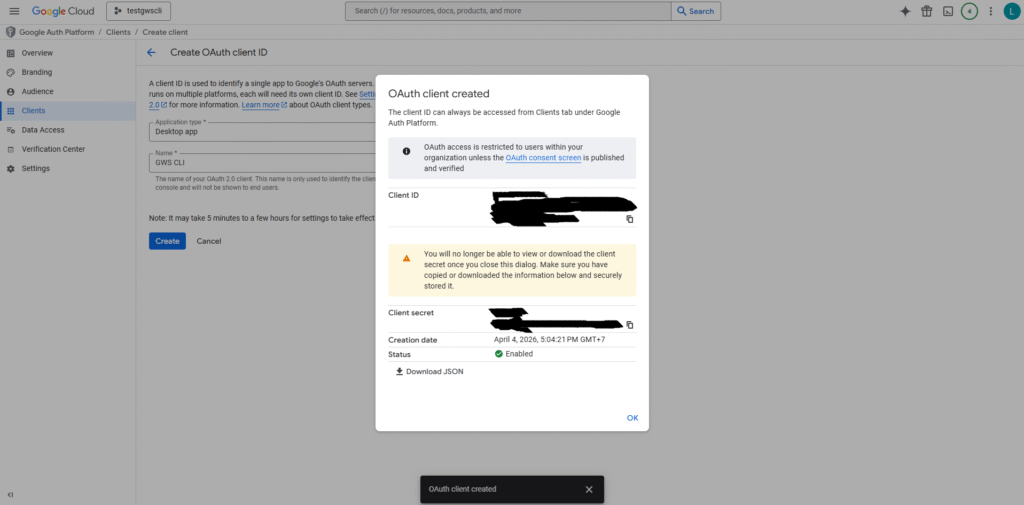
Newly created Client ID popup
Step 3: Run gws auth setup
gws auth setupgcloud CLI Is Not Installed: If you receive the following JSON error: “gcloud CLI not found. Install it from https://cloud.google.com/sdk/docs/install” — this happens because gws auth setup defaults to using gcloud for credential management.
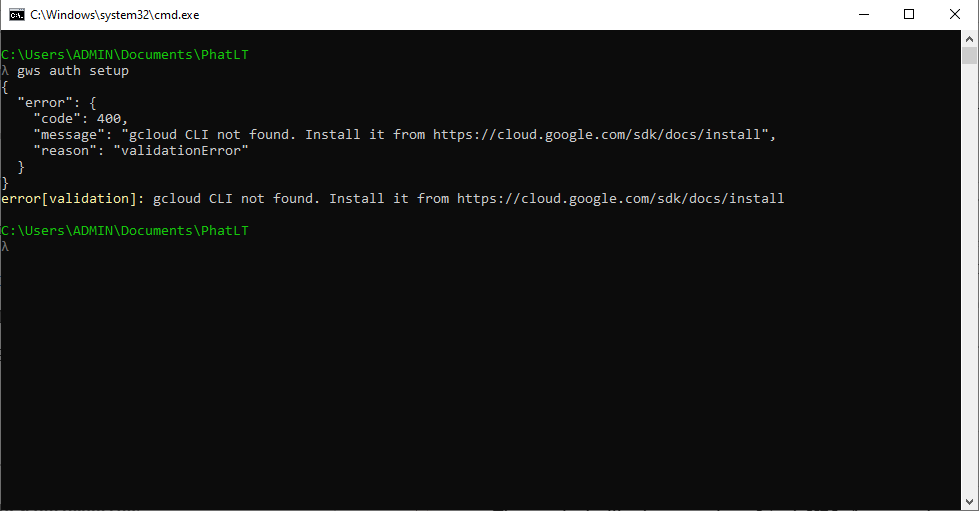
gcloud CLI not found error
Install Google Cloud SDK
- Download the Google Cloud SDK from: cloud.google.com/sdk/docs/install
- Select the Windows Installer (.exe) and run it normally
- Open a new Terminal or Windows PowerShell — this is important so that the PATH variable is refreshed
- Initialize gcloud by running:
gcloud init - gcloud will open your browser to sign in to your Google account
- After successful sign-in (You are signed in as: [email protected]), the terminal will display a list of Cloud projects — enter the number corresponding to the GWS CLI project you just created (e.g. testgwscli-492309)
- Verify gcloud works: gcloud –version
- Run gws auth setup again
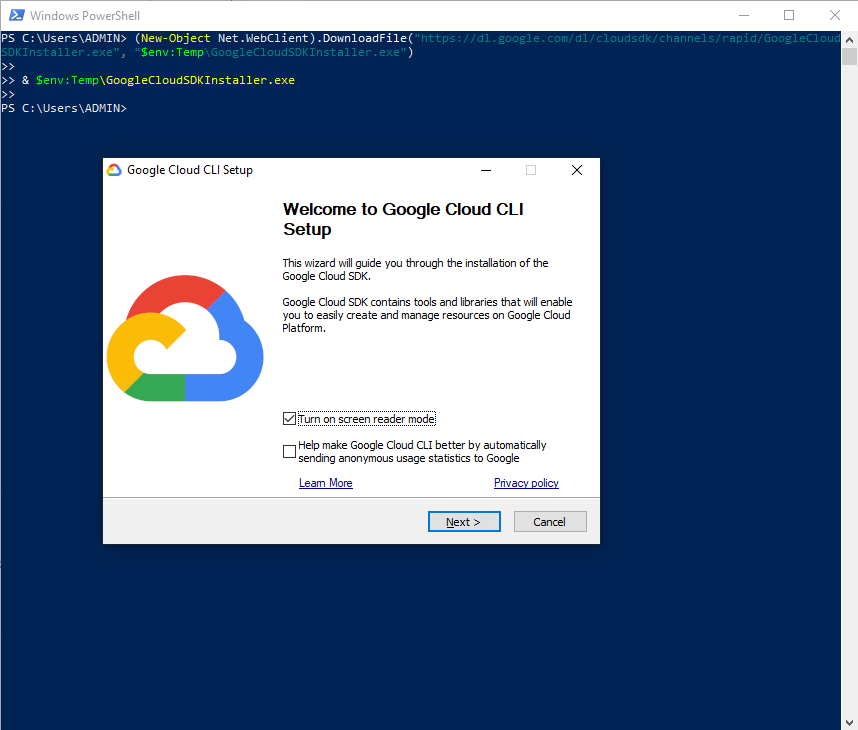
gws auth setup succeeding after gcloud install
Step 4: Log in with gws auth login
gws auth loginThe terminal will print a very long OAuth URL, for example:
Please open the following URL in your browser to authenticate:
https://accounts.google.com/o/oauth2/auth?client_id=xxxx&redirect_uri=...
&scope=https://www.googleapis.com/auth/drive+https://www.googleapis.com/auth/gmail...
&response_type=code&access_type=offline...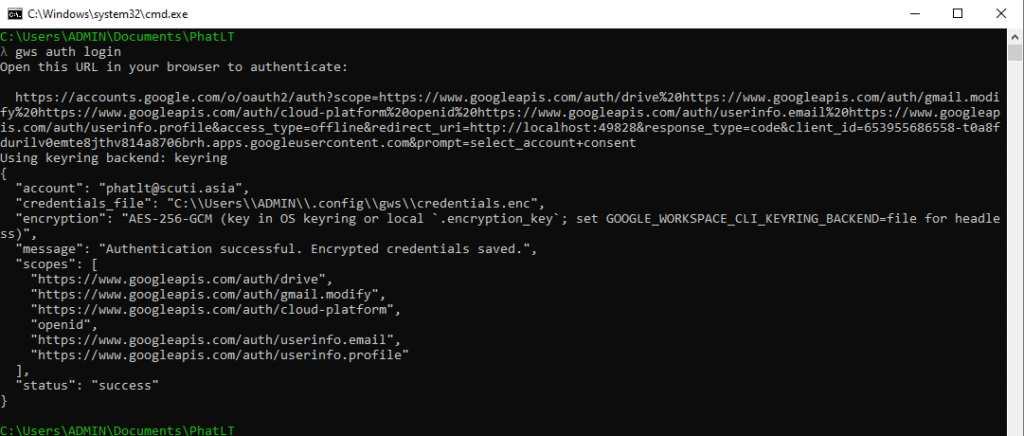
Authentication successful
4. Lab 1 – Searching for Folders on Google Drive
Context: I frequently need to locate old project folders on Drive. Instead of opening drive.google.com, waiting for the page to load, and using the search bar, I wanted to do it entirely within the terminal.
Command Executed
Find all folders on my Drive whose name contains the word “Demo”:
gws drive files list --params "{\"q\": \"name contains 'Demo' and mimeType = 'application/vnd.google-apps.folder'\", \"pageSize\": 10}" --format table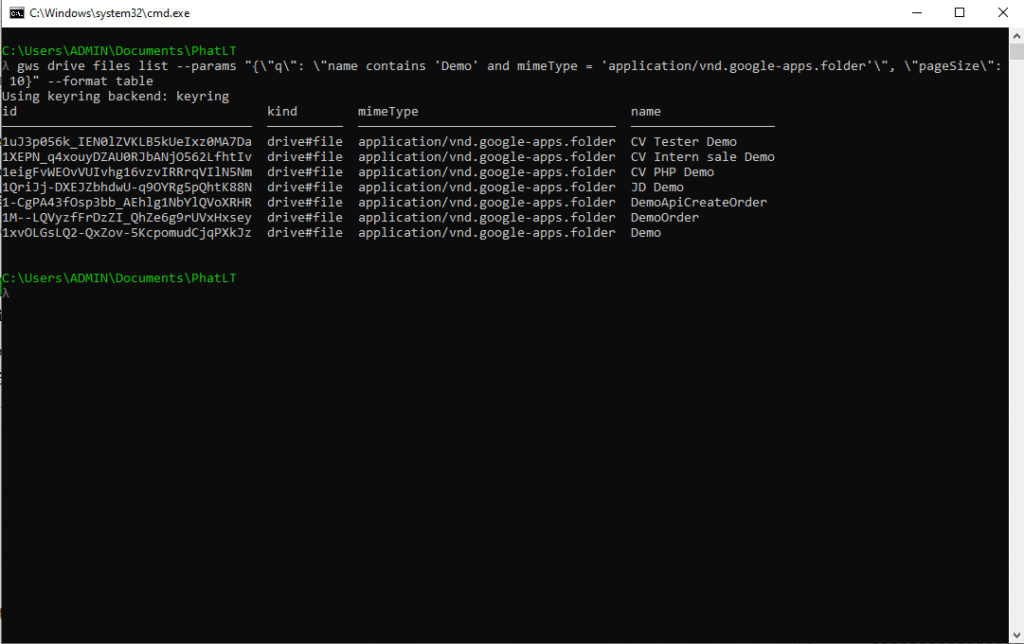
Drive search command in terminal
Execution Result
Using the –format table flag produces a clean, readable table directly in the terminal:
┌──────────────────────────────────────────┬───────────────────────────────────────────┐
│ ID                                       │ NAME                                      │
├──────────────────────────────────────────┼───────────────────────────────────────────┤
│ 1uJ3p056k_IEN0lZVKLB5kUeIxz0MA7Da        │ CV Tester Demo                            │
│ 1XEPN_q4xouyDZAU0RJbANjO562LfhtIv        │ CV Intern sale Demo                       │
│ 1eigFvWEOvVUIvhg16vzvIRRrqVIlN5Nm        │ CV PHP Demo                               │
│ 1QriJj-DXEJZbhdwU-q9OYRg5pQhtK88N        │ JD Demo                                   │
│ 1-CgPA43fOsp3bb_AEhlg1NbYlQVoXRHR        │ DemoApiCreateOrder                        │
│ 1M--LQVyzfFrDzZI_QhZe6g9rUVxHxsey        │ DemoOrder                                 │
│ 1xvOLGsLQ2-QxZov-5KcpomudCjqPXkJz        │ Demo                                      │
└──────────────────────────────────────────┴───────────────────────────────────────────┘
Find the file “The 2026 Lead Classification Protocol” in Google Drive:
gws drive files list --params "{\"q\": \"name = 'The 2026 Lead Classification Protocol'\", \"pageSize\": 10}" --format table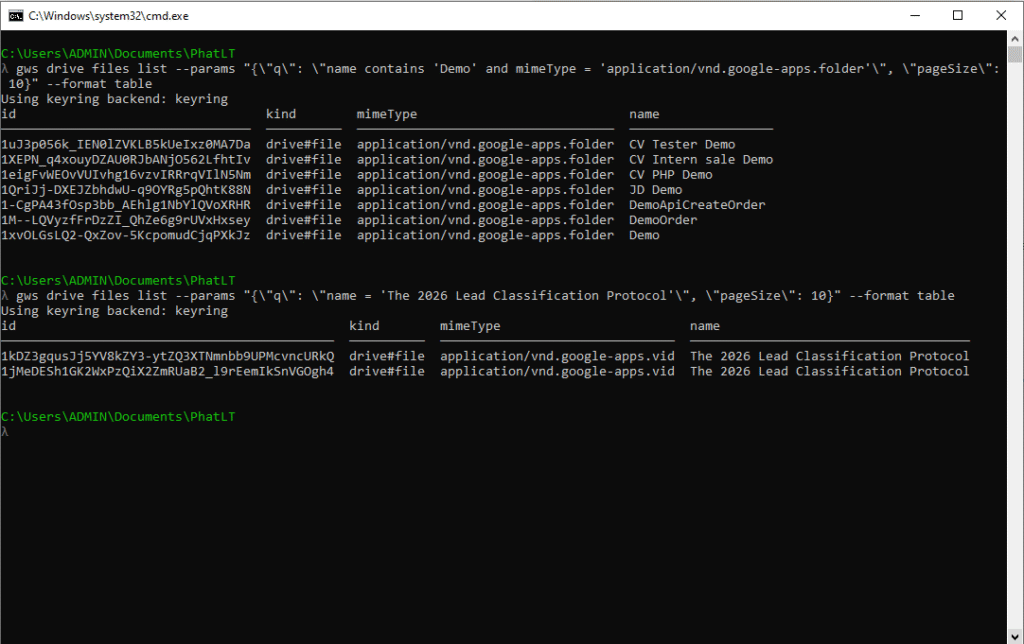
Drive search results returned
5. Lab 2 – Checking Unread Emails with Gmail +triage
Context: At the start of my workday, I want to immediately know if my manager has assigned any new tasks or if there are any urgent emails requiring prompt attention — all without opening the Gmail tab and waiting for it to load.
gws has a pre-built Skill designed exactly for this:
Command Executed
gws gmail +triage --format table --max 5Parameter breakdown:
- +triage – A pre-built Skill that automatically calls the Gmail API, fetches unread messages, and formats them for easy reading
- –format table – Displays the results as a table instead of raw JSON
- –max 5 – Returns only the 5 most recent unread emails
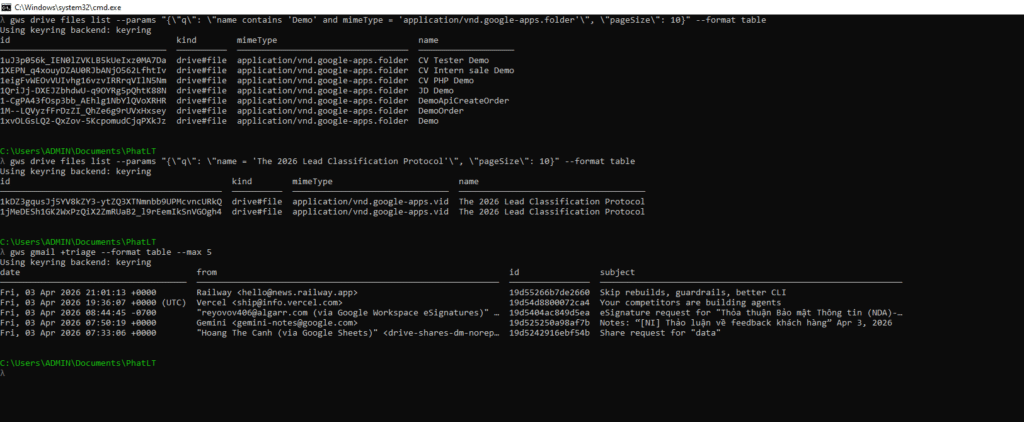
Gmail +triage command running
Execution Result
The output renders a summary table directly in the terminal:
┌────────────────────────────┬──────────────────────────────────────┬─────────────────────┐
│ FROM                       │ SUBJECT                              │ DATE                │
├────────────────────────────┼──────────────────────────────────────┼─────────────────────┤
│ [email protected]           │ [URGENT] Q2 Roadmap Review           │ Apr 04, 2026 09:01  │
│ [email protected]    │ Your billing summary for March 2026  │ Apr 04, 2026 08:30  │
│ [email protected]             │ Reminder: Submit timesheet today     │ Apr 04, 2026 08:00  │
│ [email protected]          │ [PR Merged] feature/new-login        │ Apr 03, 2026 23:15  │
│ [email protected]      │ 5 new job matches for you this week  │ Apr 03, 2026 22:00  │
└────────────────────────────┴──────────────────────────────────────┴─────────────────────┘
Reading a Full Email Without Leaving the Terminal
From the results above, if I want to read the full content of the “[URGENT] Q2 Roadmap Review” email, I first grab its id from the JSON output and then run:
# Get the message ID first:
gws gmail +triage --format json --max 1

# Then read the full email content:
gws gmail +read --id 18f3a2b4c5d6e7f8
The output returns the complete text content of the email. gws automatically handles decoding the base64-encoded body that Gmail’s API returns, rendering it as plain readable text directly in the terminal.
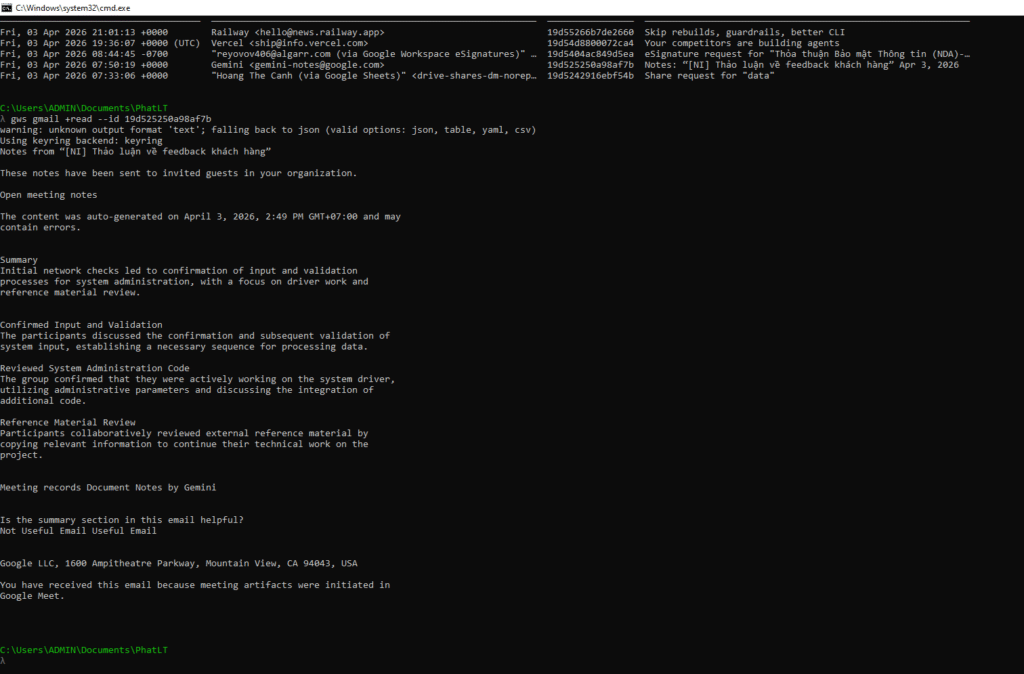
Lab 2C – Reading a full email
6. Personal Opinion & Automation Ideas
In my opinion, gws is an absolute game-changer. It completely eliminates the need to write 50 lines of Python or Node.js boilerplate and configure Service Accounts just to make a simple Google API call. The speed is phenomenal, and the structured JSON output makes it the perfect building block for scripting and automation.
Here is how I plan to apply gws to automate my daily work:
6.1. The “Good Morning” Dashboard
I will write a PowerShell script that runs automatically every time I open my terminal in the morning. The script will:
- Call gws calendar events list –params ‘{“timeMin”: “…”, “timeMax”: “…”}’ to fetch today’s meetings
- Call gws gmail +triage –max 10 to surface the 10 most recent unread emails
- Print a consolidated summary table directly in the console, with no browser required
Estimated time saved: 5–10 minutes every single morning of not opening a browser, waiting for pages to load, and searching manually.
6.2. Automated Daily Code Backup to Google Drive
I will create a Windows Scheduled Task that runs at 5:00 PM every day to:
- Zip the current project directory
- Use gws drive files create to upload the zip archive to a designated backup folder on Drive
- Delete backups older than 30 days using gws drive files delete
No third-party backup software required. No complex configuration. Just a short script.
6.3. CI/CD Release Notification Bot
After every successful deployment, the pipeline will automatically:
- Create a new release notes document in Google Docs with gws docs
- Post a notification to the team’s Google Chat Space with gws chat spaces messages create
- Update a deployment tracking row in a Google Sheet with gws sheets values append
6.4. Weekly Drive Permissions Security Audit
Every Monday morning, a script automatically scans for all files that are publicly shared via “anyone with the link” on the company Drive:
gws drive files list `
  --params '{\"q\": \"visibility = \\\"anyoneWithLink\\\"\"}' `
  --format table > security_audit.txt
The output is then automatically emailed to the IT Admin team for review. No dashboard needed. No third-party security tools required.
7. Limitations of gws
To keep this review objective, here are the real limitations I encountered during my investigation:
7.1. Shell-Specific Syntax Incompatibilities
As demonstrated in Lab 1, the JSON syntax needed to pass parameters via –params in PowerShell is entirely different from Bash. A script that runs perfectly on Linux can completely break on Windows PowerShell and vice versa. This is not a bug in gws per se, but it is a real-world friction point when working across multiple environments.
7.2. Google API Rate Limits
gws communicates directly with the Google Workspace APIs, meaning it is bound by Google’s standard API quotas. If you write an aggressive automation script that bulk-processes thousands of Drive files (downloading, uploading, deleting) in a tight loop, you will inevitably hit a 429 Too Many Requests error. Any serious automation script will need to implement delay or exponential backoff logic.
7.3. Not Ideal for Rich Media Content
gws is a strictly text-first tool. Reading a complex HTML email with inline images and formatted tables in the terminal is a messy experience. Viewing Google Slides presentations or images stored on Drive via the CLI is similarly impractical. It is designed to supplement, not replace, the browser for rich content tasks.
7.4. Initial Setup Friction for Non-Developers
The process of creating OAuth credentials in Google Cloud Console, enabling specific APIs, and running the setup flow is a technical procedure that regular end-users will find daunting. Additionally, the Google OAuth consent screen displays a warning that the app is “unverified,” which can be alarming for non-developers if you share your automation scripts with the wider team.
8. Conclusion
After personally working through every installation step, handling the authentication gotchas, and running two real-world examples on Windows PowerShell, I can say that gws fully earns its reputation.
The greatest strength of gws is not its long feature list — it is its design philosophy: dynamic, structured output, and AI-ready from day one. These three qualities combine to make it a tool that never goes stale and seamlessly integrates into any workflow alongside any other tool you already use.
If you are a developer, sysadmin, automation engineer, or simply someone who prefers the keyboard over the mouse — give gws a try today. Once you get past the initial setup (and understand how PowerShell handles JSON), it will save you hours every single week.
🔗 Official repository: github.com/googleworkspace/cli
🎥 Demo video (Japanese): 【神ツール】公開5日で1.4万スター!Google Workspace CLI「gws」が革命的すぎた【ゆっくり解説】