Dify Workflows are great at orchestrating LLMs, tools, and business logic. But there’s a question that becomes unavoidable once you move beyond a few experiments:
What should start the Workflow—and when?
Historically, many Dify Workflows were kicked off in a classic request–response style: someone clicks “Run” in the UI, or a backend calls the Workflow via API. That model is efficient for on-demand tools, but it becomes awkward when you need scheduled routines or real-time reactions to external events.
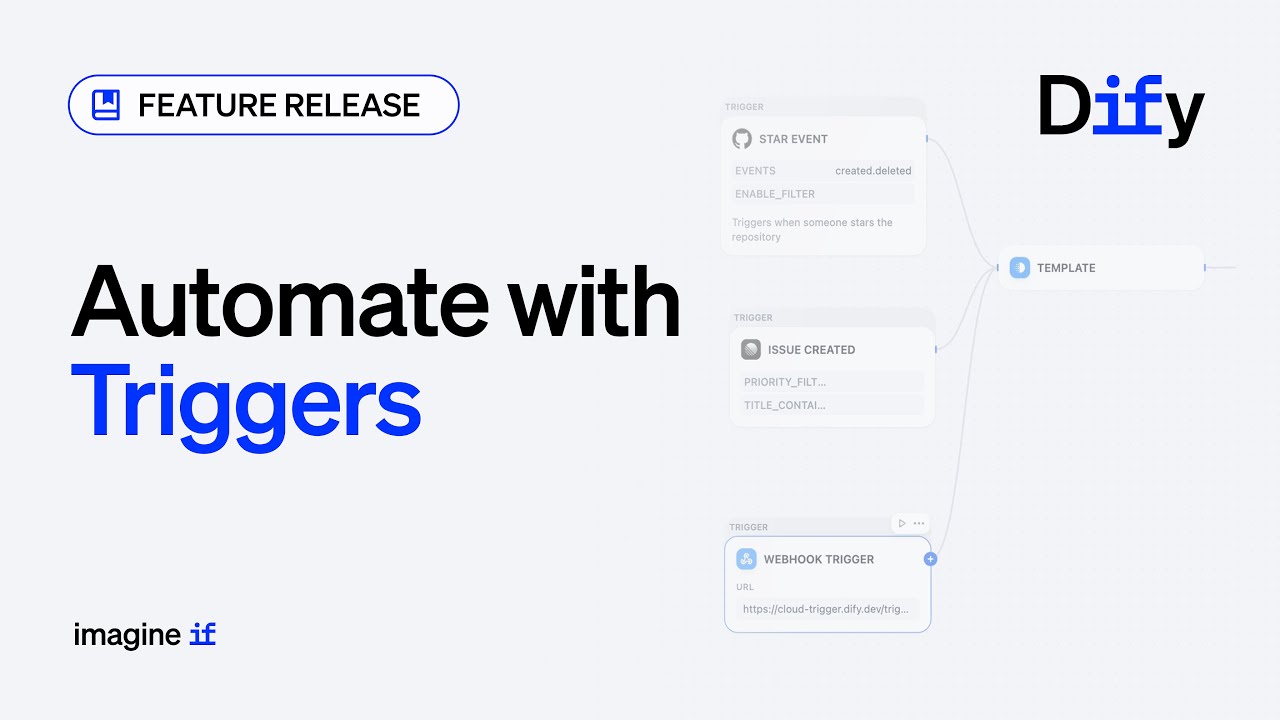
Triggers solve this by turning “how the Workflow starts” into a first-class concept on the canvas. Instead of waiting for a manual click or API call, a Workflow can stay online in the background, listen for events, and launch automatically with the right context.
Why Triggers Matter (Especially When You Scale)
When you only have a handful of Workflows, it’s easy to keep things informal: “Run this every morning,” “Call that endpoint when a PR opens,” and so on.
But as the number of Workflows grows, the biggest pain often isn’t the internal logic—it’s the scattered trigger logic:
- Some flows are tied to UI buttons.
- Some rely on cron scripts maintained somewhere else.
- Others are called directly from business systems.
- Webhook listeners get duplicated and drift over time.
Once entry points are scattered, operational overhead explodes. It becomes difficult to answer: “Which flows fire when event X happens?”, “Where do we start debugging?”, and “Which triggers are dead or forgotten?”
The core idea behind Dify Triggers is simple: bring the decision of “when to start” back into the orchestration layer (the Workflow canvas), so you can define, filter, and route events before handing them to downstream nodes.
Where Trigger Fits Inside a Dify Workflow
With Trigger support, a Dify Workflow has two primary ways to start:
- User input (on-demand): The Workflow starts when a user (or API caller) provides input parameters. It runs once per call—ideal for interactive assistants, tools, and utilities.
- Trigger (always-on): The Workflow continuously listens to an event source. When conditions match, it converts event payloads into structured variables and launches a run automatically.
A key design advantage: you can configure multiple Triggers on the same canvas, drive different branches, and merge later if needed. That makes it easier to build one coherent automation system rather than many disconnected mini-services.
The 3 Trigger Types in Dify (v1.10.0)
Dify provides three Trigger types that cover the most common automation scenarios: time-based execution, third-party SaaS events, and custom system callbacks.
1) Scheduled Trigger (Time-Based Automation)
If your task is predictable and repetitive, Scheduled Trigger is the classic choice. It’s perfect for workflows that must run on a fixed timetable: daily, weekly, monthly—or on a precise schedule via cron expressions.
Typical use cases:
- Daily industry news brief, KPI report, or team digest delivered at a consistent time
- Weekly cleanup tasks, data sync, or log checks
- Monthly reconciliation, audit workflows, and archiving
- Recurring background jobs (cache refresh, state polling)
When it fires, it can provide useful timing variables (like timestamps) to downstream nodes—handy for querying data windows, building reports, and sending notifications.
How to set it up (high level):
- On the Workflow canvas, select the Start node
- Switch the start mode to Scheduled Trigger
- Choose a schedule (or enter a cron expression)
2) Plugin Trigger (Events from Third-Party Apps)
If the system you depend on is a popular SaaS tool and Dify already provides a Trigger-capable plugin for it, this is usually the fastest path. Plugin Triggers are designed to make event-driven automation approachable: they handle the “plumbing” like event listening, authentication, and turning raw events into clean, structured payloads.
Examples:
- GitHub: react when a Pull Request is opened, updated, closed, or merged
- Slack: trigger when your assistant is mentioned in a channel
- Helpdesk tools: trigger when a new ticket arrives
- Email / calendar services: trigger when a message is received or an event changes
A nice operational benefit: one external subscription can often fan out to multiple Workflows, so you don’t have to reconfigure the same integration repeatedly.
3) Webhook Trigger (Connect Your Own Systems)
When you need to integrate with a custom internal system—or a niche tool without a ready-made plugin—Webhook Trigger is the universal option.
Conceptually: Dify generates a unique webhook URL. When your system sends an HTTP request (commonly POST) to that URL, the Workflow starts immediately.
Why it’s powerful:
- Universal compatibility: if it can send HTTP, it can trigger Dify
- Highly customizable: you control payload format, signature model, and authorization scheme
- Fits any architecture: enterprise backends, scripts, automation platforms, even edge devices
Webhook Trigger can also be used as a two-way integration: the caller can receive the Workflow’s result (plus status/error information) back in the webhook response when appropriate.
For maintainability, it’s a best practice to define:
- Input schema: what your webhook request must contain
- Output schema: what the Workflow returns to the caller
Quick Decision Guide: Which Trigger Should You Use?
| Your need | Choose | Why |
|---|---|---|
| Periodic, time-based execution (predictable routines) | Scheduled Trigger | Reliable scheduling, supports cron for precision |
| Real-time response to common SaaS events (Slack/GitHub/Outlook/…) | Plugin Trigger | Plug-and-play: handles auth, listening, and structured payloads |
| Real-time response to custom or niche system events | Webhook Trigger | Universal HTTP interface with full control over payload + security |
Best Practices for Production-Grade Triggered Workflows
1) Filter early to reduce noise and cost
Event-driven systems can get noisy. Whenever possible, narrow down the events that should actually launch a run: branch filters, event types, draft status, PR size thresholds, specific channels, specific keywords, and so on. Fewer unnecessary runs means lower LLM cost and cleaner operations.
2) Design for idempotency (avoid duplicate side effects)
Events can be delivered more than once (retries, webhook replays, provider quirks). If your Workflow performs side effects—posting messages, creating tickets, updating databases—build an idempotency strategy: use a stable event ID + timestamp or a provider-specific delivery ID to prevent double-processing.
3) Secure webhooks with signature verification
If you use Webhook Triggers, treat the webhook endpoint like a public API surface. Implement signature verification (commonly HMAC) in a downstream step (e.g., a Code node) before doing any sensitive work. This helps ensure requests are legitimate.
4) Add minimal observability
At minimum, log: trigger type, event identifiers, run outcome, and failure reasons. If you rely on workflows operationally, add alerts for repeated failures or unusual spikes in runs.
Mini Case Study: GitHub PR Review Assistant (Trigger → LLM → Slack)
A simple 3-step workflow demonstrates the “event-driven” mindset:
Step 1: Plugin Trigger (GitHub Pull Request event)
Configure a GitHub Plugin Trigger to listen for PR lifecycle events (e.g., opened, updated/synchronized, closed, merged). Then filter to only the PRs you care about—such as non-draft PRs targeting main in a specific repository.
Step 2: LLM Analysis
Add an LLM node that reads the structured trigger variables (for example, the action taken, PR payload, repository info, and sender details). Prompt it to:
- Summarize what changed
- Highlight risks or areas that need attention
- Extract key context (title, description, files, author, branch)
- Produce a short set of reviewer-ready notes
Step 3: Post to Slack
Finally, send the LLM output to a Slack channel via an incoming webhook (or Slack integration node). Now, when a qualifying PR event happens, the workflow runs end-to-end and posts a concise review summary—often within seconds—so reviewers can triage quickly without even opening GitHub immediately.
Conclusion: Move from “Runs When Called” to “Runs When It Matters”
Triggers mark a shift from passive workflows to autonomous, event-driven AI automation:
- Scheduled runs for predictable routines
- Plugin-based runs for common third-party events
- Webhook-based runs for anything else that can send HTTP
A practical way to start: pick one small scenario (a daily digest, a Slack mention assistant, or a single webhook), move the “when to start” logic into the Workflow canvas, and expand from there.