
1. The Power of “Help me write” in Google Docs
For Project Managers and Business Analysts, one of the biggest hurdles when starting a new project is writing the initiation documents—Kickoff Docs, Proposals, or Meeting Minutes—from a completely blank page. Overcoming “Blank Page Syndrome” consumes excessive time in structuring thoughts and finding the right words.
With the introduction of the “Help me write” feature, powered by Gemini Advanced / Duet AI and natively integrated into Google Workspace, the entire document drafting process has been automated. This tool not only generates content from scratch but also refines your tone (Formalize) and interacts contextually with your entire document (via the Context-aware Side Panel).
In this guide, we will simulate a real-world document writing scenario to demonstrate how to leverage these features effectively and transparently.
2. Concrete Scenario: Web App Kickoff
We will practice generating a Project Kickoff Document for a Product Management Web Application, intended for the Board of Directors and core stakeholders.
Input Data (Rough Bullets Input):
You only need to prepare a few rough bullet points regarding the project:
- Goal: Build a web app to manage inventory, pricing, and suppliers.
- Timeline: Starts Dec 1, 2026, duration 4 months.
- Budget: $30,000 for development and hosting.
- Key Risk: Delayed integration with the legacy ERP system.
- Required Structure: Executive Summary, Project Scope, Timeline, Budget & Risks.
3. Action 1: Creating the First Draft
Use the “Help me write” feature directly on the page instead of typing everything manually.
PROMPT 1 – DRAFT: Write a formal Project Kickoff Document for a Product Management Web Application. Structure must include: Executive Summary, Project Scope, Timeline, Budget & Risks. Use the following details: – Goal: Build a web app to manage inventory, pricing, and suppliers. – Timeline: Starts Dec 1, 2026, duration 4 months. – Budget: $30,000 for development and hosting. – Key Risk: Delayed integration with the legacy ERP system.

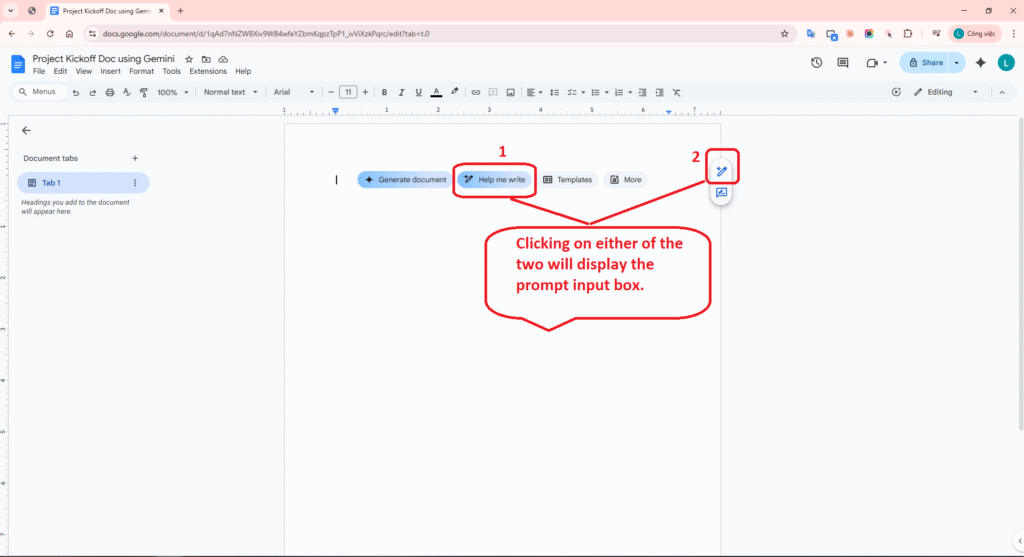
Step 1: Open the “Help me write” tool
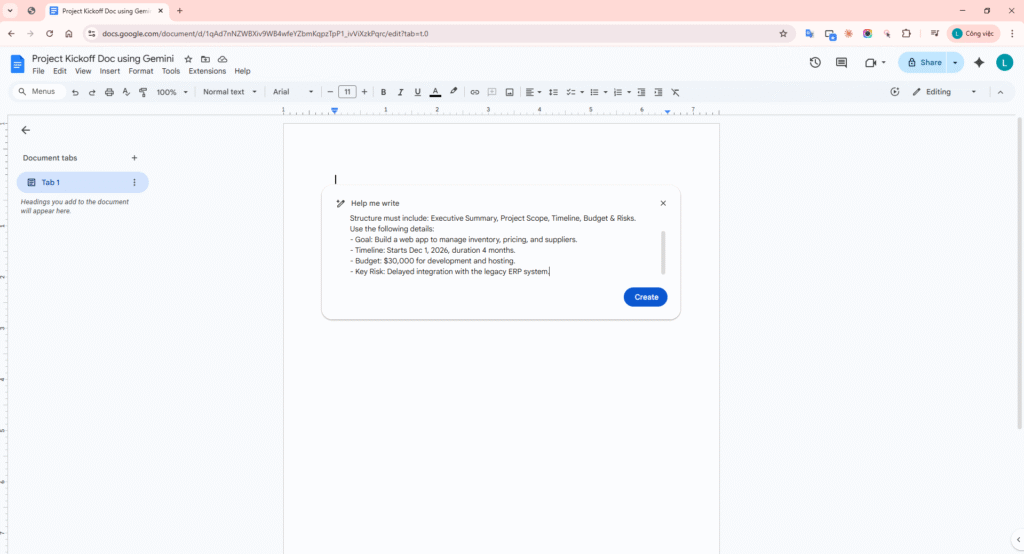
Step 2: Paste Prompt and Generate
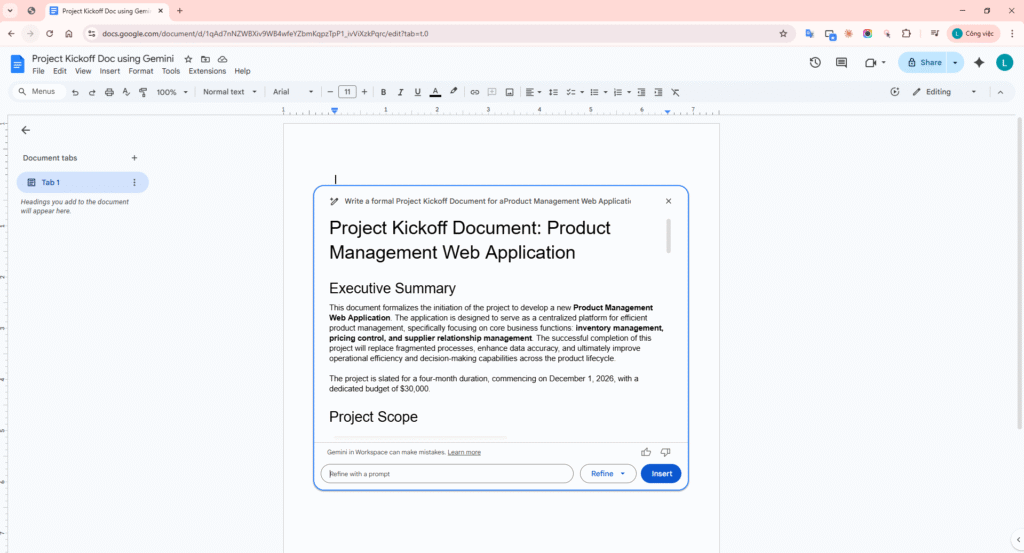
Step 3: Review the generated draft
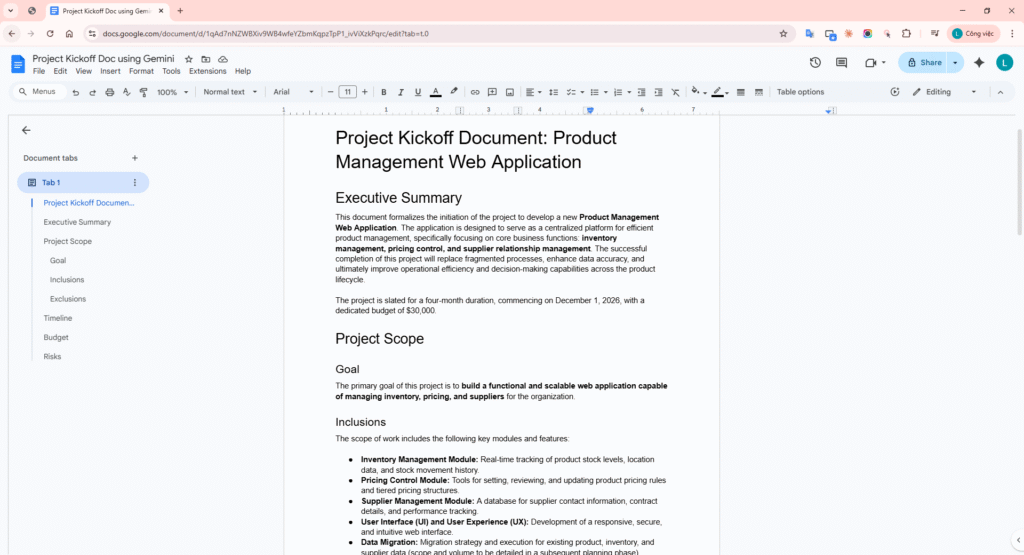
Step 4: Successfully insert into the document
4. Action 2: Tone Rewrite (Formalization)
The initially generated text might be a bit wordy or lack the required formality. We can use the Refine feature to adjust the tone of the “Executive Summary”, making the report more suitable for C-level executives.
PROMPT 2 – REWRITE: Make this executive summary more formal, concise and impactful for C-level executives.
- Highlight the Executive Summary paragraph in Docs.
- Click the sparkling pencil icon (Refine) floating next to the text.
- Enter Prompt 2 into the Modify with a prompt box (or select the preset More formal option) and hit the send arrow.
- Once generated, click Replace to overwrite the old paragraph.
Before (Draft)
“This document formalizes the initiation of the project to develop a new Product Management Web Application. The application is designed to serve as a centralized platform for efficient product management, specifically focusing on core business functions: inventory management, pricing control, and supplier relationship management. The successful completion of this project will replace fragmented processes, enhance data accuracy, and ultimately improve operational efficiency and decision-making capabilities across the product lifecycle. The project is slated for a four-month duration, commencing on December 1, 2026, with a dedicated budget of $30,000.”
After (Formalized via Gemini)
“This project formalizes the development of a centralized Product Management Web Application. The platform will integrate core business functions: inventory management, pricing control, and supplier relationship management, directly addressing current process fragmentation. Successful implementation is projected to significantly enhance data accuracy, optimize operational efficiency, and improve decision-making across the product lifecycle. The project is budgeted at $30,000, with a target completion window of four months, commencing December 1, 2026.”
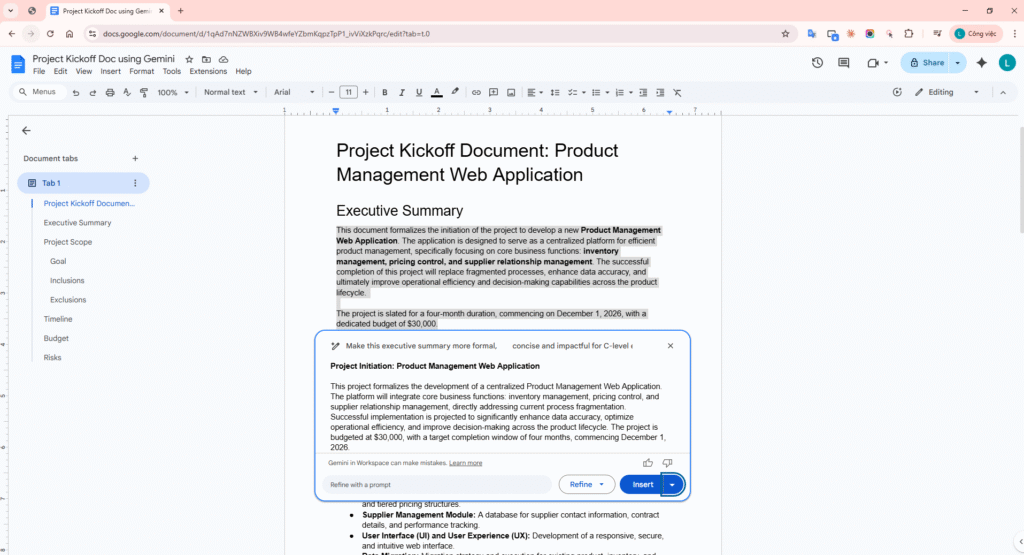
Gemini Action 2: Tone Rewrite and direct text formatting within Docs
5. Action 3: Extracting Action Items into a Table
Instead of listing the Timeline as running text, you can ask the Gemini Side Panel to locally extract the text regarding milestones into a clearly formatted table.
PROMPT 3 – EXTRACT: Extract the project timeline and milestones from the document into a table with 3 columns: Phase, Duration, and Deliverables.
Note: The Side Panel (sparkling star icon in the top right) is highly context-aware and can read the entire current document to extract and format data accurately.
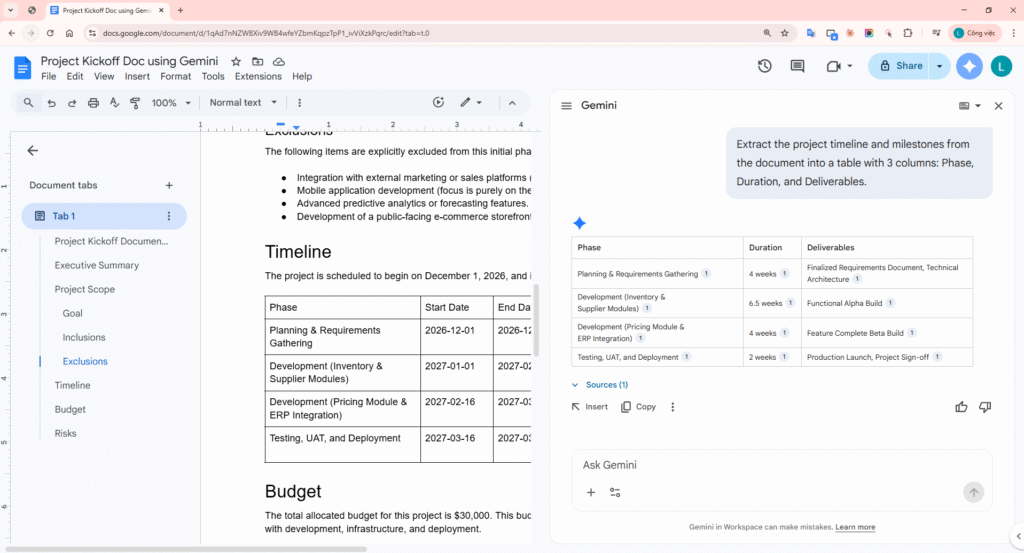
Gemini Action 3: Extracting a timeline table using the Side Panel
File docs: Project Kickoff Doc using Gemini
6. Action 4: Drafting a Share Email using “Help me write” in Gmail
The Google Workspace ecosystem provides seamless integration. After completing the Kickoff Document in Google Docs, the most natural next step is to open Gmail and send this attached report to the Board of Directors.
PROMPT 4 – GMAIL DRAFT: Write a formal email to the C-level executives attaching the completed Project Kickoff Document for the new Product Management Web App. Keep it concise, mention the $30k budget and 4-month timeline, and ask for their final approval.
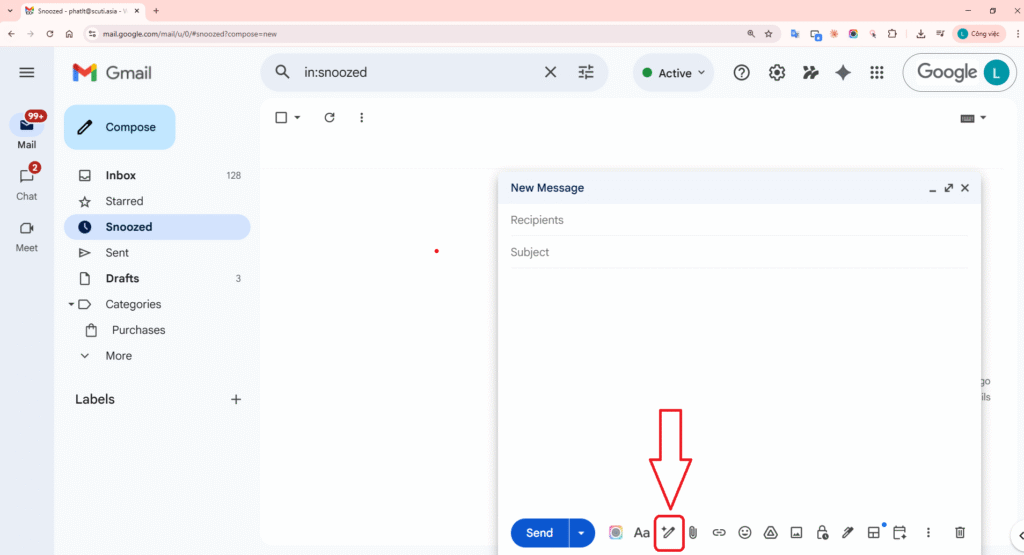
Step 1: Invoke the email generator
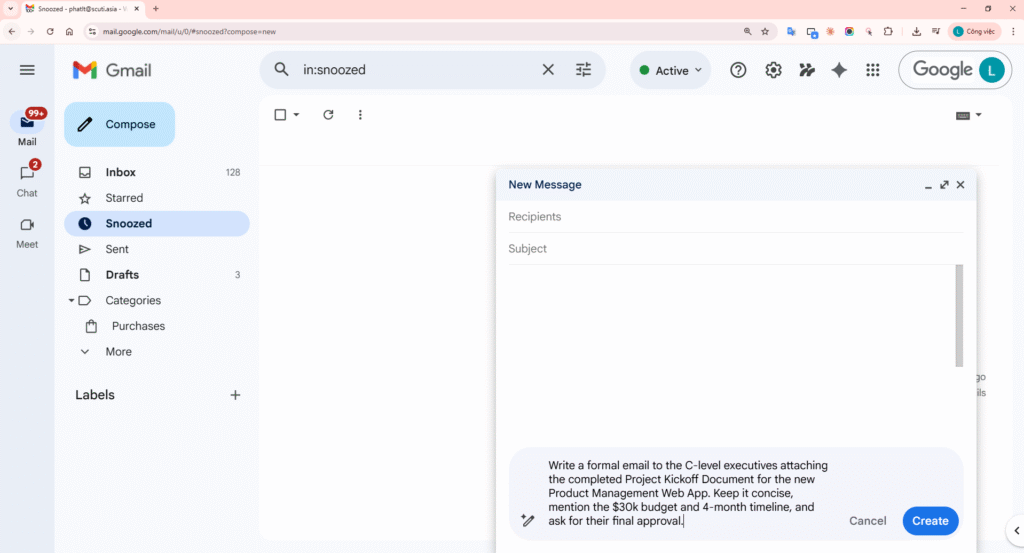
Step 2: Instruct the AI
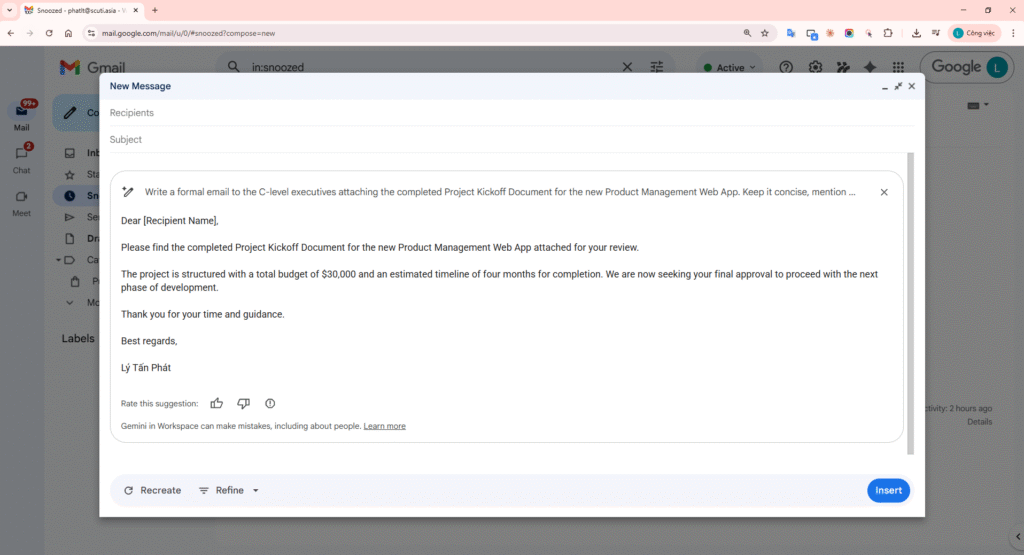
Step 3: Refine email tone
7. Quality Gate: Validating 5 Factual Claims (No Hallucination)
The biggest enemy of Generative AI is Hallucination (inventing fake information). A professional tool must ensure 100% adherence to the input data. Below is a Quality Gate evaluating 5 factual claims from the Gemini-generated text against the original rough bullets.
| Claim / Element | Original Source Data | Gemini Generated Output | Validation Result |
|---|---|---|---|
| Target Product | Build a web app to manage inventory… | “…centralized Product Management Web Application.” | PASS Valid |
| Start Date | Dec 1, 2026 | “…commencing December 1, 2026.” | PASS Valid |
| Expected Duration | 4 months | “…target completion window of four months…” | PASS Valid |
| Budget | $30,000 | “…budgeted at $30,000…” | PASS Valid |
| Technical Risk | Delayed integration with the legacy ERP system | “Delayed integration with the legacy ERP system.” | PASS Accurate Meaning |
Quality Gate Conclusion:
Gemini in Google Docs did not hallucinate any out-of-scope information such as “The project utilizes React/NodeJS” or “The budget includes $5,000 for Marketing”. It retained 100% of the Core Facts from the initial rough draft and merely articulated them more professionally.
8. Conclusion & Best Practices
Applying Gemini (Help me write) in Google Docs completely transforms how we approach traditional office documentation. Compared to using external AI chatbots (like web-based ChatGPT) and manually copy-pasting back and forth, the Workspace Native solution provides a significantly smoother and more data-secure experience for enterprise users.
3 Best Practices When Using Gemini Docs:
- Provide Comprehensive Core Facts: Generative AI writes beautifully, but the content is still dictated by you. Instead of prompting “Write a kickoff for me,” always list inputs as Bullets: Write a Kickoff with… [Goal: / Time: / Budget:] to lock the AI’s logic flow.
- The One-by-One Principle with Side Panel: Utilize the Side Panel for reading/comprehension tasks based on the current context (e.g., “Summarize this file”, “Extract current risks into a table”).
- Always Review with Human-in-the-loop: The Quality Gate evaluation is a crucial step for documents sent to C-level executives or External Clients. Always visually verify numbers (Budget, Timeline) before finalizing the document.
Armed with these 3 core skills—Drafting, Tone Refining, and Side Panel Data Extraction—any PM or specialist can reduce the time required to produce a standard deliverable by up to 80%.
References
Quick tips for Gemini: How to use Gemini side panel in Google Docs
How to use Gemini AI to write (and rewrite) in Google Docs and Gmail
How to Use Google Gemini in Google Docs – Write Smarter with AI