
Introduction
Preparing a client proposal often requires information scattered across many internal documents: product specifications, previous proposal templates, meeting notes, pricing references, implementation plans, and sales feedback. Traditionally, this process takes time because team members need to manually search through multiple folders, open each file, compare the content, and then rewrite everything into a new client-specific pitch.
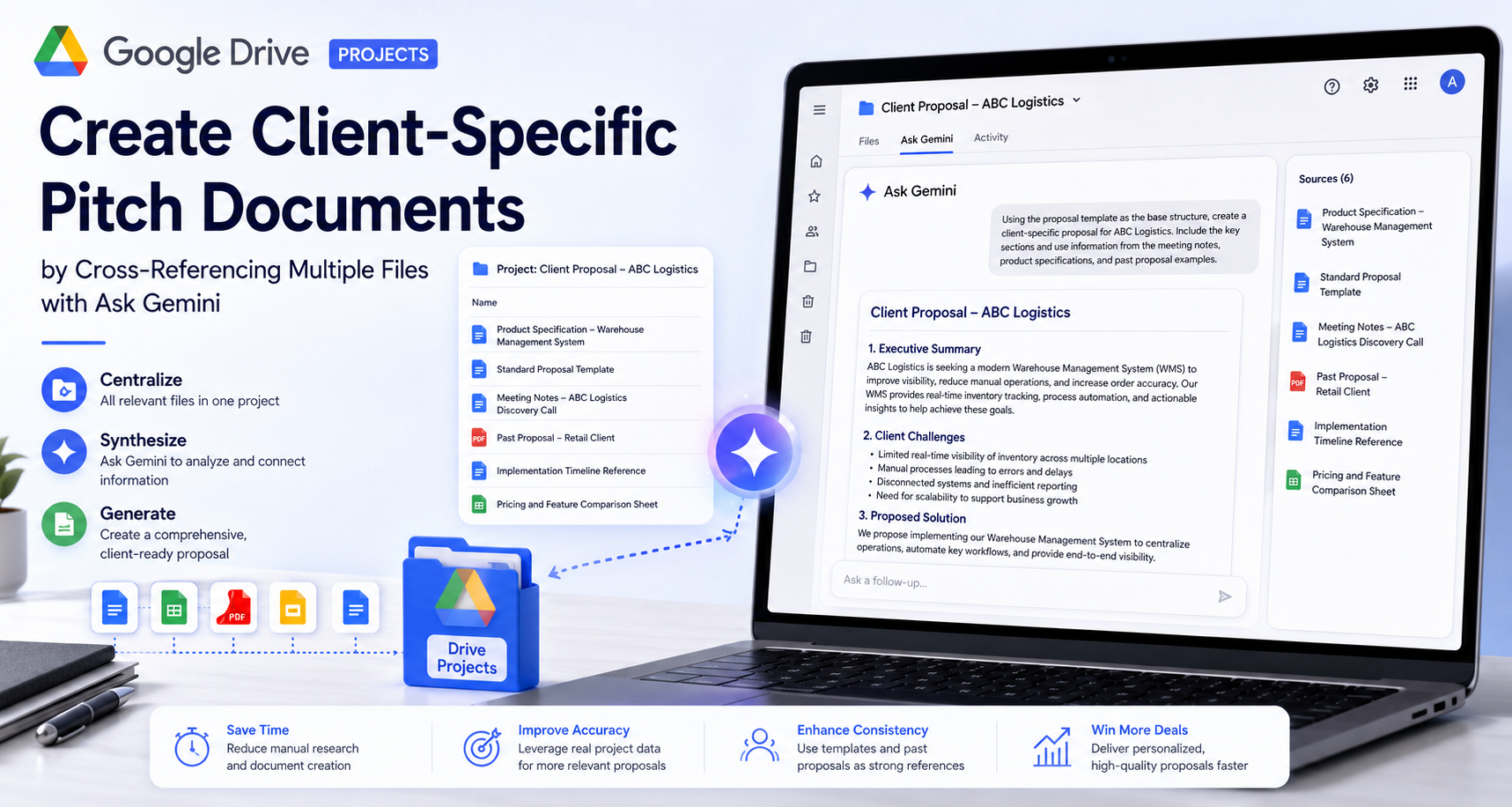
Google Drive Projects, combined with Ask Gemini, provides a more efficient workflow. By creating a dedicated Project in Google Drive, we can group relevant source files together and ask Gemini to synthesize them into a structured proposal draft. Google explains that Drive Projects allow users to lock in a specific set of source files, folders, or emails so multiple Gemini conversations can use the same foundation of documents without moving the original files.
In this article, I will walk through how to create a client-specific pitch document by using Google Drive Projects and Ask Gemini.
Goal of This Workflow
The goal is to create a new client proposal by referencing multiple internal files, such as:
- Product specification documents
- Existing proposal templates
- Past client meeting notes
- Pricing or feature comparison sheets
- Previous successful pitch decks
Instead of manually copying information from each file, we use Ask Gemini inside a Google Drive Project to analyze the selected sources and generate a comprehensive proposal draft.
Step 1: Create a New Project in Google Drive
First, open Google Drive on the web.
From the left side or the New button, create a new Project. According to Google’s documentation, new Drive Projects can currently be created only on the web version of Google Drive. Mobile users can share, rename, and manage permissions for existing projects, but they cannot create new projects from the mobile app.
For this example, I created a project named: “Client Proposal – ABC Logistics“
This project acts as a dedicated workspace for all documents related to the new proposal.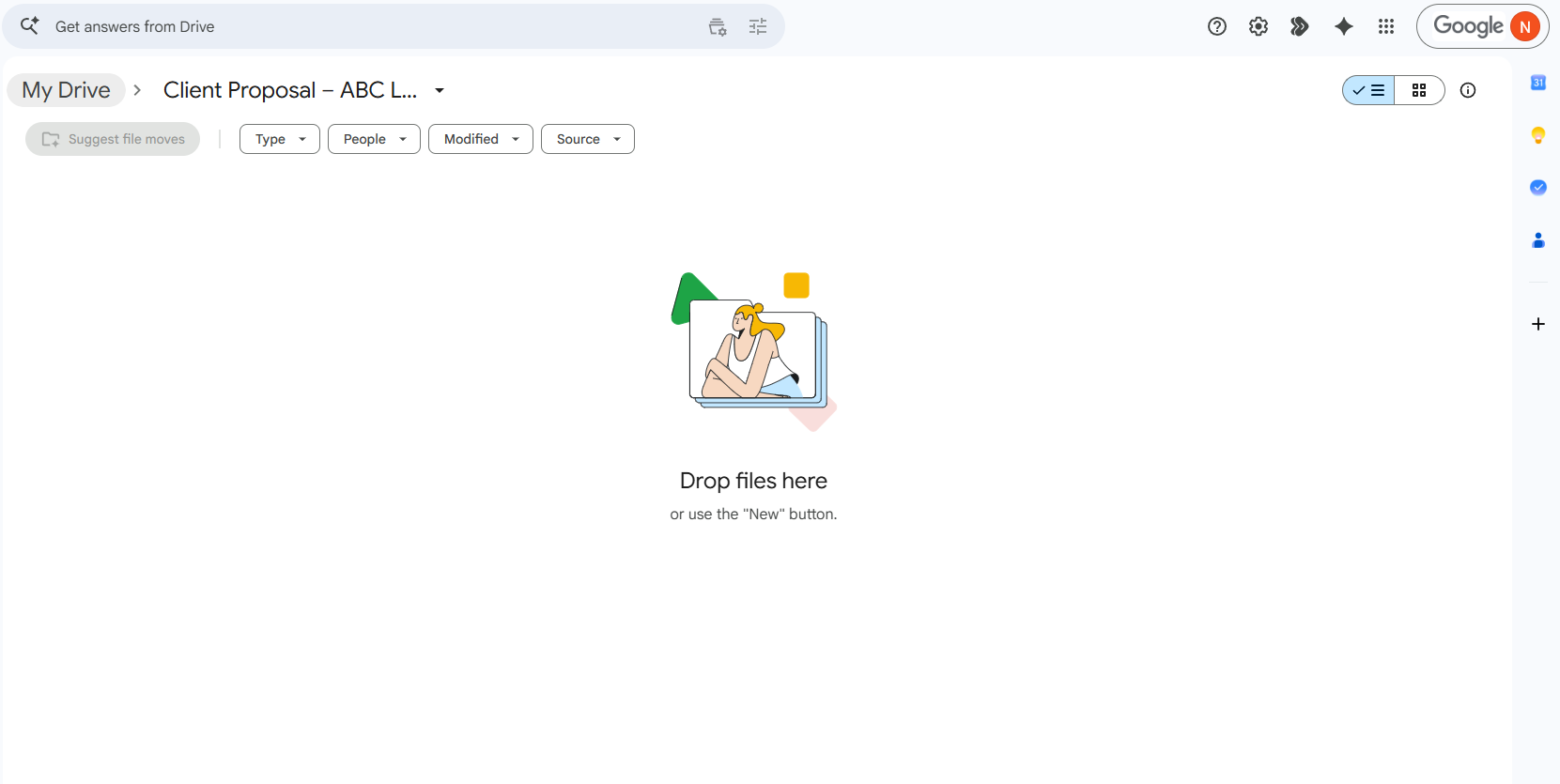
Step 2: Add Relevant Source Files
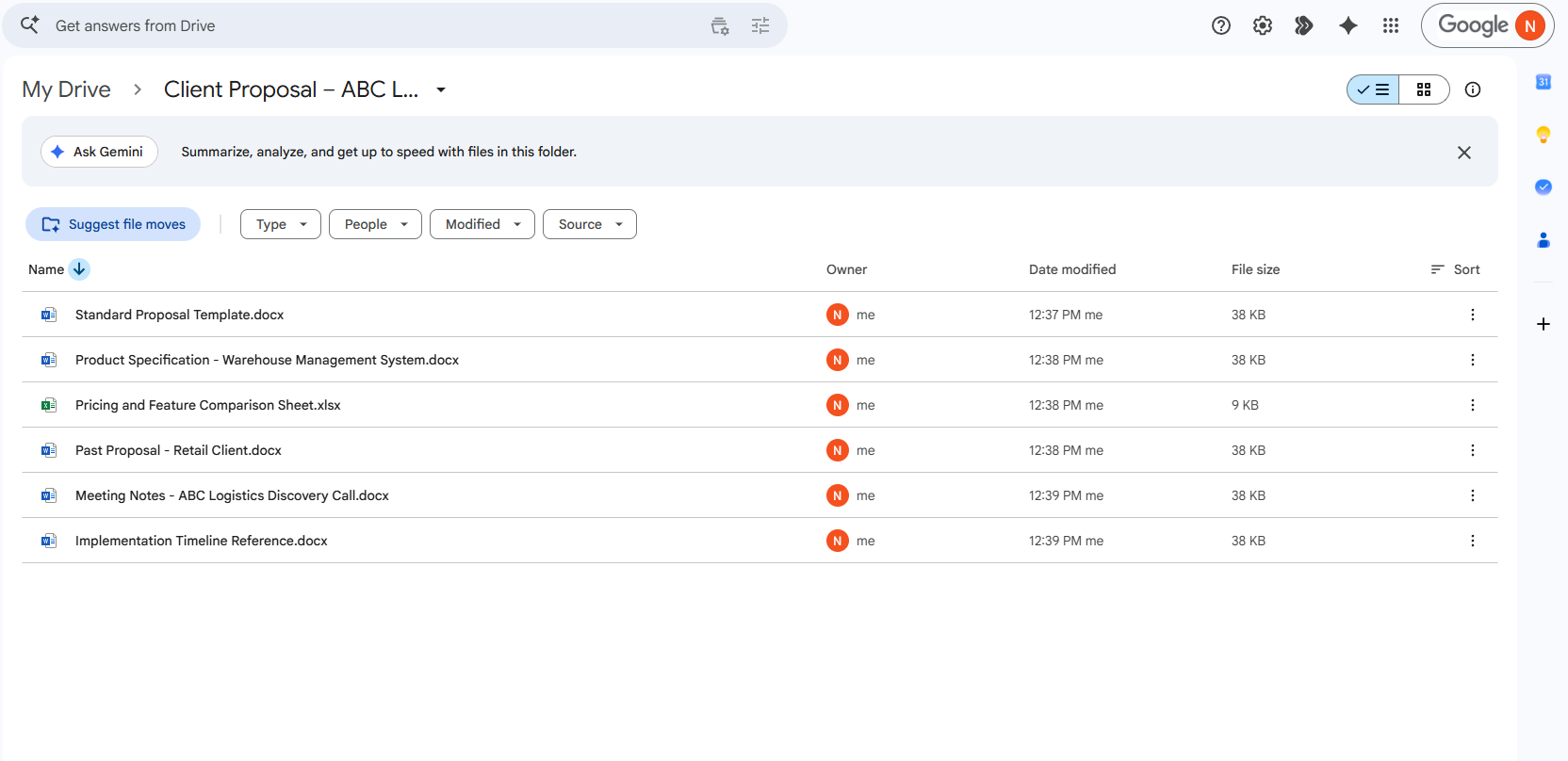
Next, I added several internal files as project sources.
Example source files:
- Product Specification – Warehouse Management System
- Standard Proposal Template
- Meeting Notes – ABC Logistics Discovery Call
- Past Proposal – Retail Client
- Implementation Timeline Reference
- Pricing and Feature Comparison Sheet
Drive Projects are useful because they do not move or change the original files. Google notes that creating a project does not affect the original file locations or permissions.
This is important for internal teams because the same files can remain in their original folders while still being grouped logically for a specific client opportunity.
Step 3: Use Ask Gemini to Understand the Client Context
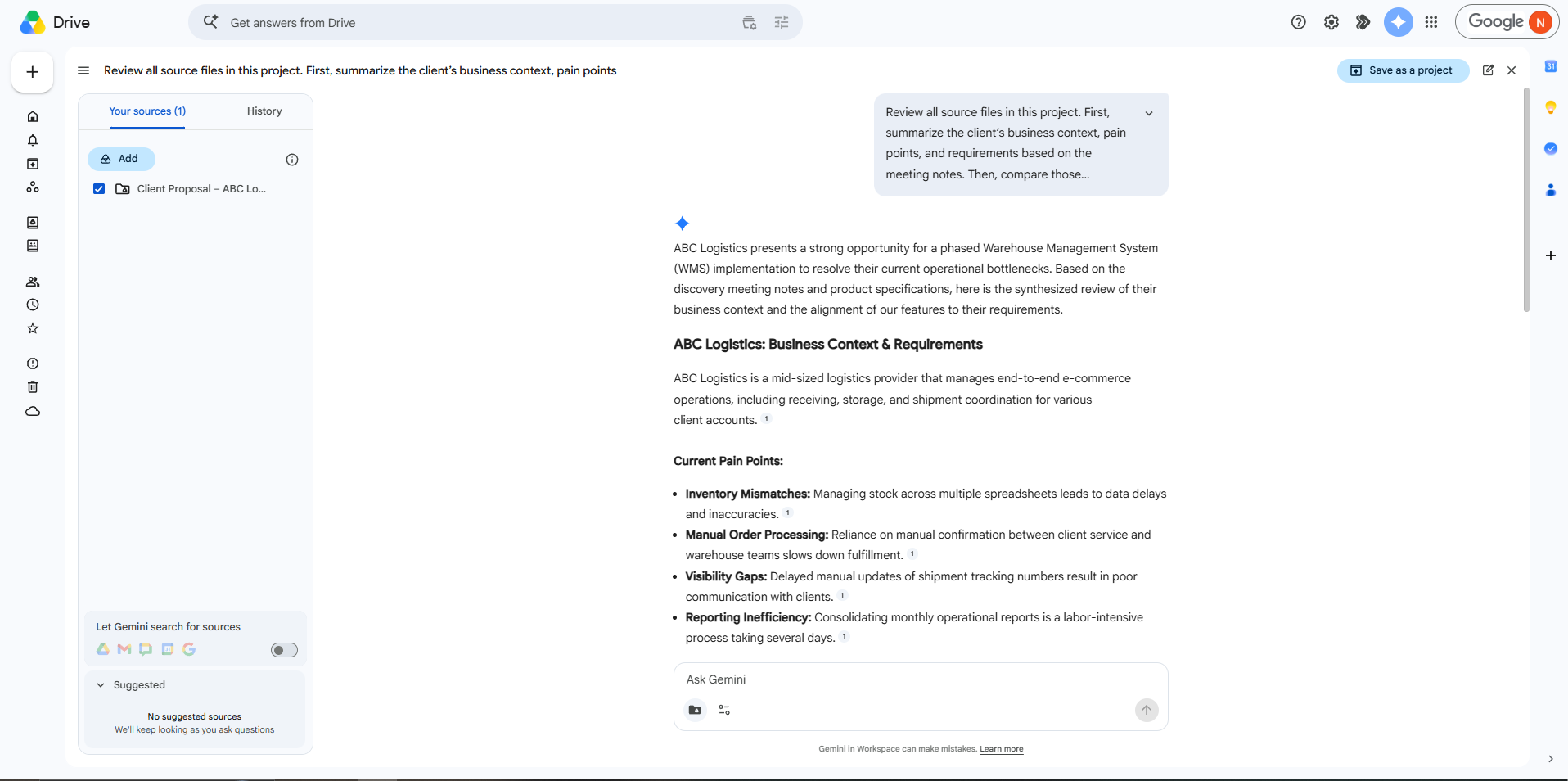
After adding the source files, I opened Ask Gemini inside the project and started with a prompt focused on understanding the client.
Example prompt:
Review all source files in this project.

First, summarize the client’s business context, pain points, and requirements based on the meeting notes.

Then, compare those requirements with our product specification document and identify which product features are most relevant for this client.
Gemini can use selected Drive files, folders, or emails as sources and help connect information across them. Google gives examples such as preparing for client meetings by adding pitch decks, client emails, and historical contracts, then asking Gemini to synthesize feedback and requirements.
The output helped identify:
- The client’s main operational problems
- The most relevant features from our product
- Potential gaps that should be clarified before final submission
- Strong selling points based on previous successful proposals
Step 4: Generate the First Draft of the Client Proposal
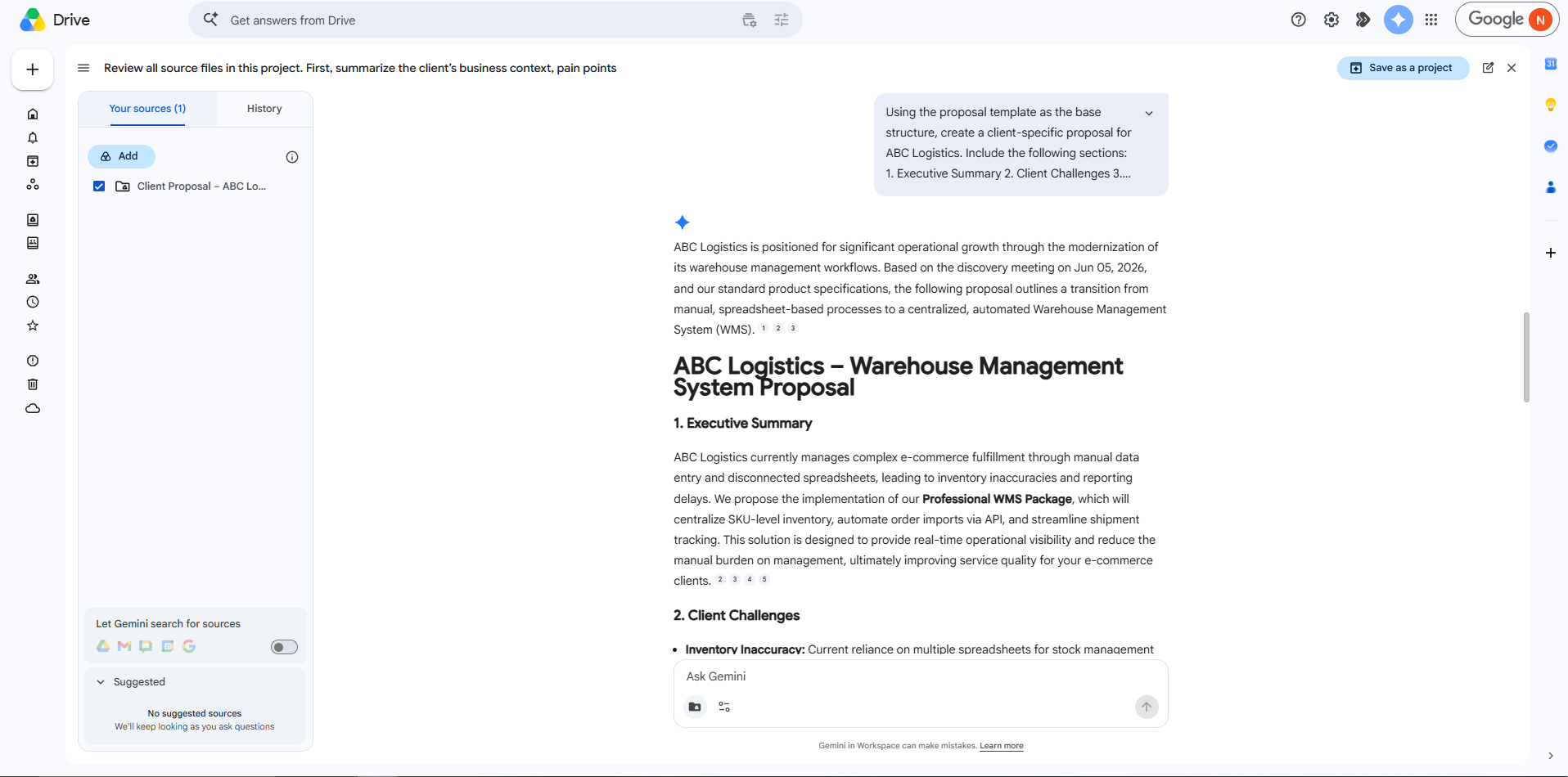
Next, I asked Gemini to generate a full proposal draft.
Example prompt:
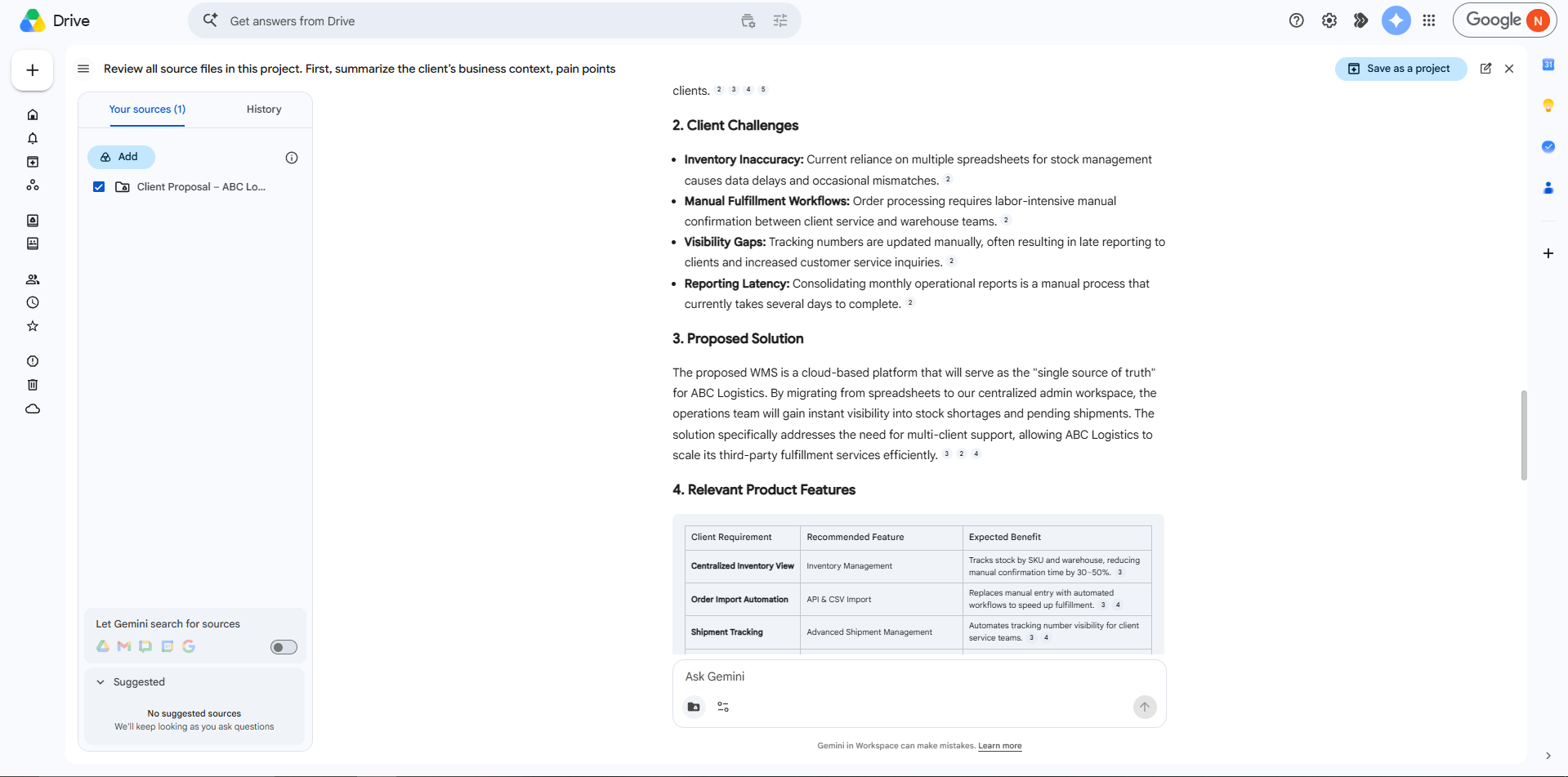
Using the proposal template as the base structure, create a client-specific proposal for ABC Logistics.

Please include the following sections:

1. Executive Summary
2. Client Challenges
3. Proposed Solution
4. Relevant Product Features
5. Implementation Approach
6. Expected Benefits
7. Timeline
8. Next Steps

Use information from the meeting notes, product specifications, and past proposal examples.
Keep the tone professional, clear, and suitable for a business client.
Gemini produced a structured draft that combined information from multiple documents. Instead of starting from a blank page, the team now had a solid first version of the proposal.
The draft still required human review, especially for pricing, contractual terms, and technical commitments, but the initial writing and information-gathering process became much faster.
Step 5: Refine the Proposal with Follow-Up Prompts
After generating the first draft, I refined it with more specific prompts.
Example prompt for risk checking:
Review the proposal draft and identify any claims that are not clearly supported by the source documents.
List the sections that require human confirmation before sending to the client.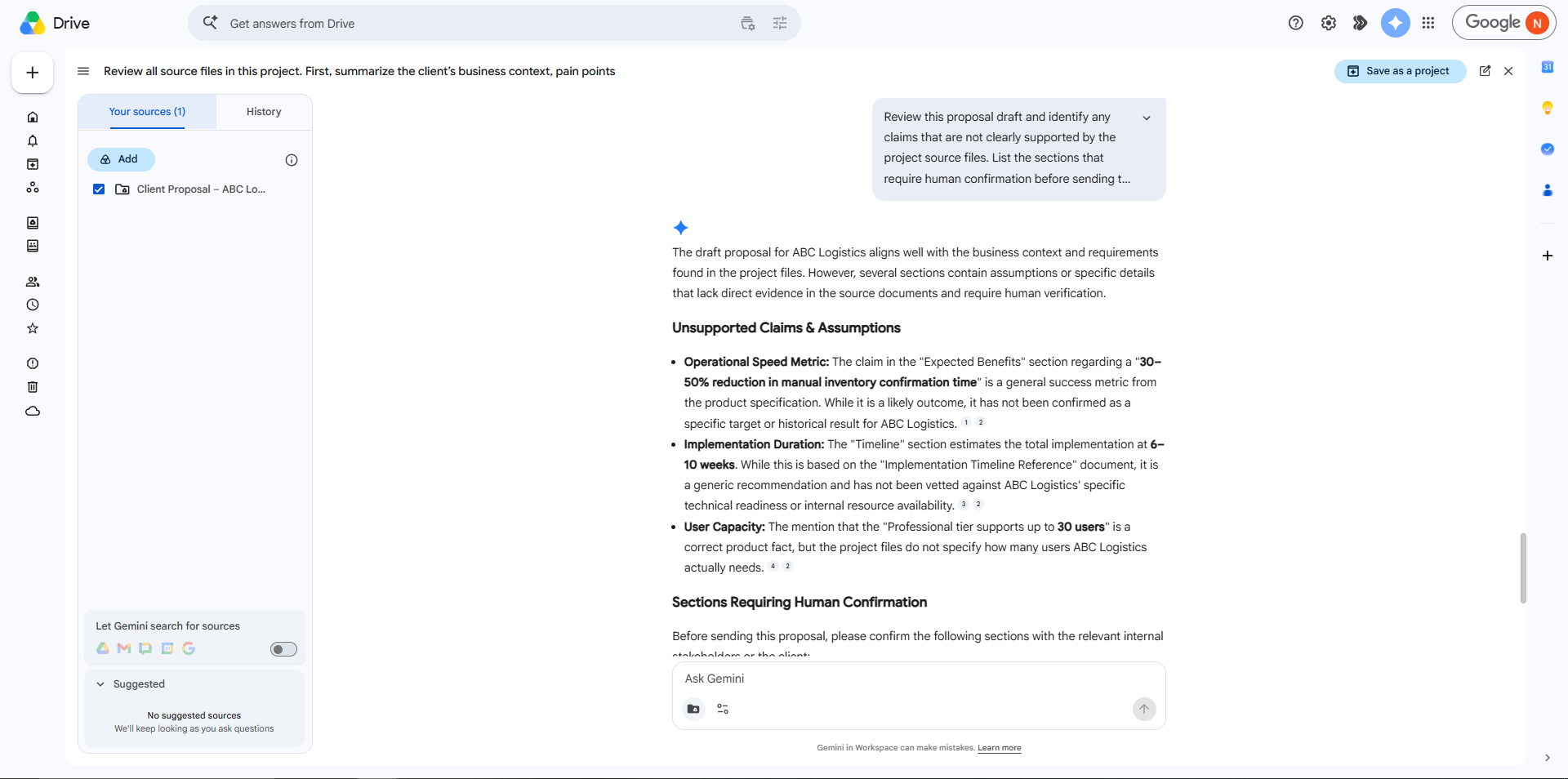
This iterative process is one of the most useful parts of Ask Gemini. Instead of only generating text once, the team can continue asking follow-up questions while keeping the same source documents active in the project.
Google also mentions that Gemini conversation history can be resumed, allowing users to continue research without losing context.
My Analysis: How Cross-File Synthesis Improves Team Efficiency
The biggest benefit of Google Drive Projects is that it reduces the time spent searching and comparing documents manually.
In a routine sales process, important information is often spread across many places. A salesperson may have the meeting notes, the technical team may own the product specification, and the project manager may have past implementation timelines. Without a shared synthesis workflow, creating a proposal requires many manual checks and internal messages.
With Drive Projects, all relevant documents can be grouped into one project. Ask Gemini can then summarize, compare, and extract key points across those files. This helps the team move faster from “collecting information” to “reviewing and improving the proposal.”
It can also improve accuracy. Because Gemini can answer based on selected project sources, the draft is more likely to reflect the actual documents provided instead of relying only on memory or generic assumptions. The citation feature is especially useful because team members can trace important claims back to the original files before sending anything to the client.
For sales teams, this workflow can help create more personalized proposals. Instead of reusing the same generic template, the team can quickly adapt the proposal to the client’s real pain points from meeting notes.
For reporting teams, the same approach can be used to synthesize monthly reports, meeting notes, KPI sheets, and project updates. This can make routine reporting faster and more consistent.
Practical Use Cases for Our Team
This workflow can be applied to several internal tasks:
1. Sales Proposal Creation
The sales team can create client-specific proposals by combining meeting notes, service documents, product specs, and previous successful proposals.
2. Client Meeting Preparation
Before a meeting, the team can ask Gemini to summarize previous discussions, open questions, and relevant product features.
3. Monthly Reporting
Project reports, task updates, and KPI files can be grouped into a Drive Project, then summarized into a monthly report draft.
4. Internal Knowledge Sharing
New members can use a shared Drive Project to understand a client, project, or product area more quickly.
5. Proposal Quality Review
Before sending a proposal, the team can ask Gemini to identify unsupported claims, missing details, or sections that need confirmation.
Important Notes and Limitations
Although this workflow is powerful, human review is still required.
AI can generate a strong first draft, but the final proposal should always be checked by the responsible team members. Pricing, legal terms, delivery timelines, and technical commitments should be reviewed carefully before being sent to a client.
Permissions are also important. Google notes that collaborators must already have permission to view the original source files. If they do not have access to the underlying Drive files, they cannot use those files in Gemini conversations.
Therefore, teams should manage file access properly before sharing a project.
Conclusion
Google Drive Projects and Ask Gemini can make proposal creation faster, more organized, and more accurate.
By grouping product specifications, proposal templates, meeting notes, and past client documents into a single project, teams can use Gemini to synthesize information across multiple files and generate a strong first draft for a client-specific pitch.
For routine sales and reporting processes, this can reduce repetitive manual work, improve consistency, and help teams produce better documents with less effort.