1. Introduction — Why Create Slides One at a Time?
Gemini in Google Slides does not support generating entire presentations (full decks) from a single prompt. Instead, it follows a “one slide at a time” model — creating individual slides, letting you review, edit, and refine step by step.
This approach actually has advantages:
- Granular control: Review each slide before moving to the next
- Iterative refinement: Easy to “Retry” or tweak prompts per slide
- Hybrid workflow: Insert AI slide, then manually edit before continuing
- Integrated image generation: Create images directly within Slides using Imagen 3
Demo topic: “AI-Powered Customer Service — Transforming Support with Gemini” (a mini-presentation about AI in customer service).
2. Requirements & Setup
2.1 Required Subscription
| Plan | Gemini in Slides? | Image Generation? | Price (approx.) |
|---|---|---|---|
| Free Gmail (personal) | No | No | $0 |
| Google One AI Premium | Yes | Yes | $19.99/month |
| Google Workspace Business Standard+ | Yes (admin-enabled) | Yes | $14+/user/month |
| Google Workspace with Gemini add-on | Yes | Yes | Varies by plan |
2.2 Enable Smart Features in Gmail
Gemini won’t work in Slides even after paying unless you enable:
- Open Gmail → Settings (gear icon) → See all settings → General tab
- Scroll near the bottom of the page and find these 2 settings:
- “Smart features” — check the box for “Turn on smart features in Gmail, Chat, and Meet”
- “Google Workspace smart features” — click the “Manage Workspace smart feature settings” button to open its configuration and enable personalization across Workspace & other Google products
- Scroll to the bottom and click “Save Changes”
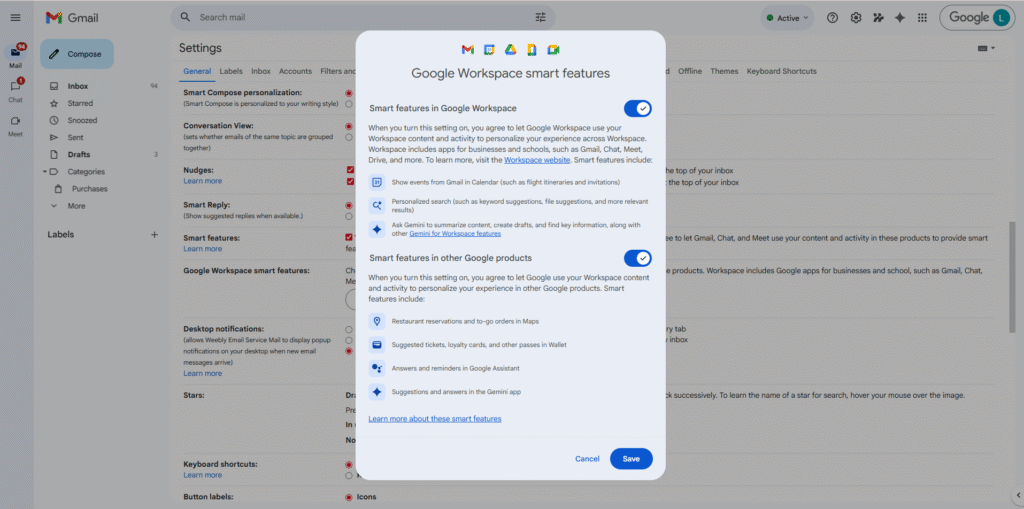
Image 1: Enable Smart Features in Gmail → Settings → General
2.3 Verify the Gemini Icon
After enabling, open Google Slides → create or open a presentation. You should see the Gemini icon (sparkle/star shape) in the top-right corner. Click it to open the side panel.
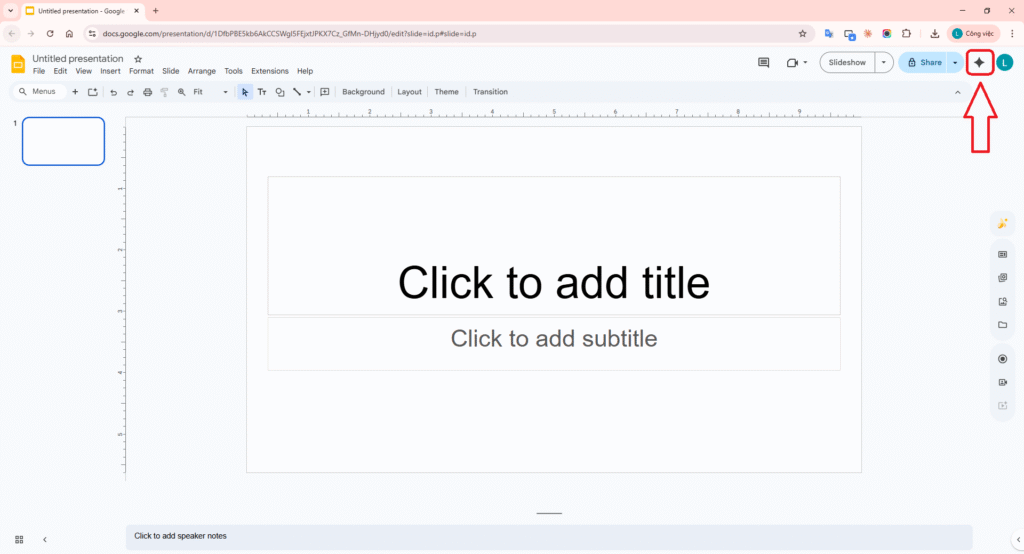
Image 2: Gemini icon appears in the top-right corner of Google Slides
3. Gemini Interface in Google Slides
Clicking the Gemini icon opens a side panel on the right with these main functions:
| Function | Description | How to Access |
|---|---|---|
| Create a slide | Generate 1 new slide from a text prompt | Gemini panel → “Create” tab or type directly |
| Generate image | Create AI images from text prompt (1 image per prompt) | Gemini panel or Insert → Image → Help me visualize |
| Edit image | Modify inserted images (add/remove elements, remove background) | Click image → Gemini edit options |
| Write / Brainstorm | Write text, brainstorm ideas, create lists | Gemini panel → “Write” tab |
Key point: Gemini creates one slide at a time (not full decks). After generation, choose “Insert” to add it to your deck, “Retry” for a new attempt, or “Discard” to reject it.
3.1 Two Ways to Generate Images in Slides
- Via Gemini side panel: Type an image description → Gemini generates 1 image → choose to Insert or edit prompt
- Via Insert menu: Insert → Image → Help me visualize → enter prompt → choose aspect ratio (Tall 9:16, Wide 16:9, Square 1:1) → powered by Imagen 3
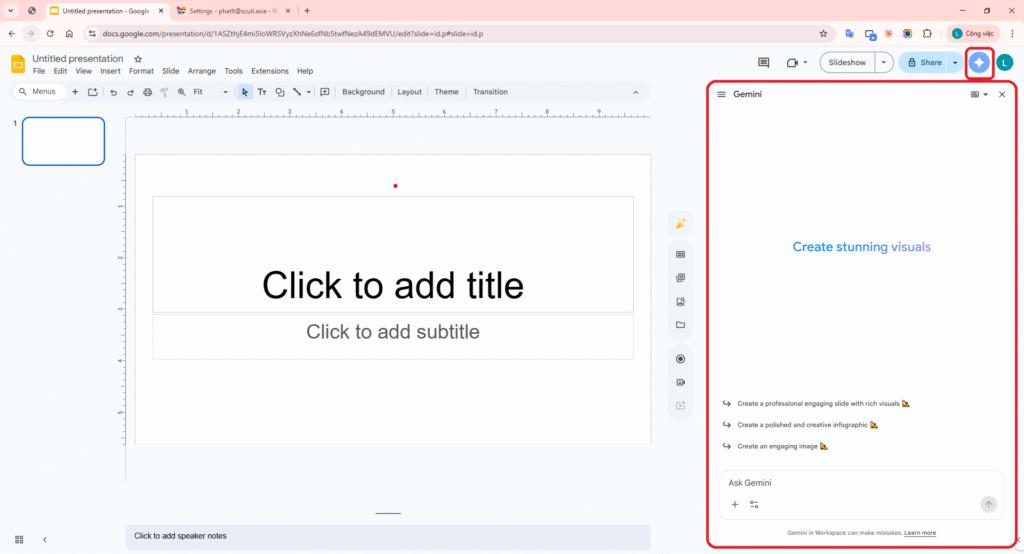
Image 3: Gemini side panel with Create, Write tabs and prompt input
Link Slides: AI-Powered Customer Service — Transforming Support with Gemini
4. Slide 1: Title / Agenda
Step A: Initial Prompt
Prompt sent to Gemini:
Create a title slide for a presentation about “AI-Powered Customer Service”. Include a subtitle “How Gemini and AI Chatbots are Transforming Support in 2026”. Use a professional, modern look with a blue gradient theme. Add an agenda with 3 bullet points: (1) Current challenges in customer service, (2) AI solutions and live demos, (3) Implementation roadmap and next steps.
1-A. Open Google Slides, create a new blank presentation.
2-A. Click the Gemini icon (top-right) → open side panel.
3-A. Paste the prompt above into the input field → press Enter or click Create.
4-A. Gemini processes for a few seconds, then displays a slide preview.
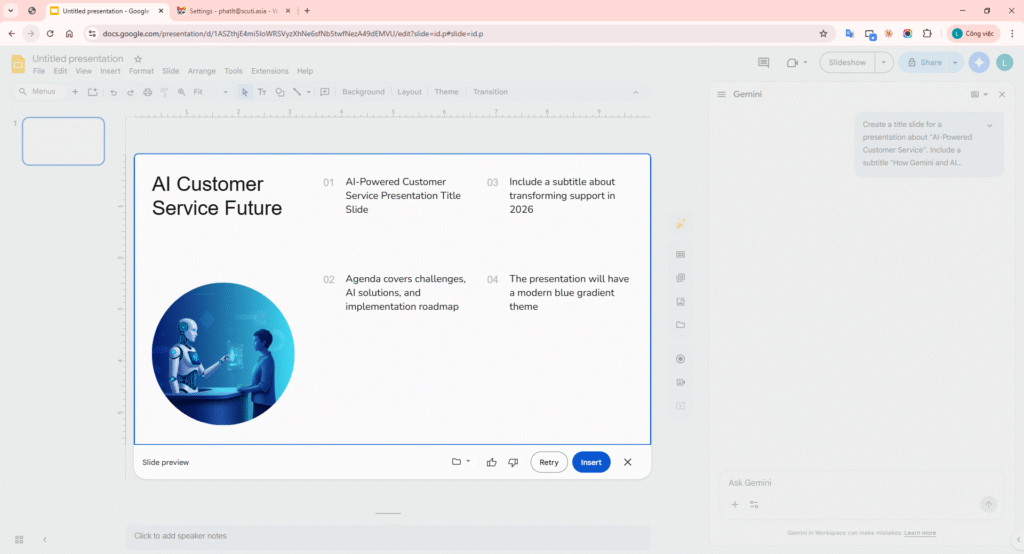
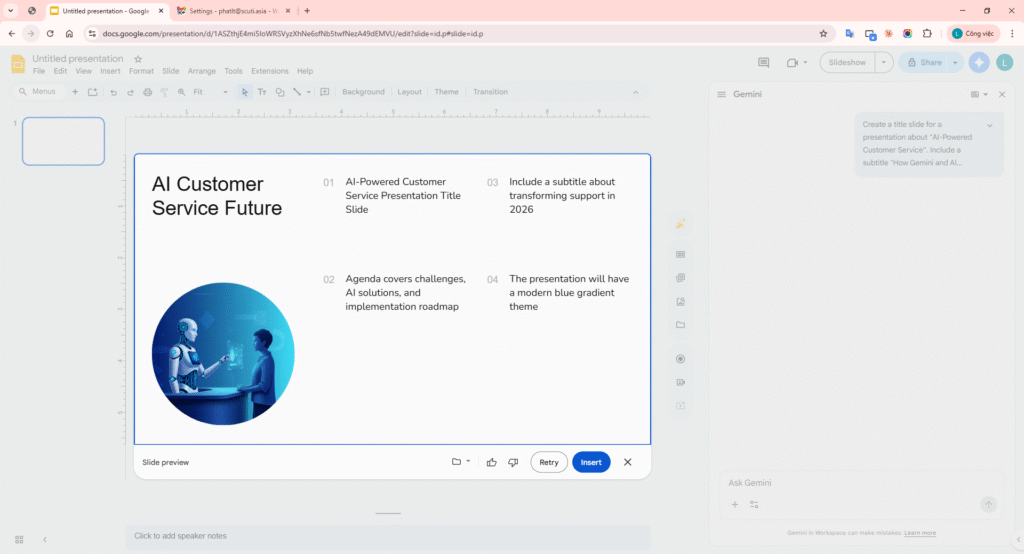
Image 4: Slide 1 first attempt — basic layout, agenda text too small
Step B: Refinement Iteration
Assessment & Re-prompt
Issues: Agenda bullets too small, no visual elements, monotone background.
Re-prompt sent to Gemini:
Retry this slide. Make the agenda bullet points larger and more prominent — use numbered items with bold text. Add a professional AI-themed icon or image on the right side. Keep the blue gradient but make it more visually dynamic.
1-B. Click “Retry” (don’t Insert the first version).
2-B. Paste the new re-prompt → Enter.
3-B. Gemini regenerates with improved layout.
BEFORE (Attempt 1)
- Agenda text small, hard to read
- Simple gradient background
- No images
- Layout: text-only, centered
AFTER (Attempt 2 — refined)
- Agenda bullets larger, numbered, bold
- Added AI-related stock image/icon
- More balanced layout (text left, visual right)
- Gradient with added shape decorations
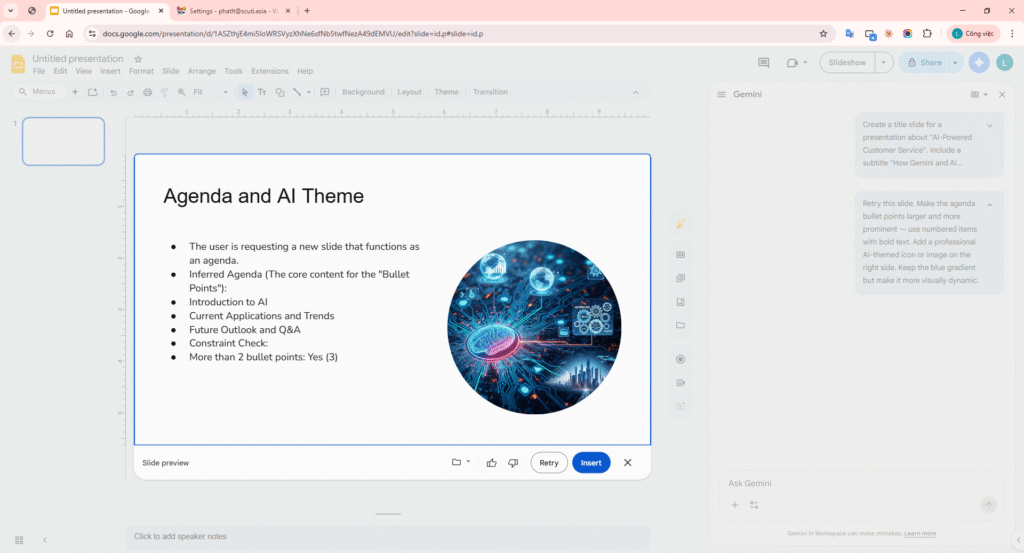
4-B. Acceptable result → Click “Insert” to add the slide to the deck.
Observation: Gemini noticeably improved the layout after refinement, but you cannot specify exact fonts, colors, or pixel positions. After inserting, manually adjust font size and alignment in the Google Slides editor.
5. Slide 2: Content Slide with Diagram / Visual
Step A: Initial Prompt
Prompt sent to Gemini:
Create a content slide titled “How AI Chatbots Handle Customer Queries”. Show a 4-step process flow: (1) Customer sends message, (2) AI analyzes intent and sentiment, (3) AI generates personalized response, (4) Escalate to human agent if needed. Use a clean layout with icons or a simple diagram. Include a stat: “AI chatbots resolve 73% of queries without human intervention”.
- Still in the same presentation, click Gemini → type the prompt above.
- Press Enter and wait for Gemini to generate.
First Attempt Result
- Title “How AI Chatbots Handle Customer Queries” — correct
- 4 steps displayed as a vertical bullet list instead of a process flow/diagram
- 73% stat present but not highlighted (same font size as body text)
- No icons or diagram — Gemini only outputs text-based slides
- White background, quite plain
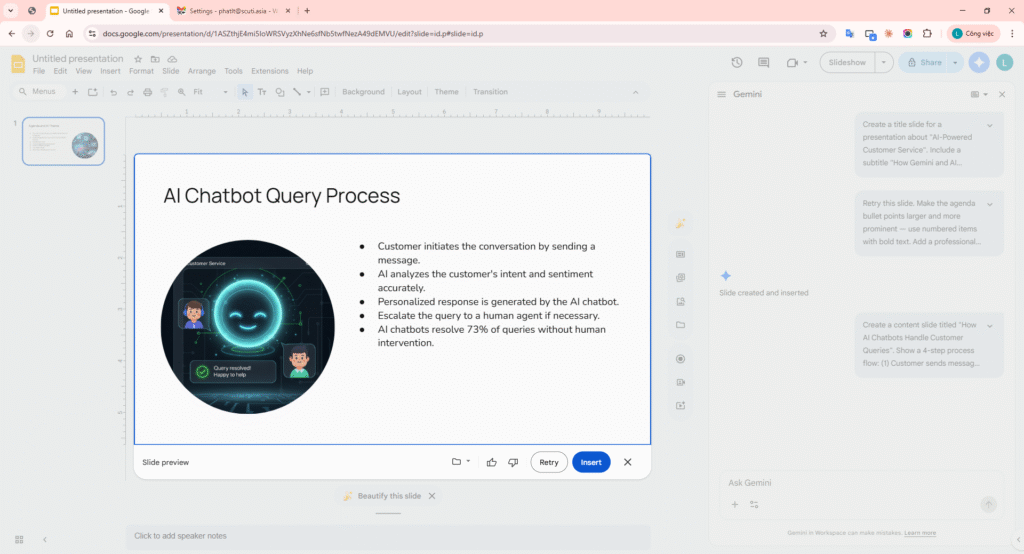
Image 5: Slide 2 first attempt — Gemini produces bullet list instead of diagram
Important limitation: Gemini cannot create actual diagrams, flowcharts, or process flows in Slides. It only outputs text-based content. For diagrams, you need to manually draw with Shapes/Arrows after inserting, or generate a diagram image separately (see Image Generation section).
Step B: Refinement Iteration
Re-prompt sent to GeminiRetry. Make this slide more visual. Instead of a bullet list, present the 4 steps as a horizontal process with arrows between them. Make the 73% statistic bold and large at the bottom. Use a light blue background.
BEFORE (Attempt 1)
- Vertical bullet list, text-only
- 73% stat blends into text
- No visual elements
- White, plain background
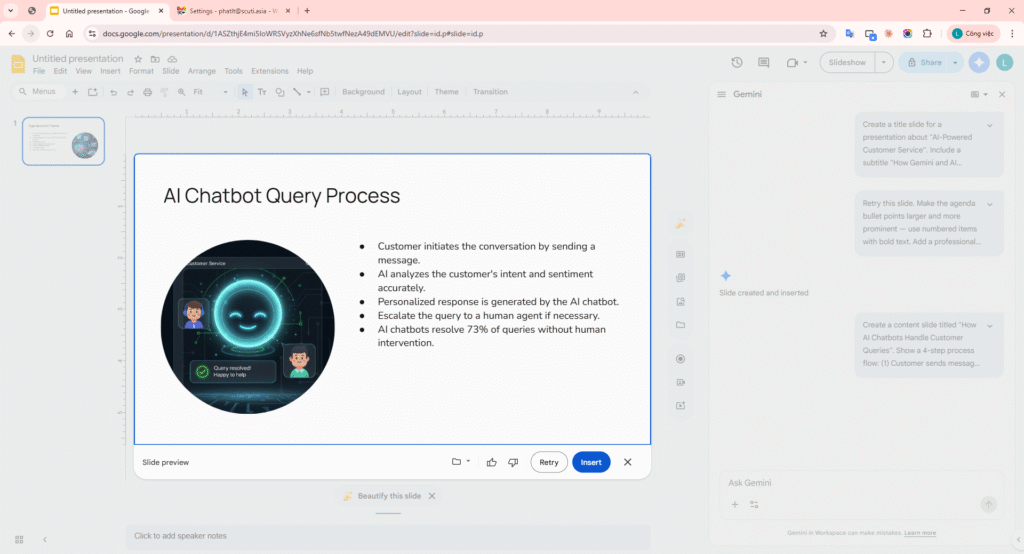
AFTER (Attempt 2 — refined)
- 4 steps displayed as horizontal columns (closer to process flow)
- Numbered 1-2-3-4 with separate headings per step
- 73% stat displayed larger, bold
- Light blue background — matches request
- Still no arrows or icons (limitation)
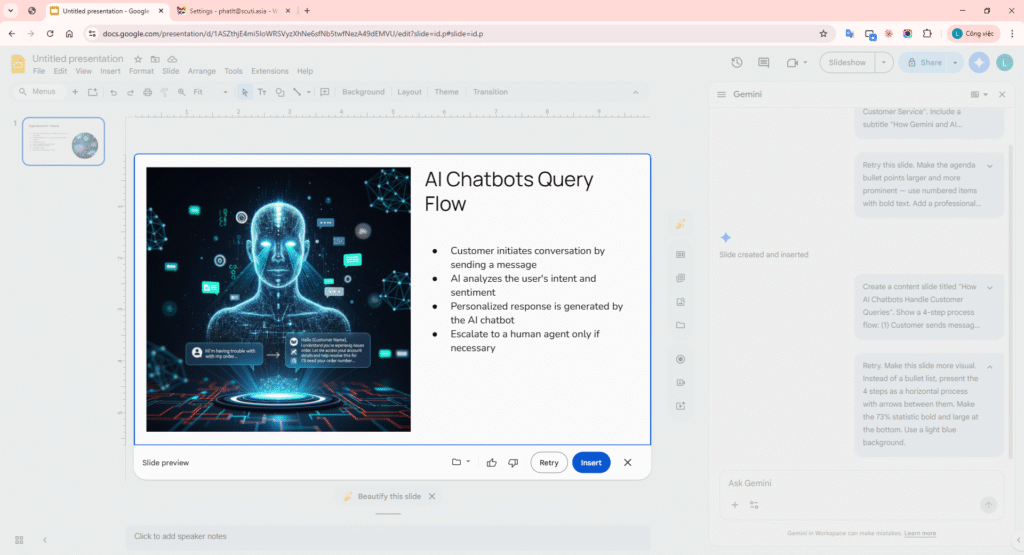
Second attempt is better but still missing arrows/icons. Click “Insert” then manually add arrows via Insert → Shape → Arrow.
6. Slide 3: Closing / Call-to-Action
Step A: Initial Prompt
Prompt sent to Gemini:
Create a closing slide for the presentation. Title: “Ready to Transform Your Customer Service?”. Include 3 call-to-action items: (1) Schedule a demo with our AI team, (2) Start a free 30-day trial, (3) Download the implementation guide. Add contact info: email [email protected], website www.company.com/ai. Use a bold, impactful design with dark background.
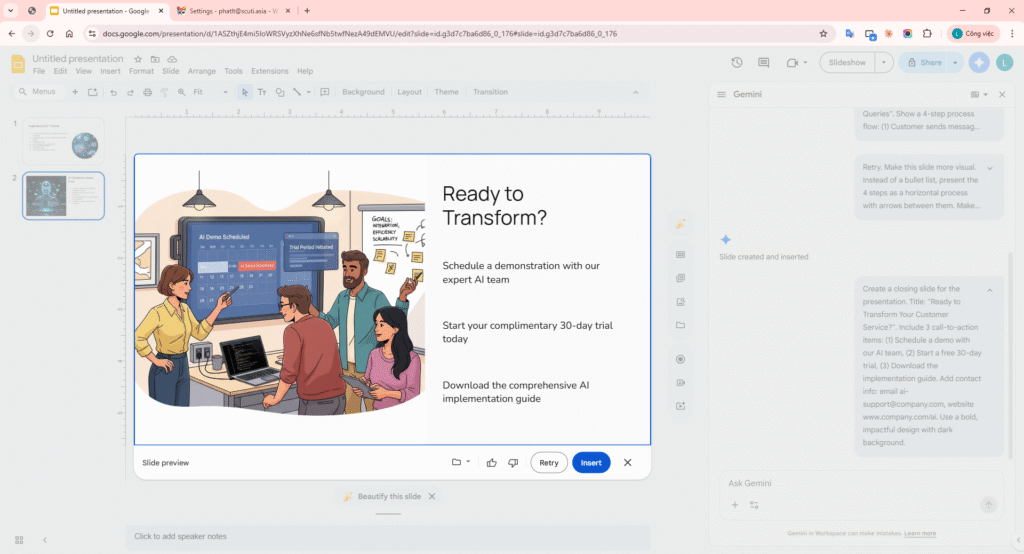
First Attempt Result
- Title “Ready to Transform Your Customer Service?” — correct
- 3 CTA items displayed as bullet points
- Contact info present but email and website are not hyperlinks (plain text only)
- Background: still light, not the dark background requested
- Design is basic, not “bold and impactful”
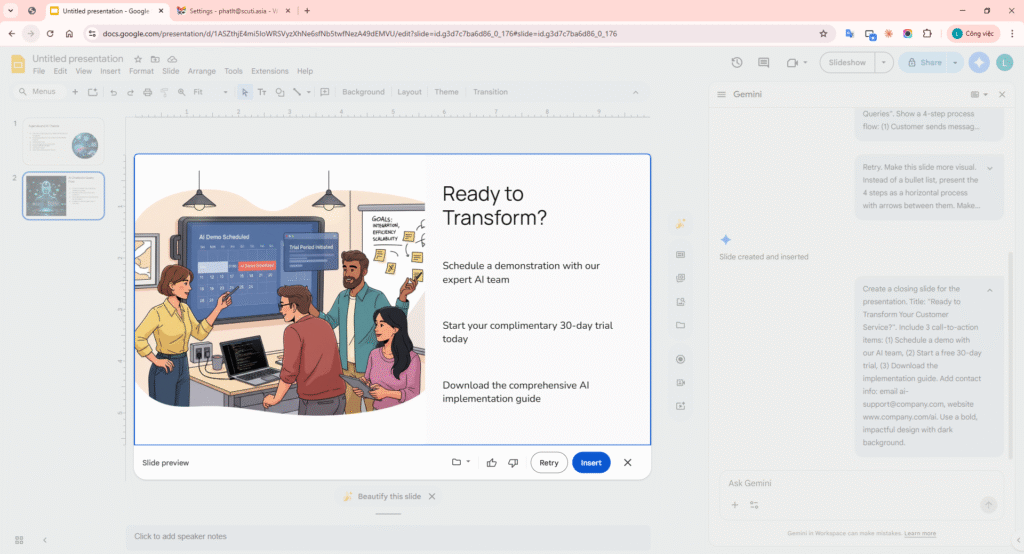
Image 6: Slide 3 first attempt — CTAs present but design lacks impact
Step B: Refinement Iteration
Re-prompt sent to GeminiRetry. I need a dark navy blue or black background with white text for high contrast. Make the 3 CTAs stand out as individual cards or blocks with icons. Make the title text very large and bold. Put the contact info in a subtle footer area.
BEFORE (Attempt 1)
- Light background (Gemini ignored dark request)
- CTAs as regular bullets
- Contact info mixed with content
- Lacks visual impact
AFTER (Attempt 2 — refined)
- Dark blue/navy background — Gemini complied this time
- White text, good contrast
- 3 CTAs as separate sections
- Title larger and bolder
- Contact info at bottom (but still not hyperlinked)
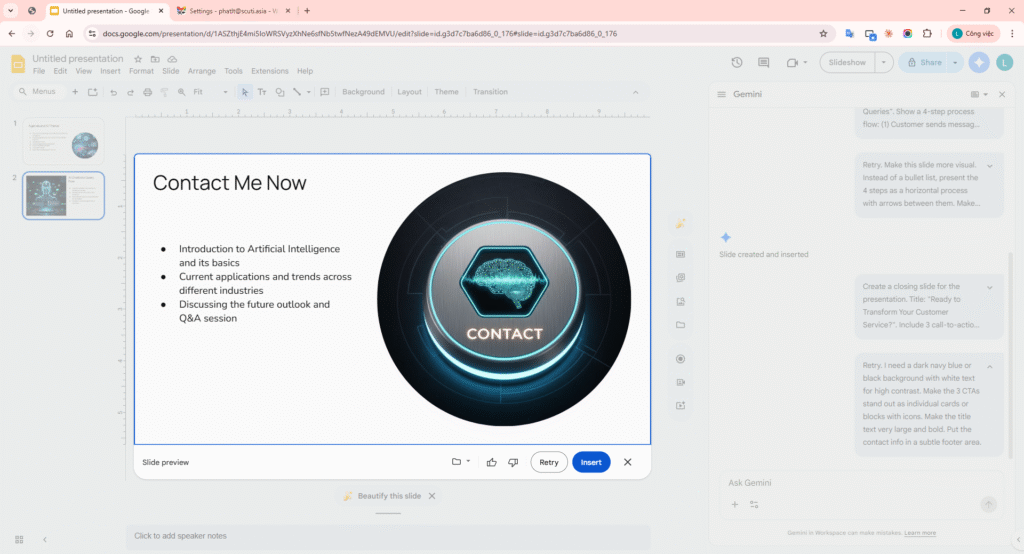
Click “Insert” to add the slide. Then manually:
- Select email text → Insert → Link to create a hyperlink
- Adjust font sizes as needed
- Add company logo via Insert → Image
7. Image Generation Deep Dive — 2 Demo Images
Gemini uses Imagen 3 (Google’s latest text-to-image model) to generate images directly within Google Slides. Below are 2 demo images with the full workflow: Prompt → Result → Re-prompt.
Image 1: AI Customer Service Illustration

Step 1: Initial Prompt
Access via: Insert → Image → Help me visualize (or type in Gemini panel)
Image Prompt 1:
A friendly AI chatbot robot sitting at a modern customer service desk, talking to a happy customer through a computer screen. Clean, corporate illustration style. Blue and white color scheme. Professional office setting.
Aspect ratio selected: Wide (16:9) — matching landscape slide orientation.
Result
Gemini (Imagen 3) generates 1 image:
- Cartoon robot at desk — cute but too childish for a corporate presentation
- Style is “cartoon” rather than “corporate illustration” as requested
- Blue/white color scheme matches, but overall feel is not professional enough
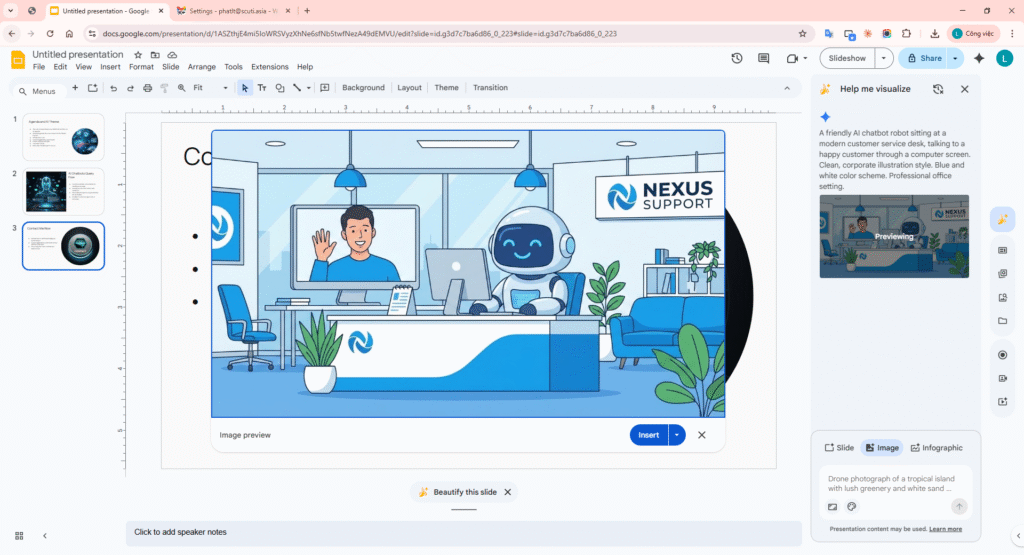
Image 7: Gemini generates image — style too cartoon, not suitable for corporate
Step 2: Re-prompt
Assessment & Re-prompt
Issue: Image doesn’t achieve “clean corporate illustration” — robot looks too cartoon-like, not suitable for a professional presentation.
Re-prompt for Image 1:
A modern flat vector illustration of an AI assistant represented as a glowing blue holographic figure behind a sleek desk. The AI is helping a professional woman on the other side of the desk. Minimalist style, white background, corporate blue accent colors. No cartoon elements.
Result After Re-prompt
- New image with significantly better quality
- Flat illustration, holographic AI figure, professional — excellent fit
- Consistent style, corporate feel
- Click “Insert” → image placed on current slide
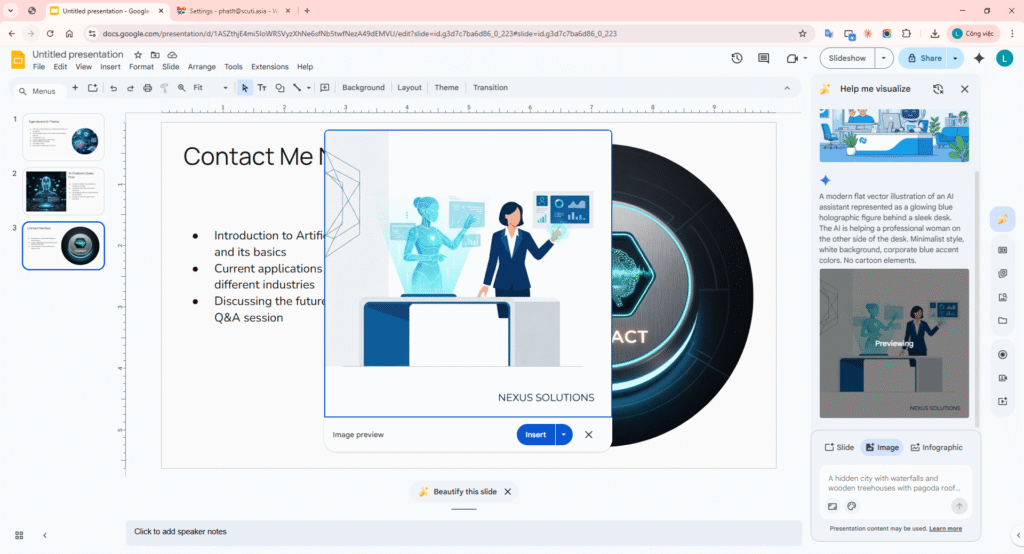
Image 8: Result after re-prompt — flat illustration matching corporate style
Image 2: Process Diagram Visualization

Step 1: Initial Prompt
Goal: Create a diagram image for Slide 2 (instead of manually drawing shapes) — workaround for the limitation “Gemini cannot create diagrams in slides”.
Image Prompt 2:
An infographic showing a 4-step customer service process flow: Step 1 “Customer Message” with a chat bubble icon, Step 2 “AI Analysis” with a brain icon, Step 3 “Auto Response” with a robot icon, Step 4 “Human Escalation” with a person icon. Horizontal layout, connected by arrows. Modern flat design, blue and teal colors on white background.
Result
Gemini (Imagen 3) generates 1 image:
- Infographic style but text has spelling errors (e.g. “Custmer” instead of “Customer”)
- Layout has a process flow feel but not clearly defined
- Icons are small and hard to identify
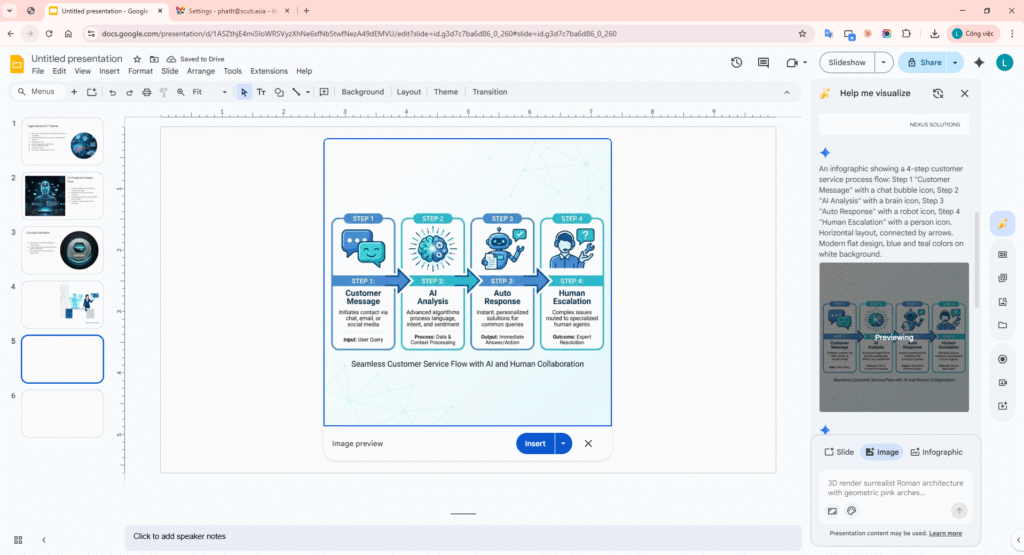
Image 9: Diagram image first attempt — misspelled text, unclear layout
Common issue: Imagen 3 frequently misspells text rendered within images. This is a known limitation across most AI image generators. For accurate text in diagrams, generate text-free images and add text using Google Slides text boxes.
Step 2: Re-prompt
Re-prompt for Image 2:
A clean 4-step horizontal process diagram with NO TEXT on the image. Only show 4 colored circles connected by arrows in a row. Circle 1: chat bubble icon (blue), Circle 2: brain icon (teal), Circle 3: robot icon (green), Circle 4: person icon (orange). White background, flat vector style. Simple and minimal.
Result After Re-prompt
- Markedly improved image after removing text requirements
- 4 horizontal circles, clear icons, connected by arrows — near perfect
- Colors close to request (blue, teal, green, orange)
- Click “Insert” → placed on Slide 2
- Added text labels afterward using Insert → Text box below each circle
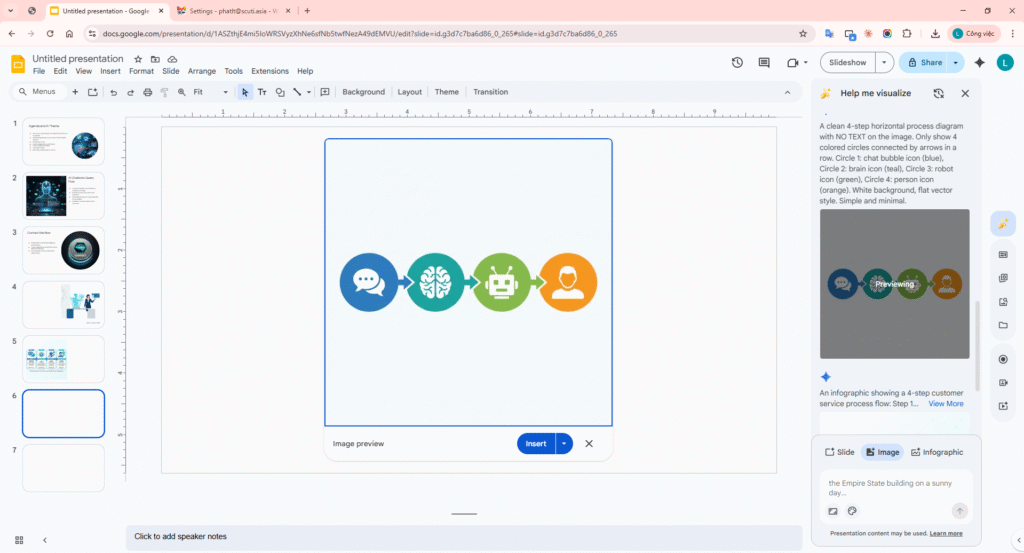
Image 10: Diagram after re-prompt — icons only, text added manually
Effective workaround: When you need diagrams with accurate text, generate images with icons/shapes only (explicitly state “NO TEXT” in your prompt), then overlay text labels using Google Slides text boxes. The final result looks professional with zero spelling errors.
8. Limitations & Tested Workarounds
After creating 3 slides and 2 images, here are the real-world limitations observed along with workarounds we actually tested:
Limitation 1: Cannot create full presentations
Gemini only creates 1 slide per prompt. Even if you request “create a 5-slide presentation”, the output is always a single slide.
Workaround: Accept the one-by-one workflow. Write individual prompts per slide. Apply a consistent theme manually (Slide → Change theme) before starting.
Limitation 2: No precise layout control
You cannot specify fonts, font sizes, pixel positions, or specific layout grids. Gemini decides the layout autonomously. Requests for “2 columns” or “left-right layout” sometimes work, sometimes don’t.
Workaround: Use general layout descriptions in prompts (no pixel-level detail). After Insert, edit manually in the Google Slides editor. Use Format → Align for alignment.
Limitation 3: Inconsistent styling across slides
Each slide is created independently, so fonts, color schemes, and background styles may differ between slides. Slide 1 might have a blue gradient while Slide 2 gets a plain white background.
Tested workarounds:
- Apply the same theme to the presentation before creating slides:
Slide → Change theme - After creating all slides, use Slide → Edit theme to synchronize fonts and colors
- Repeat style keywords in every prompt: “blue gradient, modern, professional”
Limitation 4: Misspelled text in generated images
Imagen 3 frequently makes spelling errors when rendering English text in images. Example: “Customer” becomes “Custmer”, “Service” becomes “Servce”. This is a widespread issue across AI image generators.
Tested workaround: Prompt with “NO TEXT in the image” or “without any text labels” → generate icon/visual-only images → overlay text using Google Slides text boxes. Results are 100% accurate.
Limitation 5: Poor image relevance to context
Gemini sometimes inserts stock images unrelated to the content when creating slides. Example: an AI customer service prompt might include a scenic landscape or generic office photo.
Tested workarounds:
- Use Insert → Image → Help me visualize to generate images separately (precise prompt control)
- Don’t rely on auto-inserted images from Gemini’s slide creation
- Delete irrelevant images and replace with self-generated ones
Limitation 6: Cannot create real diagrams / flowcharts / charts
Gemini cannot create Shapes, Lines, Arrows, or Charts in Slides. Output is always text + images. Prompts requesting “flowchart” or “process diagram” produce text descriptions or bullet lists.
Tested workarounds:
- Option A: Use Image Generation for icon-only diagram images (no text) → overlay text boxes
- Option B: Create text-only slide → manually add Shapes + Arrows
- Option C: Use external tools (Canva, Mermaid, draw.io) for diagrams → import images into Slides
Limitation 7: Desktop only
Gemini features in Slides and Image Generation are not available on mobile (Android/iOS Google Slides app).
Workaround: Use desktop browser (Chrome recommended). If you need to edit on mobile, create slides on desktop first, then make minor edits on mobile.
Limitations Summary Table
| # | Limitation | Impact Level | Best Workaround |
|---|---|---|---|
| 1 | Cannot create full decks | High | One-by-one workflow with individual prompts |
| 2 | No precise layout control | Medium | General prompts + manual edits after Insert |
| 3 | Inconsistent styling | Medium | Pre-apply theme, repeat style keywords |
| 4 | Misspelled text in images | High | Generate “no text” images + overlay text boxes |
| 5 | Low image relevance | Medium | Generate images separately via Help me visualize |
| 6 | Cannot create diagrams/charts | High | Image gen icons + manual text overlay |
| 7 | Desktop only | Low | Use desktop browser |
9. Conclusion
Gemini in Google Slides is a useful tool for quickly creating individual slides and generating images directly without leaving Google Workspace. However, it’s still evolving with notable limitations:
| What Gemini Does Well | Where Gemini Falls Short |
|---|---|
| Creates 1 slide quickly from text prompt | Creating full presentations (multi-slide) |
| Generates high-quality AI images (Imagen 3) | Rendering accurate text in images |
| Brainstorms ideas, writes content | Creating diagrams, charts, flowcharts |
| Iterative refinement (Retry) | Pixel-level layout control |
| Built into Slides (no add-on needed) | Ensuring consistent styling across slides |
Recommendation: Treat Gemini as an assistant, not a replacement. Use it for quick drafts, image generation, brainstorming — then spend time polishing manually. The combination of AI speed + human polish yields the best results.