
AI tools for developers are becoming increasingly common, but one major issue I often encounter is that AI usually lives outside the IDE.
This breaks context, interrupts workflow, and makes it hard to control how AI is actually used.
Continue.dev is a tool that changed that experience for me.
It’s not just “chatting with AI” — it’s a deeply integrated AI assistant inside Visual Studio Code, designed to support the entire development workflow.
👉 Official website: https://www.continue.dev/
What is Continue.dev?

Continue.dev is an open-source AI coding assistant that runs directly inside VS Code.
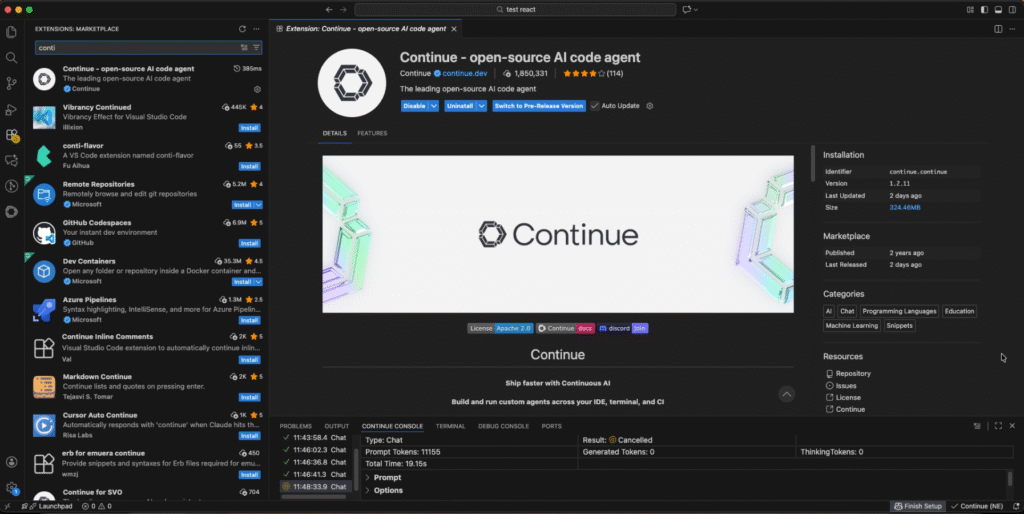
It allows developers to:
- Chat with AI inside the editor
- Plan solutions before writing code
- Let AI act as an agent that reads and modifies multiple files
- Inspect detailed execution data through a built-in console
Most importantly, Continue.dev does not lock you into a single AI model or provider.
Support for Custom AI Models
One of the strongest features of Continue.dev is its support for custom AI models.
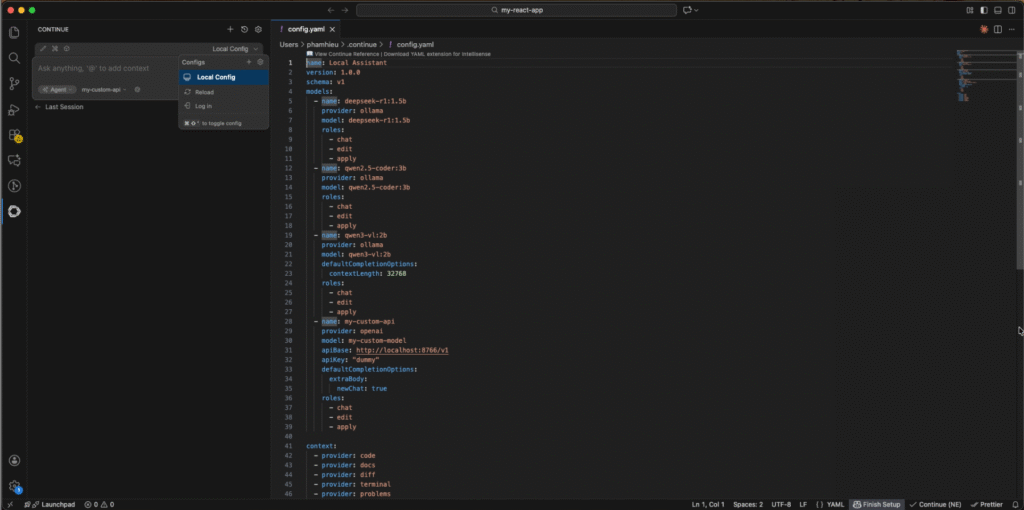
You can:
- Use local LLMs (for example via Ollama)
- Connect to any OpenAI-compatible API
- Configure multiple models in a single project
This makes it possible to:
- Keep source code private and secure
- Choose models based on cost vs performance
- Adapt easily to both personal and enterprise environments
Continue.dev acts as a bridge between VS Code and your AI models, instead of forcing you into one ecosystem.
(You can insert a screenshot of the model settings here.)
Multiple AI Working Modes
Continue.dev is not limited to one interaction style.
It provides multiple modes that match real development workflows.

💬 Chat Mode
Chat directly with AI inside VS Code:
- Ask questions about the current file
- Get explanations of logic and flow
- Generate example code or files
🧠 Plan Mode
Plan Mode helps think before coding:
- Analyze requirements
- Propose solution approaches
- Break work into smaller steps
This is especially useful for larger features or complex specifications, reducing trial-and-error coding.
🤖 Agent Mode
In Agent Mode, AI behaves like a coding agent:
- Reads multiple files in the project
- Executes multi-step actions (analyze → modify → apply)
- Applies changes directly to the codebase
This is well-suited for refactoring, fixing complex issues, or working with large codebases.
Continue Console – Full Transparency Into AI Execution
In addition to its working modes, Continue.dev provides Continue Console, which shows detailed execution data for every AI run.
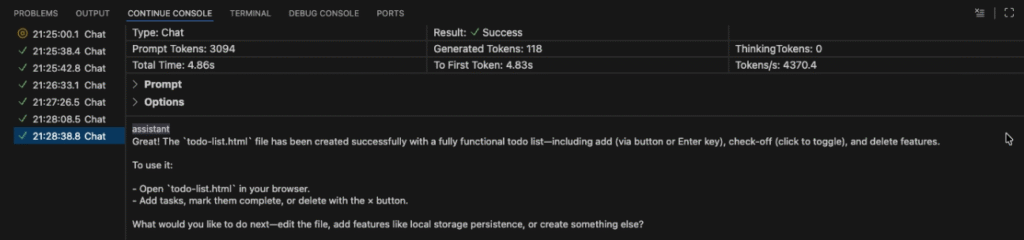
You can inspect:
- Prompt token count
- Generated token count
- Total execution time
- Time to first token
- Tokens per second
- Execution result (success or error)
This is extremely useful for:
- Comparing performance across models
- Debugging slow or unexpected responses
- Monitoring usage when working with paid APIs
(You can insert a screenshot of Continue Console here.)
Real Example: Generating a Todo List HTML Page
As a quick test, I used Chat Mode to ask the model to generate a simple Todo List HTML page.

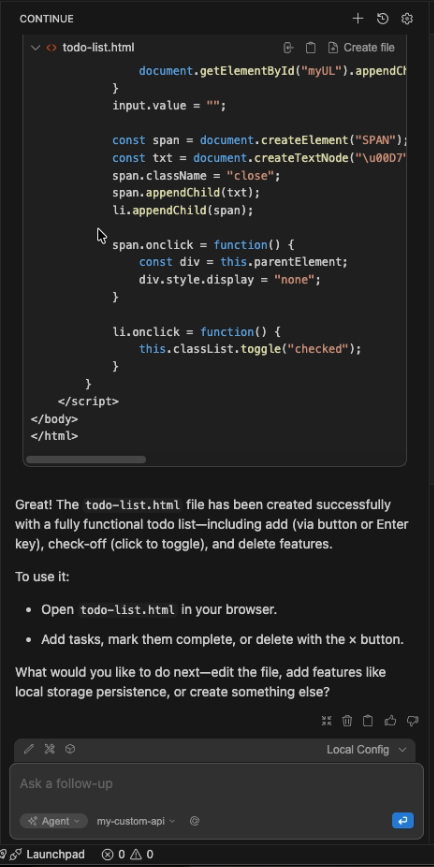
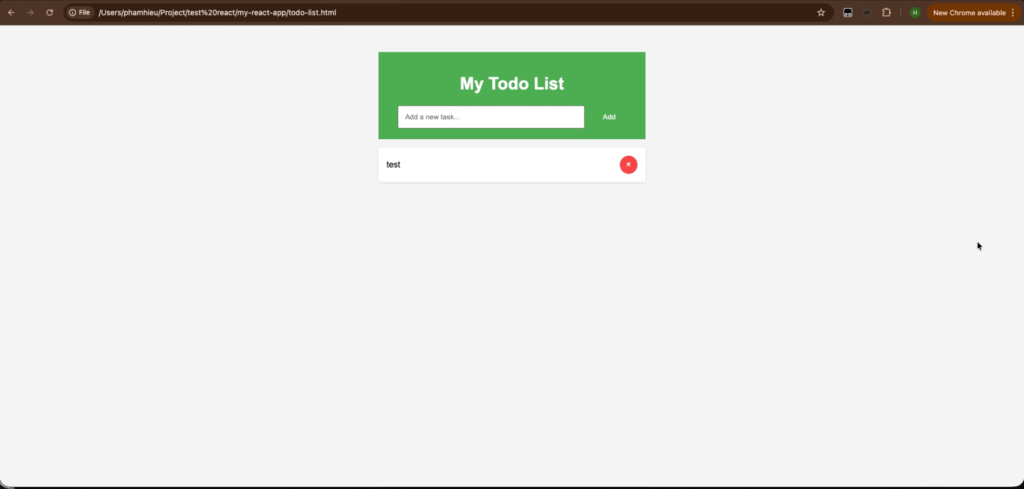
The result:
- A complete
todo-list.htmlfile was generated - Features included adding, completing, and deleting tasks
- The file could be opened and run immediately in a browser
- The file was applied directly into the project
At the same time, Continue Console clearly showed execution time, token usage, and success status.
👉 This feels very different from chatting with AI on the web:
everything stays inside the IDE, with full context and full control.
Why Continue.dev Is Worth Trying
In summary, Continue.dev offers:
- ✅ Deep integration with VS Code
- ✅ Support for custom and local AI models
- ✅ Multiple modes: Chat, Plan, Agent
- ✅ Transparent execution via Continue Console
- ✅ A strong fit for individuals, outsourcing teams, and enterprises
Continue.dev doesn’t just help you write code faster —
it helps you work with AI in a controlled, structured, and practical way.
Conclusion
If you are looking for an AI tool that:
- Doesn’t lock you into a single model
- Lets you control data and cost
- Truly supports real development workflows
👉 Continue.dev (https://www.continue.dev/) is well worth trying inside Visual Studio Code.