
AI Quest Type 2 (Investigate How). This is a hands-on, build-it-and-prove-it write-up. Every step below was actually built and Test-run live in Google Workspace Studio. Execution logs and screenshots are included as evidence.
1. The Business Scenario
A very common IT-contracting situation: a 30-minute client requirements interview needs to turn into a proposal draft and an estimate draft with as little manual busywork as possible.
To keep it concrete (and avoid using any real client data) we use a dummy project: Acme Retail — POS system (5 stores, payment integration, real-time revenue reporting), engaged as typical time & materials IT contracting.
- Before the meeting — auto-create a meeting-minutes Google Doc from a template, save it to Drive, and post a pre-meeting checklist to Google Chat.
- After the meeting — read the meeting context, draft a proposal Doc, then extract a work item and append it as a row into an estimate Google Sheet (no manual typing of that row).
Because Workspace Studio’s Based on a meeting trigger fires either before or after a meeting (not both in one flow), the routine is split into two flows.
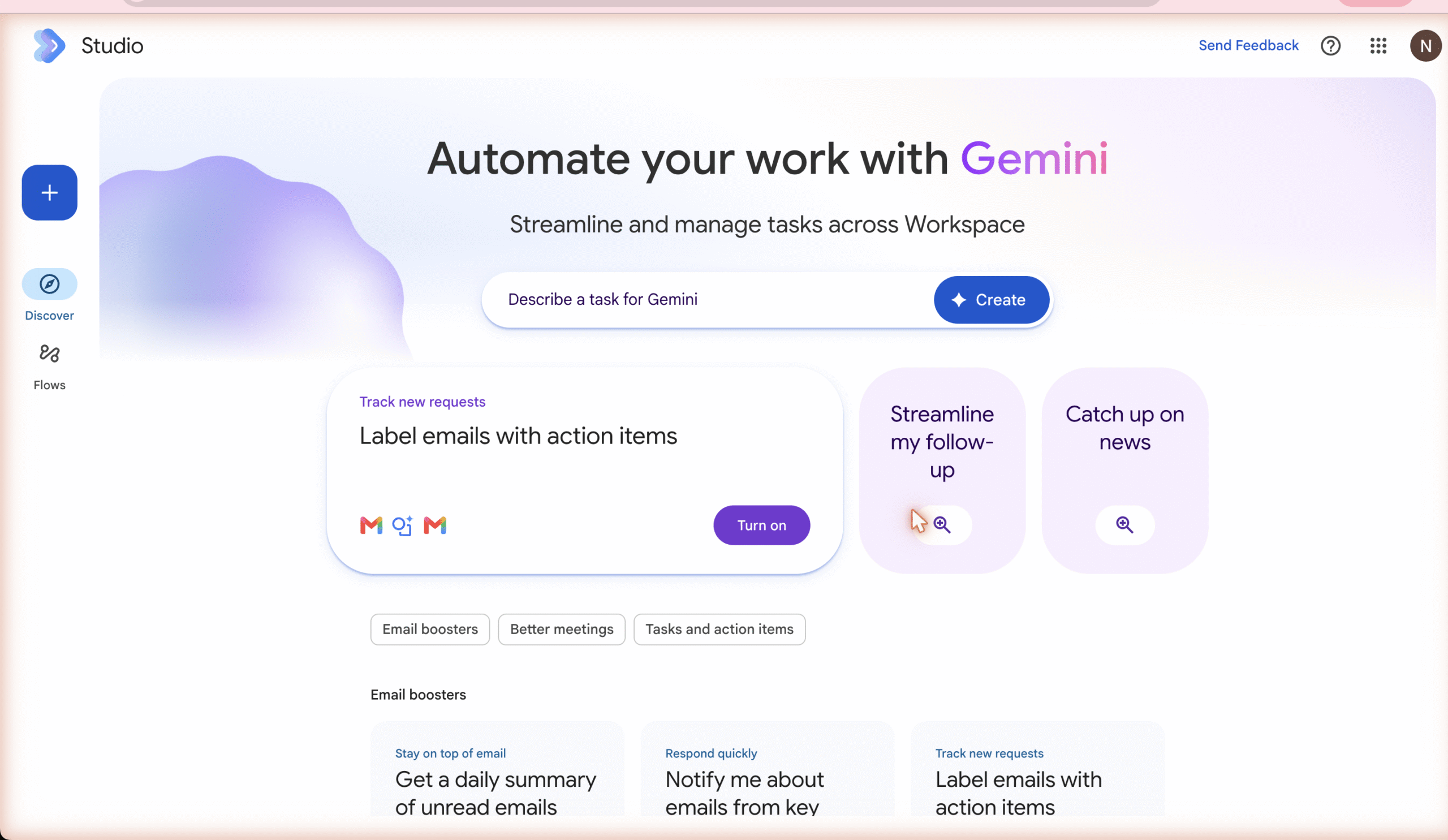
📷 SCREENSHOT 1 — Workspace Studio “Discover” home — proves the account has Studio access
2. Flow 1 — Pre-meeting Minutes & Checklist
Flow name: AI Quest 1 - Pre-meeting Minutes & Checklist
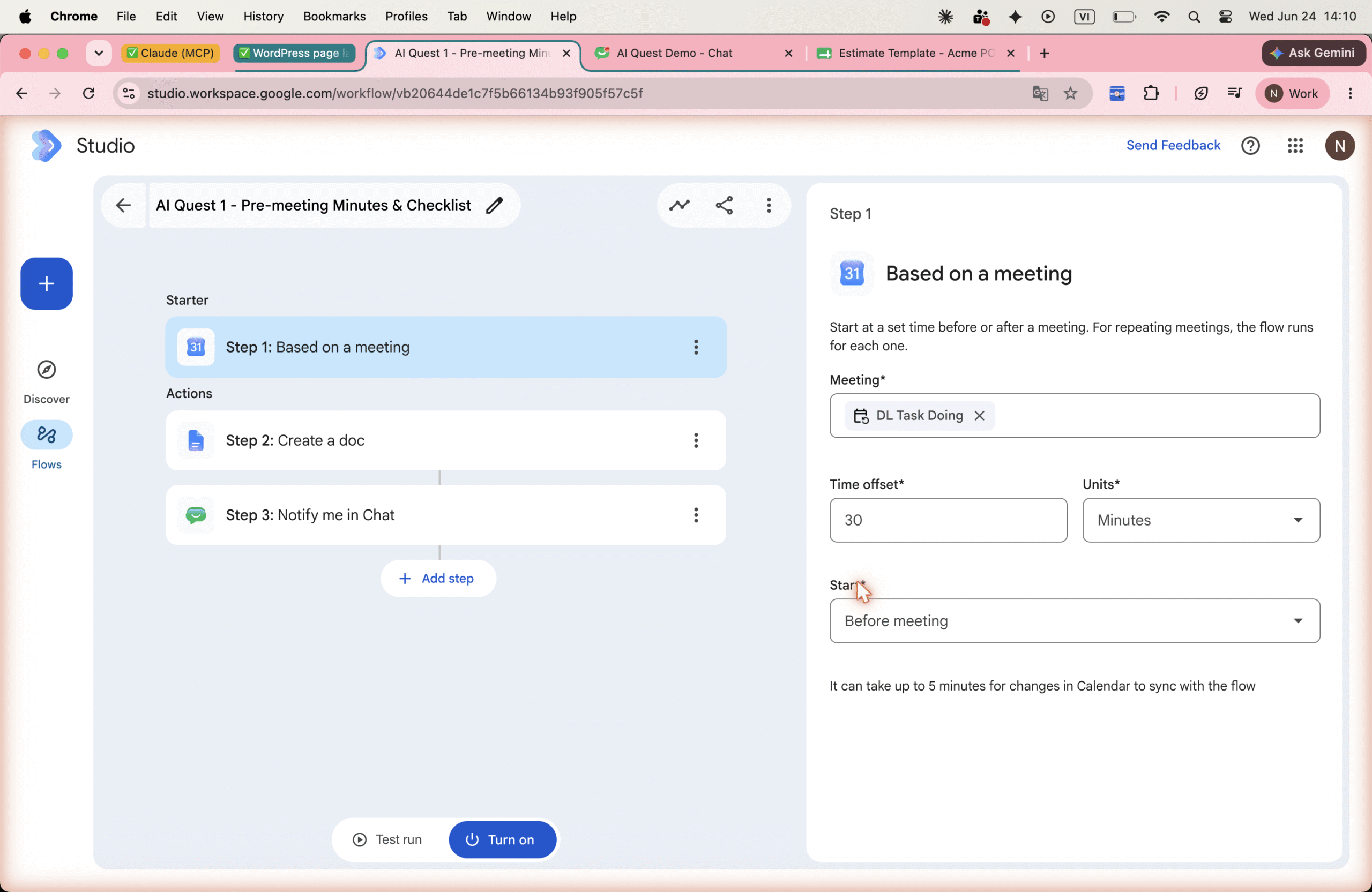
Step 1 — Starter: Based on a meeting
Meeting selected from Calendar search (must be a real, already-synced event); Time offset 30 Minutes; Start Before meeting.
📷 SCREENSHOT 2 — Flow 1 → Step 1 “Based on a meeting”: 30 Minutes, Before meeting
Step 2 — Create a doc (the minutes)
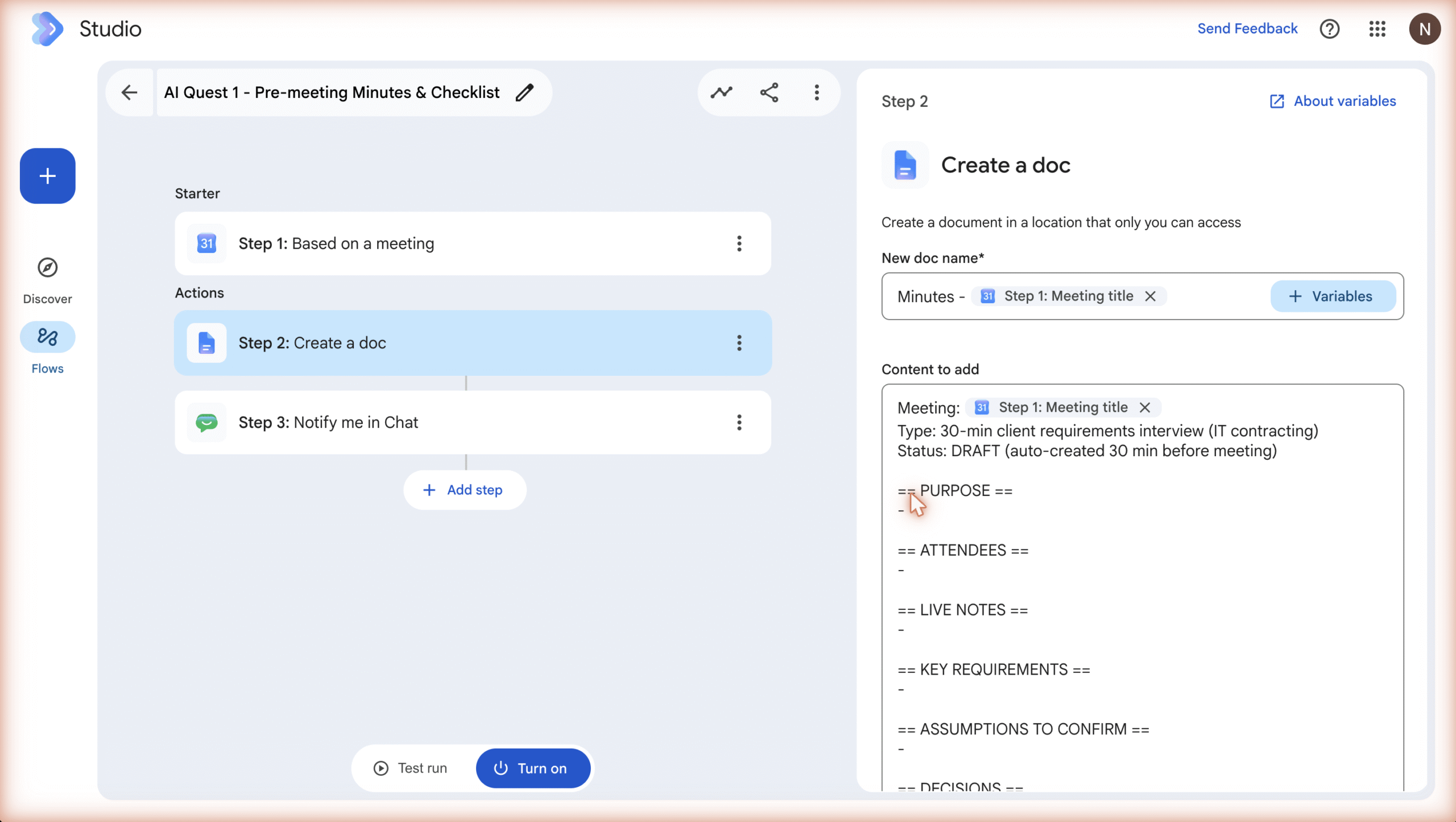
New doc name: Minutes - {{Step 1: Meeting title}} so each meeting gets a uniquely named doc. Content is the minutes template:
Meeting: {{Step 1: Meeting title}}
Type: 30-min client requirements interview (IT contracting)
Status: DRAFT (auto-created 30 min before meeting)

== PURPOSE ==
== ATTENDEES ==
== LIVE NOTES ==
== KEY REQUIREMENTS ==
== ASSUMPTIONS TO CONFIRM ==
== DECISIONS ==
== ACTION ITEMS (owner / due) ==
== NEXT STEPS ==
- Draft proposal & estimate from these minutes
Location: Drive → My Drive (use a dedicated Shared Drive folder in production).
📷 SCREENSHOT 3 — Flow 1 → Step 2 “Create a doc”: doc name with Meeting title variable + template content
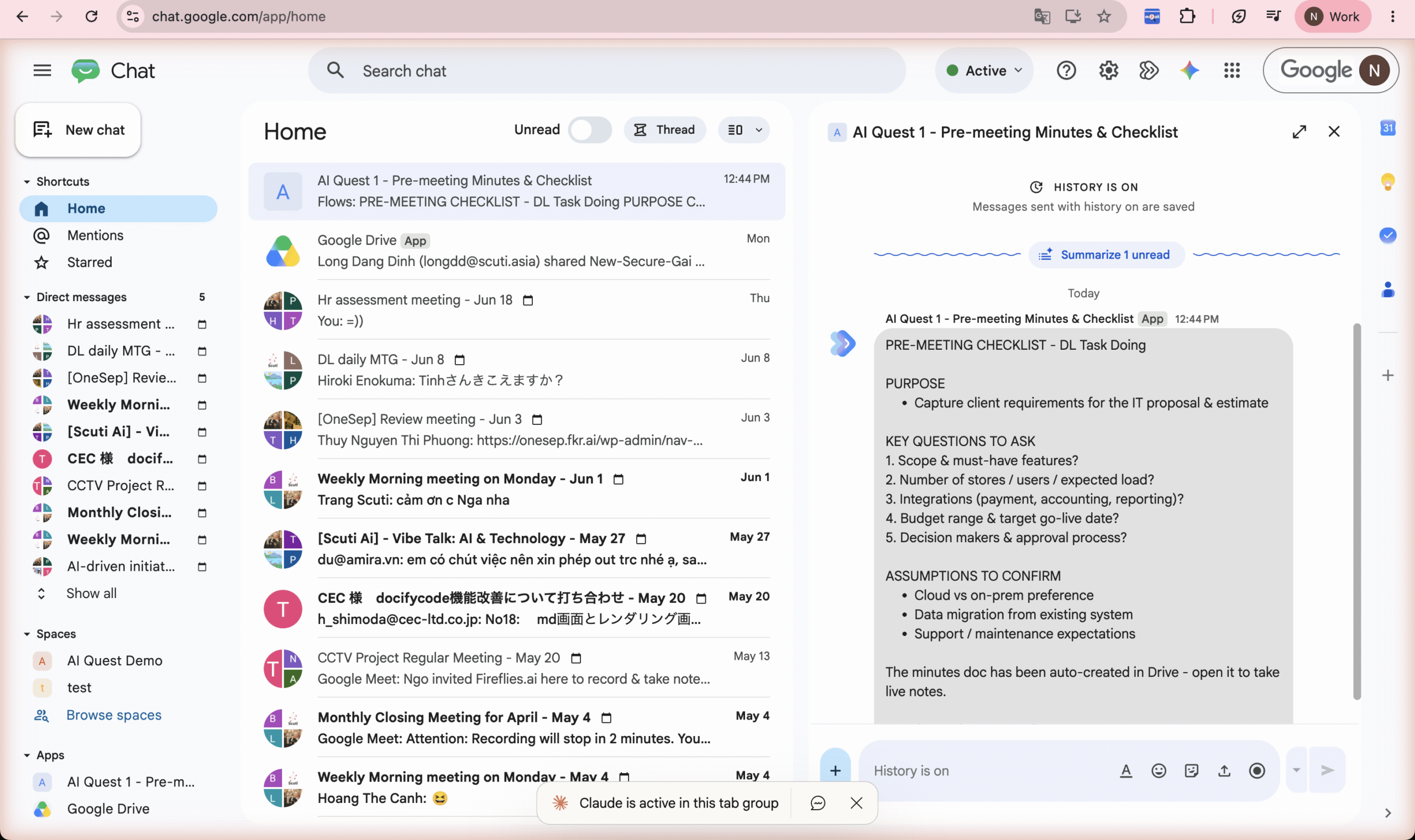
Step 3 — Notify me in Chat (the pre-meeting checklist)
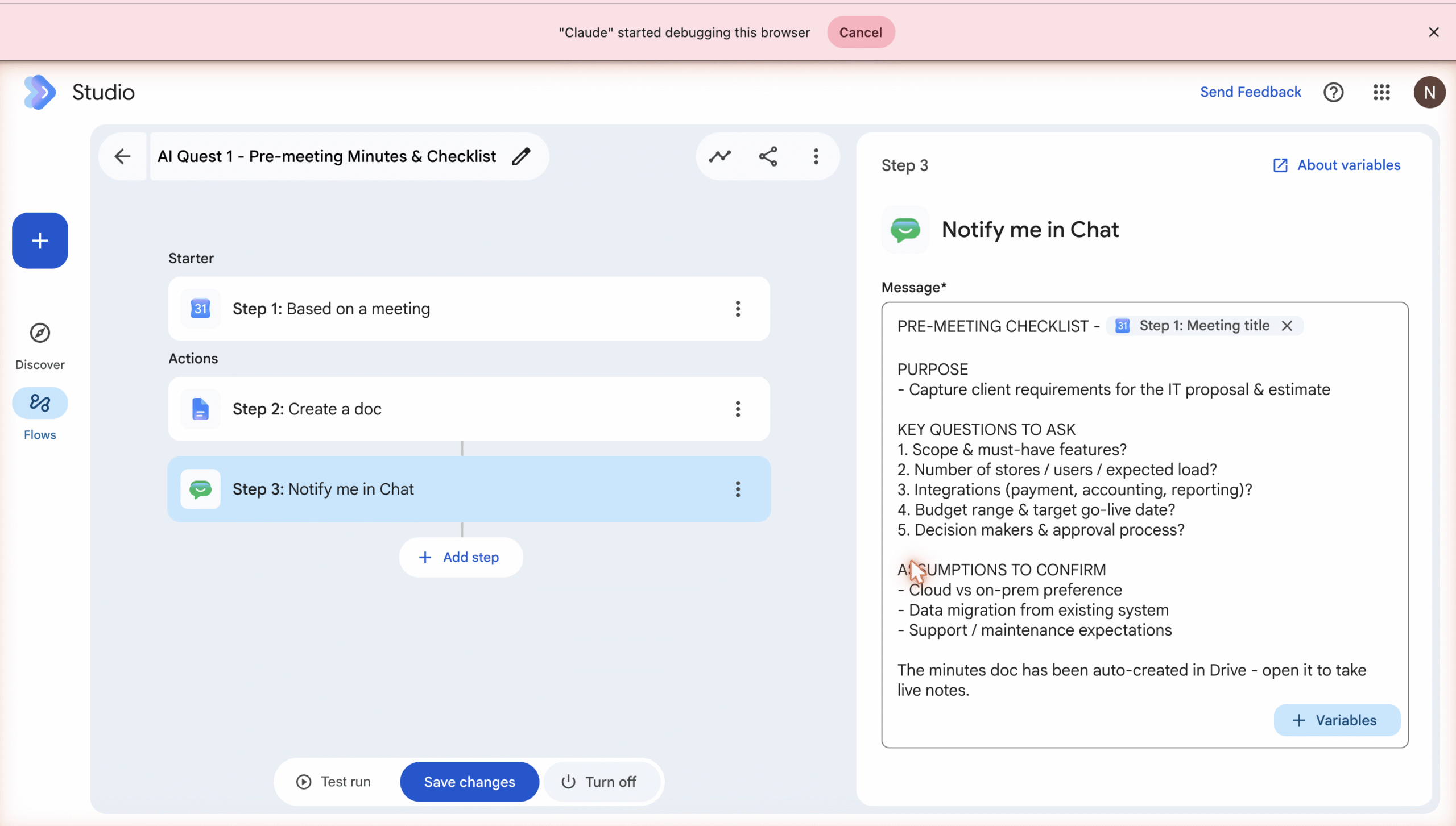
The message posts purpose, the key questions to ask, and assumptions to confirm.
Finding: Workspace Studio’s Chat action is
Notify me in Chat— it sends a direct message to the flow owner. There is no “post to a specific space” action. See Failure Modes #3.
📷 SCREENSHOT 4 — Flow 1 → the Chat notification received: “PRE-MEETING CHECKLIST – DL Task Doing”
Test run — Flow 1 (evidence)
Running once produced: created doc Minutes – DL Task Doing, sent the Chat message, and Run Completed.
3. Flow 2 — Post-meeting Proposal & Estimate
Flow name: AI Quest 1 - Post-meeting Proposal & Estimate
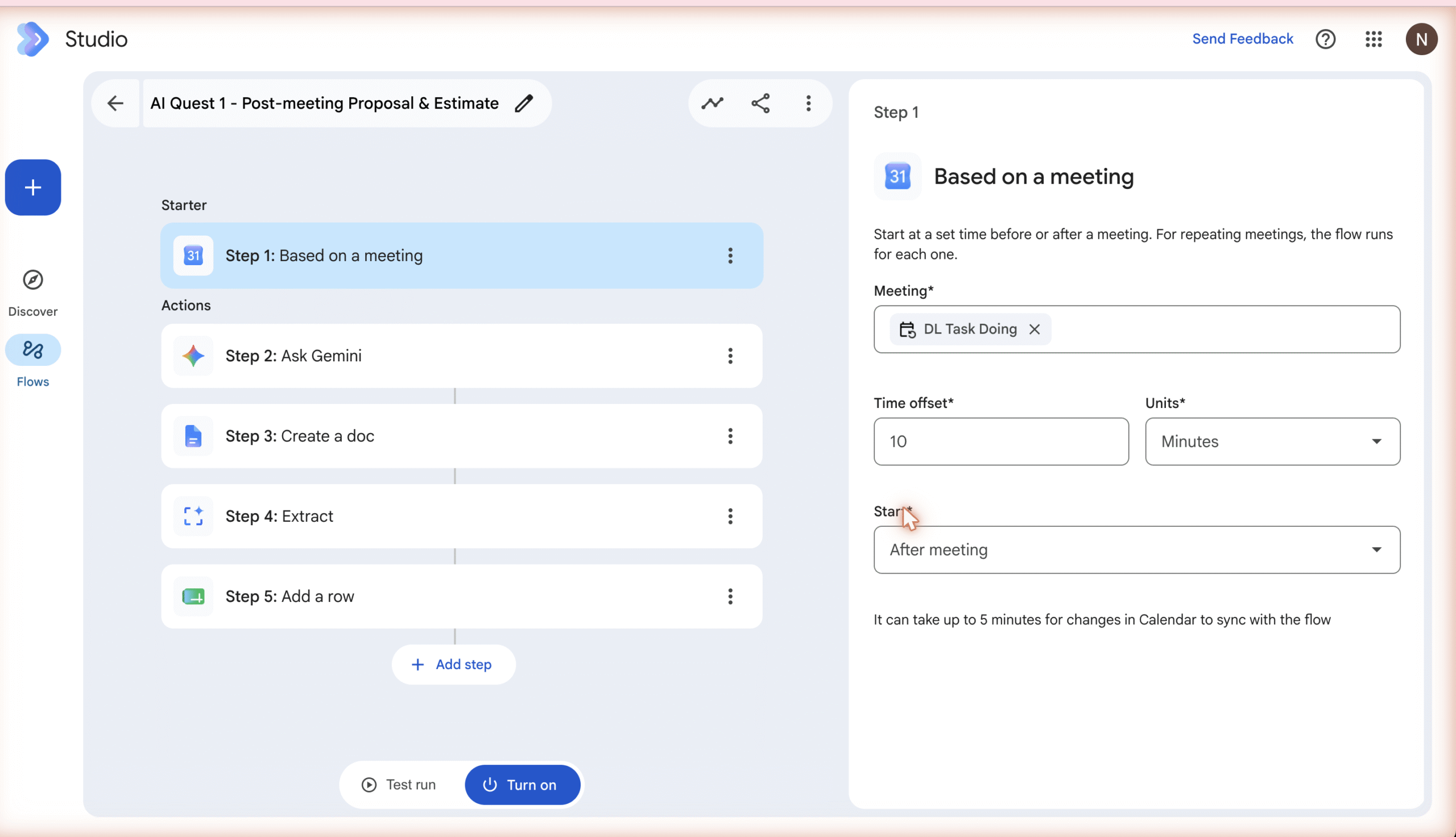
Step 1 — Starter: Based on a meeting
Same event; Time offset 10 Minutes; Start After meeting.
📷 SCREENSHOT 5 — Flow 2 → Step 1 “Based on a meeting”: After meeting
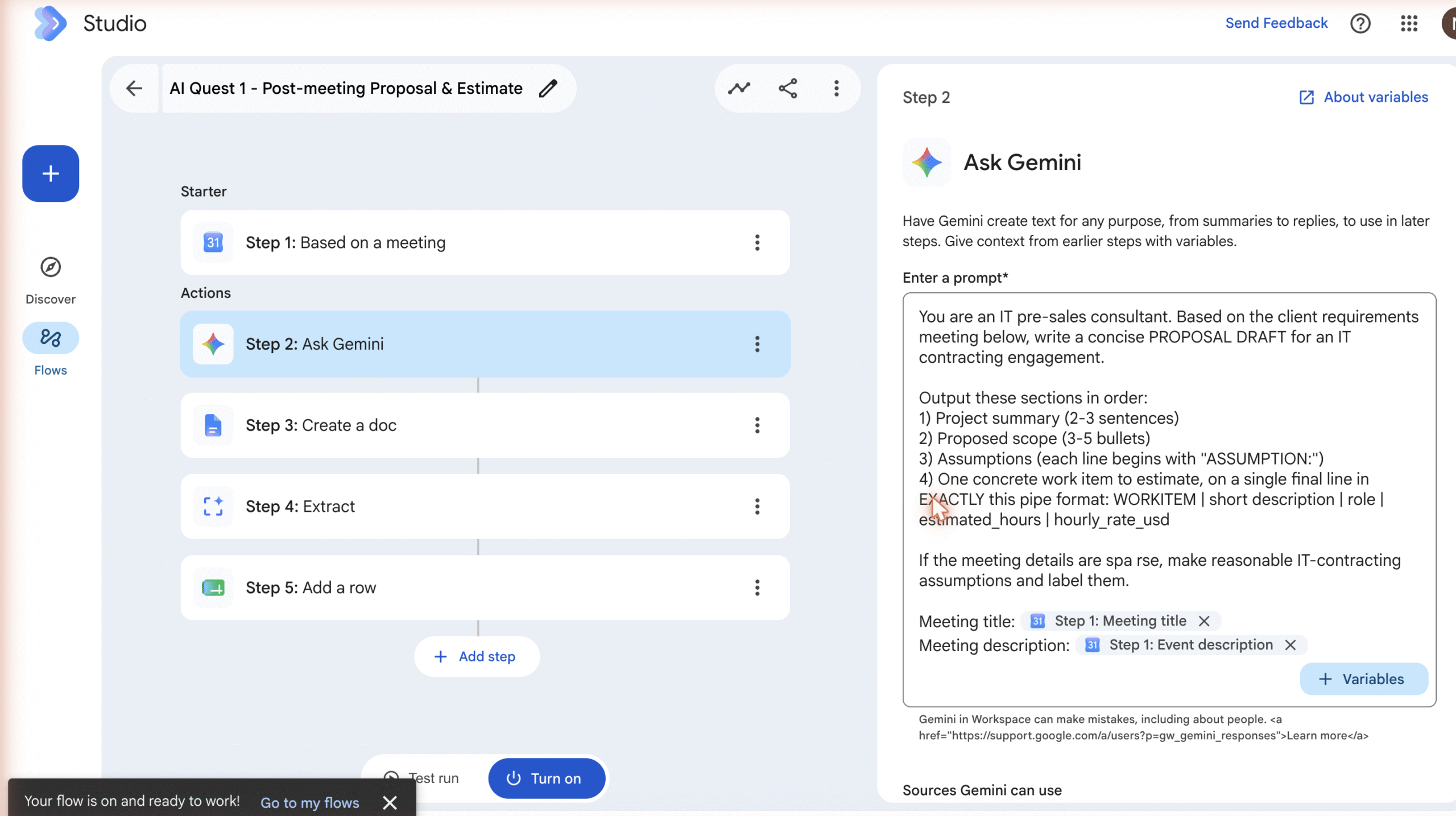
Step 2 — Ask Gemini (draft the proposal)
Gemini is prompted to produce a project summary, proposed scope, labelled assumptions, and one work item on a single pipe-formatted line:
You are an IT pre-sales consultant. Based on the client requirements meeting
below, write a concise PROPOSAL DRAFT for an IT contracting engagement.

Output these sections in order:
1) Project summary (2-3 sentences)
2) Proposed scope (3-5 bullets)
3) Assumptions (each line begins with "ASSUMPTION:")
4) One concrete work item to estimate, on a single final line in EXACTLY this
   pipe format: WORKITEM | short description | role | estimated_hours | hourly_rate_usd

Meeting title: {{Step 1: Meeting title}}
Meeting description: {{Step 1: Event description}}
📷 SCREENSHOT 6 — Flow 2 → Step 2 “Ask Gemini”: the full prompt with Meeting title + Event description variables
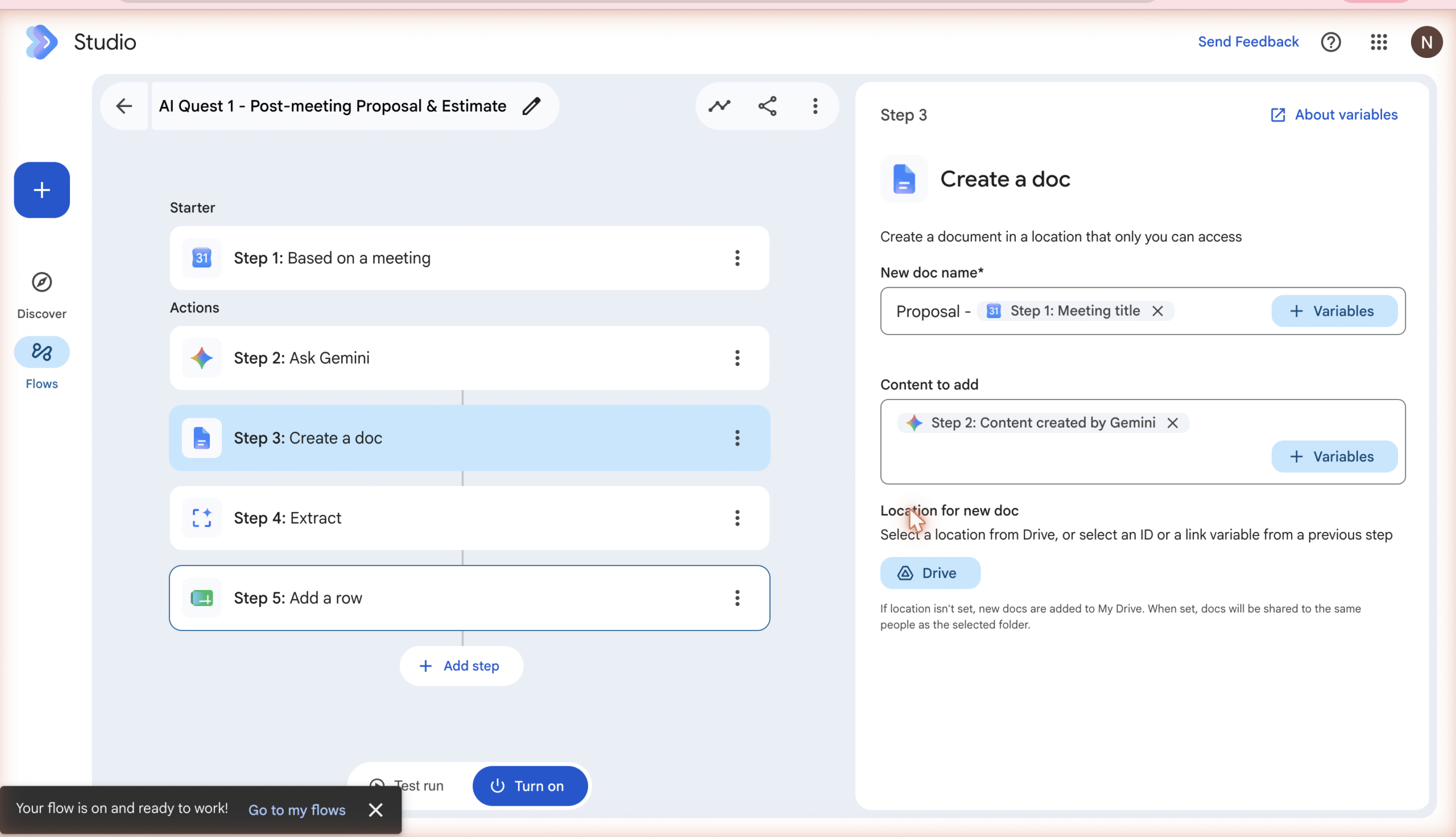
Step 3 — Create a doc (the proposal)
New doc name Proposal - {{Step 1: Meeting title}}; Content = {{Step 2: Content created by Gemini}}.
📷 SCREENSHOT 7 — Flow 2 → Step 3 “Create a doc”: proposal doc name + Gemini-output content variable
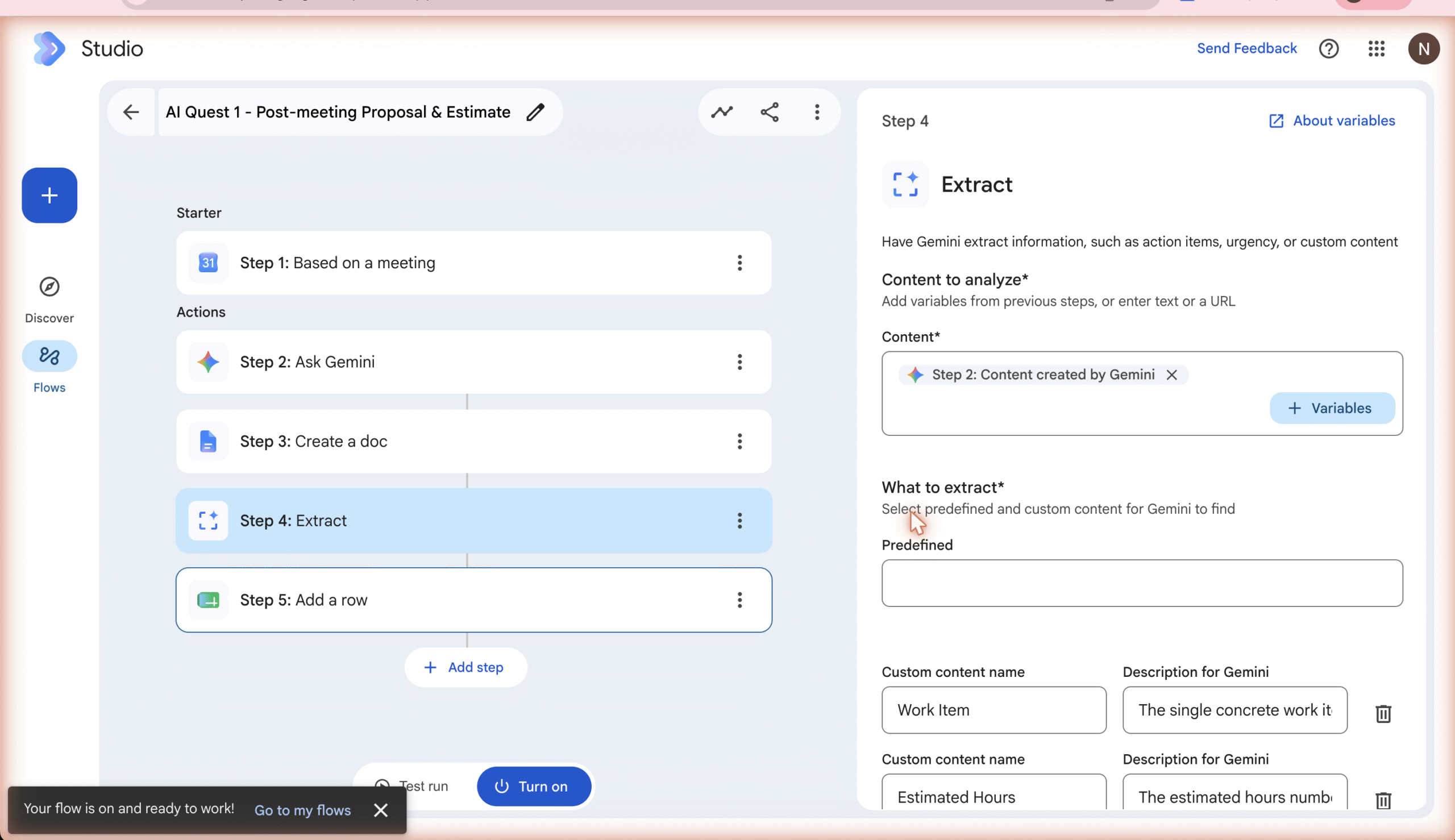
Step 4 — Extract (structured work item)
Content analyzed: {{Step 2: Content created by Gemini}}. Custom fields: Work Item, Estimated Hours, Role, Hourly Rate USD.
📷 SCREENSHOT 8 — Flow 2 → Step 4 “Extract”: the custom fields
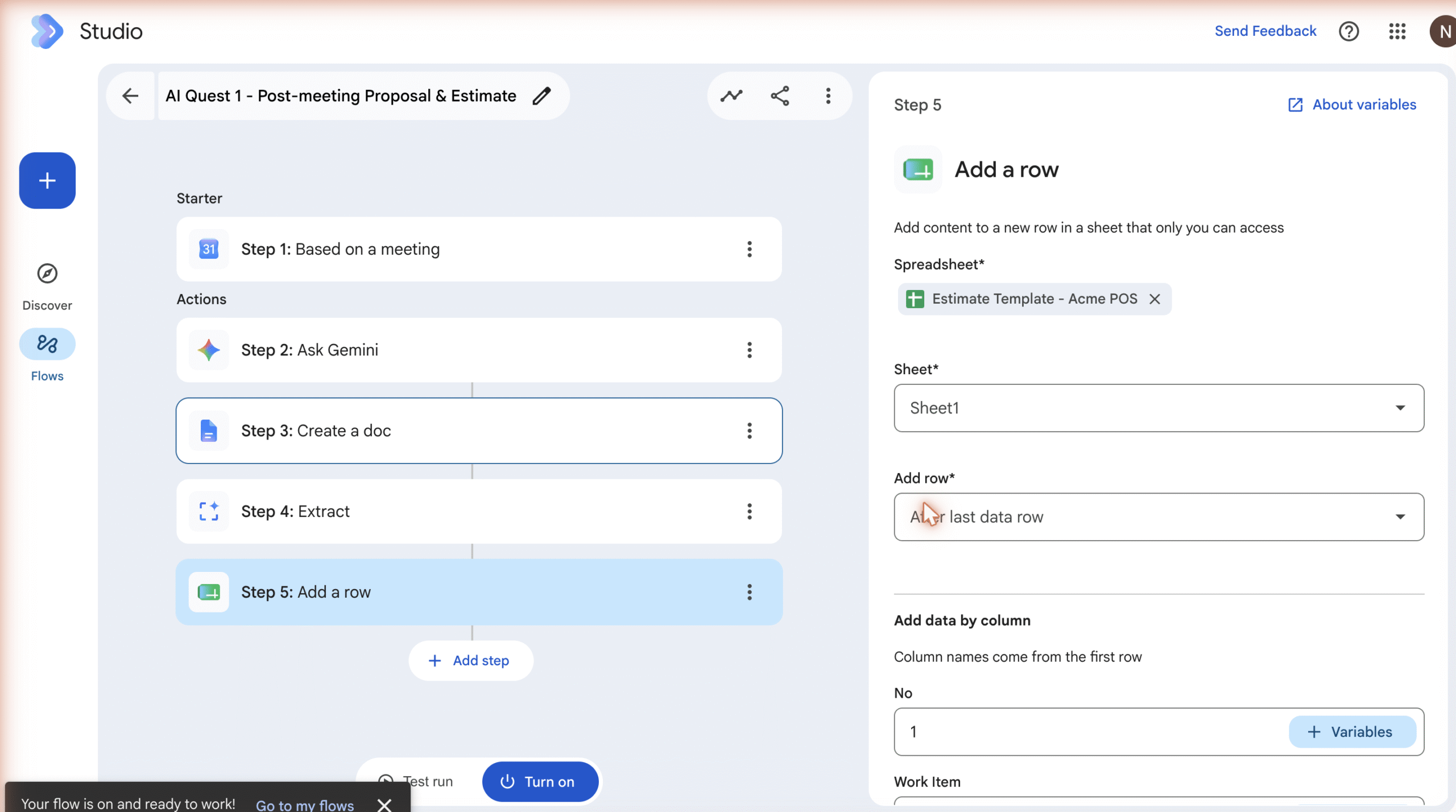
Step 5 — Add a row (into the estimate Sheet)
Spreadsheet Estimate Template - Acme POS, Sheet1, “After last data row”. Studio reads column names from row 1, then each column is mapped to an extracted variable: No=1, Work Item={{Step 4: Work Item}}, Role={{Step 4: Role}}, Est. Hours={{Step 4: Estimated Hours}}, Rate (USD)={{Step 4: Hourly Rate USD}}.
📷 SCREENSHOT 9 — Flow 2 → Step 5 “Add a row”: spreadsheet picker + column-to-variable mapping
Test run — Flow 2 (real output)
The live Test run produced a real proposal (backend maintenance & technical optimization, PHP container workflows, secure Python-based API integrations, technical documentation), three labelled assumptions, and the work-item line:
WORKITEM | API Integration Configuration | Backend Developer | 20 | 85
Extract then returned — Work Item: API Integration Configuration, Estimated Hours: 20, Role: Backend Developer, Hourly Rate USD: 85 — and Add a row appended these into the estimate sheet automatically. Run Completed.
📷 SCREENSHOT 10 — Estimate Sheet showing the auto-added row (API Integration Configuration / Backend Developer / 20 / 85)
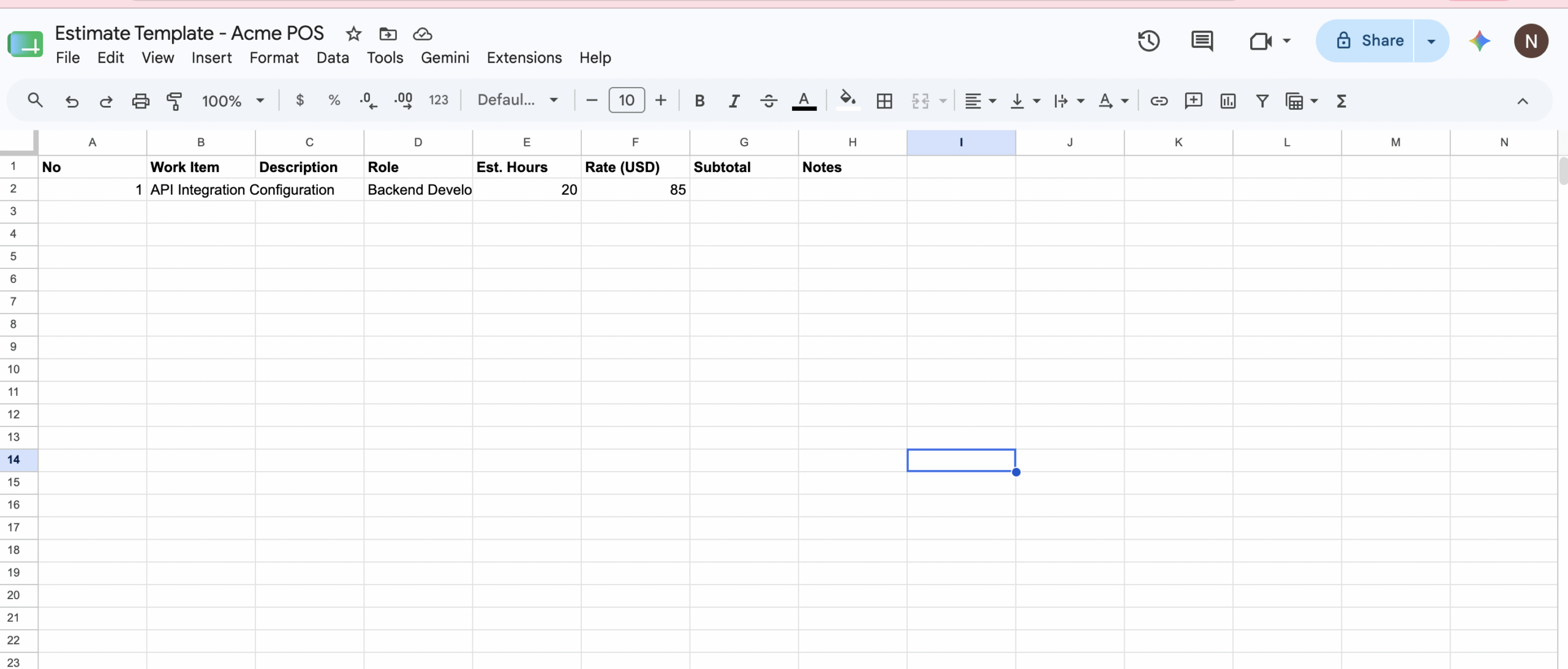
This satisfies the estimate requirement: at least one work item is extracted and appended as a row with no manual typing — every value comes from a flow variable.
4. Failure-Prone Points (validated during the build)
- Meeting trigger rejects free text. The Meeting field shows “Select a search result. Manually entered text isn’t supported.” Pick a real Calendar event from the dropdown.
- Calendar ↔ Studio sync delay (up to ~5 min). A newly-created event isn’t searchable immediately. Build downstream steps first, bind the meeting once synced.
- Chat = self-notify only. Only
Notify me in Chatexists (DM to the flow owner); a Space cannot be targeted. For team distribution use an email step or aSend a webhookinto the Space’s incoming webhook. - “Missing a required field” can be stale. After editing the Gemini prompt the step kept flagging an error until re-focused (click in, click out).
- Duplicate executions / idempotency. Based on a meeting runs once per occurrence — a recurring meeting creates a new doc and row every time. The doc name embeds the meeting title for uniqueness; for the sheet, dedupe by a unique key (Get sheet contents + Check if) or decide append / overwrite / abort.
- Permissions & template IDs. Created docs default to a location “only you can access”; the picked Sheet/folder is referenced by ID — if a template is moved/deleted the step breaks. Keep templates in a team-owned Shared Drive.
5. Reproducibility
Naming: Minutes - {Meeting title}; Proposal - {Meeting title}; Estimate Template - {Project}.
Estimate Sheet schema (row 1 headers — Studio maps Add-a-row by header name):
No | Work Item | Description | Role | Est. Hours | Rate (USD) | Subtotal | Notes
Minutes Doc schema (fixed section headers): PURPOSE / ATTENDEES / LIVE NOTES / KEY REQUIREMENTS / ASSUMPTIONS TO CONFIRM / DECISIONS / ACTION ITEMS / NEXT STEPS.
Parameterized vs fixed: variables = meeting title/description/time, Gemini output, extracted Work Item/Hours/Role/Rate; fixed = section headers, the Gemini prompt, sheet header names, the trigger offset.
Reusable building block: Ask Gemini → Extract (schema) → Add a row. This turns any unstructured AI output into structured spreadsheet data and is the heart of the estimate automation.
6. Summary
Two Workspace Studio flows, both built and Test-run live, turn a 30-minute requirements call into an auto-created minutes Doc, a Chat checklist, an AI-drafted proposal Doc, and an estimate row populated entirely from extracted variables — with the real-world gotchas (calendar sync, self-notify-only Chat, idempotency) documented so anyone on the team can reproduce it.