

As developers and tech professionals, we love building solutions, but building the presentation to sell those solutions? That is often a different story. When you are rushing to prepare for a tech expo or an exhibition booth, you do not have hours to hunt for stock photos or write perfectly crafted marketing copy.
In this post, I will show you how to use the Gemini side panel in Google Slides as your co-pilot. We are not just going to generate random slides; we are going to build a cohesive, 5-slide pitch deck for an “AI-Driven Customer Support” product. I will walk you through my exact prompts, how I handled image iterations, and the operational rules I used to keep the design consistent.
Our Setup: The Operational Rules
Generative AI needs constraints to be successful. If you just ask for “an image of customer service,” you will get a colorful mess. To ensure our deck looks like it came from a professional designer, we established two operational rules before typing any prompt into Gemini
Rule 1: Master the Master Slide
AI is not a substitute for standard design practices. Before opening the Gemini panel, we opened Google Slides’ Theme Builder. We did the following manually (takes 60 seconds):
- Font: Set the primary font to a clean sans-serif (e.g., Montserrat or Google Sans).
- Color Palette: Establish a “corporate tech” theme. Navy Blue (primary), White (background), and Cyan (for accent).
- Slide Layout: Change the default slide background to White.
Why? Gemini generates images that respect the visual context. By telling it to use a modern, corporate style on a clean white background, it will generate assets that integrate seamlessly.
Rule 2: The Cohesive Prompt Constraint
For all text prompts, we will demand brevity. For all image prompts, we will use a strict aesthetic definition: “Flat vector illustration, minimalist, corporate style, using navy blue, white, and cyan colors on a solid white background.”
The 5-Slide Workflow: Simple Inputs, Beautiful Output
Our deck follows the optimal pitch format: Title, Problem, Approach, Proof/Numbers, and Next Actions. Here is exactly how we used Gemini for each slide
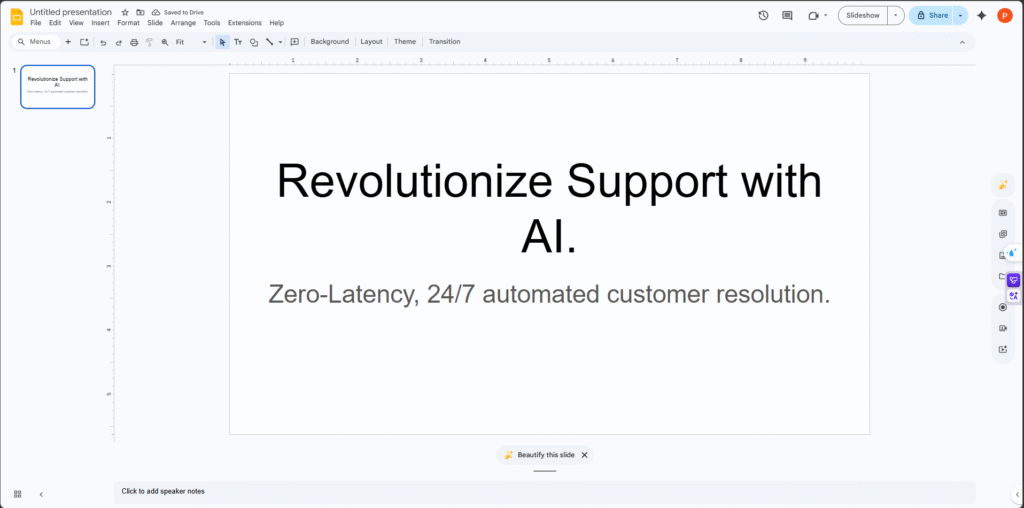
Slide 1: The Title
Keep this manual. Typing the title ensures perfect placement and hierarchical formatting.
- Subtitle: “Zero-Latency, 24/7 automated customer resolution.”
- Title: “Revolutionize Support with AI.”
Slide 2: The Problem (Text Generation)
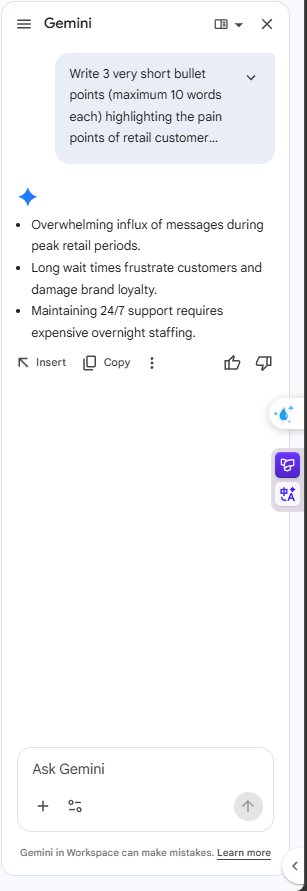
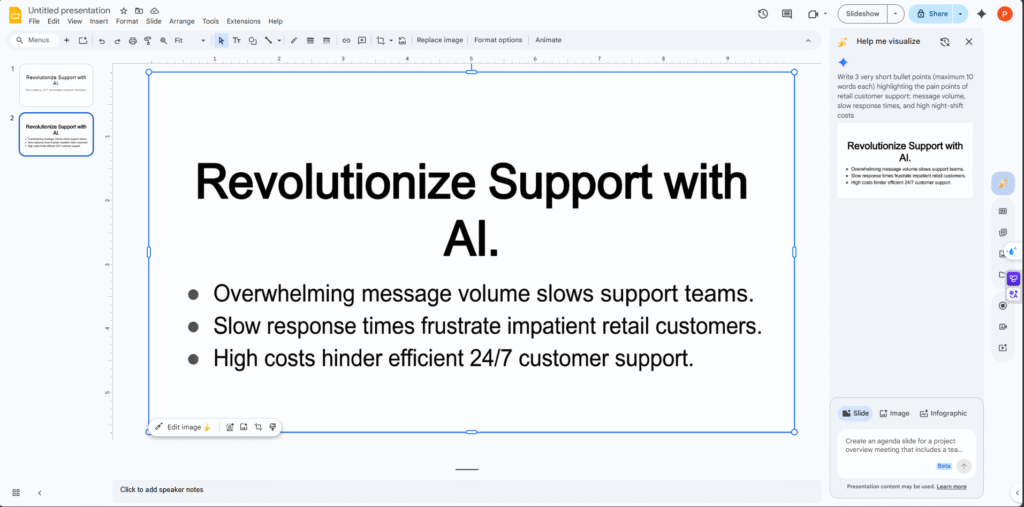
We want to describe the “pain points” without overwhelming the slide.
- The Action: Insert the perfectly condensed bullets Gemini provided into the left column of your layout.
- The Prompt (Text): “Write 3 very short bullet points (maximum 10 words each) highlighting the pain points of retail customer support: message volume, slow response times, and high night-shift costs.
Then I visualize:
Slide 3: The Approach (Text & AI Image 1)
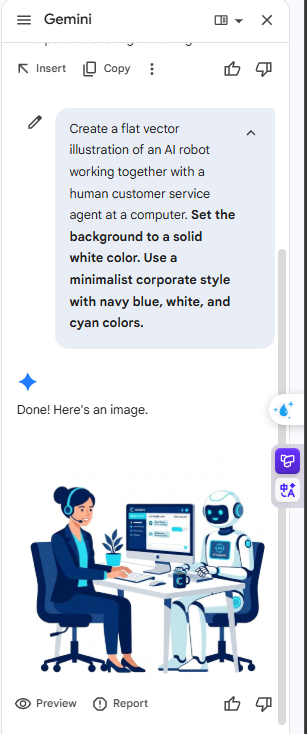
Here we explain the solution and add our first stunning visual.
The Prompt (Image): Go to the image tab. Input: “Create a flat vector illustration of an AI robot working together with a human customer service agent at a computer. Set the background to a solid white color. Use a minimalist corporate style with navy blue, white, and cyan colors.
The Prompt (Text): “Write a 2-sentence solution statement: Using AI Chatbots to automatically categorize and resolve 80% of common queries, seamlessly routing complex cases to human agents.” (Insert in the left column).
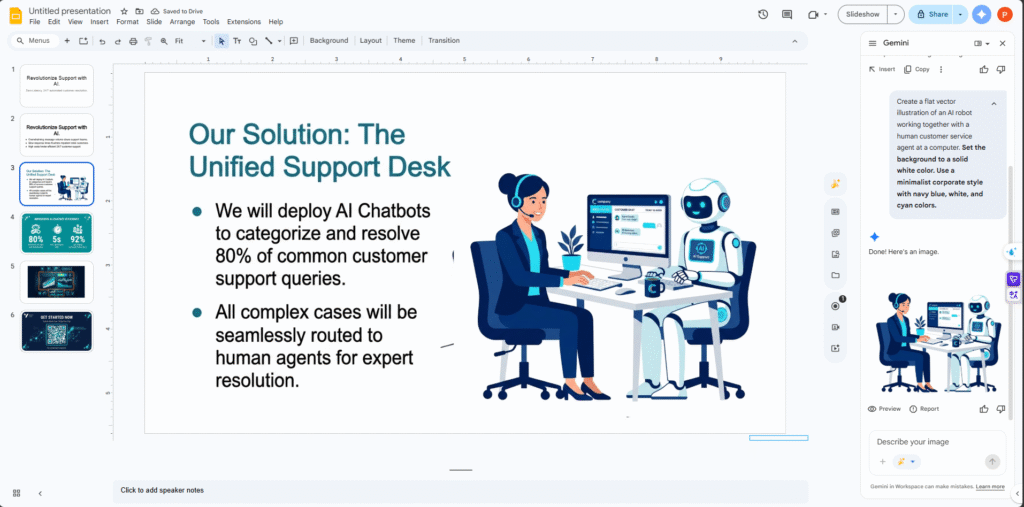
[Description of Magical Output: A beautiful, perfectly split slide. On the left, crisp text. On the right, a professional vector illustration with a flawless solid white background that blends perfectly into the slide canvas. The colors match the corporate theme exactly.]
Slide 4: Proof/Numbers (Text & AI Image 2)
Numbers sell. We will create a dark-themed slide for high contrast. (👉 Tip: Change this slide’s background to Navy Blue, set text color to White).
- The Prompt (Text): “Generate 3 impressive KPI metrics (formatted as large numbers with short labels) proving the efficiency of an AI chatbot: Auto-resolution rate, Average response time, and Customer satisfaction score.” (Insert).
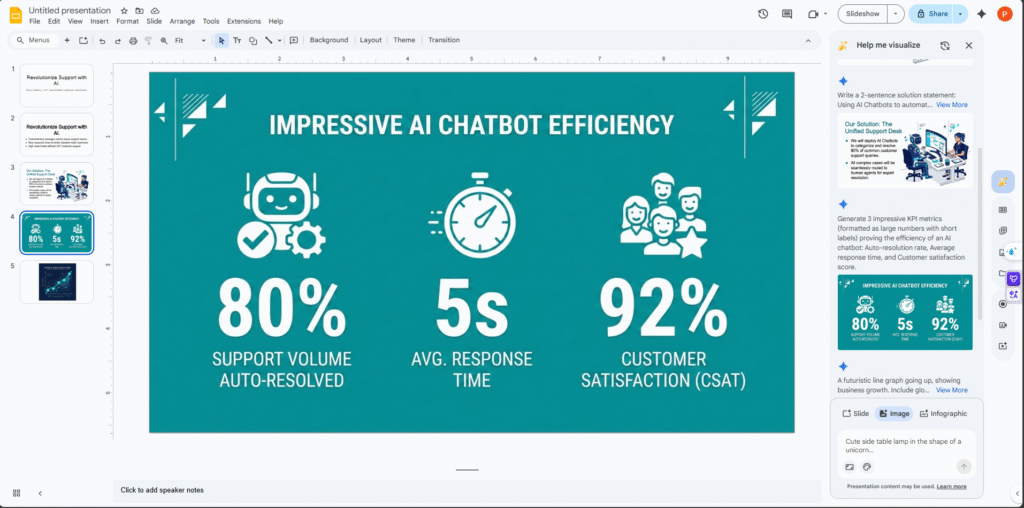
Iteration: Making the Image “Data-Rich”
For this crucial slide, a simple glowing line graph wasn’t enough impact. We needed a complex, futuristic dashboard to make our fake numbers look real. We started with a basic prompt and used targeted re-prompting to lock in the beauty and detail.
- Initial Image Prompt: “A futuristic line graph going up, showing business growth. Include glowing data nodes and abstract network lines. Use a minimalist flat vector style with bright cyan, white, and light grey colors. Ensure the background is completely solid navy blue to match a dark-themed presentation.“
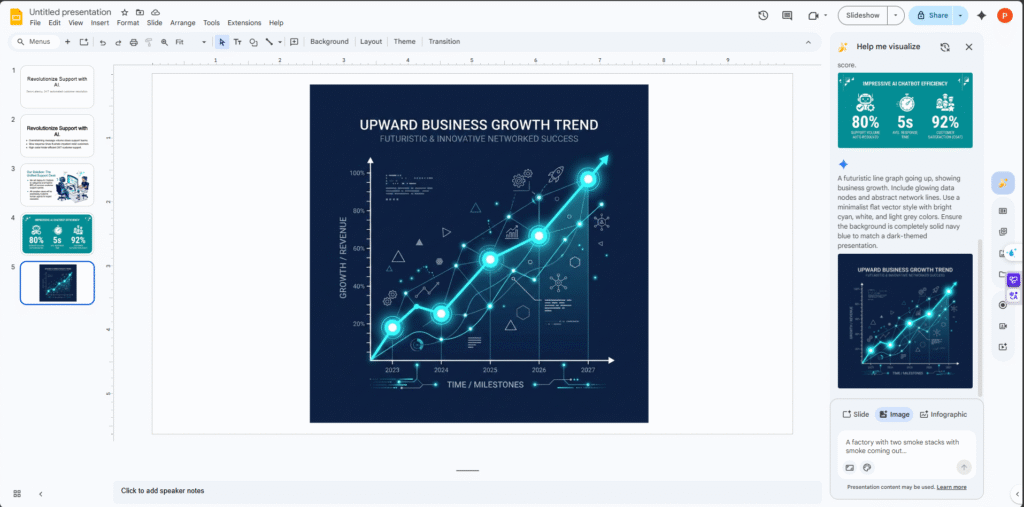
Re-Prompt 1: Add Complexity and Meaning:
“Change the single glowing line graph into a multi-layered digital dashboard view. Each part of the chart should now look like it is representing a different KPI: one group of bars for ‘Auto-resolution’ and another sparkling line for ‘Response Time’. Add a glowing ‘Before AI’ vs ‘After AI’ legend at the bottom. Maintain the solid dark navy blue background (#0A192F). Use ONLY bright cyan, pure white, and bright orange on the dark background. Ensure the minimalist, glowing flat vector style remains.”
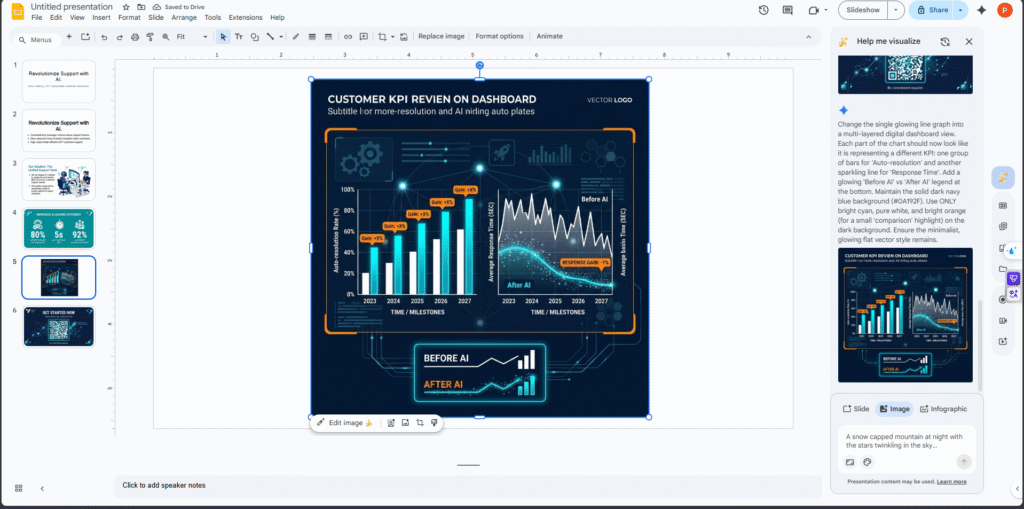
Re-Prompt 2: The Final Tech Polish:
“Make the previous digital dashboard image look more futuristic and intricate. Add subtle glowing circuit board patterns tracing across the dark navy background. Include small, floating holographic widgets and data visualizations around the main charts. The overall composition must feel like a sophisticated AI control panel. Keep the color palette tight: 90% bright cyan/white, 10% orange accents. Ensure the entire image is perfectly centered with empty margin space on the sides for text. No text should be baked into the image itself.”
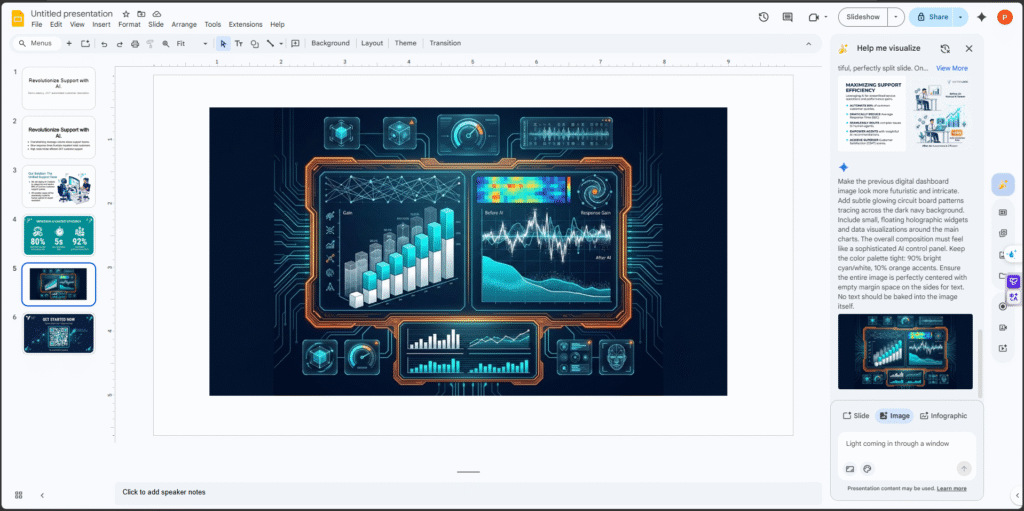
[Description of Magical Output: A high-impact “dark mode” slide. Bright cyan data points glow against the navy background. The dashboard is complex, showing layered charts and circuit patterns, yet remains perfectly centered. The style is identical to Slide 3, but optimized for the darker theme.]
Slide 5: Next Actions
Close the deal with a call to action. We add an image representing “launch” or “success.”
- The Prompt (Text): “Write a punchy call to action inviting visitors to scan the QR code for a 14-day free trial.“
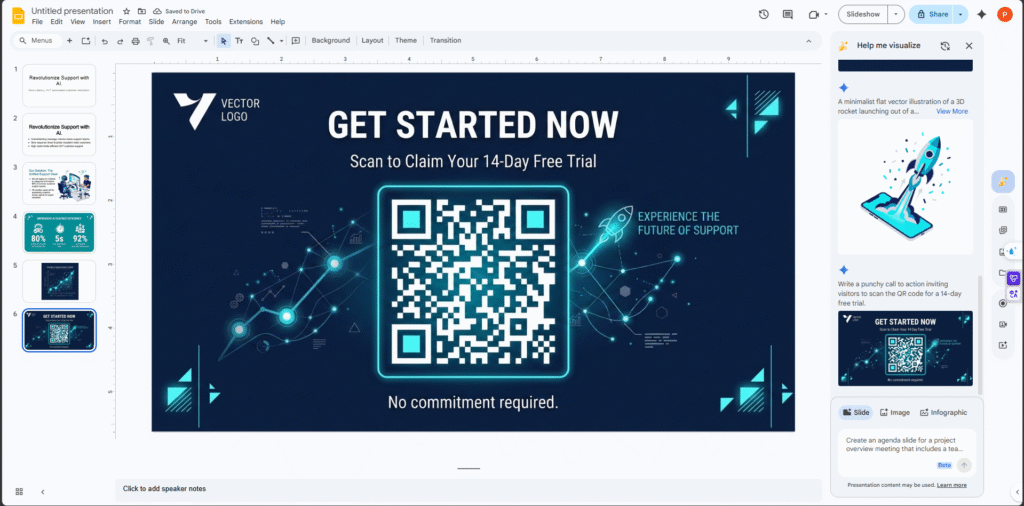
Video demo slide: https://drive.google.com/file/d/1b591MZBt6-4JXV5zXvlXoBiIe2dWkL1l/view
Conclusion: AI as Your Thought Partner
The power of Gemini in Google Slides is not that it provides a “magic button” to replace human creativity. The power is its ability to take a robust, pre-defined design constraint (the “rules”) and generate perfectly aligned text and beautiful, cohesive visuals in seconds.
By combining good design practices (Themes) with disciplined prompting (Flat vector, solid white background), you can go from a vague idea to an exhibition-ready pitch in under 15 minutes. The technology is here; your co-pilot is ready.
References & Further Reading
Want to dive deeper into maximizing your productivity with AI in Google Workspace? Check out these official guides, documentations, and resources that inspired this workflow:
- Official Google Help: Collaborate with Gemini in Google Slides
- Google Workspace Updates: AI for Presentations with Google Slides
- Google Skills Training: Gemini in Google Slides Mini-Course
- Google Workspace YouTube: Generate Images with Gemini in Google Slides
- Google Workspace YouTube: Create Presentations with Gemini
- Computerworld: How Gemini can help you make Google Slides presentations