
1. Introduction: Unleashing Creativity from a Blank Canvas
Starting a slide presentation (Pitch Deck / KPI Report) is often a long and stressful process for any professional. We spend hours wondering: How many slides should I create? What storyline works best to persuade? Where can I find copyright-free images on Google that perfectly match our company colors?
The integration of Gemini Advanced / Duet AI directly into Google Slides (via the Side panel) has completely redefined the presentation process. You don’t just have a “chatbot to type text”; you are handed a Structural Architect and a Professional Designer right within your workspace. In this demo, we will focus on demonstrating 3 core capabilities of this feature:
- Multi-slide Content Generation: With just one initial prompt (Zero-shot), the AI automatically structures your knowledge into a perfect n-slide script, natively pushing text boxes onto the corresponding slides, saving you from manual copy-pasting from an external chatbot.
- AI Interactive Image Generation & Iteration: The “Help me visualize” toolset turns ideas into exclusive images. Its greatest power isn’t the first generated image (which can often be visually chaotic), but its ability to analyze iterative prompts to force the artwork into strict Geometric/Abstract styles and exact brand colors.
- Consistency Controls (Theme Integration): The perfect synergy between AI-generated text and the native Master Layout (Theme Builder) within Google Slides ensures that every paragraph generated by the AI automatically inherits your company’s specific Fonts and layout rules (Brand Coherence).
Let’s walk through a concrete Exhibition Booth Pitch scenario to witness this incredible speed firsthand.
2. Exhibition Booth Pitch
You are attending a B2B tech exhibition. Your manager asks you to create a Mini Pitch Deck of exactly 5 Slides to loop continuously on a TV screen and serve as a quick elevator pitch for booth visitors regarding a new product: “AI Workflow Automator”.
Target Structure Requirements:
- Slide 1: Title.
- Slide 2: Problem (Teams lose 80% of their time on manual data entry).
- Slide 3: Approach (AI real-time data syncing).
- Slide 4: Proof/Numbers (Delivering 5x ROI, 10,000 hours saved for testers).
- Slide 5: Next actions (Scan QR code for a free trial).
This scenario demands absolute precision in page count and storyline to captivate attendees walking past the booth within 30 seconds.
3. Slide-by-Slide Content Generation
Open a blank Google Slides file. Currently, native Gemini operates most effectively under the strict “One slide at a time” constraint. Instead of designing layouts manually, open the **Gemini Side Panel** and sequentially prompt the AI to craft the text boxes for your 3 core slides:
PROMPT 1.1 – THE PROBLEM: Create a slide about the Problem: Teams lose up to 80% of their productive hours on redundant manual data entry, leading to high error rates and employee burnout.
PROMPT 1.2 – THE APPROACH: Create a slide about our Approach: “Real-Time AI Syncing”. Our AI Workflow Automator silently connects disparate tools, syncing data instantly without human intervention.
PROMPT 1.3 – THE PROOF: Create a slide about our Proven ROI: Delivering a 5x Return on Investment within the first quarter and over 10,000 hours saved by beta testing organizations.
Why this strategy? If you demand “Generate a 5-slide deck”, the AI will explicitly block you: “Right now, I can only create one slide at a time. For best results, try starting with ‘create a slide about…'”. Breaking down your bullet points and sliding them sequentially is the officially required method to trigger Gemini to natively format text box layouts directly onto your canvas.
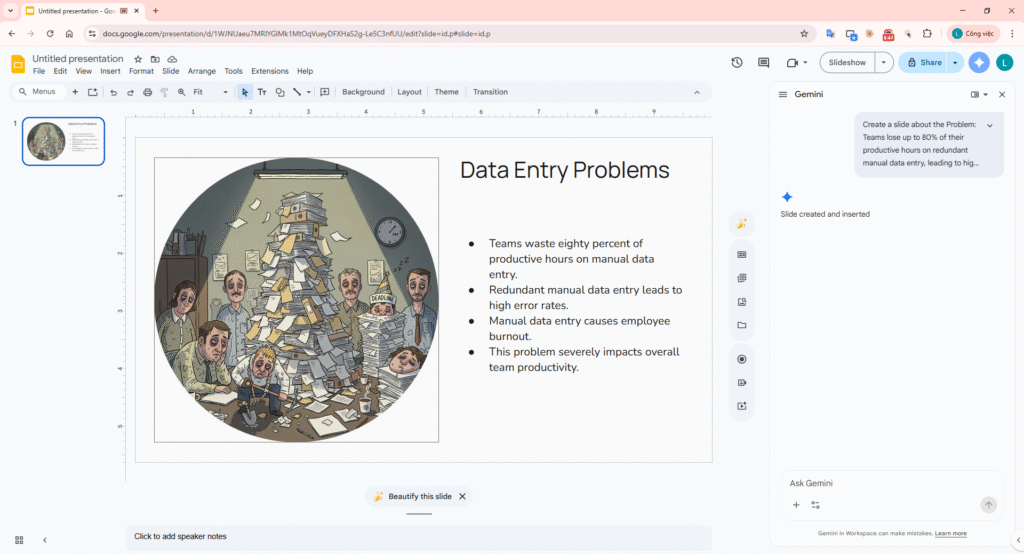
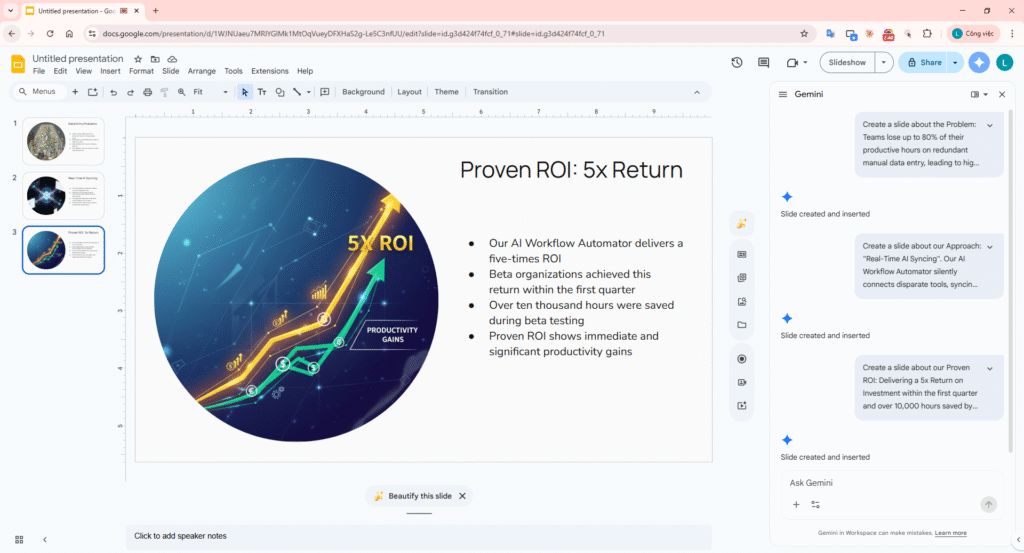
Slide-by-slide Content Generation – Direct native layout injection
4. Exclusive Image Generation & Iteration
An image creation tool is embedded directly within Google Slides (typically activated via the **Create image** button or within the Side Panel). We will generate 2 images for Slide 2 and Slide 3, executing an Iteration loop via prompts so the images match the corporate design style.
Image 2.1 and 2.2: Visualizing the Problem (Problem)
For the first attempt, we describe the problem using a generic command.
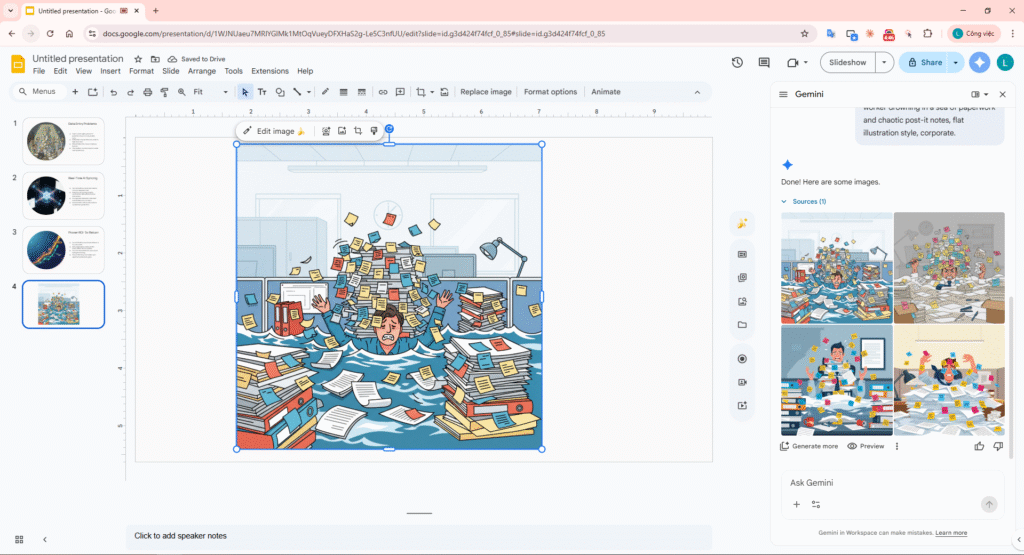
PROMPT 2.1 – PROBLEM IMG: Create an image of a frustrated office worker drowning in a sea of paperwork and chaotic post-it notes, flat illustration style, corporate.
The Problem (Before):
The initial generated image might suffer from visual clutter, awkward facial expressions, and an inconsistent color palette (using unchecked greens, reds, purples) making it brand-incoherent.
PROMPT 2.2 – ITERATION: Make the illustration cleaner, strictly use a duotone corporate color palette (navy blue and orange) to match our brand, remove facial details to keep it abstract.
Before Iteration
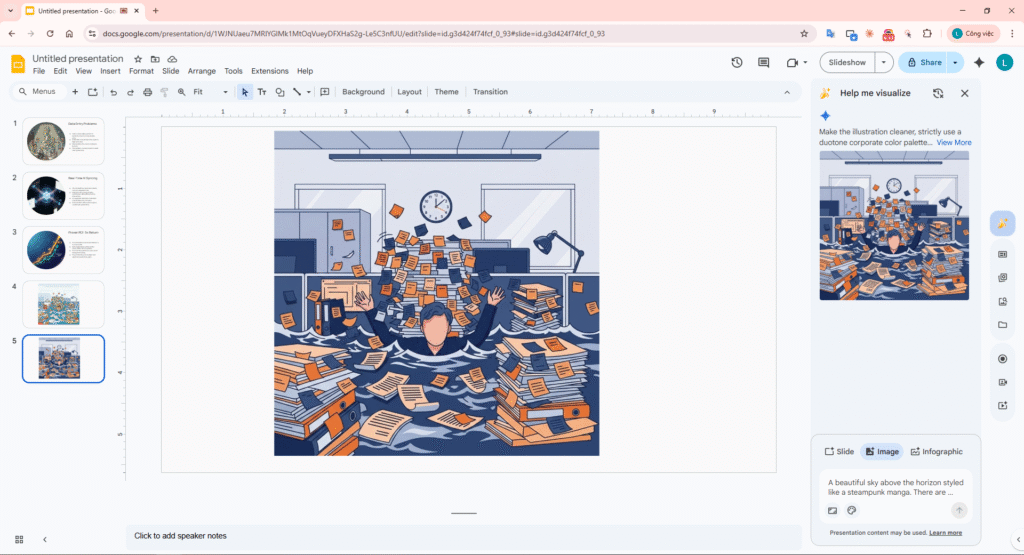
After Iteration
Image 3.1 and 3.2: Visualizing the Solution (Approach)
Moving to the technology solution slide, we require a futuristic image.
PROMPT 3.1 – APPROACH IMG: Create an image of glowing digital nodes connecting smoothly over a sleek dark background, representing AI data syncing, futuristic 3D render.
Ensuring Consistency (Iteration 2): Similarly, the generated image might look great, but a solid black background clashes with the brand identity. We re-prompt for refinement:
PROMPT 3.2 – ITERATION: Keep the glowing nodes, but make the background solid navy blue instead of black, and add a subtle orange accent light to match the corporate guidelines.
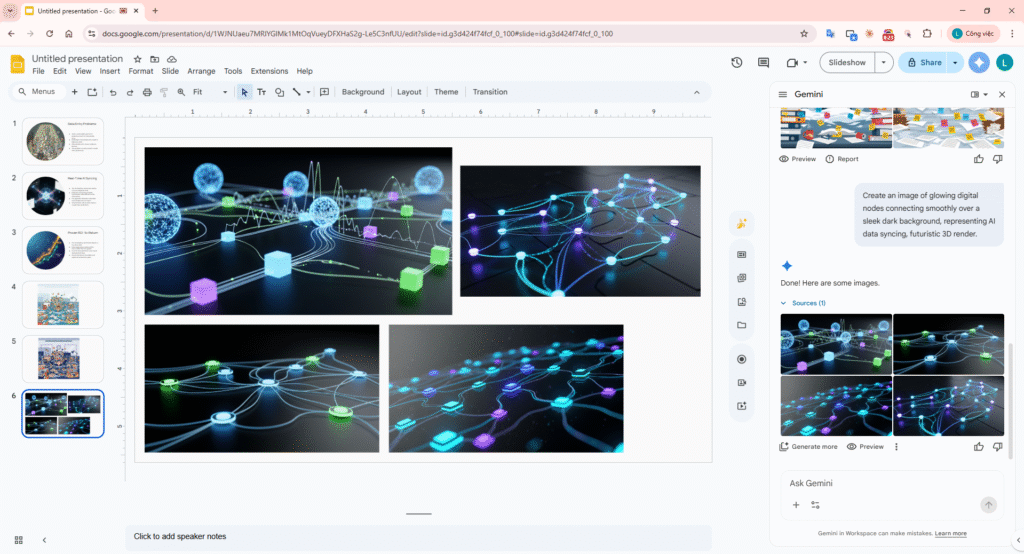
Before Iteration
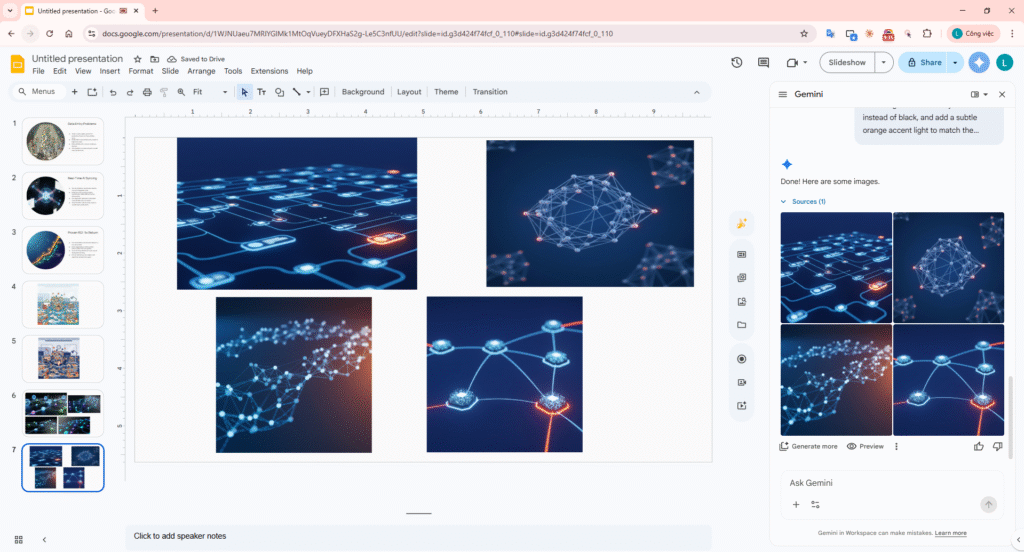
After Iteration
5. Consistency Controls (Layout & Style Coherent)
When utilizing Generative AI, the biggest risk is creating a “design soup”: slide 1 uses 3D Art, slide 2 uses sketch art, and slide 3 features oversized unformatted fonts. To deliver a professional pitch, you must lock down styling consistency.
The Most Effective Methods to Control Consistency Native to Slides:
- Prompt Constraints: Inject phrases like “Strictly use a duotone corporate color palette (navy blue and orange)” or “flat geometric illustration” into ALL image prompts. This is your first line of defense.
- Use Theme Builder: After the Gemini Side panel generates text structures, DO NOT change fonts slide by slide manually. Instead, navigate to View > Theme builder. Here:
- Select the “Master Layout”.Change the “Master Title” to your corporate font (e.g., bold Montserrat).Update the “Background” and “Text” color swatches in the system palette.
Doing this forces 100% of the AI-generated text to instantly snap into the new layout rules, achieving absolute thematic coherence.
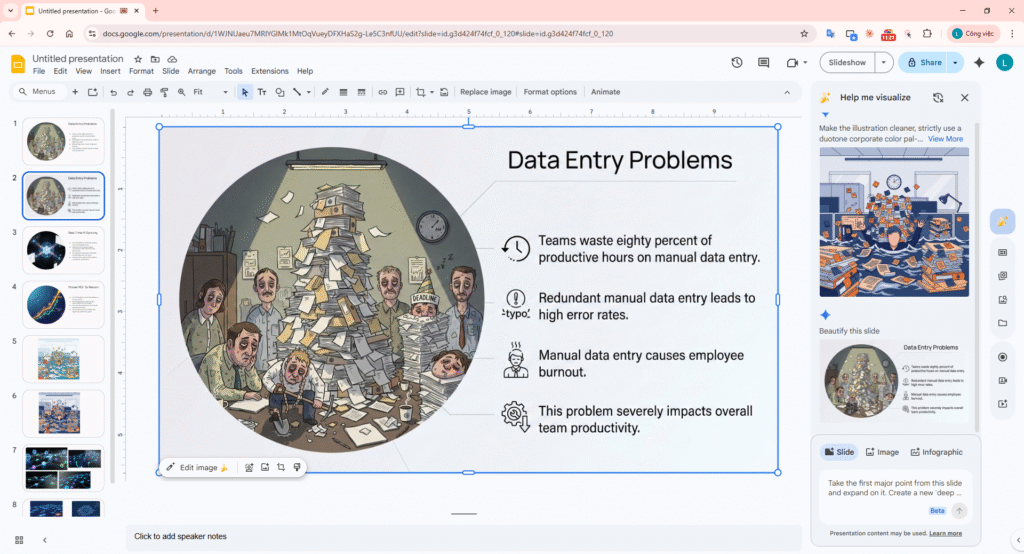
Total Consistency – The finalized AI Workflow Automator Deck
Link Slide: Rapid Pitch Deck Creation with Gemini in Google Slides
Video Demo:
6. Conclusion & Best Practices
Using the Gemini Side Panel directly inside Google Slides is miles apart from chatting with a standard text AI. It is about fundamentally delegating the structural design process to a native, self-contained drafting tool.
Key Takeaways from the Exhibition Pitch Scenario:
- Enforce Hard Limits: Explicitly commanding “Generate exactly 5 slides” in the initial prompt acts as a safety barrier against bloated, overly long generation.
- Iteration is Key: Never blindly accept the Zero-shot image generated by AI on the first try. The secret to premium pitch decks lies in your ability to iteratively re-prompt the AI, forcing it to adhere strictly to your corporate styling rules.
- Leverage Human Design Architecture: Gemini is exceptionally strong at providing the skeleton, but for the final polish, leverage the native Theme Builder feature in Google Slides to lock down global layouts and master fonts flawlessly.
7. References
The following expert resources were consulted to structure the workflows and best practices demonstrated in this guide:
- Video Tutorial: How to use Gemini in Google Slides
- Video Tutorial: AI Presentation Design Tricks
- Computerworld Article: How Gemini helps make Google Slides presentations