
If you follow tech trends or have seen the recent viral video 【神ツール】公開5日で1.4万スター!Google Workspace CLI「gws」が革命的すぎた, you have probably heard of gws (Google Workspace CLI). It is a revolutionary tool that exploded on GitHub, gathering over 14,000 stars in just 5 days.
As a developer, constantly switching context between the code editor and the browser to find a document or check an email breaks your flow. Today, I decided to get my hands dirty with the official googleworkspace/cli repository on my Windows PowerShell environment. Let’s investigate if it lives up to the hype and how we can use it to streamline and automate our daily work tasks.
1. Overview: What can gws achieve?
Based on the official repository, gws is a CLI tool written in Go that allows you to interact with almost every Google Workspace service (Drive, Gmail, Calendar, Docs, Sheets, Admin SDK, etc.) directly from your terminal.
Core Features & Capabilities:
- Dynamic Commands: It does not hardcode APIs. Instead, it dynamically reads from the Google Discovery Service at runtime. Whenever Google updates or releases a new API, gws supports it immediately.
- Developer-Friendly Output: It supports human-readable table formats and, crucially, JSON format. This makes it incredibly easy to pipe data into tools like jq or PowerShell’s Convert-from JSON.
- AI-Ready: It is designed to integrate seamlessly with AI Agents (via MCP), allowing LLMs to read/write your Workspace data securely.
2. Setup & The Authentication “Gotcha” (Windows Note)
Setting up gws is straightforward. You can download the binary from the releases page or run npm install -g @googleworkspace/cli. However, the authentication step is where Windows users might stumble.
The standard setup requires just two commands:
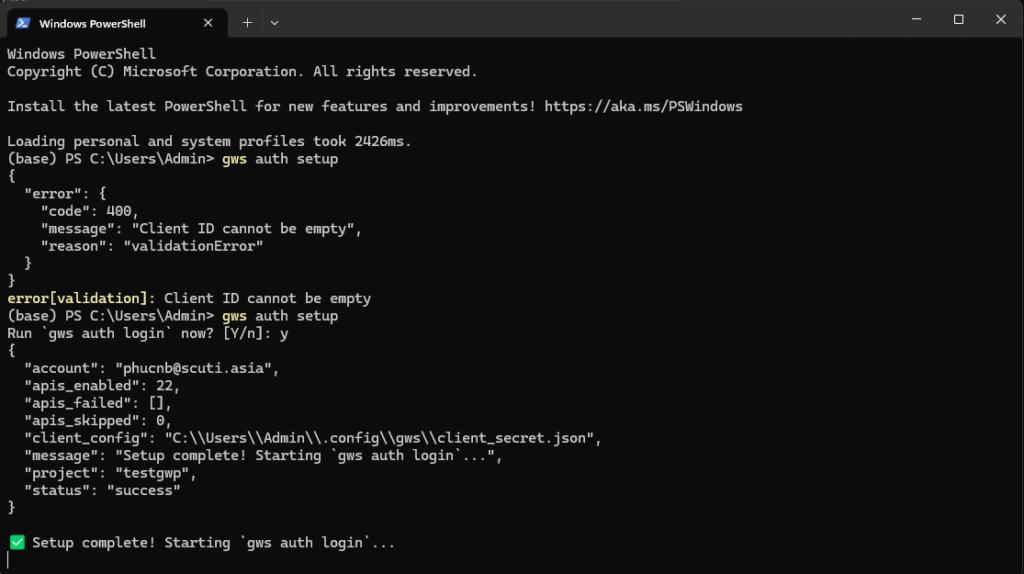
- gws auth setup
- gws auth log
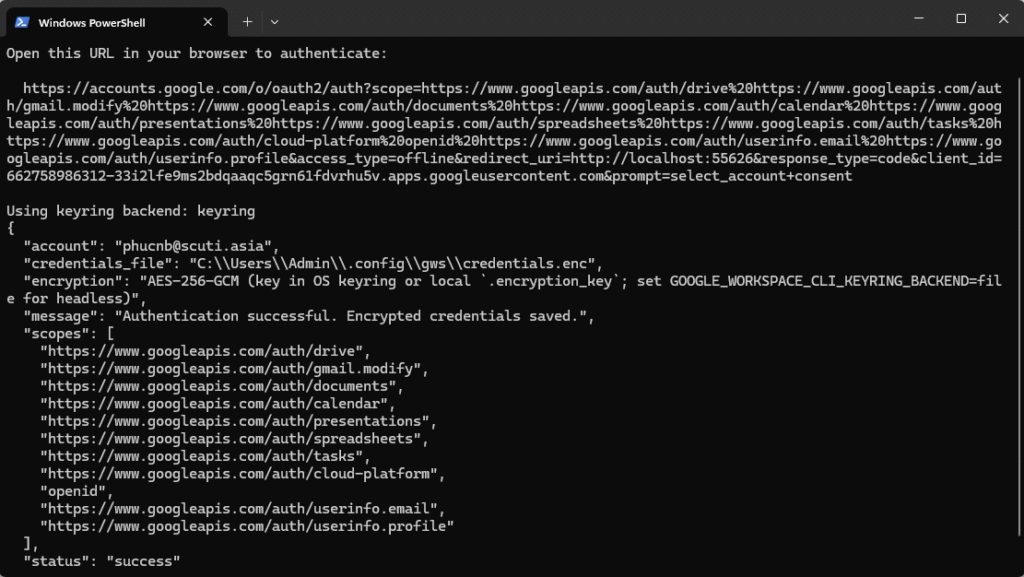
- Gotcha #1 – The PowerShell
&Operator Error: When you run gws auth login, the terminal prints a very long OAuth URL containing multiple & characters. Do not copy and paste this link directly into the next PowerShell prompt! PowerShell interprets&as a command execution operator and will throw a massive The ampersand (&) character is not allowed error.
Solution: Copy the URL from the terminal and paste it directly into the address bar of your Web Browser to grant permissions.
After pasting OAuth ClientID and Client Server:
When login sucessfull:
Video demo settiing:
3. Hands-on Practical Examples
To objectively test gws, I ran two daily tasks in my own environment: searching for a specific project file on Drive and checking for unread emails.
Example 1: Finding a folder named “Demo Auto Slides” on Google Drive
Instead of opening https://drive.google.com/ and using the search bar, I did it via the CLI.
gws drive files list –params ‘{\”q\”: \”name contains \”PHUC\” and mimeType = \”application/vnd.google-apps.folder\”\” , \”pageSize\”: 100}’ –format json
- Gotcha #2 – PowerShell JSON Escaping: > Notice the “weird” JSON syntax above? PowerShell is notorious for stripping double quotes (
") when passing strings to an .exe file. If you use standard JSON like{"q": "name…"}, gws will throw an Invalid –params JSON: key must be a string error.
- Solution for PowerShell: Wrap the entire JSON string in single quotes
'…'and escape the internal double quotes with a single backslash \”. For nested strings inside the Google query itself, you have to escape them further using \\”.
- Execution Result (Output): It successfully returned a clean JSON object containing the targeted folder IDs and metadata.
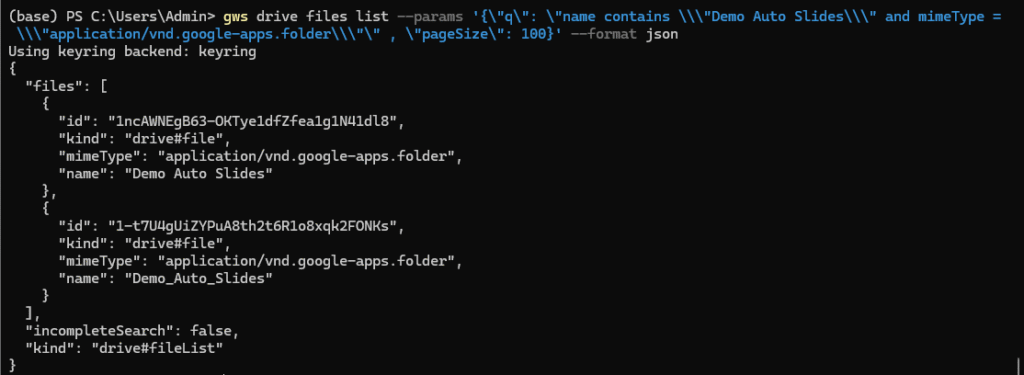
Example 2: Finding Unread Emails in Gmail
Next, I wanted to quickly check if my boss assigned any new tasks without opening the Gmail tab. I queried for the 5 most recent unread emails. Fortunately, gws has a fantastic built-in shortcut for this exact workflow!
- Command Executed:
gws gmail +triage --format table --max 5
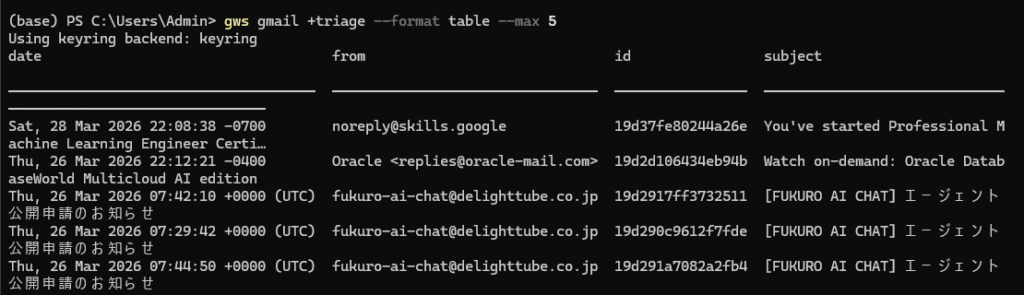
- Execution Result (Output): Instead of JSON, this command outputs a beautifully formatted table directly in the terminal, showing the sender, subject, and snippet of the unread emails.
- From here, I can easily read the summary, grab the id from the table, and run
gws gmail users messagesgetto read the full email content directly in the terminal if needed.
4. Personal Opinion & Applying Automation
In my opinion, gws is an absolute game-changer. It completely eliminates the need to write 50 lines of Python/Node.js boilerplate code and configure Service Accounts just to make a simple Google API request. The speed is phenomenal, and the JSON output makes it the perfect puzzle piece for scripting.
How I plan to apply gws to automate my daily work:
- The “Good Morning” Dashboard: I plan to write a PowerShell script that runs every time I open my terminal. It will use gws calendar events list to fetch my meetings for the day and gws gmail to fetch unread emails, displaying a neat summary right in my console.
- Automated Source Code Backup: I will create a cronjob/scheduled task that zips my local project folder and uses gws drive files create to automatically upload the backup archive to a specific Google Drive folder at 5:00 PM every day
5. The Drawbacks: Where gws Falls Short
To keep this review objective, it’s important to mention that gws isn’t entirely perfect. Here are a few limitations I noticed during my investigation:
- Shell-Specific Syntax Headaches: As we saw with the PowerShell JSON escaping issue, passing complex nested JSON parameters via the –params flag can quickly become a nightmare of backslashes (
\). A script written for Bash might completely break on PowerShell due to how different shells handle quotes. - API Rate Limits: gws interacts directly with Google Workspace APIs, meaning it is bound by standard Google API quotas. If you write an aggressive automation script (e.g., trying to bulk-download thousands of Drive files in a tight loop), you will inevitably hit a 429 Too Many Requests error.
- Not Ideal for Rich Media: While checking unread emails via gws gmail +triage is fantastic, actually reading a complex email containing HTML, CSS, or inline images inside the terminal is a messy experience. It is strictly a text-first tool.
- Initial Setup Friction: Although gws auth setup makes things easier, the Google OAuth consent screen still warns that the app is “unverified.” This might be confusing or alarming for non-developers if you try to share your automation scripts with regular users in your company.
Conclusion
If you are a developer, sysadmin, or just someone who prefers the keyboard over the mouse, you need to try gws. Once you get past the initial setup (and figure out PowerShell’s quirky JSON escaping), it will save you an immense amount of context-switching time.
Check out the repository here: googleworkspace/cli