

1. Introduction to Claude Chrome Extension
Claude Chrome Extension (Claude in Chrome) is a powerful tool that allows you to interact with Claude directly in your Chrome browser. This extension can be used in two ways:
- Direct usage: Click the extension icon → chat with Claude about the current webpage content. No additional configuration needed, just install and authorize to use immediately.
- E2E Testing with Claude Code: Combine with Claude Code to perform automated E2E testing. Claude Code can control Chrome (click, fill forms, navigate) through natural language commands. This method requires additional configuration (see section 4).
Unlike traditional testing tools, this extension allows you to test web applications in your real browser session – preserving cookies, logins, and authentication.
1.1. Key Benefits
- Testing in real browser session: No need to manage separate credentials, test directly with your logged-in session
- Natural language testing: Write test cases in natural language, Claude automatically executes them
- Live debugging: Debug and test web apps directly from terminal
- No context switching: Work in terminal, no need to switch between terminal and browser
- Multi-browser support: Supports Chromium, Firefox, WebKit
1.2. What is E2E Testing?
End-to-End (E2E) Testing is a method of testing the entire application flow from start to finish, just like how real users would use it. With Claude Chrome Extension, you can:
- Test form filling and submission
- Validate links and navigation
- Check accessibility (WCAG 2.1 AA)
- Verify responsive layout
- Check console errors
- Test multi-step user workflows
2. System Requirements
Before starting, ensure you have the following requirements:
2.1. Required Software
- Google Chrome: Latest version (recommended)
- Claude Code CLI: Version v2.0.73 or higher
- Claude in Chrome Extension: Version v1.0.36 or higher
- Node.js and npm: To install Chrome DevTools MCP Server (if needed)
2.2. Claude Account
- Claude Pro, Team, or Enterprise plan – This extension requires a paid plan
- Logged into Claude Code
2.3. Operating System
Extension supports:
- Windows 10/11
- macOS
- Linux
3. Installation and Authorization
3.1. Install Extension
Install Claude in Chrome in a few steps:
- Open Chrome → go to https://chrome.google.com/webstore
- Search for “Claude in Chrome” (by Anthropic)
- Click Add to Chrome → confirm
- Check Claude icon on toolbar or Extensions menu (puzzle icon) → “Claude in Chrome” is Enabled
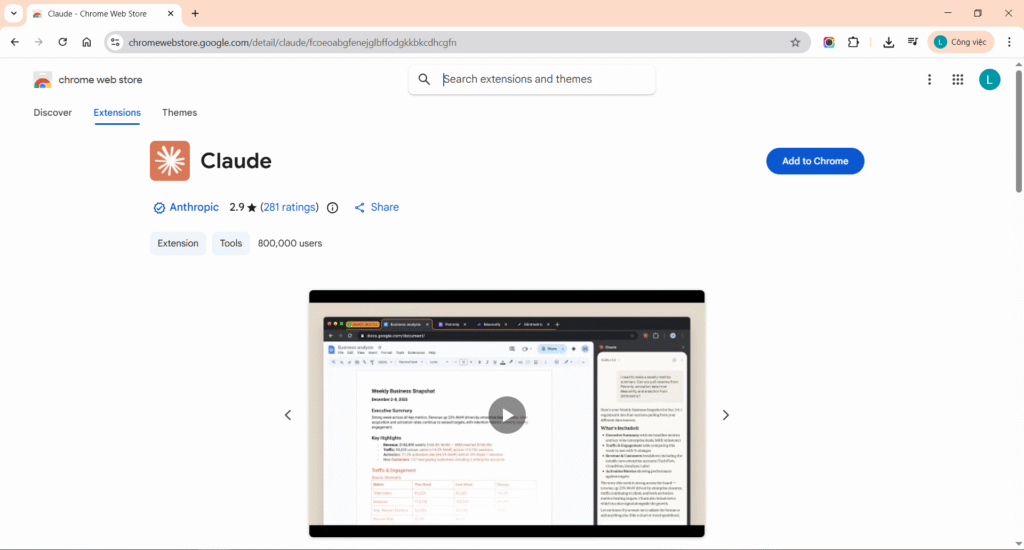
Chrome Web Store (Claude in Chrome page or Add to Chrome button) or Extensions menu with Claude in Chrome installed and Enabled.
3.2. Authorization
After installation, open the extension and authorize:
- Click Claude icon on Chrome toolbar (or open from Extensions menu)
- Click Authorize (if not logged in)
- Confirm access (may need to log in with Claude Pro/Team/Enterprise account)
- Done! You can now click the extension icon and use it immediately
Note: After authorization, you can use the extension directly by clicking the Claude icon on the toolbar. No additional configuration needed if you only want to chat with Claude about webpage content.
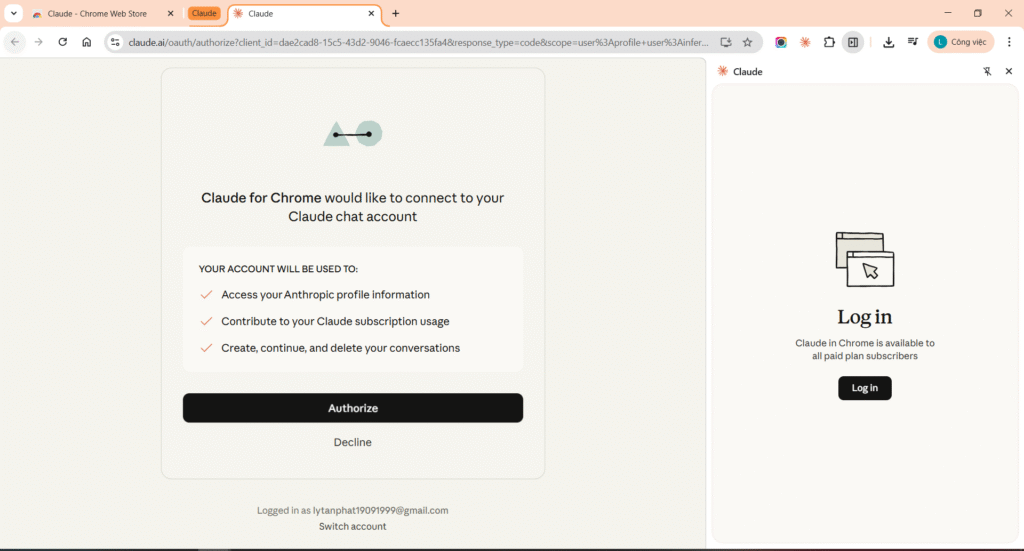
Claude in Chrome popup with Authorize button or authorization success screen, ready to use.
4. Claude Code Configuration (Optional – Only for E2E Testing)
Important note: This section is only necessary if you want to use Claude Code to perform automated E2E testing. If you only use the extension directly (click icon → chat with Claude about the webpage), you don’t need this section.
To enable Claude Code to automatically control Chrome for E2E testing, you need additional configuration:
- Install Chrome DevTools MCP Server: npm install -g @modelcontextprotocol/server-chrome-devtools
- Configure Claude Code: Open claude_desktop_config.json (Windows: %APPDATA%\Claude\, macOS/Linux: ~/.config/claude/), add:{ “mcpServers”: { “chrome-devtools”: { “command”: “npx”, “args”: [“-y”, “@modelcontextprotocol/server-chrome-devtools”] } } }
- Launch Chrome with remote debugging: Close Chrome, then run:
Windows: “C:\Program Files\Google\Chrome\Application\chrome.exe” –remote-debugging-port=9222
macOS: /Applications/Google\ Chrome.app/Contents/MacOS/Google\ Chrome –remote-debugging-port=9222 - Restart Claude Code to load the MCP server.
When is this needed? Only when you want Claude Code to automatically perform actions on Chrome (click, fill forms, navigate) through natural language commands. If you only want to chat with Claude about webpage content, you don’t need this configuration.
Note: If you already have other MCP servers, just add “chrome-devtools” to “mcpServers“.
5. Basic Features
After installation and authorization, you can use Claude Chrome Extension in two ways:
5.0. Direct Extension Usage
Click the Claude icon on Chrome toolbar → chat with Claude about the current webpage content. Claude can read and analyze page content, answer questions, or help you understand code/design.
Example prompts:
- “Summarize the content of this page”
- “How many links are on this page?”
- “Analyze the accessibility of this page”
- “Explain the JavaScript code on this page”
5.1. E2E Testing with Claude Code (requires section 4 configuration)
If you’ve configured Claude Code (section 4), you can perform automated E2E testing. Claude Code can:
- Click elements: Click buttons, links, or any element on the page
- Fill forms: Fill input fields, textareas, select boxes
- Navigate: Navigate between pages, back/forward
- Scroll: Scroll page up/down
- Read text: Read text content on the page
- Check elements: Check for element existence
- Validate attributes: Check element attributes (href, src, alt, etc.)
- Console errors: Read and check console errors
- Multi-step tests: Perform complex multi-step tests
- Conditional logic: Claude can decide next steps based on current results
- Error handling: Automatically handle errors and retry if needed
6. Real-world E2E Test Demo
Note: This section requires Claude Code configuration (section 4). If you only use the extension directly, you can skip this section.
Below is a real-world video demo of basic test cases with Claude Chrome Extension. In the video, you’ll see Claude Code execute test cases using natural language commands and automatically control Chrome to perform each step.
E2E Testing Video Demo
English Center Management System – Test Cases
6.1. Student Registration Form Test
Test Case: Create a new student with complete data and verify successful storage.
What you’ll see in the video:
- Claude accesses the “Create New Student” page
- Claude automatically finds and fills form fields: Student ID (SV001), Full Name (Trần Thị Minh Khánh), Email ([email protected]), Phone Number (0987654321)
- Claude fills additional information: Date of Birth, Gender, Address, School Class, Enrolled Course
- Claude clicks the “Create Student” button
- Claude checks the results: Database error message, or successful redirect to student list
- Results are reported in the chat
Sample Prompt:
"Test creating a new student on the system:
- Fill Student ID: 'SV001'
- Fill Full Name: 'Trần Thị Minh Khánh'
- Fill Email: '[email protected]'
- Fill Phone Number: '0987654321'
- Fill Date of Birth: '15/05/2008'
- Select Gender: 'Female'
- Fill Address: '123 Le Loi Street, District 1, HCMC'
- Select School Class: 'Grade 10'
- Select Course: 'English Intermediate B1'
- Click 'Create Student' button
- Check for error messages or successful redirect"
Expected Results:
- ✅ All fields filled correctly
- ⚠️ Database error occurs: “Incorrect integer value ‘active’ for column ‘status'”
- ❌ Student not saved due to enum status error
- 💡 Issue: Parent information (Guardian Details) values not saved
Improvement Suggestions:
- Fix enum status error in controller or migration
- Add validation before form submission
- Implement try-catch for graceful database error handling
6.2. Student Search Function Test
Test Case: Test student search functionality by name/ID.
What you’ll see in the video:
- Claude finds the search input field “Search Students…”
- Claude enters search keyword: “Trần Thị Minh Khánh”
- Claude clicks the “Search” button
- Claude verifies that search results display the correct student
- Claude confirms URL contains query parameter
?search=... - Results are reported
Sample Prompt:
"Test the student search functionality:
- Find the search input on the student list page
- Enter search keyword: 'Trần Thị Minh Khánh'
- Click 'Search' button
- Verify the list displays the correct student
- Check that URL contains the search query parameter
- Report search results"
Expected Results:
- ✅ Search input found successfully
- ✅ Keyword entered correctly
- ✅ Search results display student “Trần Thị Minh Khánh”
- ✅ URL:
http://127.0.0.1:8000/admin/students?search=Trần+Thị+Minh+Khánh - ✅ “View” button available to access student details
Improvement Suggestions:
- Add advanced search filters (by class, status, etc.)
- Highlight search keywords in results
- Implement pagination for large result sets
6.3. Student Detail View & Responsive Test
Test Case: View student details and test responsive design on various devices.
What you’ll see in the video:
6.3.1 – Detail View:
- Claude clicks the “View” button to enter the student detail page
- Claude verifies complete information display: ID, Name, Email, Phone, Date of Birth, Gender, Address
- Claude checks parent/guardian information (if available)
- Claude verifies list of enrolled courses
- Claude checks attendance and payment records
6.3.2 – Responsive Design:
- Claude resizes browser to mobile size (375x667px – iPhone)
- Claude verifies layout automatically adjusts
- Claude checks if navigation menu switches to hamburger menu
- Claude verifies text and buttons are large enough for mobile touch
- Claude checks if images and charts scale correctly on mobile
- Claude resizes to tablet size (768x1024px – iPad)
- Claude verifies tablet layout
- Claude checks spacing and alignment
- Claude resizes back to desktop (1200x800px)
- Claude verifies desktop layout
Sample Prompt:
"Test student detail view and responsive design:
1. Click 'View' button to enter student detail page
2. Verify display: Name, Email, Phone, Date of Birth, Class, Courses
3. Check parent/guardian information
4. Verify course enrollment and attendance records
5. Resize browser to 375x667 (mobile), check layout, menu, text size
6. Resize to 768x1024 (tablet), check spacing
7. Resize back to 1200x800 (desktop)
8. Report any responsive issues found"
Expected Results:
Student Details:
- ✅ All personal information displays correctly
- ✅ Enrolled Courses: English Intermediate B1 (ENG-B1-001)
- ✅ Enrollment Date: Jan 23, 2026
- ⚠️ Parent/Guardian information displays “N/A” (due to database error)
Responsive:
- ✅ Mobile view: Layout is acceptable, sidebar collapsible, text readable
- ✅ Tablet view: Proper spacing, content clearly displayed
- ✅ Desktop view: Optimized layout, easy to read
Improvement Suggestions:
- Fix bug: Parent information not saving correctly
- Mobile: Add touch-friendly buttons
- Responsive: Test landscape mode
- UI: Add breadcrumb navigation
6.4. Dashboard Overview & Statistics Test
Test Case: Verify Dashboard displays statistics and charts correctly.
What you’ll see in the video:
- Claude accesses the Dashboard page
- Claude verifies statistics display: Total Students (1,234), Courses (24), Attendance Rate (89%), Revenue ($45,678)
- Claude checks chart displays: “Student Enrollment Trends” (line chart), “Student Distribution by Course” (pie chart)
- Claude verifies responsive behavior on mobile, tablet, and desktop
- Results are reported
Sample Prompt:
"Test Dashboard statistics:
- Navigate to Dashboard page
- Verify metrics display: Total Students, Courses, Attendance Rate, Revenue
- Check all charts: line chart and pie chart rendering
- Verify percentage changes and trend indicators (%, ↑↓ arrows)
- Resize to mobile (375x667), verify charts are responsive
- Verify all information remains readable on mobile
- Report results"
Expected Results:
- ✅ Dashboard loads successfully
- ✅ All statistics display correctly
- ✅ Charts render correctly (line chart, pie chart)
- ✅ Responsive on mobile, tablet, and desktop
- ✅ Navigation menu works correctly on all sizes
6.5. Results & Reporting Summary
Test Results Summary:
Test CaseStatusIssuesImprovementStudent Registration⚠️ PartialDatabase enum error, Parent info not savedFix status enum, add validation messagesStudent Search✅ PassNoneAdd advanced filtersStudent Detail View✅ PassParent info shows N/AFix parent data saving bugResponsive Design✅ PassNoneTest landscape modeDashboard✅ PassNoneAdd real-time data updates
Main Issues Identified:
- 🐛 Database Error:
SQLSTATE[HY000]: Incorrect integer value 'active' for column 'status'- Root Cause: Status enum passed as string instead of integer
- Fix: Update controller or migration
- 🐛 Parent Information Bug: Guardian information not saved
- Root Cause: Possibly caused by enum status error or relationship issue
- Fix: Review parent model relationship
Strengths:
- ✅ User-friendly UI/UX
- ✅ Good responsive design
- ✅ Clear dashboard information display
- ✅ Functional search feature
All results are displayed directly in Claude Code chat, making it easy to review and debug.
Watch the demo video: The full demo video of the above test cases will be attached in this article. You can watch it to better understand how Claude Chrome Extension performs automated E2E testing.
7. Results and Evaluation
After performing E2E tests with Claude Chrome Extension, here’s what we achieved:
7.1. Advantages
- Easy to use: Write tests in natural language, no need to learn complex syntax
- Flexible: Claude can adapt to UI changes, no need to update selectors frequently
- Testing in real session: Test with real cookies and authentication
- Intelligent element selection: Claude automatically finds appropriate elements, no need to hardcode selectors
- Comprehensive reporting: Detailed test result reports
7.2. Limitations
- Requires paid plan: Needs Claude Pro/Team/Enterprise
- Complex setup: Requires MCP server configuration and remote debugging
- Chrome dependency: Requires Chrome running with remote debugging enabled
- Performance: May be slower than headless browser testing for large test suites
7.3. Suitable Use Cases
- Testing authenticated applications (requires login)
- Quick smoke tests for new features
- Accessibility testing
- Form validation testing
- Manual testing automation
8. Conclusion
Claude Chrome Extension is a powerful tool for performing E2E testing with a new approach: natural language test definitions and intelligent automation. Unlike traditional testing frameworks, this extension allows you to test in real browser sessions and write test cases naturally.
Key points:
- Initial setup can be complex, but once configured, usage is very simple
- Suitable for quick tests and manual testing automation rather than large-scale CI/CD pipelines
- Natural language approach helps non-technical team members write and maintain tests
- Testing in real browser sessions helps catch issues that headless testing might miss
If you’re looking for a new way to automate E2E testing with less code and more flexibility, Claude Chrome Extension is worth considering.